Adding a Project
Creating a Project
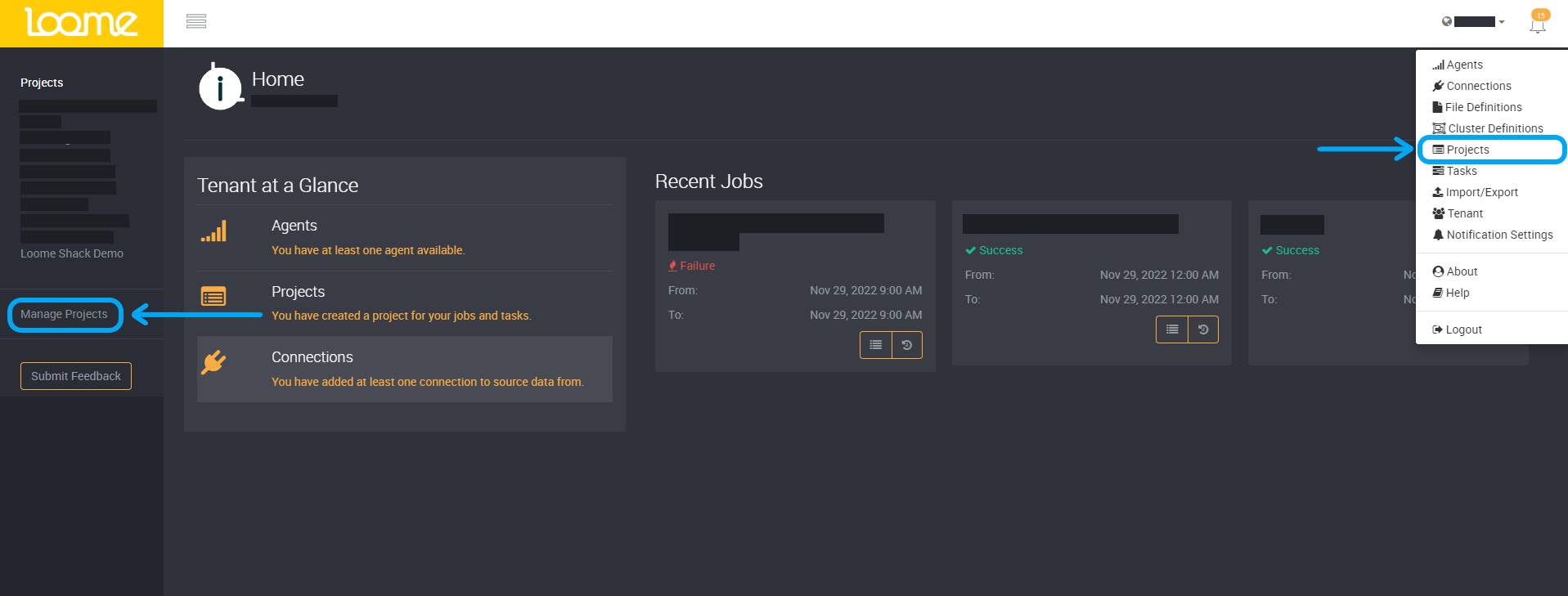
From the Loome Integrate homepage, you can create a project by selecting Manage Projects on the left-hand slideout or you can select Projects from the menu in the top-right dropdown.
On the ‘Manage Projects’ page, click on New Project at the top-right of the page.

Enter your chosen project name.
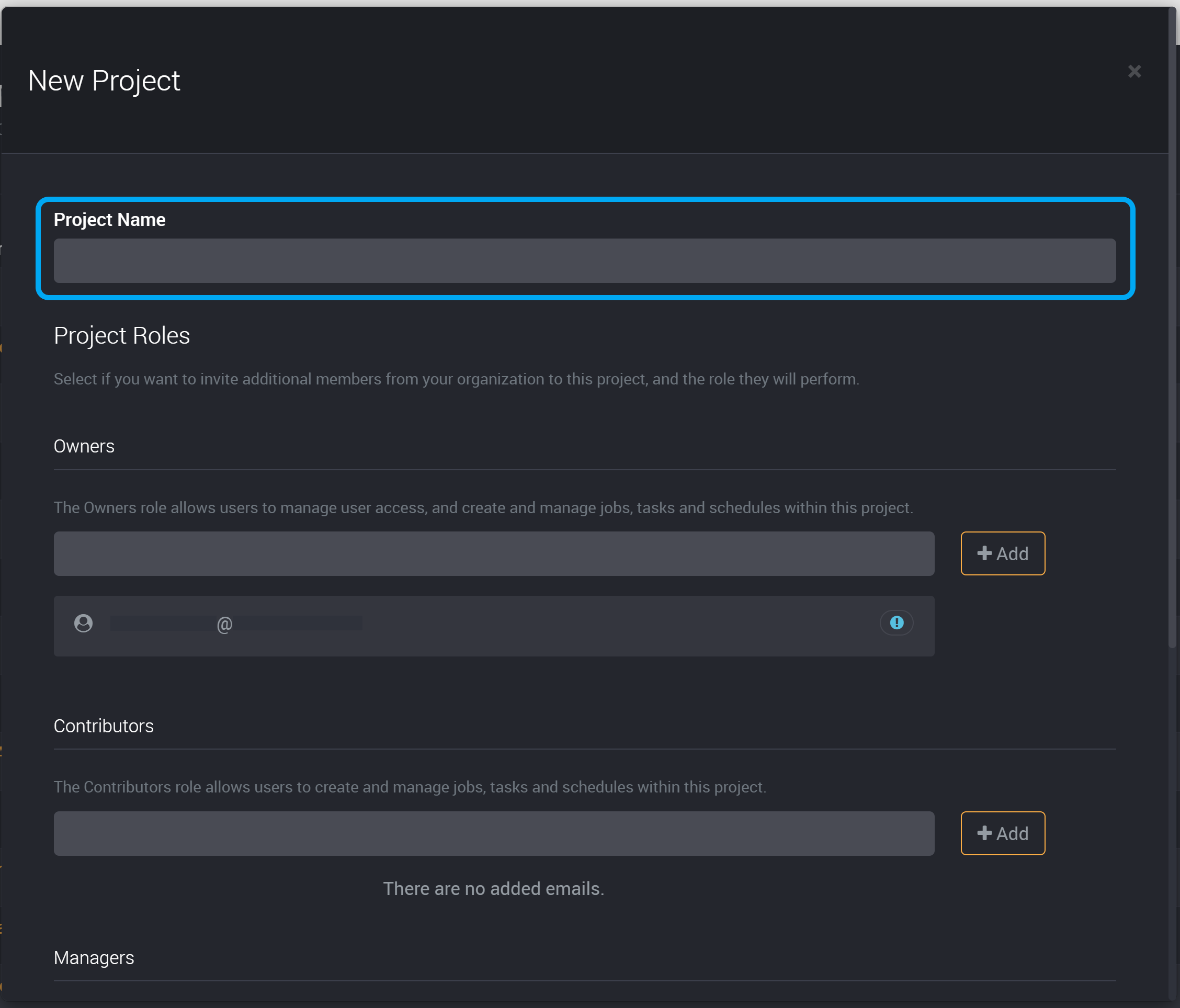
Click Next.
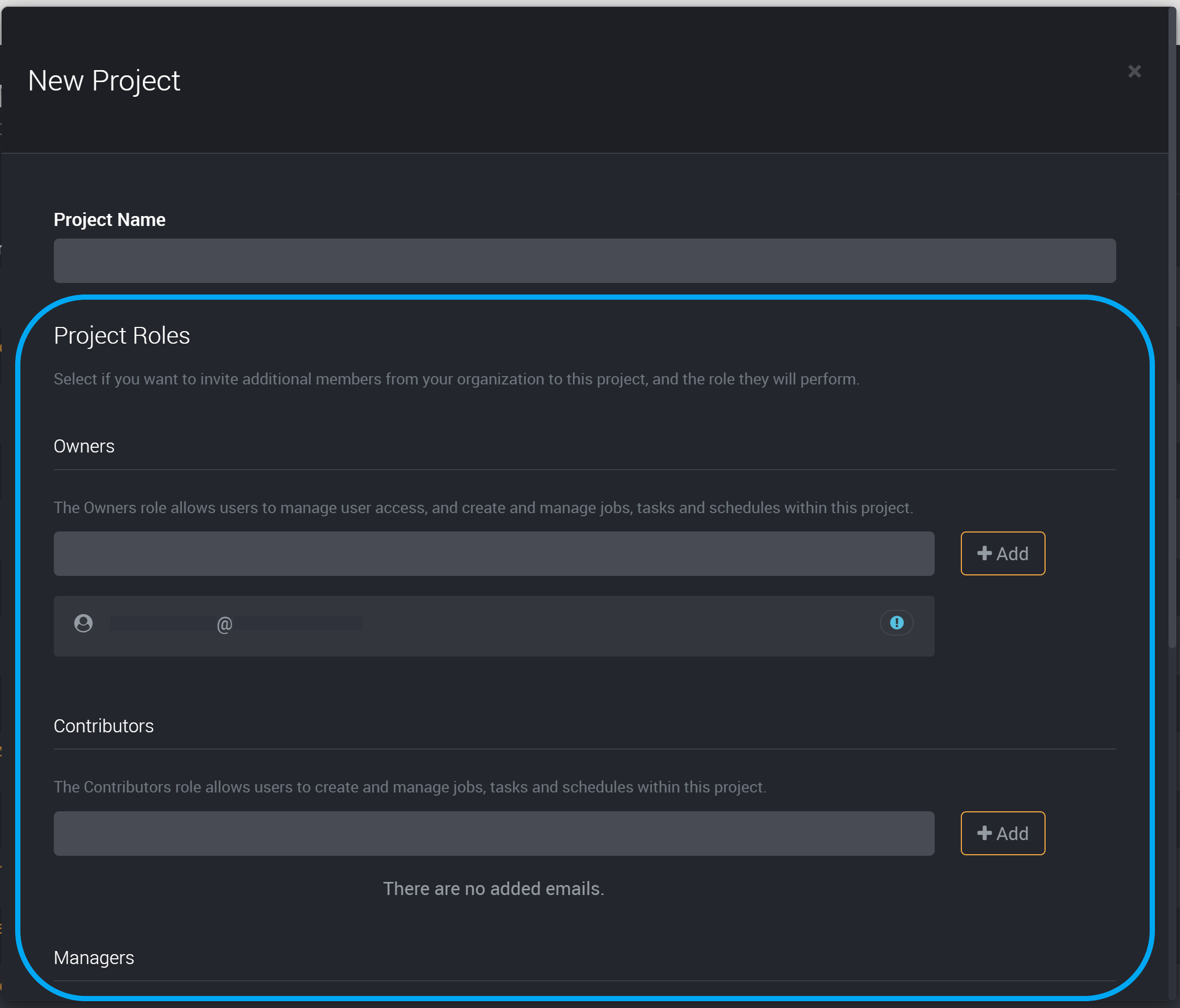
Then you can add users to project roles. This will invite additional members from your organization to this project.
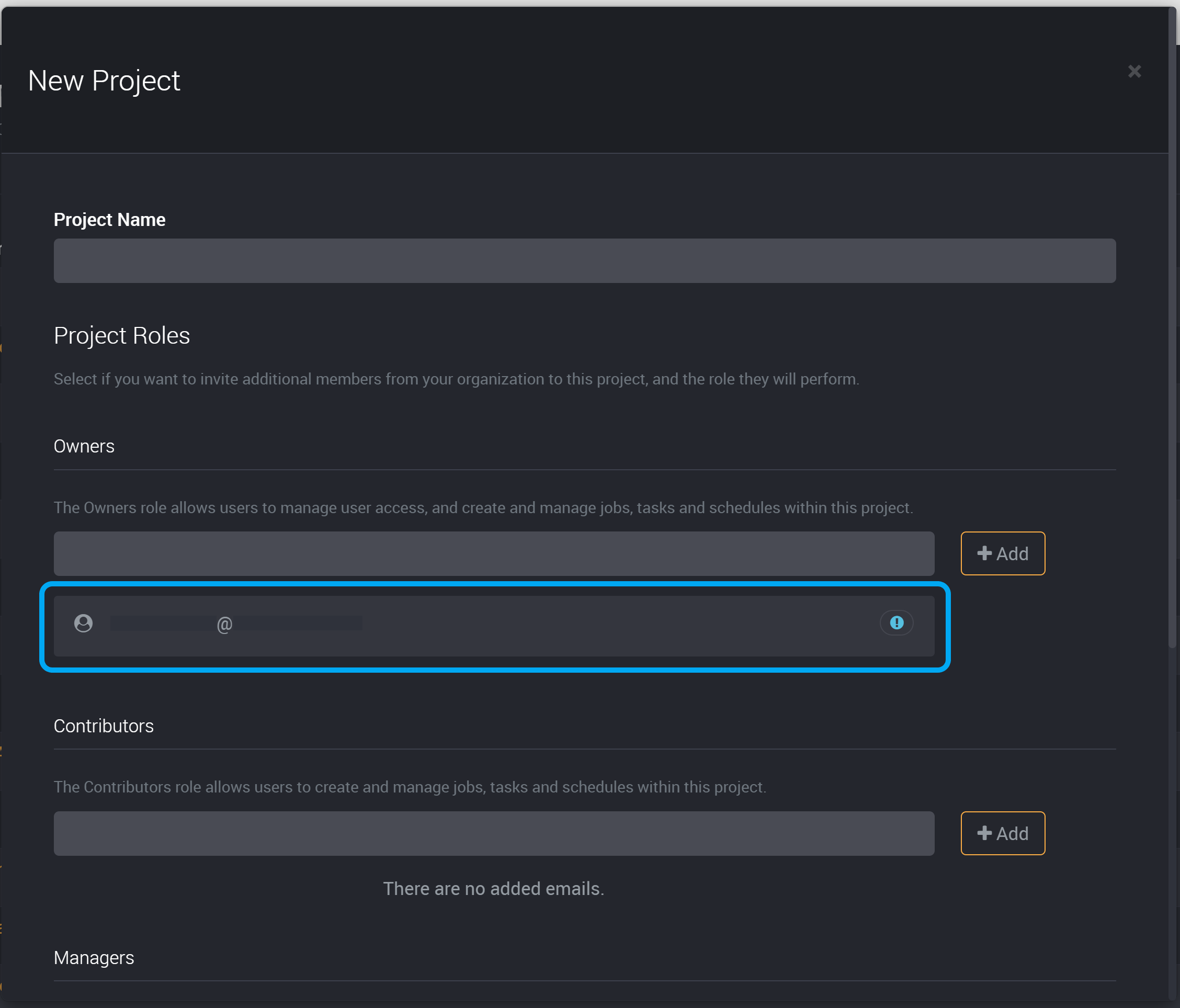
You will automatically be added as a project owner when creating a new project.
The following steps vary depending on whether your organization has enabled user or group lookup. Learn more about adding users to projects here. Please contact your administrator if you would like to change these settings.
Choose the project role from the tabs at the top of this section.
Click on Add Members.
Choose to add a user, group or API Key.
Learn more about other project roles and adding users, groups and API Keys on the project roles page here.
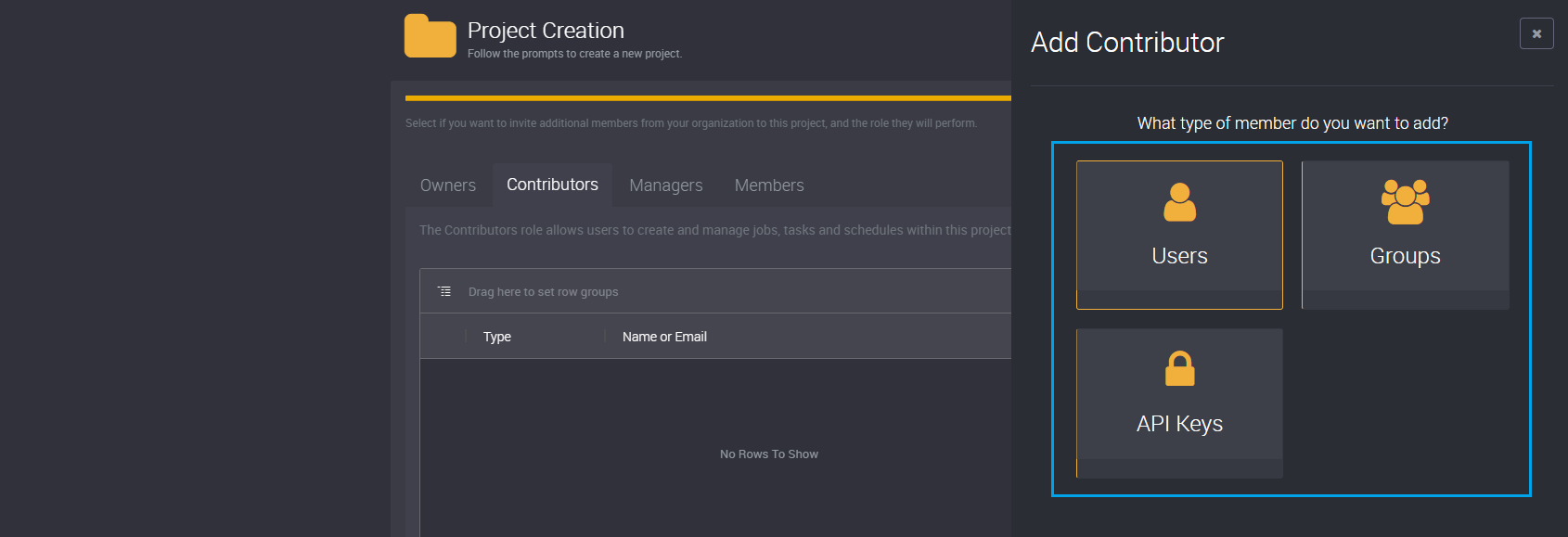
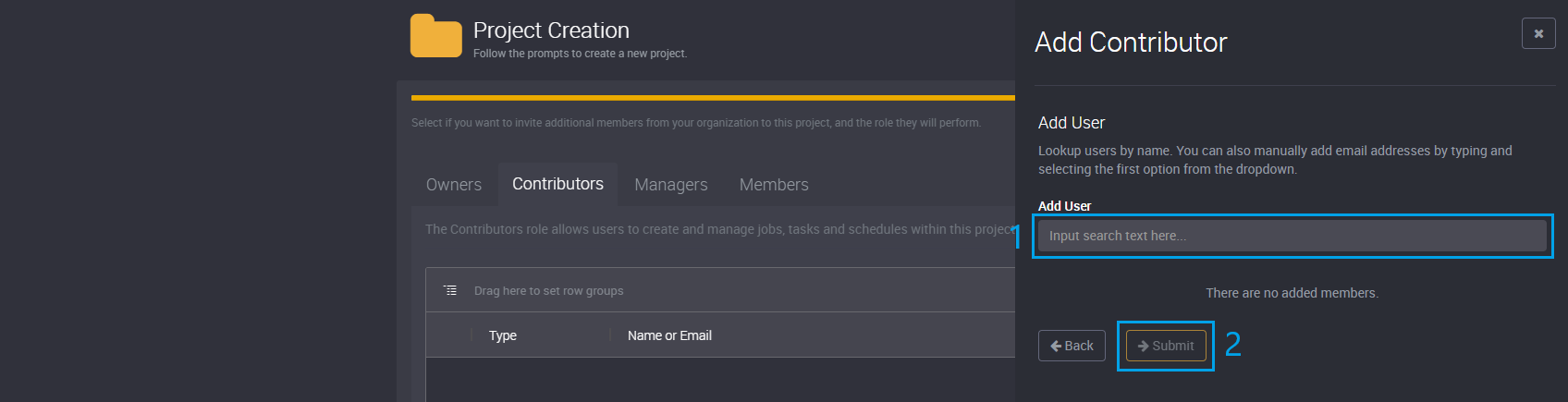
To add a user, provide their email in the search field.
Select the user from the dropdown.
Click on Submit.
Click Create at the bottom-right and this new project will appear in the project list.
Click on the project name to then create Jobs and Tasks within your new project.