Managing Tasks
You can manage your tasks at different levels of Loome.
You can view a page of all tasks in the tenant, in a specific project or in a job.
You can filter these tasks, and edit tasks using task actions on the right of a task.
All Tasks in the Tenant
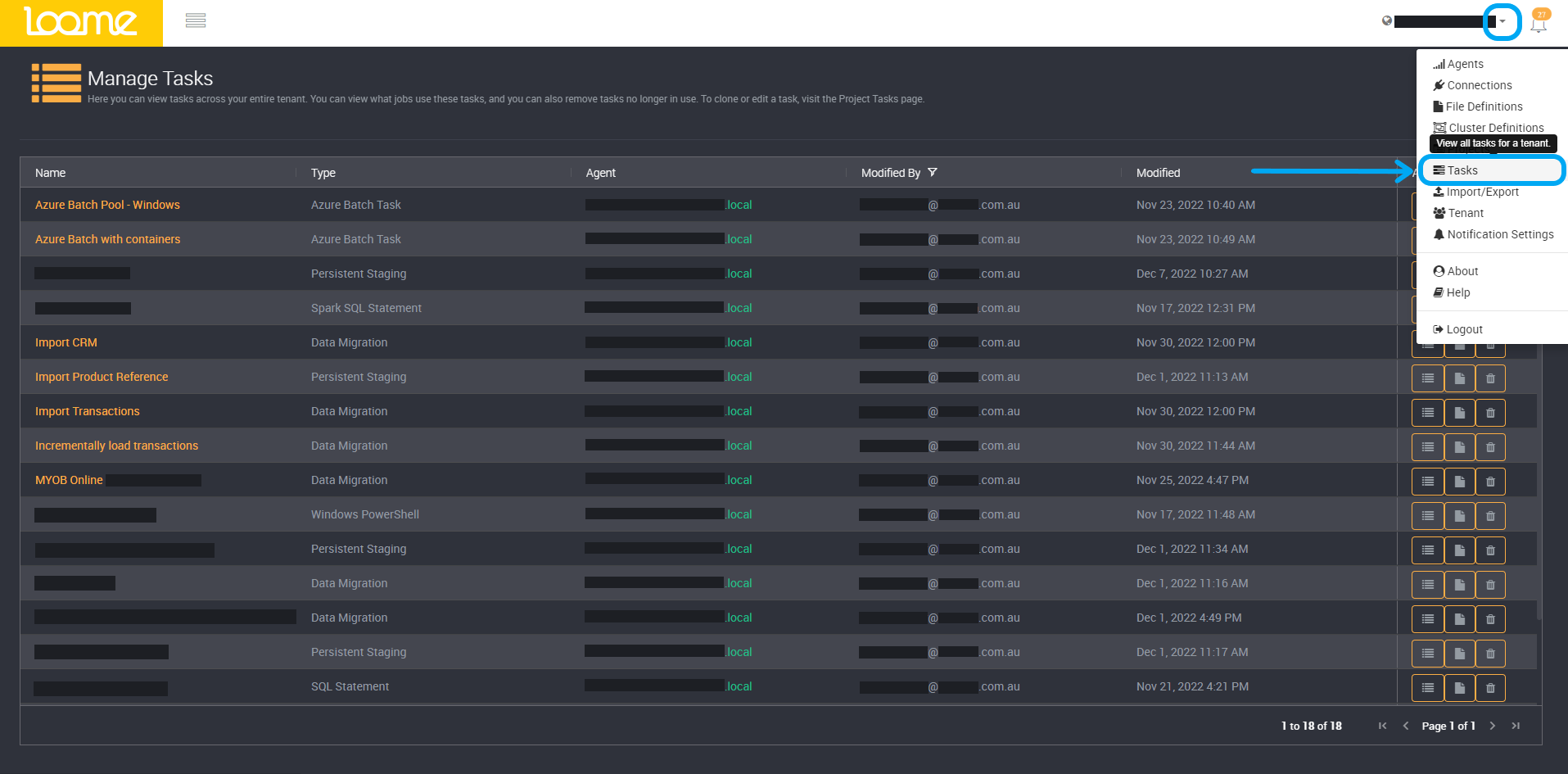
You can manage all tasks in your tenant on the Task page accessed from the top-right dropdown.
Tasks in a Project
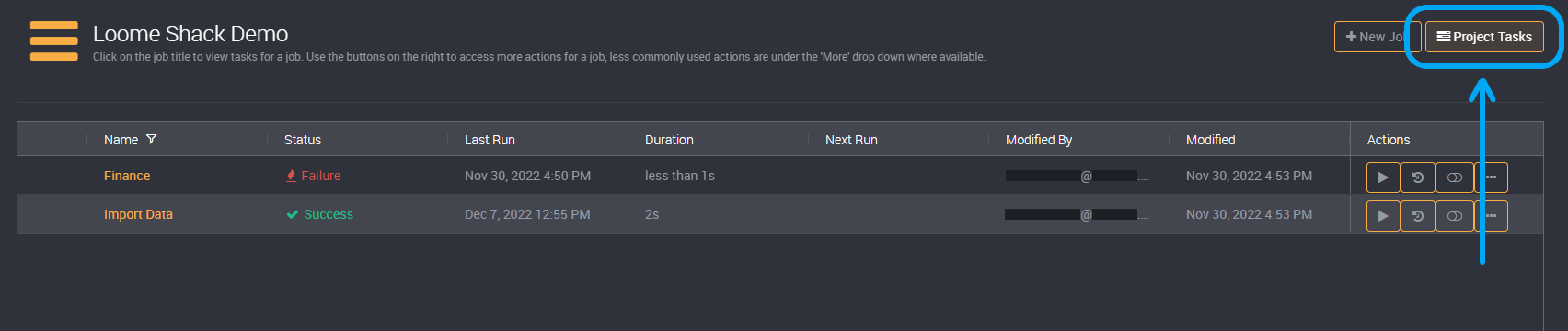
Or, while viewing a project you can click on View Tasks to view all tasks that belong to that specific project.
Tasks in a Job
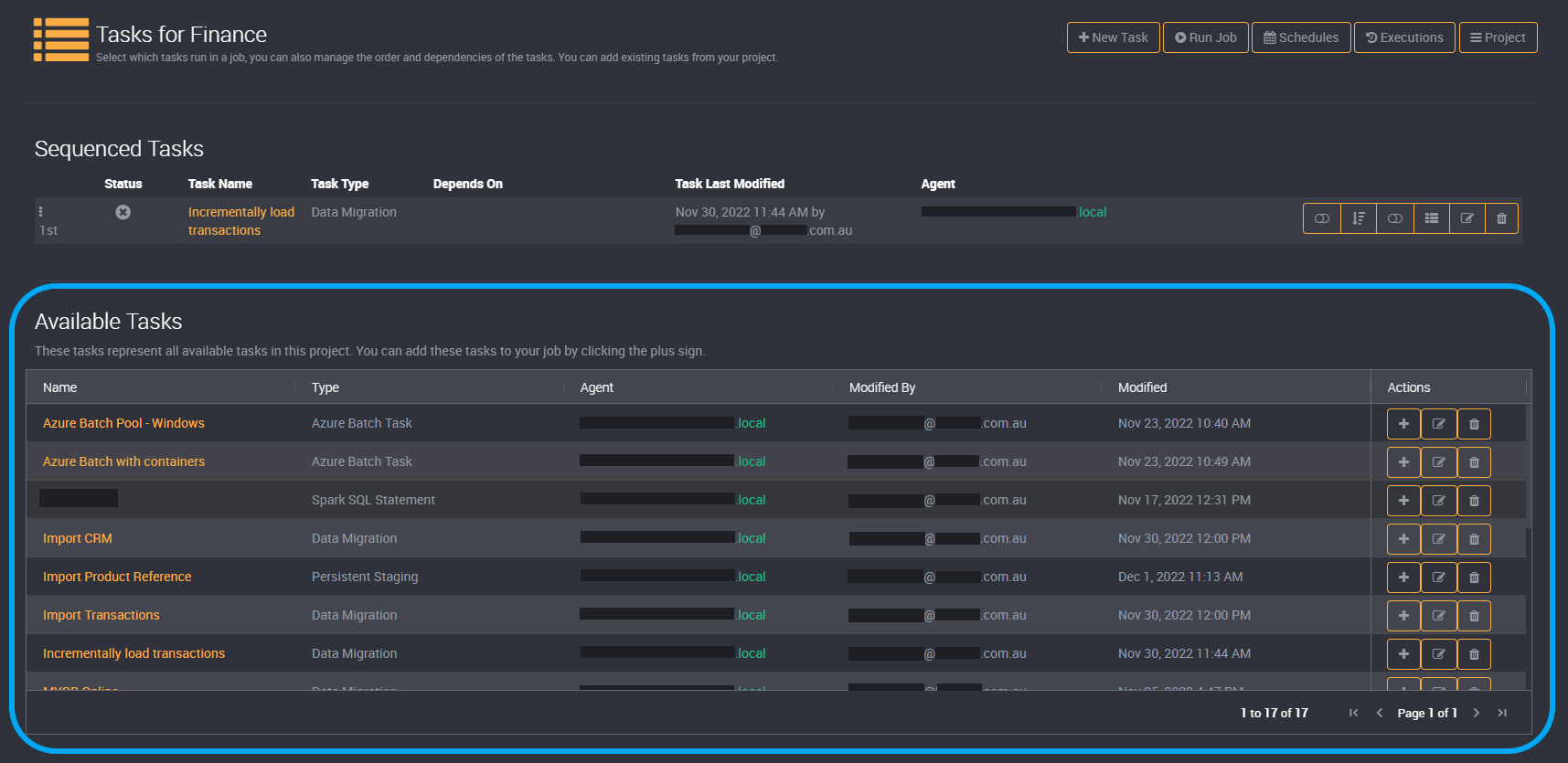
On the job’s tasks page, you can also view the sequenced tasks per job. These are the tasks that a user has added to a specific job.
Below, you can also view all tasks that are available in this project, and you can directly add them to this job using Add on its right.
Task Actions
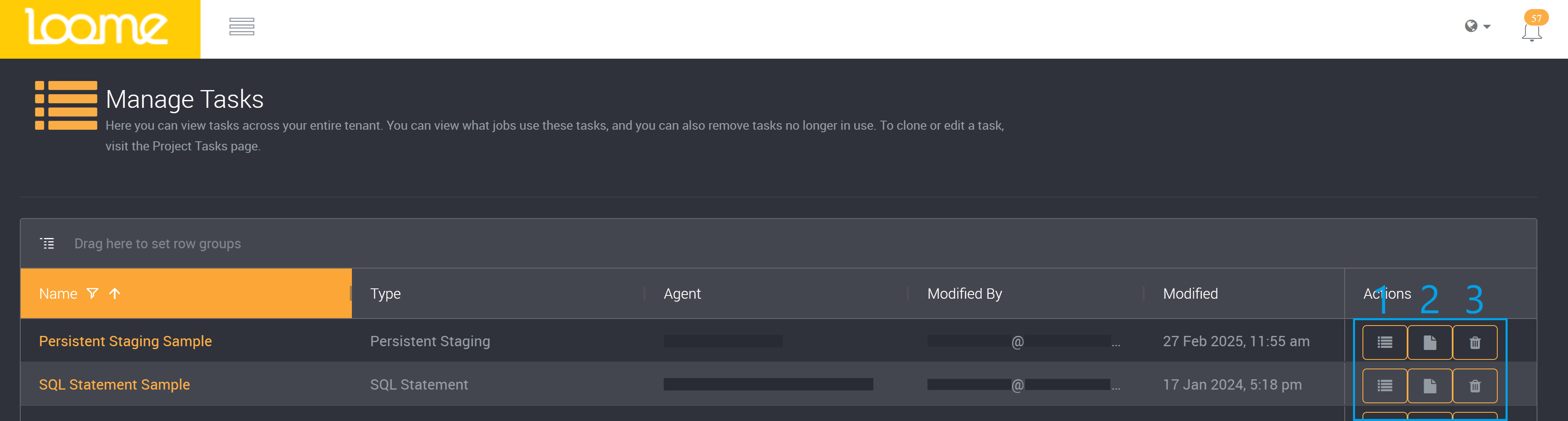
On the right of a task, you can find task actions.
-
View Project will direct you to a page of project tasks that the task is a part of.
-
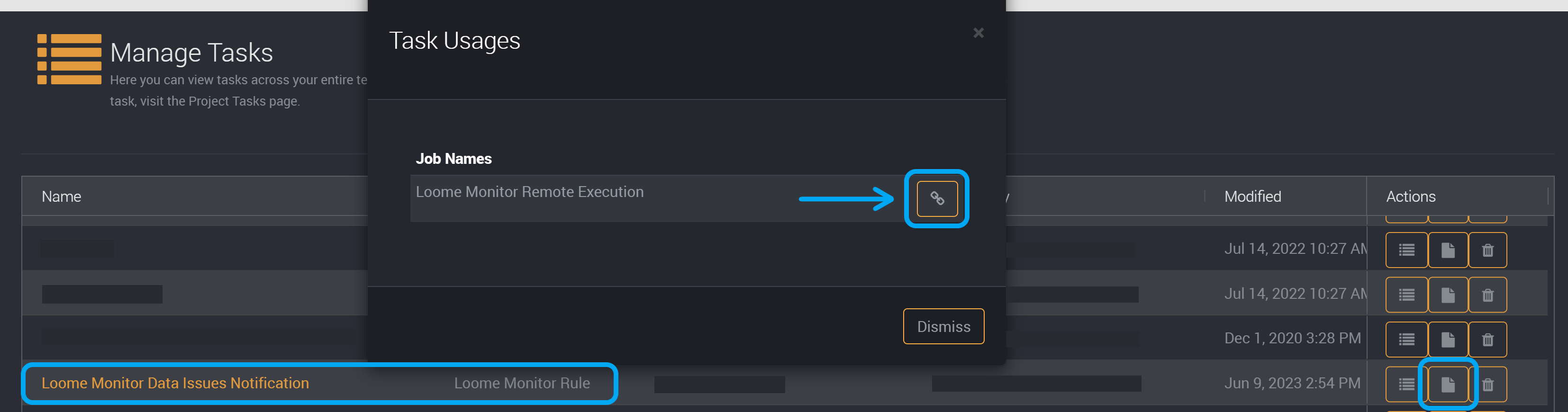
View Usage will provide a list of jobs that the task is used in.
- You can then click on the link to be directed to the job that it has been sequenced in.
- You can delete a task using delete on the right of the task.
- You will be asked to confirm that you would like to delete the task.
Please note that the task will not be deleted if any other tasks or jobs depend on it, and you will need to modify this before deleting the task.
Sort and Filter
You can filter on tasks and columns on the overall tasks page and the project tasks page.
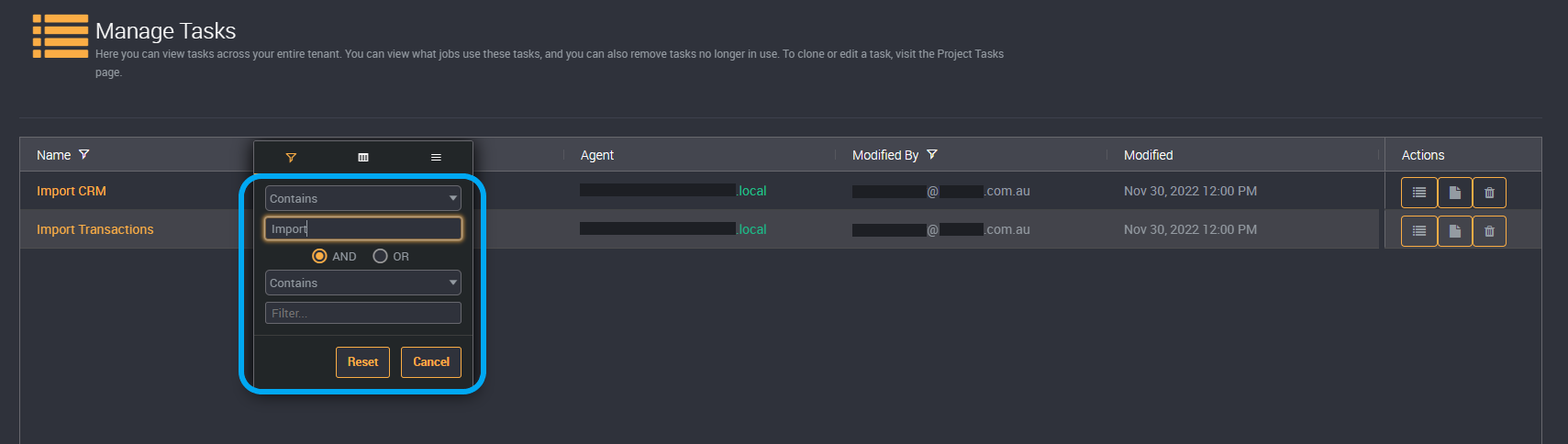
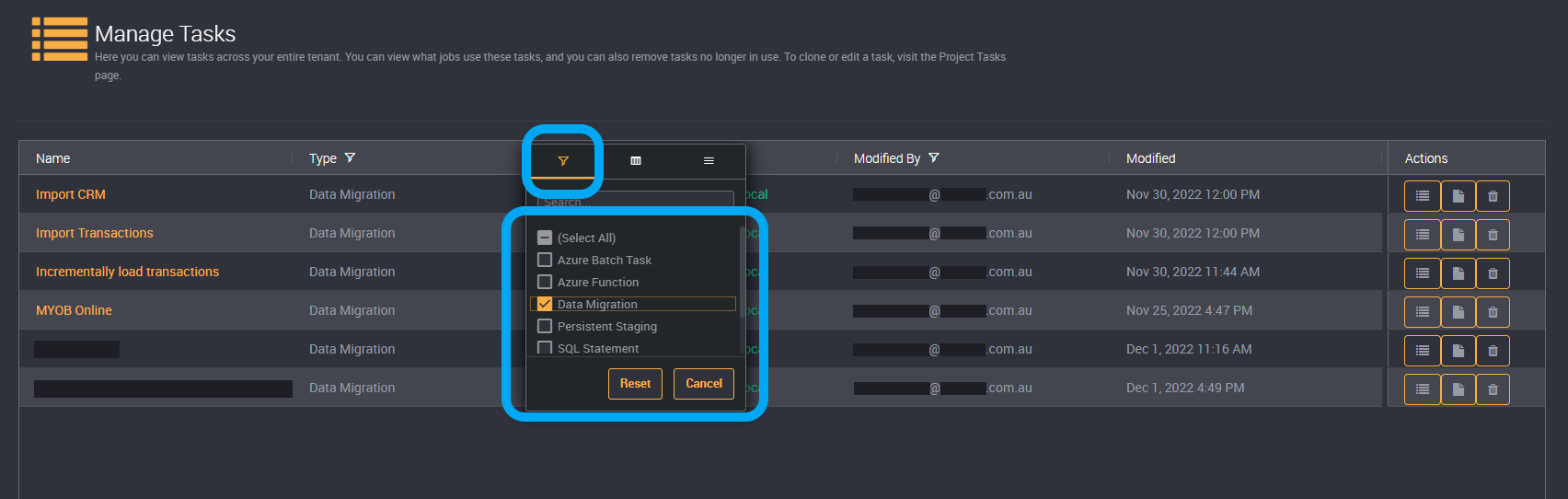
You can filter a list of tasks by clicking on the Filter button that appears when you hover over a column title.
After you have applied a filter, the column header will be highlighted.
Use the text filter for task names, highlighted in the image below, to filter and search the list of tasks.
You can also filter your tasks by task type.
Sort Jobs
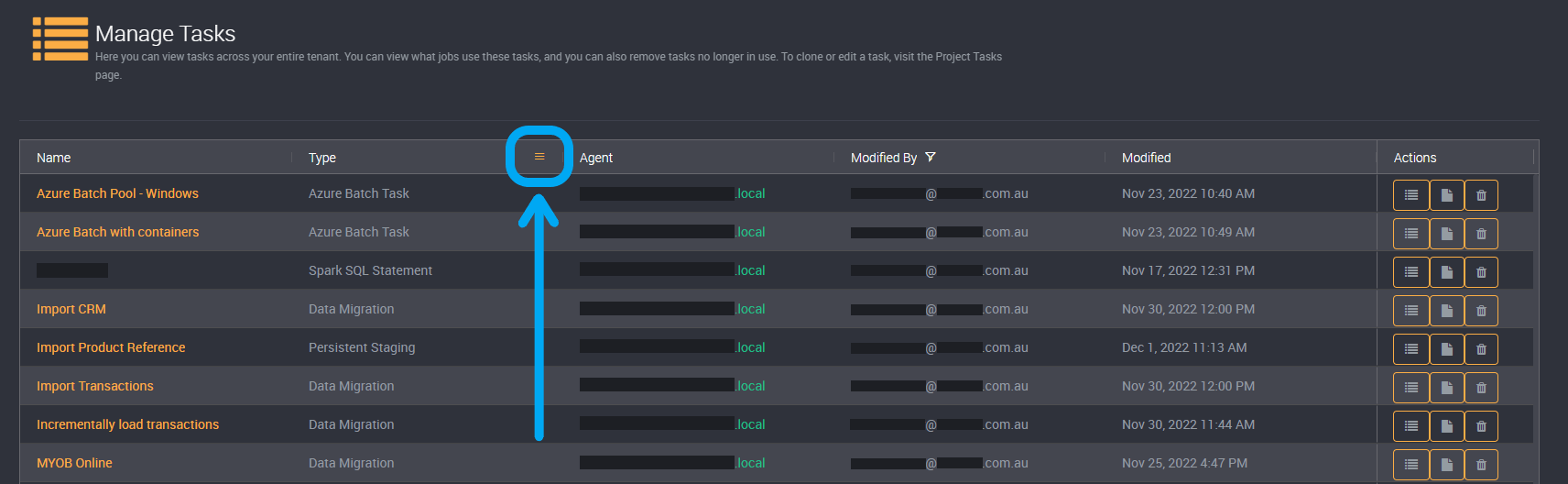
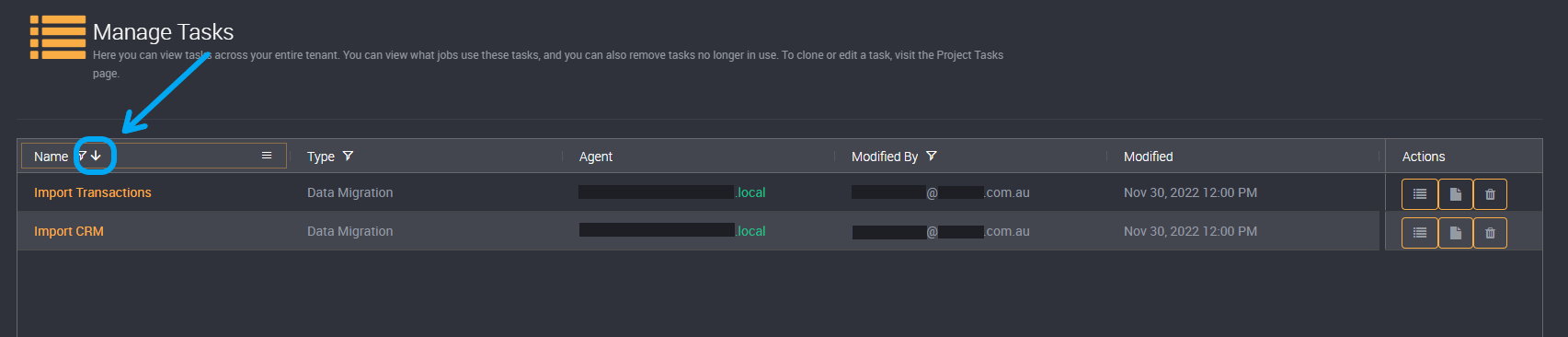
Sort the list of tasks using the arrow button that appears when you click on each column title, highlighted in the image below.
Click on the column title again to switch between ascending and descending order.
Filter on Columns
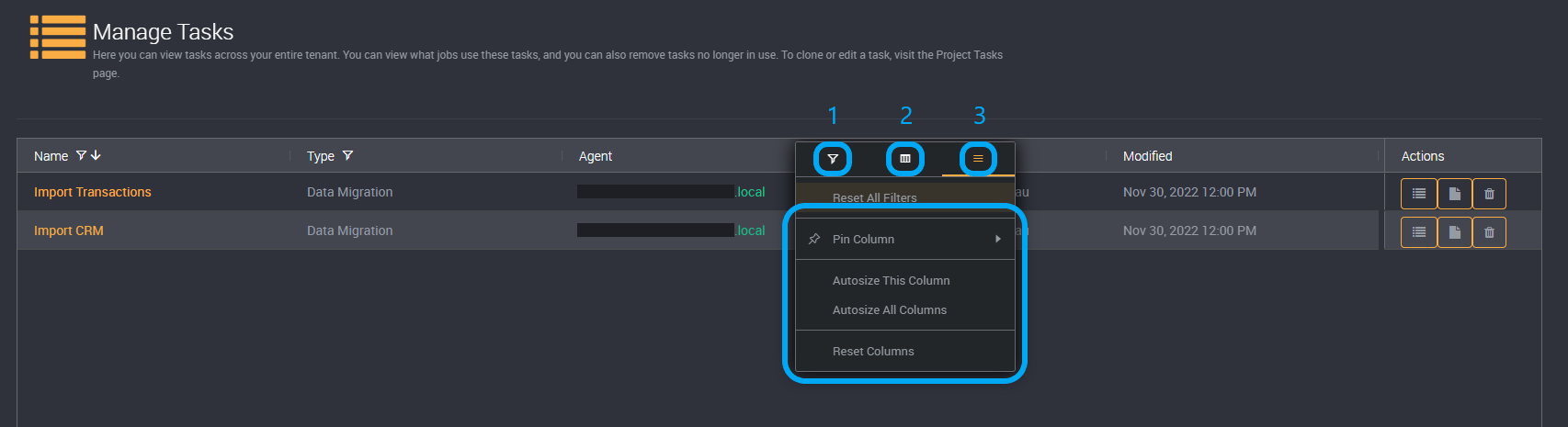
You can also filter on columns in the second filter tab, and choose to hide or show columns, pin columns to the left or right, autosize or reset your applied filters in the third filter tab.
Reset Filters
Reset your filters by clicking on the filter button beside a column.
Select the right-hand filter tab, and then ‘Reset All Filters’.
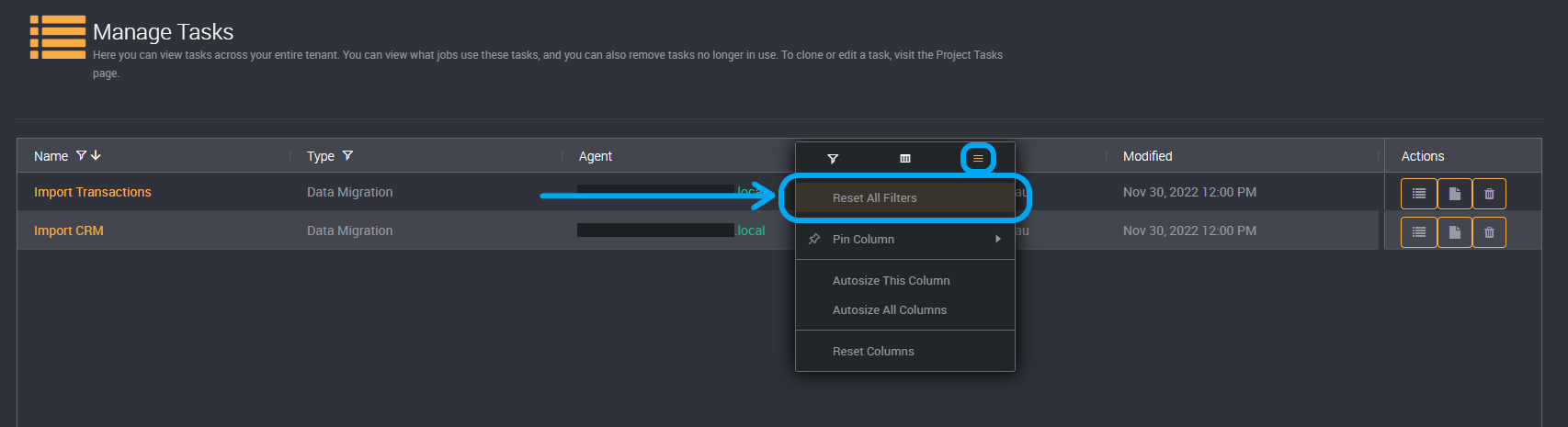
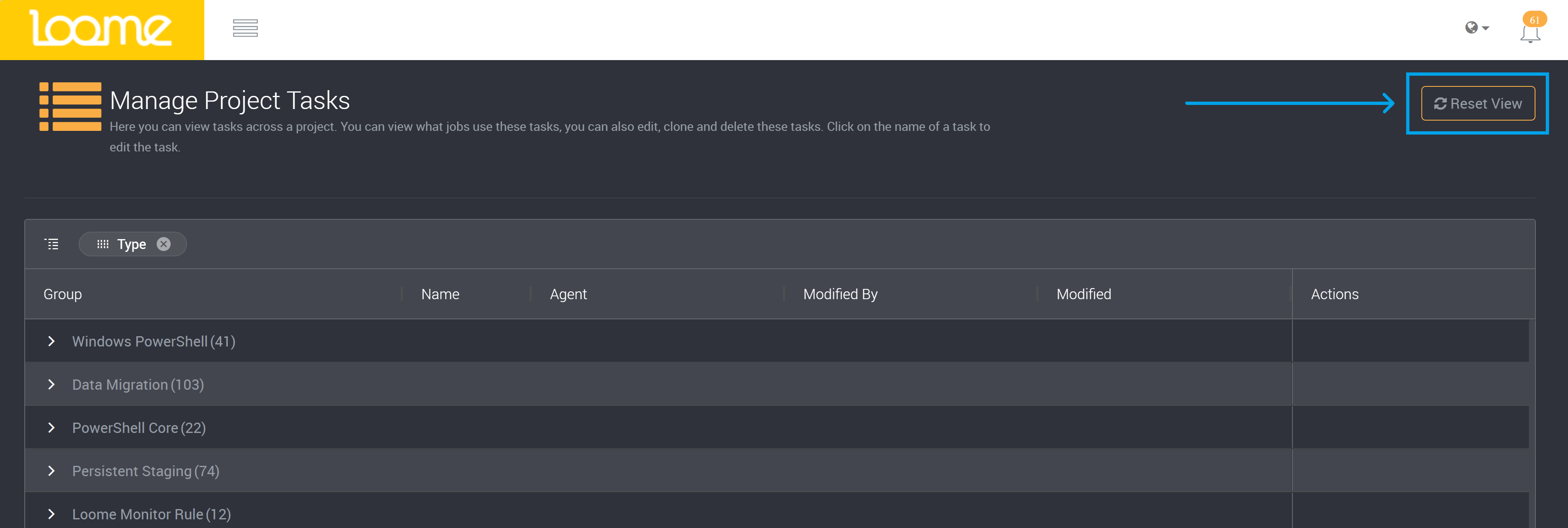
You can also use Reset View at the top-right of the page to return the table to its default view after you have applied filters.
Hide or Display Columns
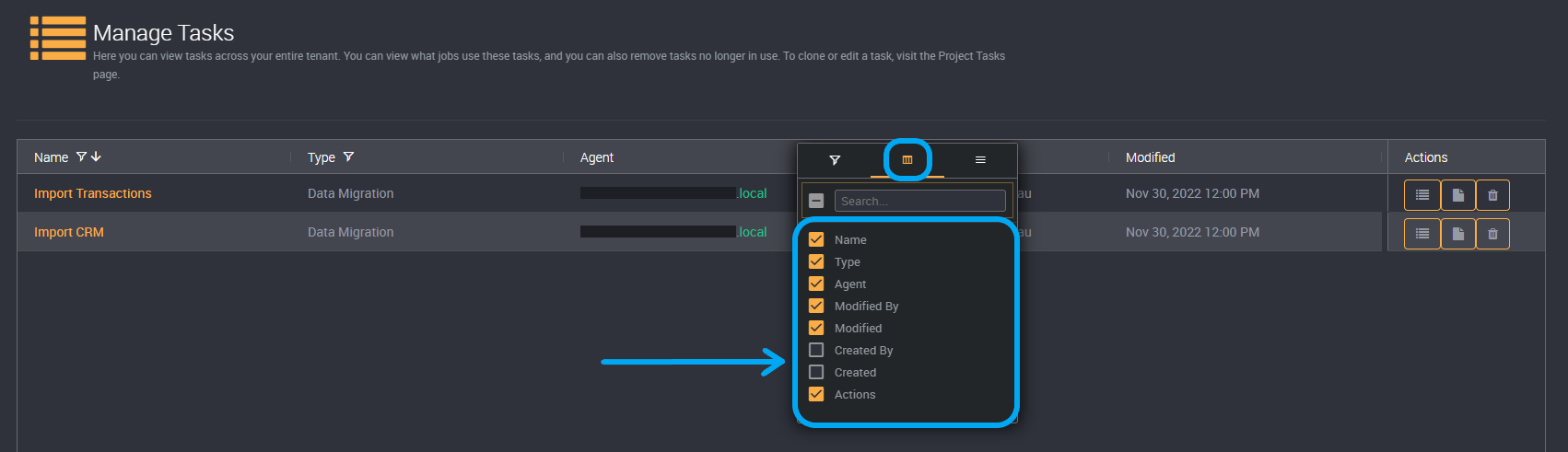
You can hide or display columns on the job page, for example the ‘Created by’ and ‘Created Date’ columns will be hidden by default.
You can use the second filter tab on any column filter to select which columns will be displayed or not.
Just select the checkboxes of the columns you would like to view.
Group Rows of Tasks
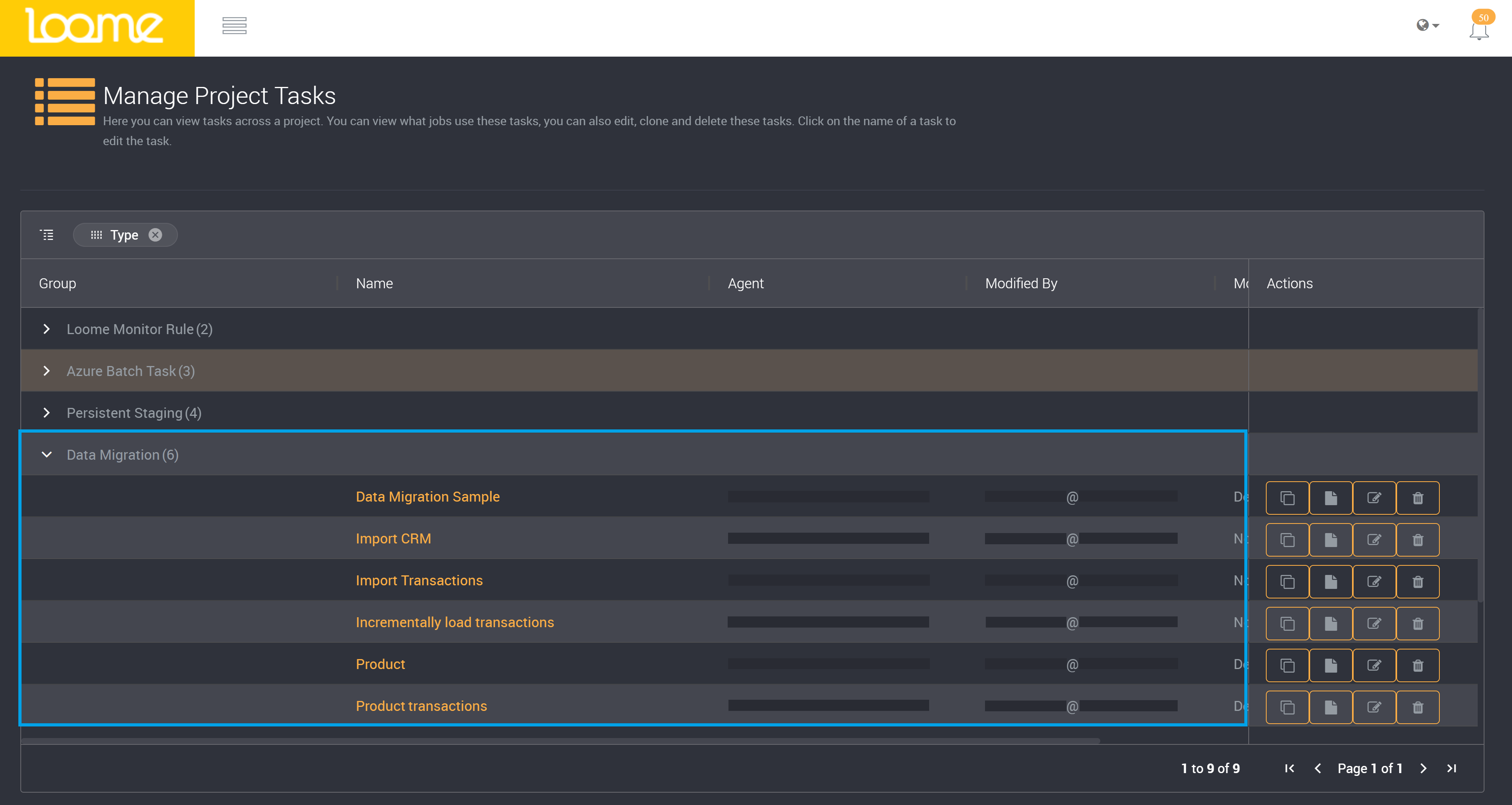
You can group on rows to sort and categorize your tasks.
Click and hold on a column title.
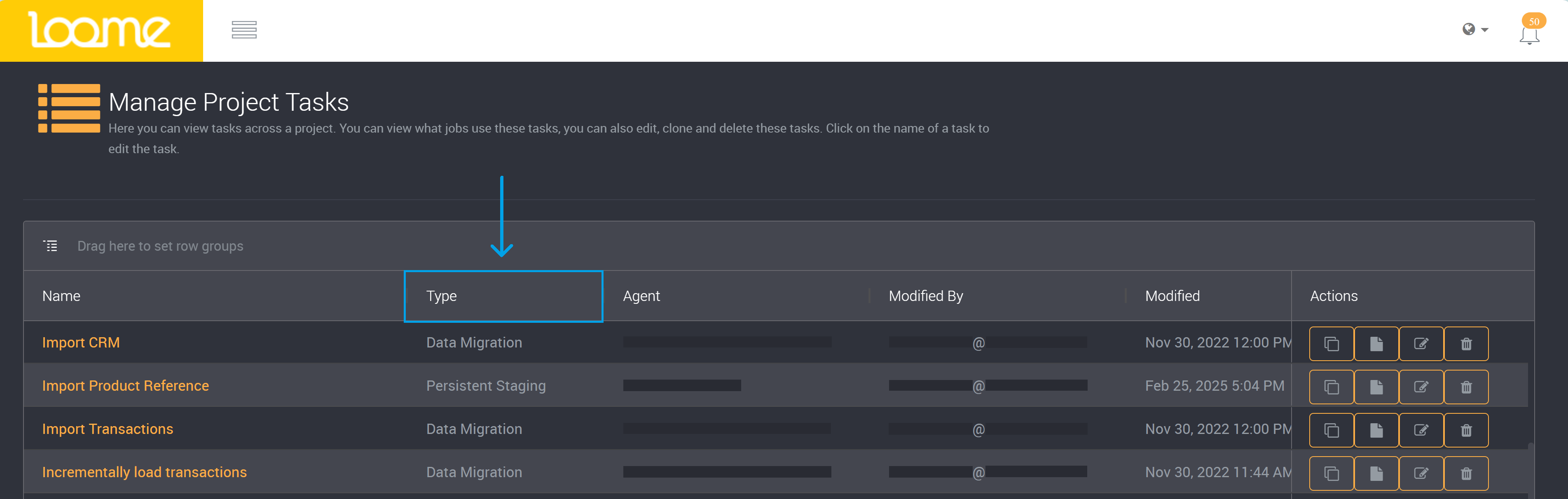
Drag the column into the row above.
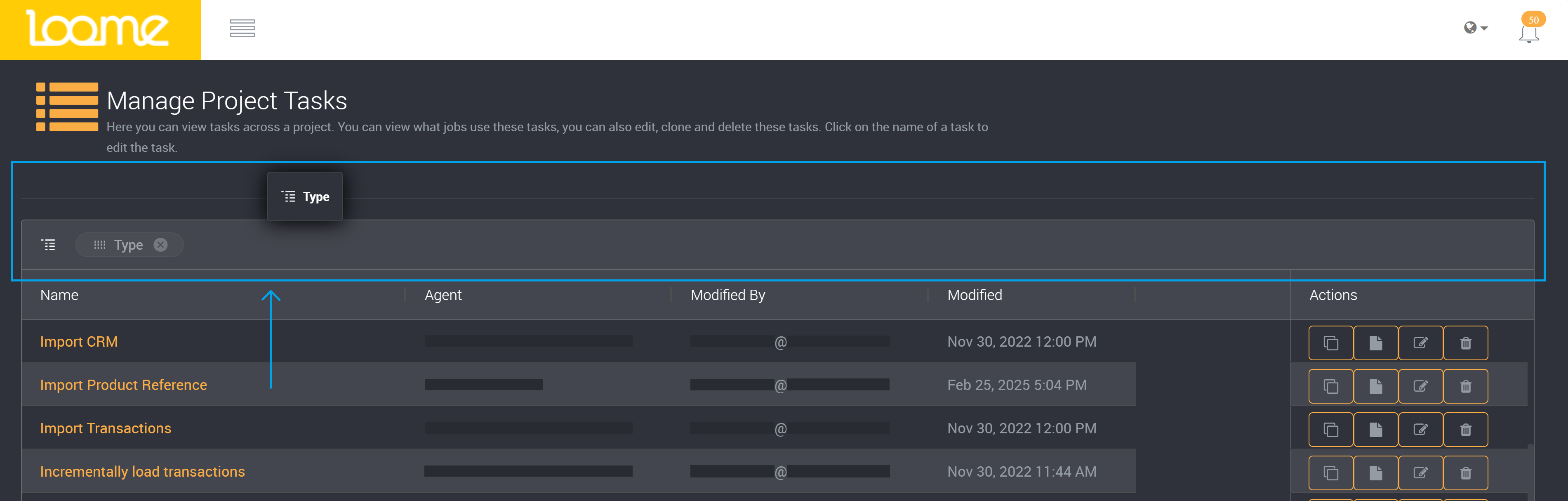
It will separate the tasks into groups.
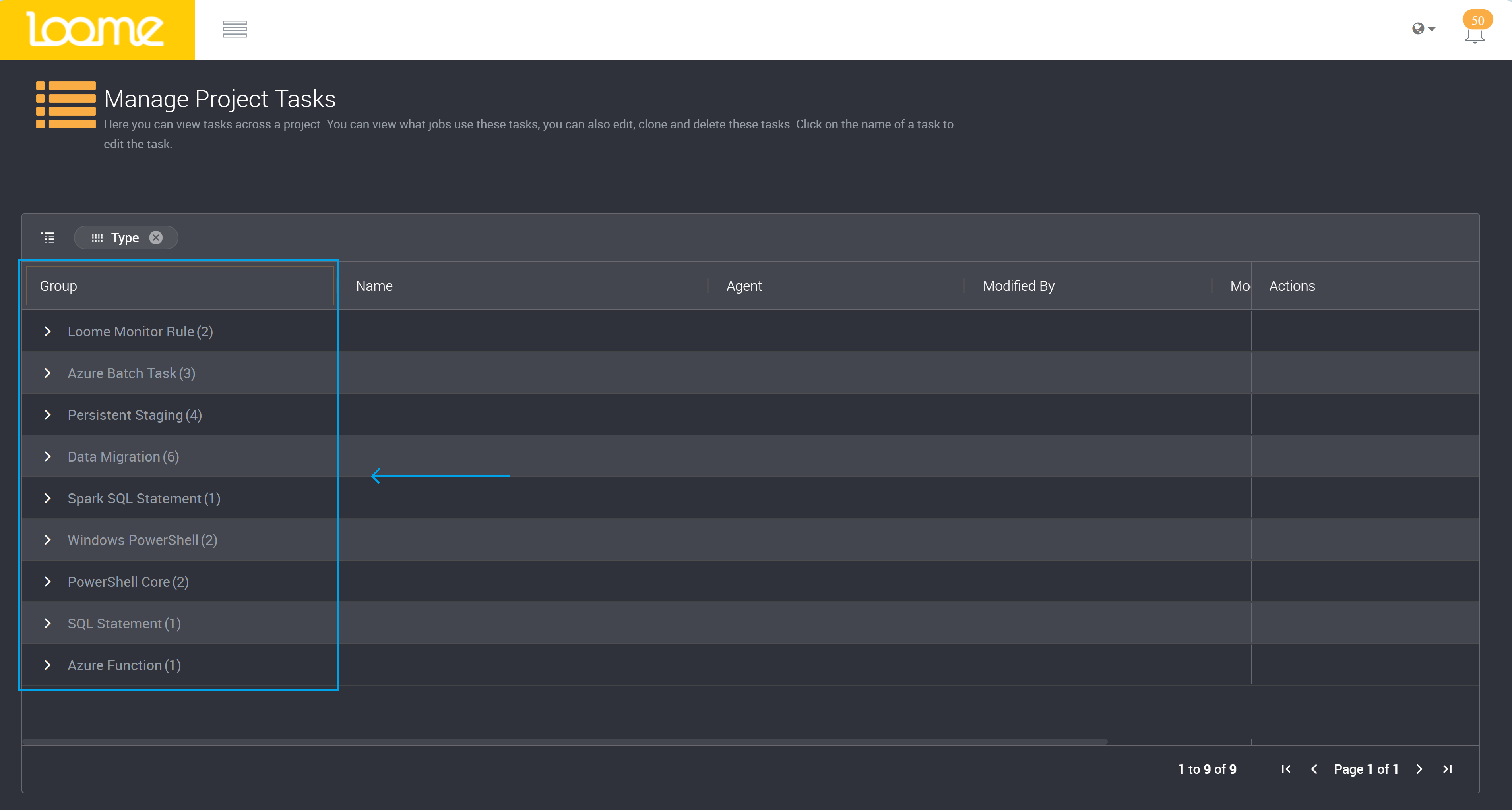
You can expand on each section to view the tasks in each group.
Reset the Project Table View
When any column filtering or sorting is applied, you can click on Reset View at the top-right of the table to return to the default view.