Remote API Access using Postman
We recommend using Loome’s Postman collection. You can easily generate scripts using the Postman collection in your preferred code language. The endpoints your API Key can use will depend on its role.
Prerequisites
You will need to set up prerequisites to use Loome programmatically.
You can first set up script prerequisites according to our guide here.
You will need:
- Create an API key for your tenant.
- Set the environment variable AssistApiKey with this key.
- Configure the AssistUrl environment variable with one of the following URLs, depending on your tenant location.
- AU clients - assist-api-au.loomesoftware.com
- US clients - assist-api-us.loomesoftware.com
- Configure the AssistProjectId environment variable with your Project Id. (You can get the Project Id by opening the Project in the UI and retrieving the Project Id from the browser URL.)
- Configure the AssistDataRepoId environment variable with the Data Repository Id. (You can get the Data Repository Id by running the Get Data Repositories by Project Id endpoint.)
- Get a token per the instructions here.
- Please note that your token will be refreshed every hour
Loome’s Postman Collection
Currently, we have the following API endpoints in Loome’s Postman Collection, but these will continue to change in future.
- Get Projects
- Get Data Repositories
- Get Project by Id
- Get Data Repositories by Project Id
- Get Mounting Details by Data Repository Id
Please note that these endpoints are subject to change.
- How to Get a Token
- How to Learn Which Projects Users can Access
- How to Expose the Subnet Method of a Project
- Check Storage Account Name Availability
- Create New Data Repository
- How to Programmatically Add Data to a Data Repository
- Get the Data Repo SAS
- How to Get the Data Repositories of a Project
- How to Get the Data Repository Network Configuration
Loome’s Postman Collection
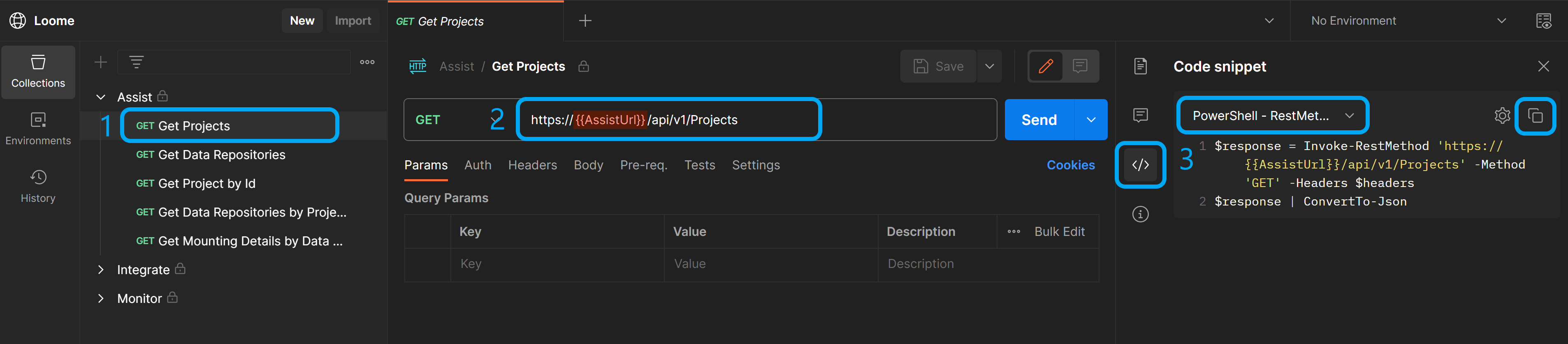
Get Projects
Choose Get Projects on the left panel under Assist.
Provide the URL and API Key.
Choose the code format for your preferred language and copy the script code using the button on the right.
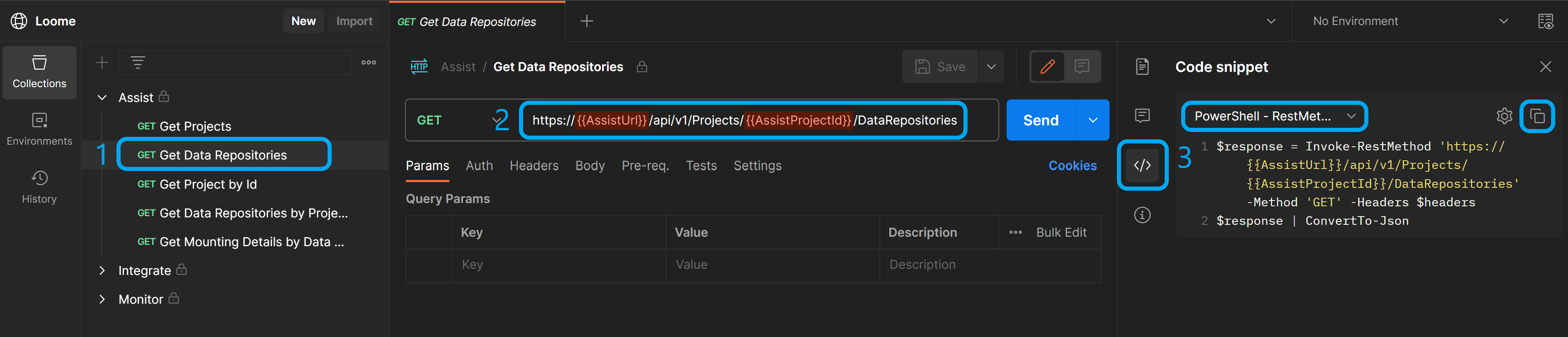
Get Data Repositories
Choose Get Data Repositories on the left panel under Assist.
Provide the URL, Project Id, and API Key.
Choose the code format for your preferred language and copy the script code using the button on the right.
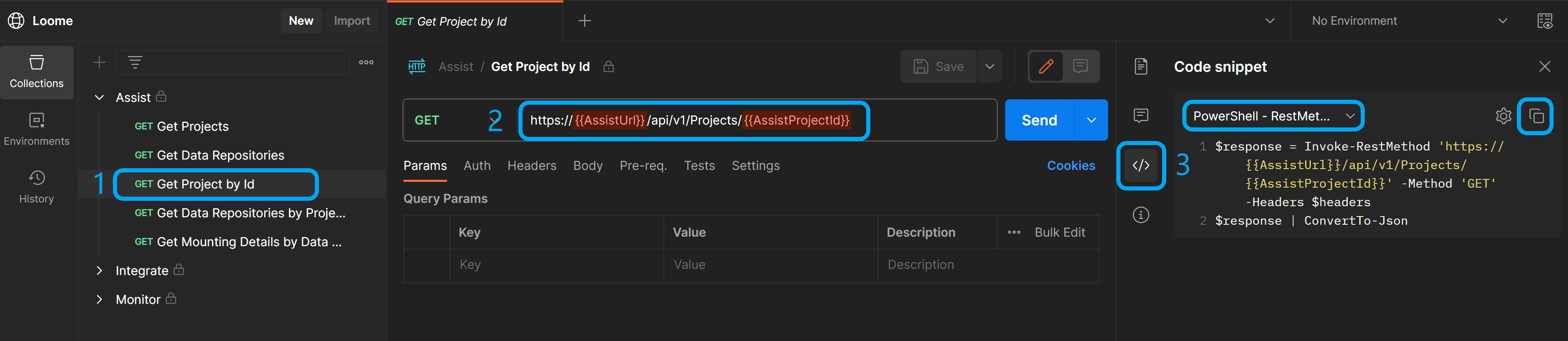
Get Project by Id
Choose Get Project by Id on the left panel under Assist.
Provide the URL, Project Id, and API Key.
Choose the code format for your preferred language and copy the script code using the button on the right.
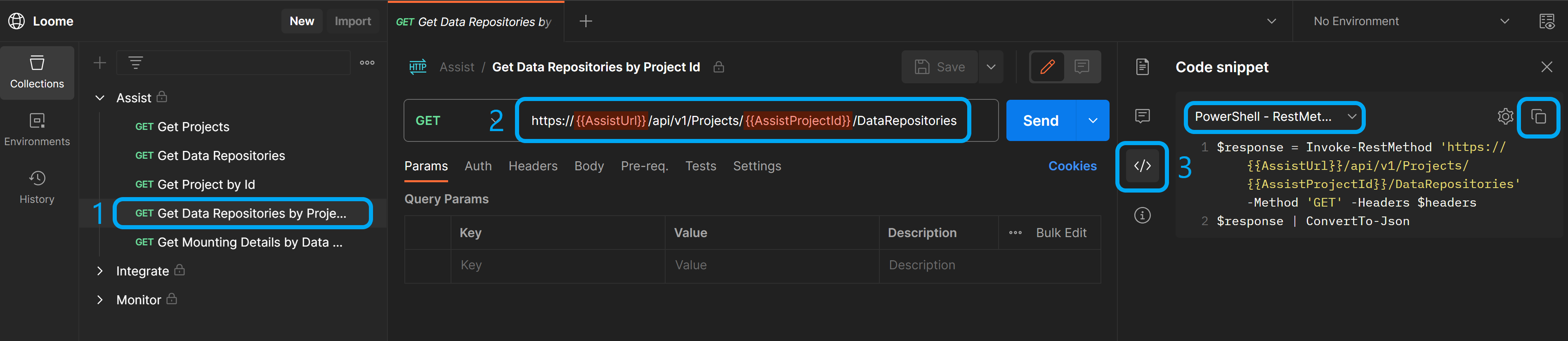
Get Data Repositories by Project Id
Choose Get Data Repositories by Project Id on the left panel under Assist.
Provide the URL, Project Id, and API Key.
Choose the code format for your preferred language and copy the script code using the button on the right.
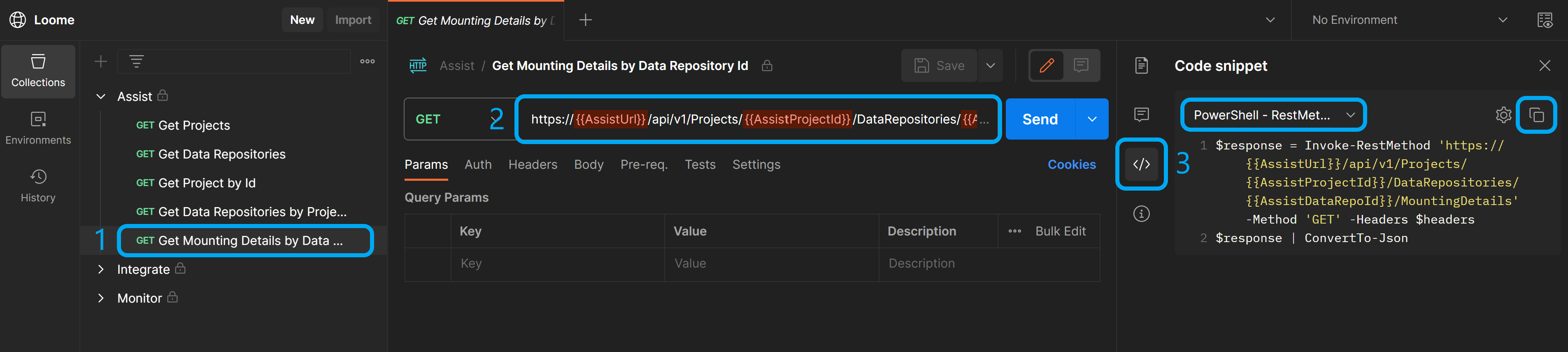
Get Mounting Details by Data Repository Id
Choose Get Mounting Details by Data Repository Id on the left panel under Assist.
Provide the URL, Project Id, Data Repo Id, and API Key.
Choose the code format for your preferred language and copy the script code using the button on the right.
Other Assist Endpoints
How to get a Token
Once you have generated an API key in the UI, copy this key.
For this example, we will use Postman.
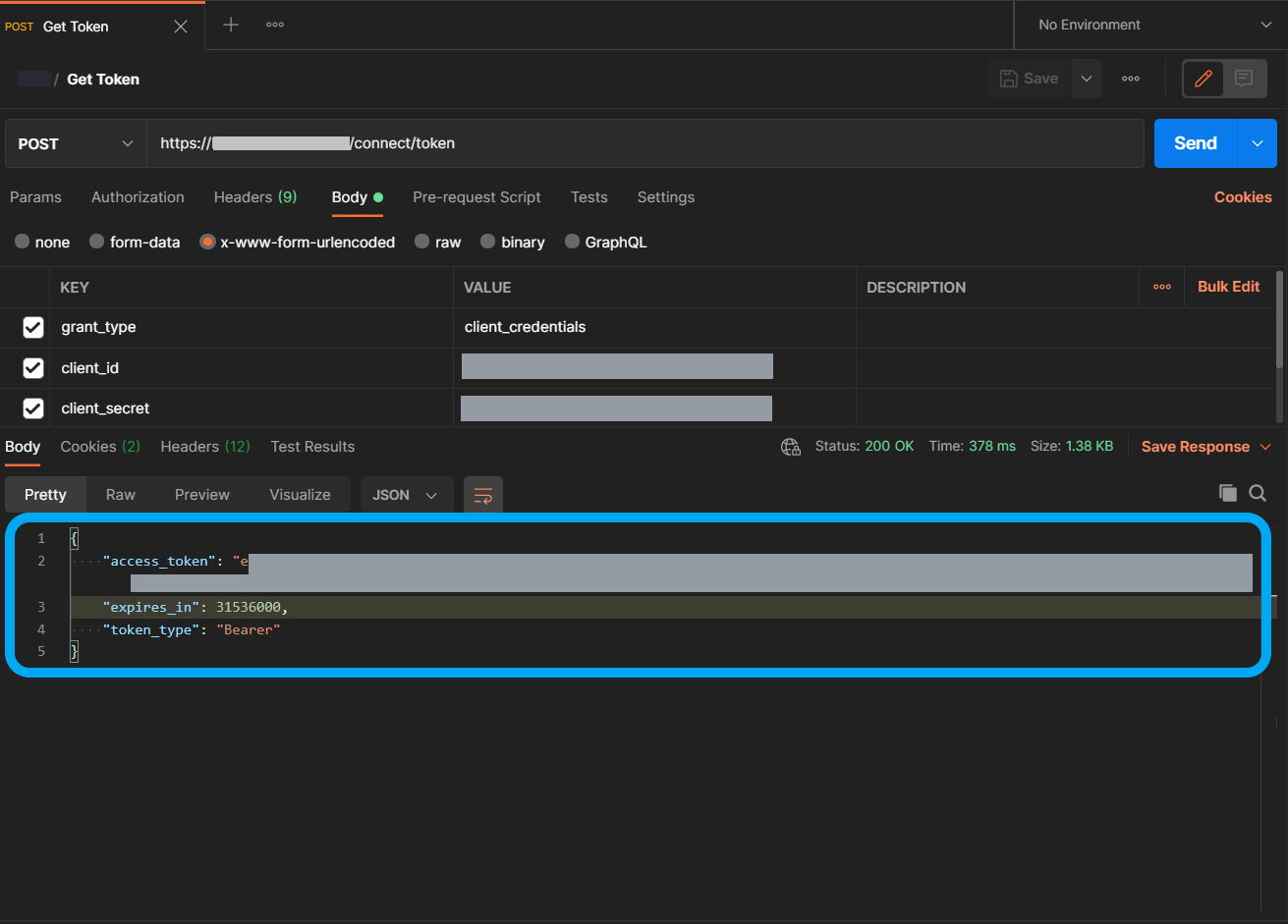
In your navigation choose, Get Token.
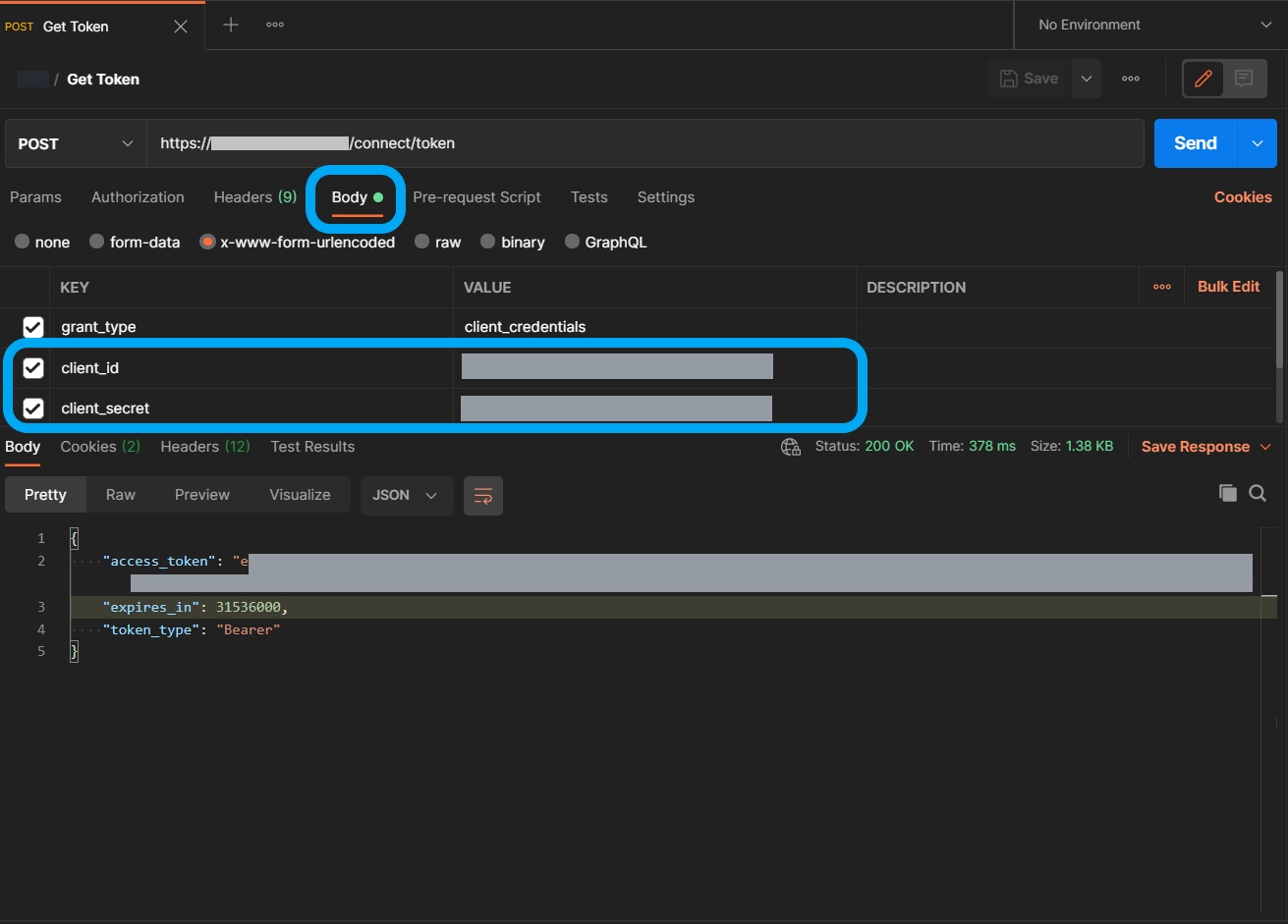
In Body, paste in your key to the client_id and client_secret fields.
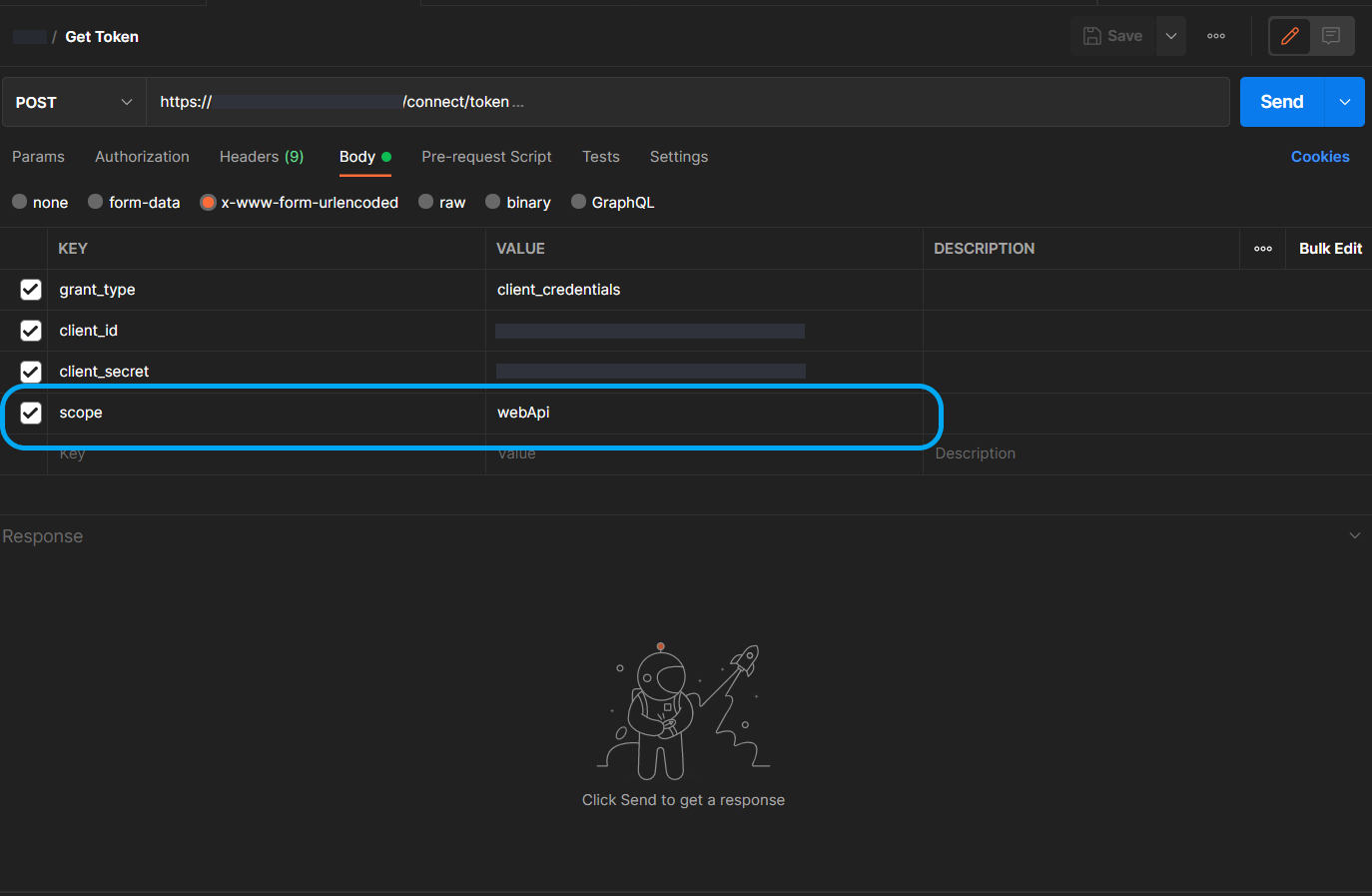
The Scope will be ‘webApi’.
Add in your URL to the URL field beside ‘POST’.
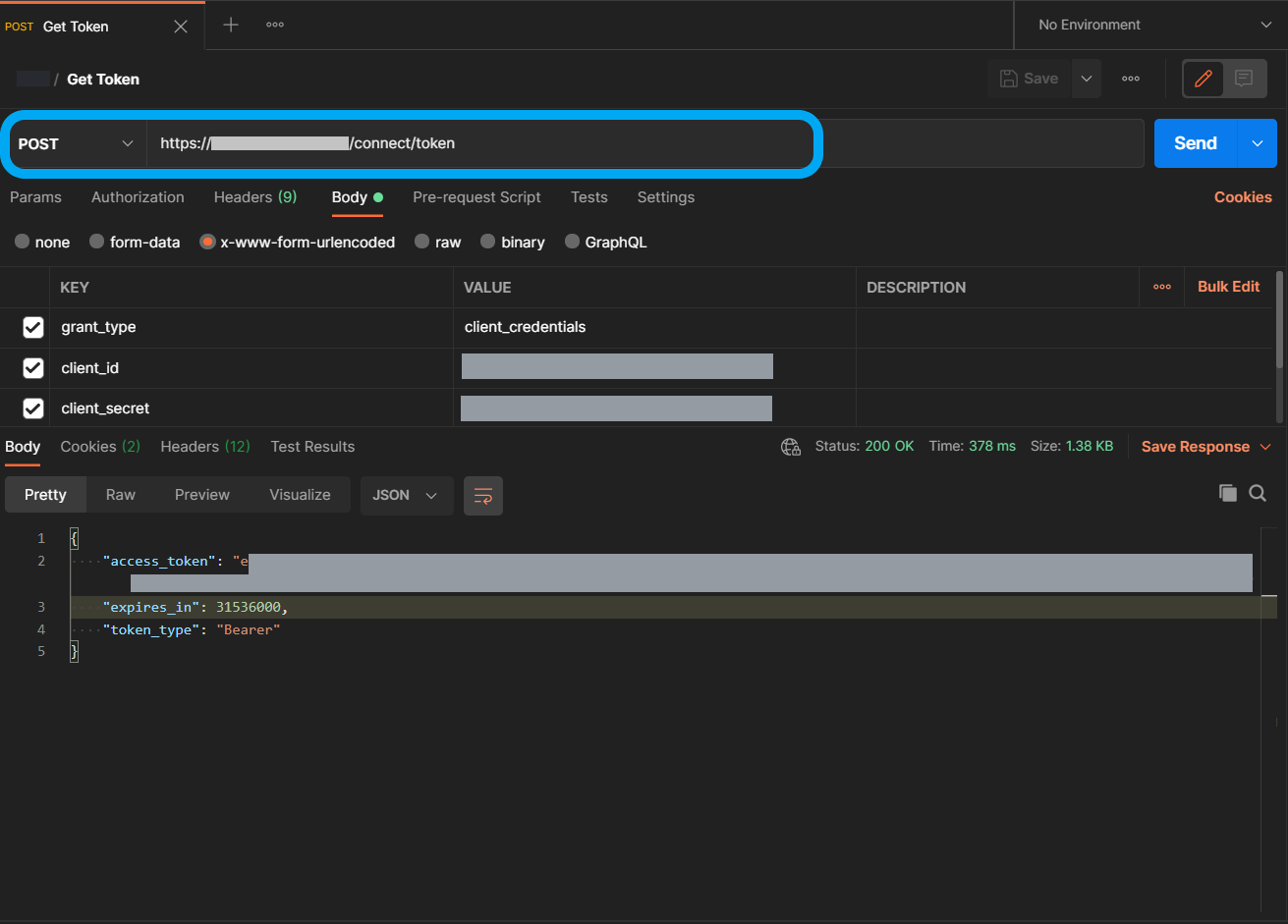
Click Send and you can then copy your resulting token.
How to Learn which Projects a User can Access
An administrator can programmatically learn which projects a user has access to. Once you have a token, you can get the projects that a user is a part of.
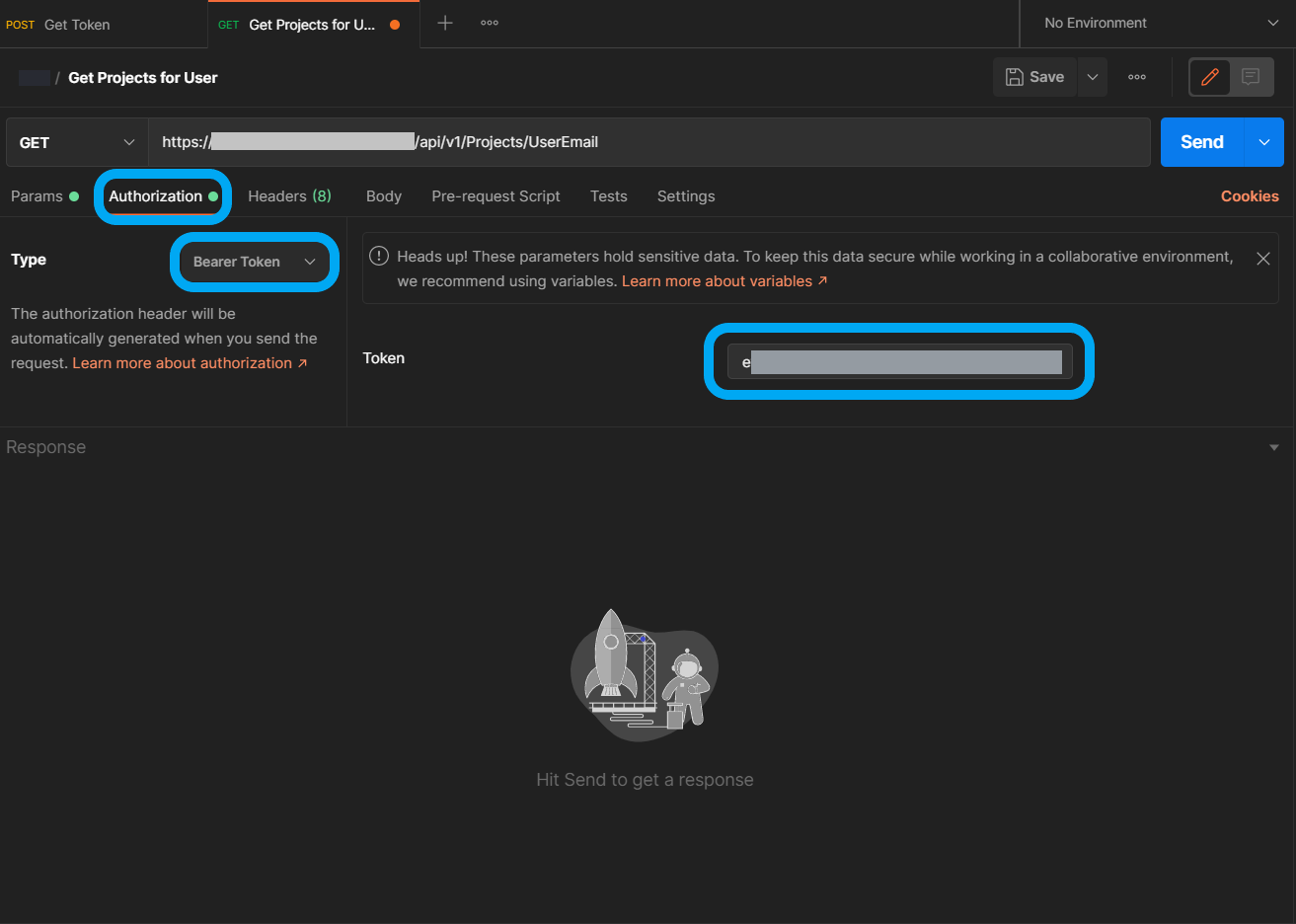
Under Authorization, for ‘Type’ select Bearer Token.
Then paste in your token.
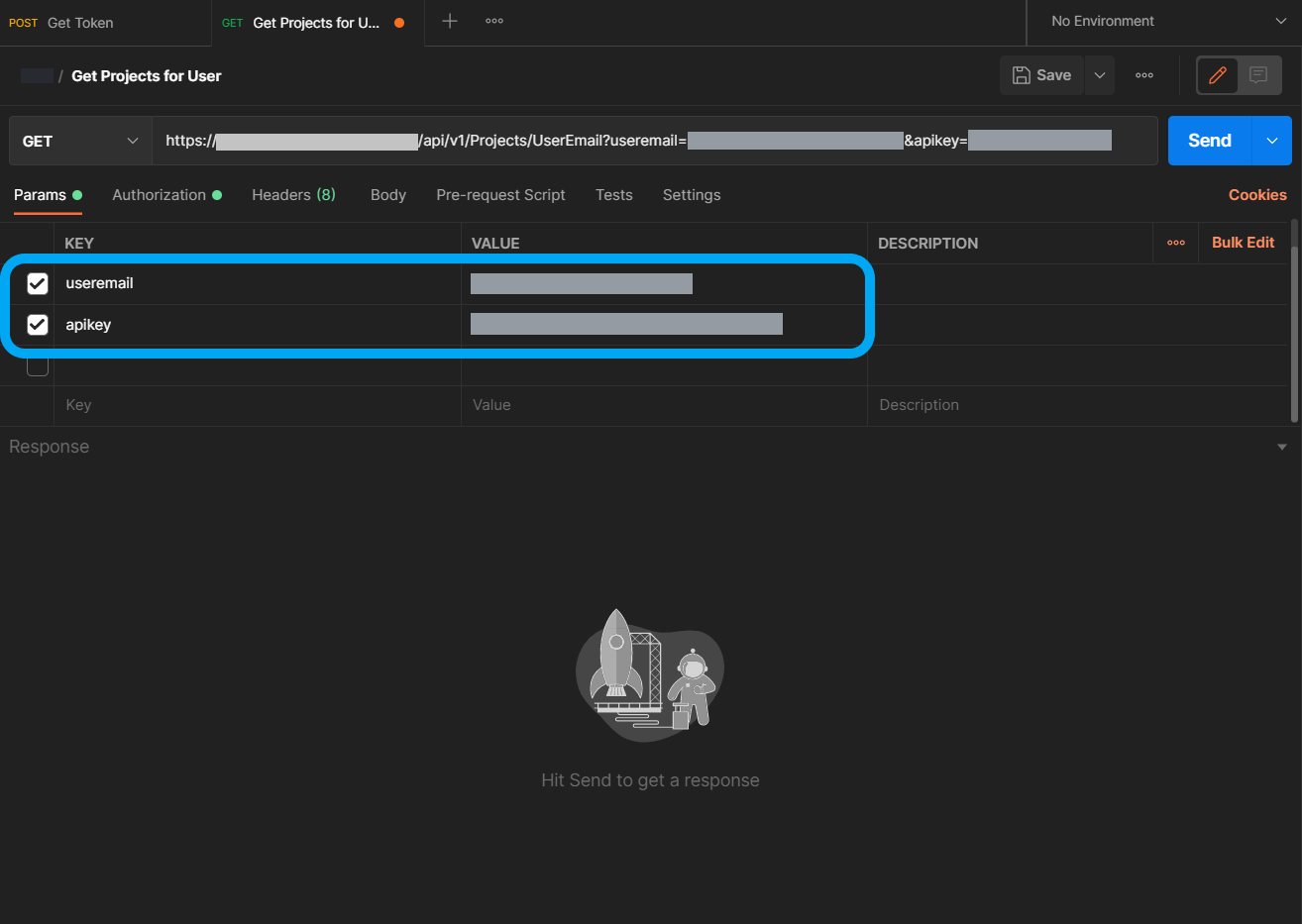
In Params, add in your email and your API key.
Click Send and the response will list the projects that your selected user is a member of, as well as the details of those projects.
How to Expose the Subnet Method for a Project
To expose the subnet method of a project, use the following endpoint and replace the content in brackets, ‘{}’, with your own Loome Assist details.
GET https://{URL}/api/v1/Projects/{ProjectID}/NetworkConfiguration
This will return:
- whether it is in a private network,
- the Address Space (if in a private network, otherwise it will return ’null’),
- and the subnet (if in a private network, otherwise it will return ’null’).
This endpoint is available to Project Owners and Project Contributors.
Data Repository Endpoints
Check Storage Account Name Availability
You will then need to check that a data repository name is available before you can create a new data repository.
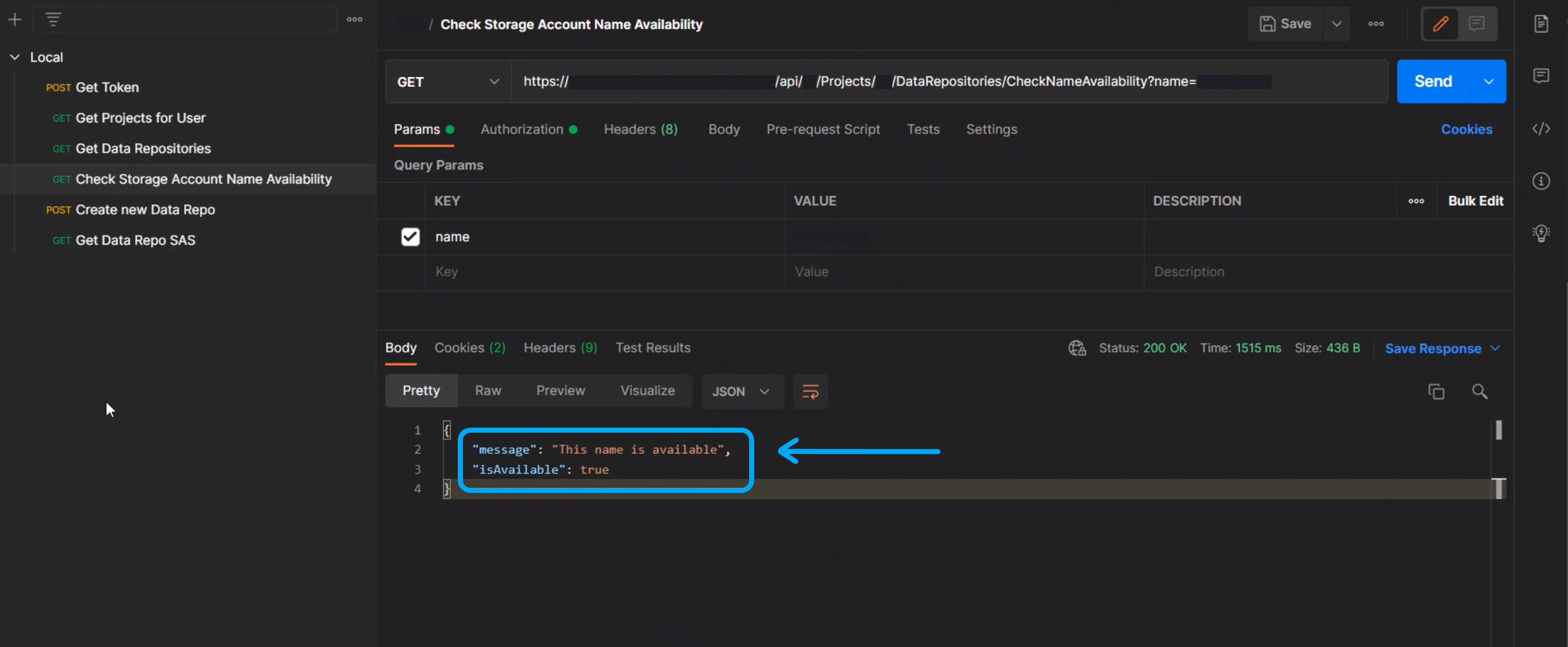
In Params, in Value for the ’name’ field, type in what you would like to name your storage account.
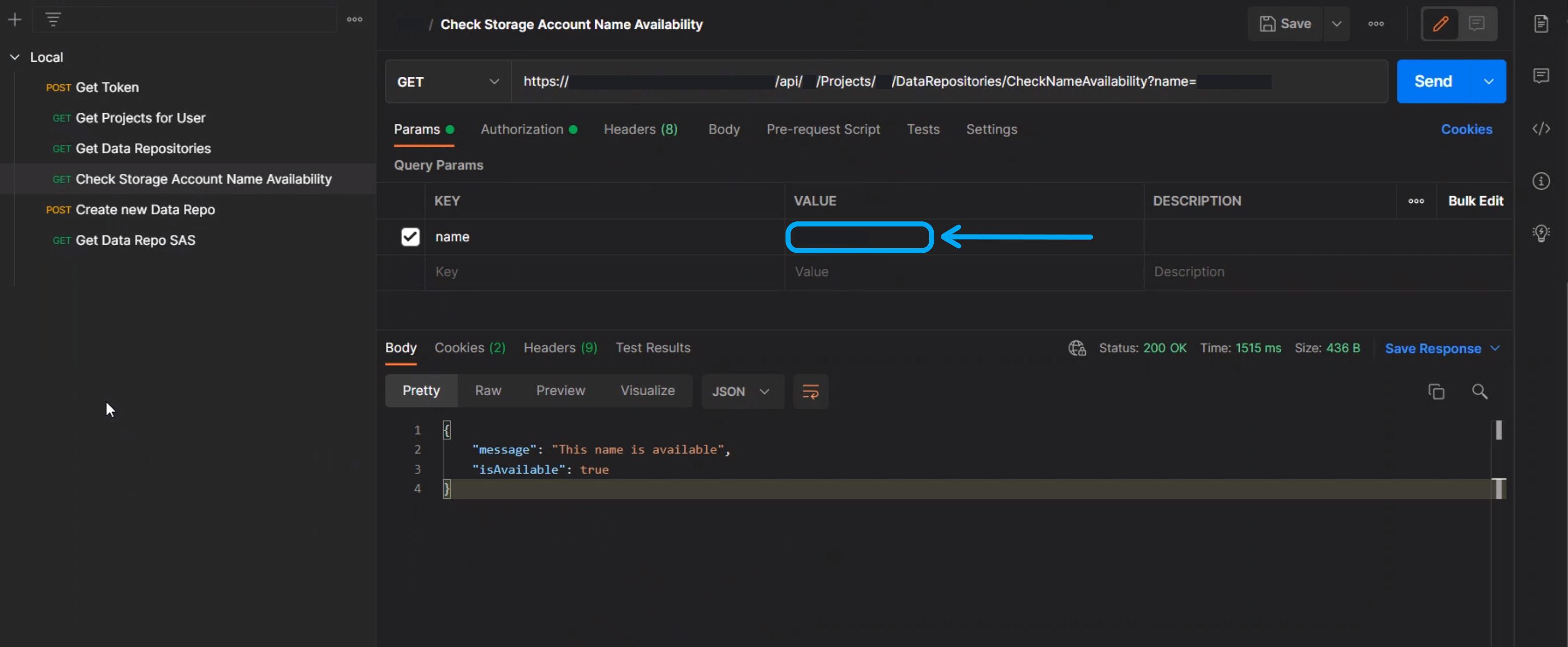
Click Send and it will return whether the name is available or not.
If available, it will return that the name is available and you can proceed on to creating a storage account with that name.
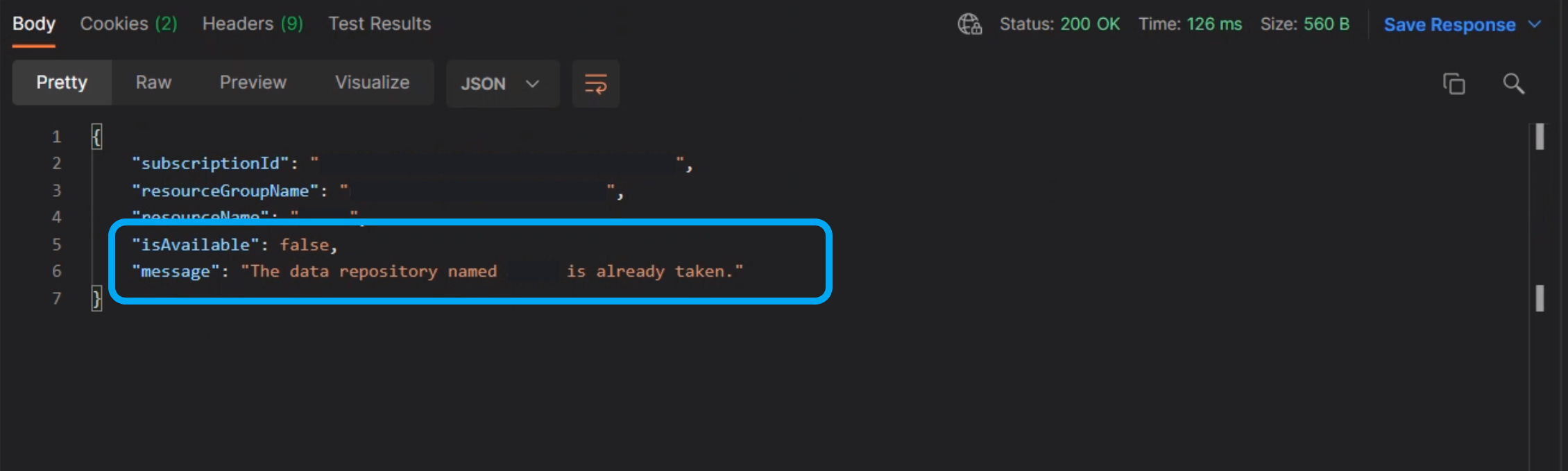
If unavailable, it will inform you that it is unavailable and will display the existing storage account.
Create New Data Repository
First, using the method above where you learn the list of projects you have access to, you will need to get the project ID that will be in the field “id”:_Project_ID, and you will then need to learn whether a storage name is available.
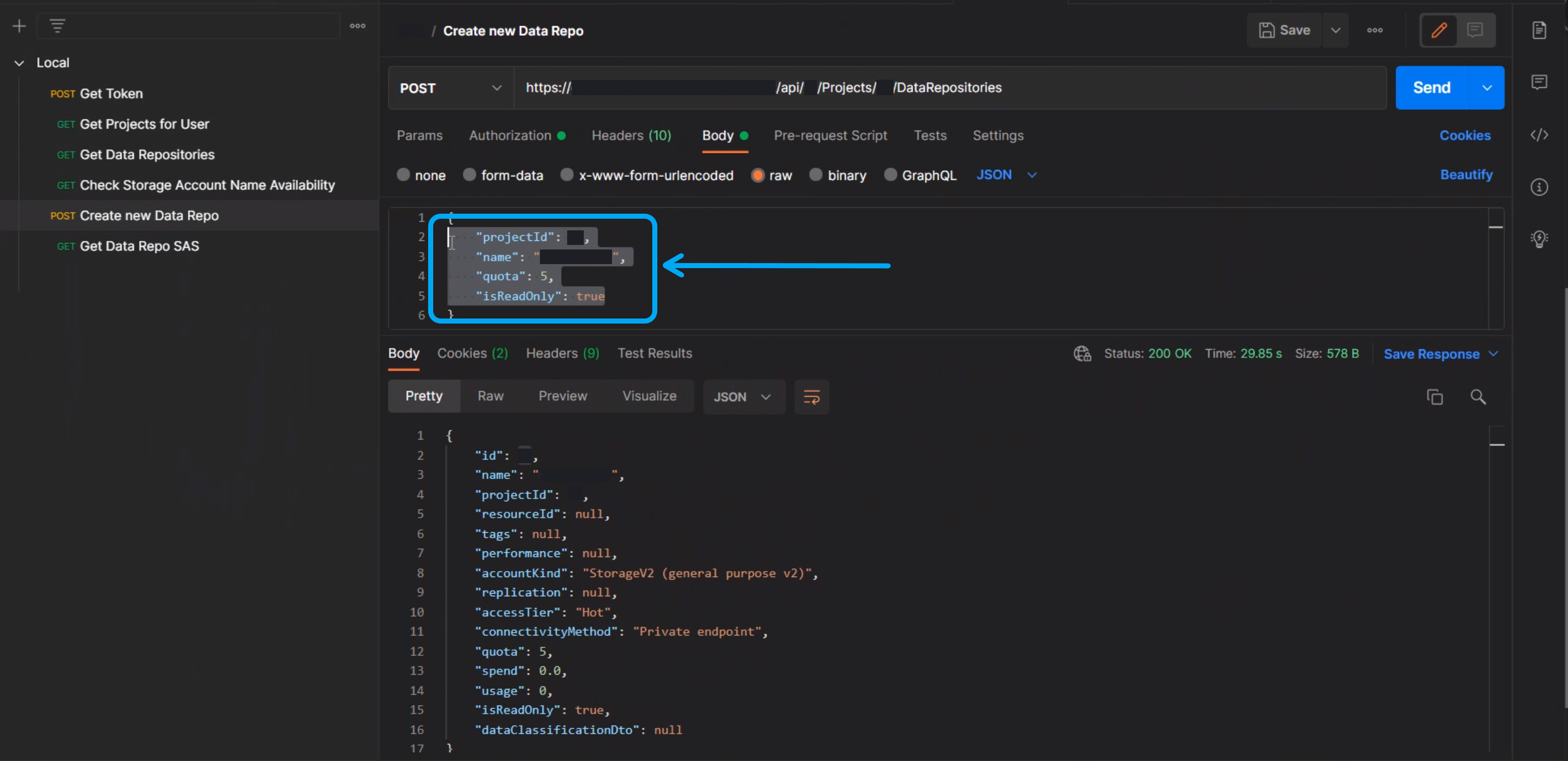
Once you know whether a data repository name is available, you can add the project ID to the URL in the ‘Create New Data Repo’ section.
And then make a POST for the new data repo by providing the project details in the Body section.
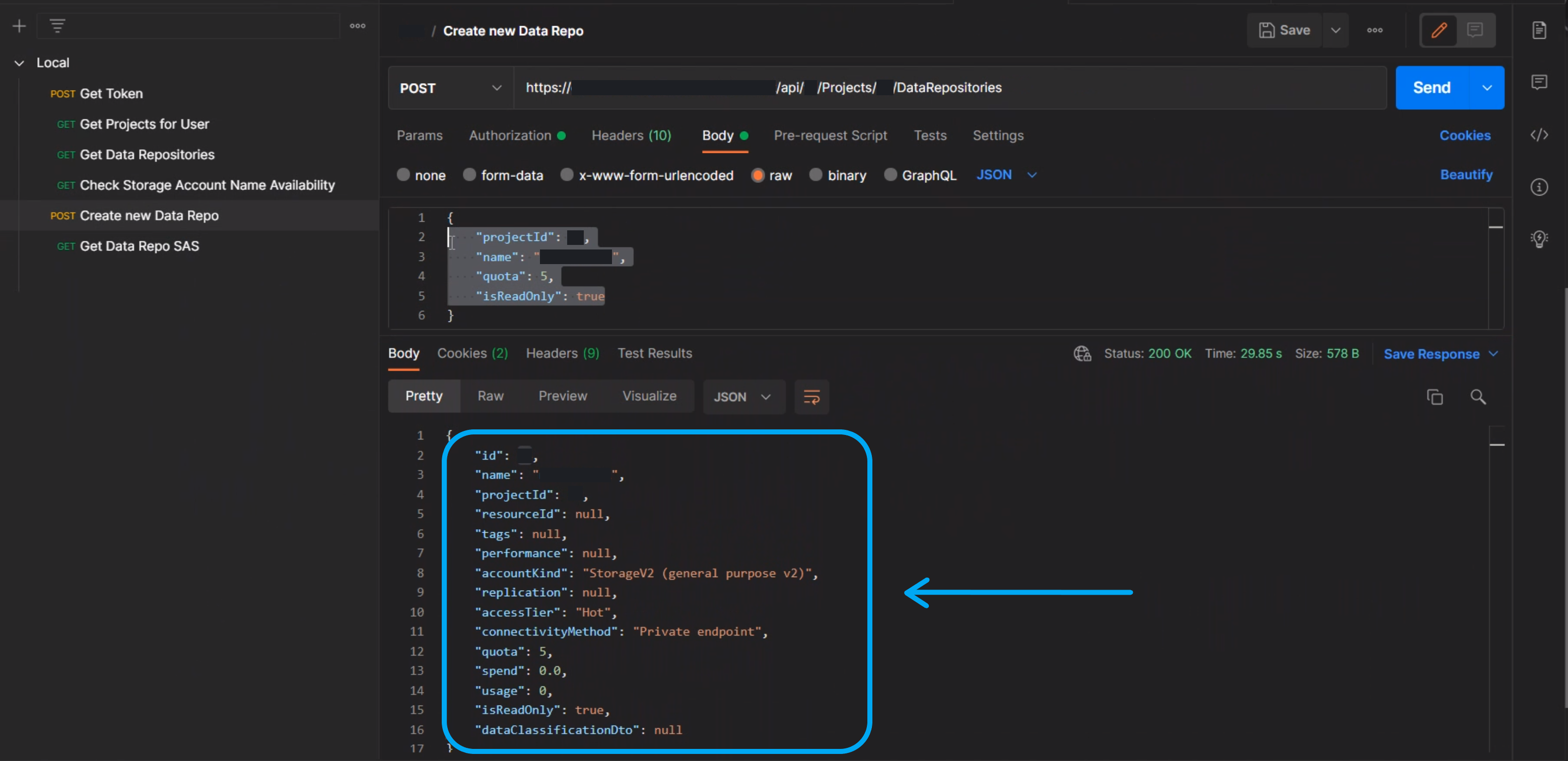
Once completed, click SEND and it will return the results of your new data repository.
This new data repository will also now be available in your selected project.
How to Programmatically Add Data to a Data Repository
After you have created a data repository, you can retrieve a SAS token for this data repository. An administrator can then programmatically add data to this data repository.
Get Data Repo SAS
You can use the following endpoint to request a time limited SAS token for a particular data repository within Loome Assist.
You will first need to get the authentication token.
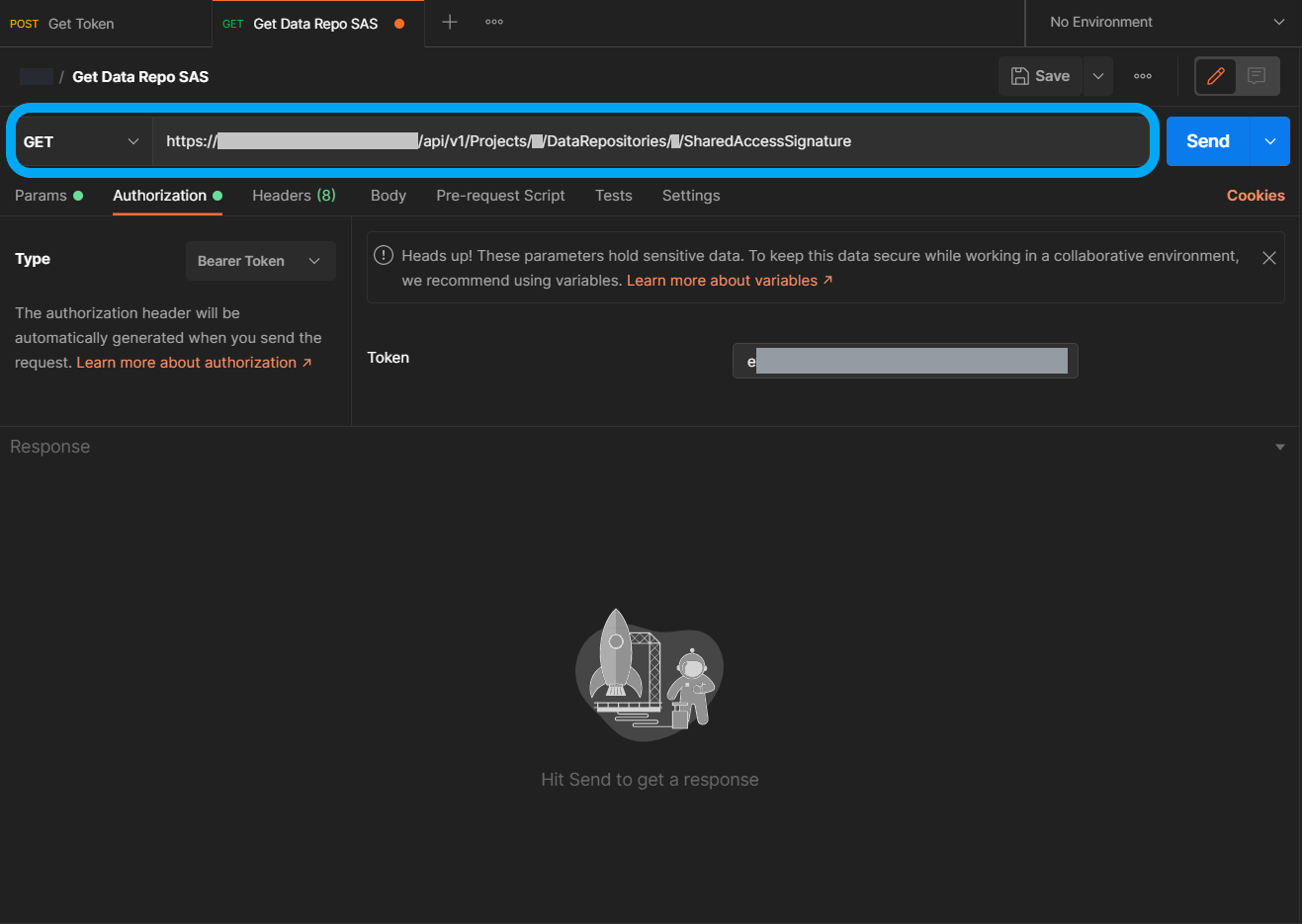
In the URL section beside ‘Get’, you will need to provide the ID of the data repository and the Project ID.
You will need to add your Loome Assist URL, your project ID and data repository ID. For example, https://YOUR-LOOME-ASSIST-INSTANCE.azurewebsites.net/api/v1/Projects/{projectId}/DataRepositories/{datarepositoryId}/SharedAccessSignature
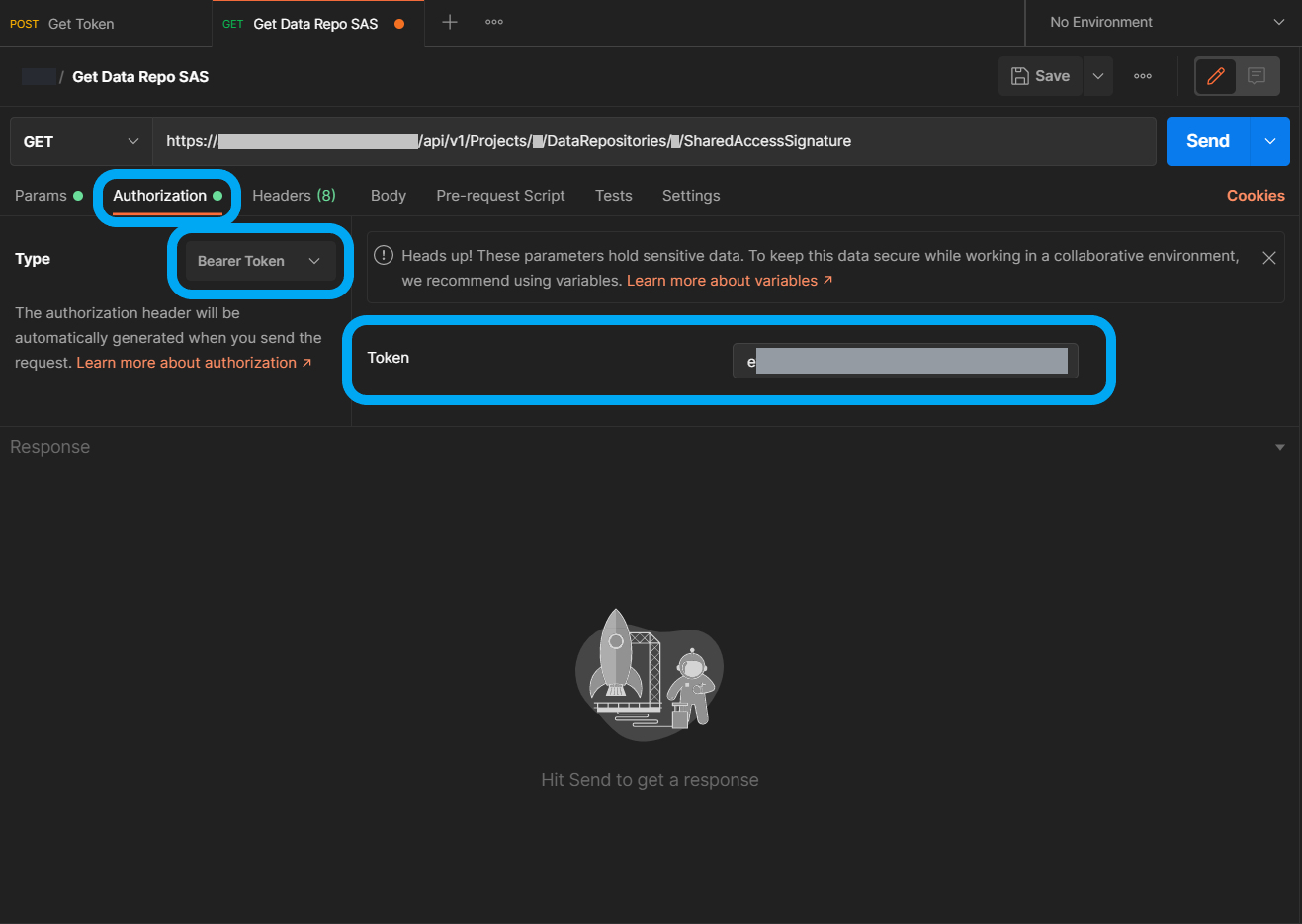
Under Authorization, specify that the authentication type is ‘Bearer Token’ and then paste in your token.
In ‘Params’, provide the params expirydatetime and isreadonly.
Expirydatetime is your chosen expiry date of this token and time in UTC and is in the format YYYY/MM/DD.
You can choose to make it read-only by selecting ’true’ or ‘false’ for isreadonly. This token will then have read-only permissions or full access permissions depending on this choice.
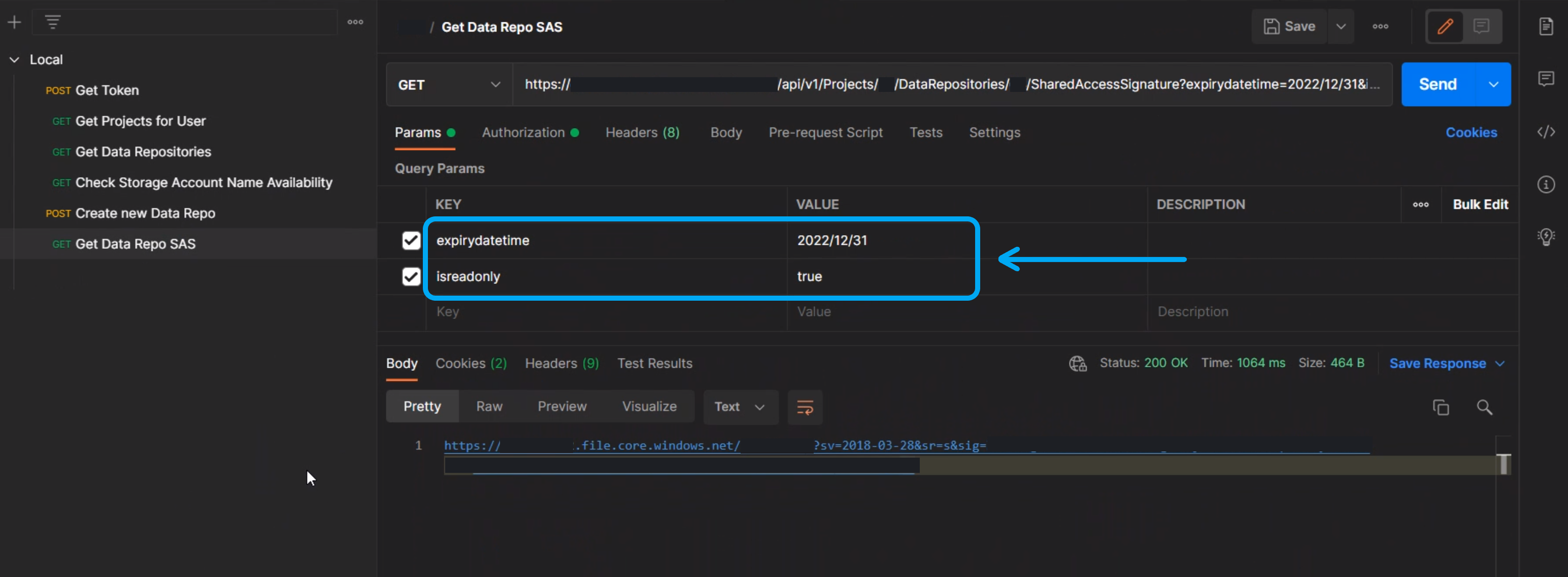
Click Send and it will return a link where you can access the SAS token.
You can use this SAS token to add data to the data repository you chose above.
How to Get the Data Repositories of a Project
The endpoint to get the existing data repositories of a project is the following.
Please replace the content in brackets, ‘{}’, with your own Loome Assist details.
GET https://{URL}/api/v1/Projects/{ProjectID}/DataRepositories
How to Get the Data Repository Network Configuration
The endpoint to get the network configuration of a data repository is the following.
Please replace the content in brackets, ‘{}’, with your own Loome Assist details.
GET https://{URL}/api/v1/Projects/{ProjectID}/DataRepositories/{DataRepositoryID}/NetworkConfiguration
Please note that you will need to update your agent to version 2022.5.10.1 to use this endpoint.
This will return:
- whether it is in a private network,
- the DNS name,
- the IP Address,
- the Address Space (if in a private network, otherwise it will return ’null’),
- and the subnet (if in a private network, otherwise it will return ’null’).
Workstation Endpoints
How to Get the Workstations of a Project
The endpoint to get the existing workstations of a project is the following.
Please replace the content in brackets, ‘{}’, with your own Loome Assist details.
GET https://{URL}/api/v1/Projects/{ProjectID}/Workstations
How to Get the Workstation Network Configuration
The endpoint to get the network configuration of a workstation is the following.
Please replace the content in brackets, ‘{}’, with your own Loome Assist details.
GET https://{URL}/api/v1/Projects/{ProjectID}/Workstations/{WorkstationID}/NetworkConfiguration
This will return:
- whether it is in a private network,
- the DNS name,
- the IP Address,
- the Address Space (if in a private network, otherwise it will return ’null’),
- and the subnet (if in a private network, otherwise it will return ’null’).