Azure Batch Account
Description
Used for executing scripts on the Azure Batch service.
Task Type Support
This connection type supports the following task types:
- Azure Batch Task
Connection Notes
-
Learn how to create an Azure Batch Account in the Azure Portal in the Azure Documentation Quickstart.
-
You can optionally use a managed identity for your Azure Batch connection. Learn more about Managed Identity here.
-
The fields for the Azure Batch Account connection can be found easily in the “Keys” section of the Azure Resource.
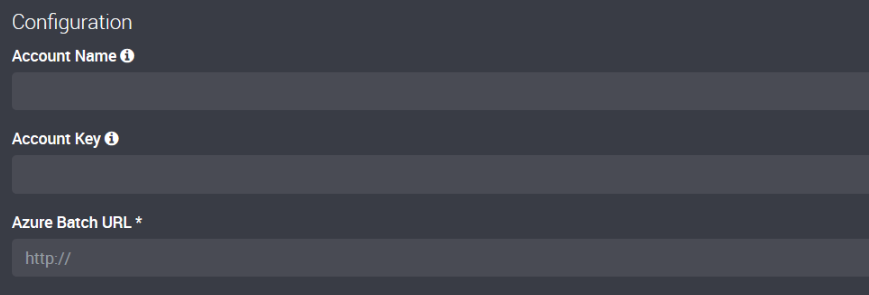
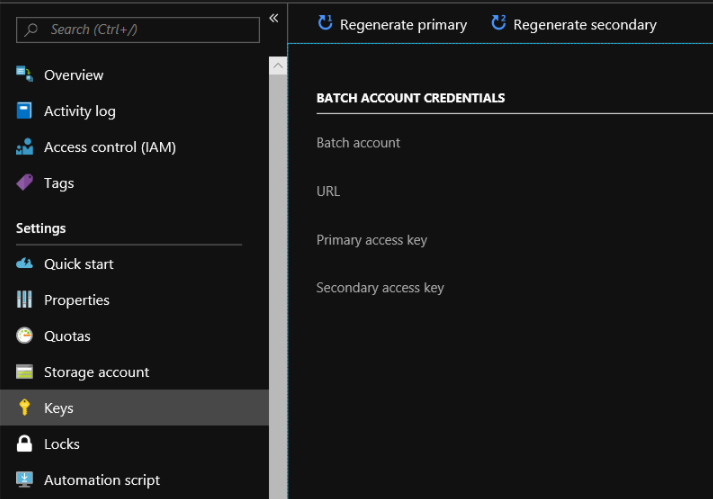
Managed Identity in Loome
Requirements for using Managed Identity with Loome
- Learn more about configuring Managed Identity in Azure here.
- When using managed identity on the Azure Batch connection, you will need to have configured a managed identity (of either System Assigned or User Assigned) for the Loome Agent that will be used with this connection. The managed identity will need to be created on the agent container or VM.
- In your Azure Batch Account, the agent will need to have Contributor access.

How to Enable Managed Identity in your Azure Batch Connection
Choose the Azure Batch Account connector.
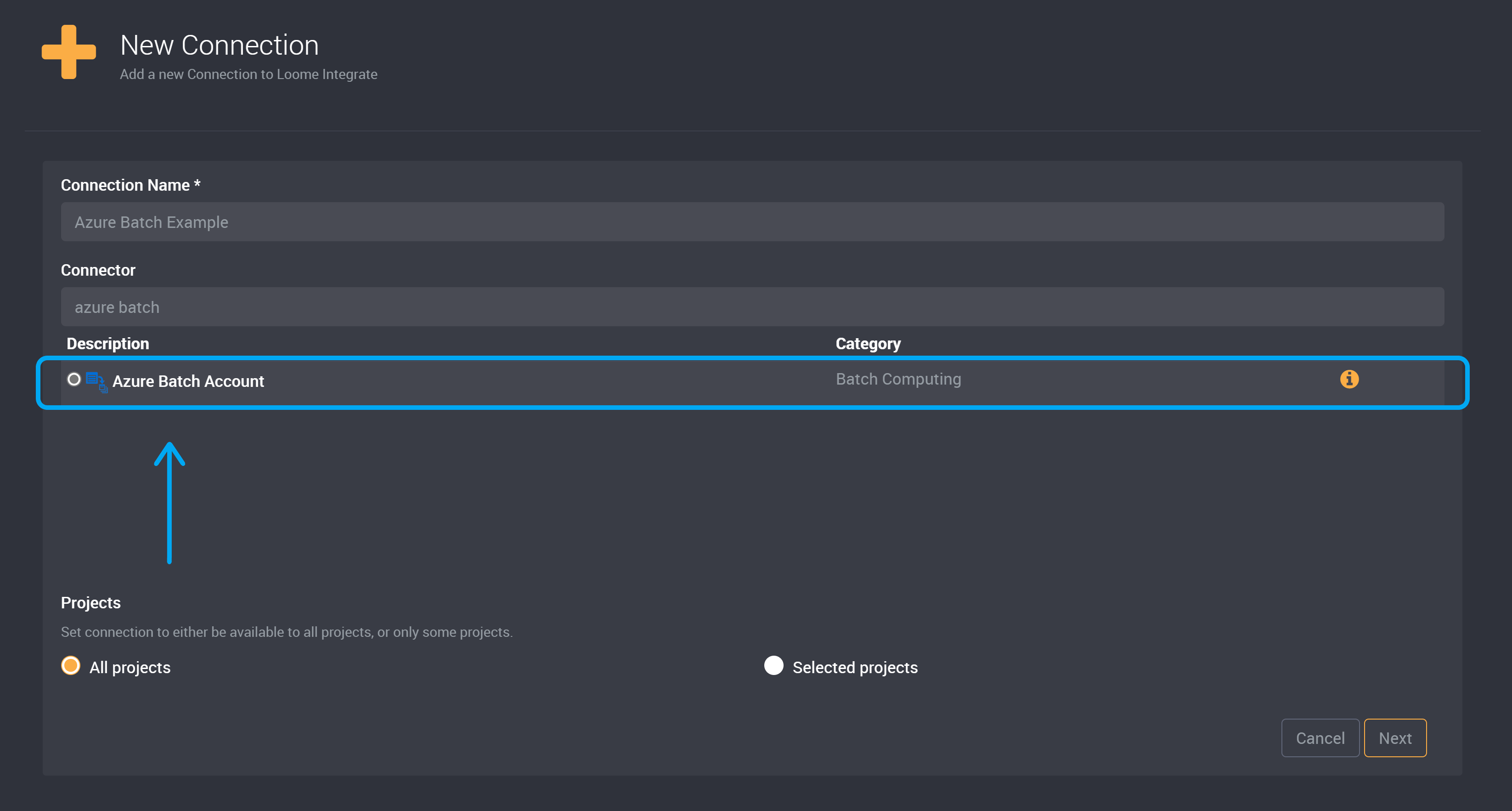
Next, you have the choice between managed identity and your batch credentials.
Check the Use Managed Identity? checkbox.
Please note that you will need to have configured a managed identity (of either System Assigned or User Assigned) in Azure for the Loome Agent that will be used with this connection. The managed identity will need to be created on the agent container or VM. In your Azure Batch Account, the agent will need to have Contributor access.
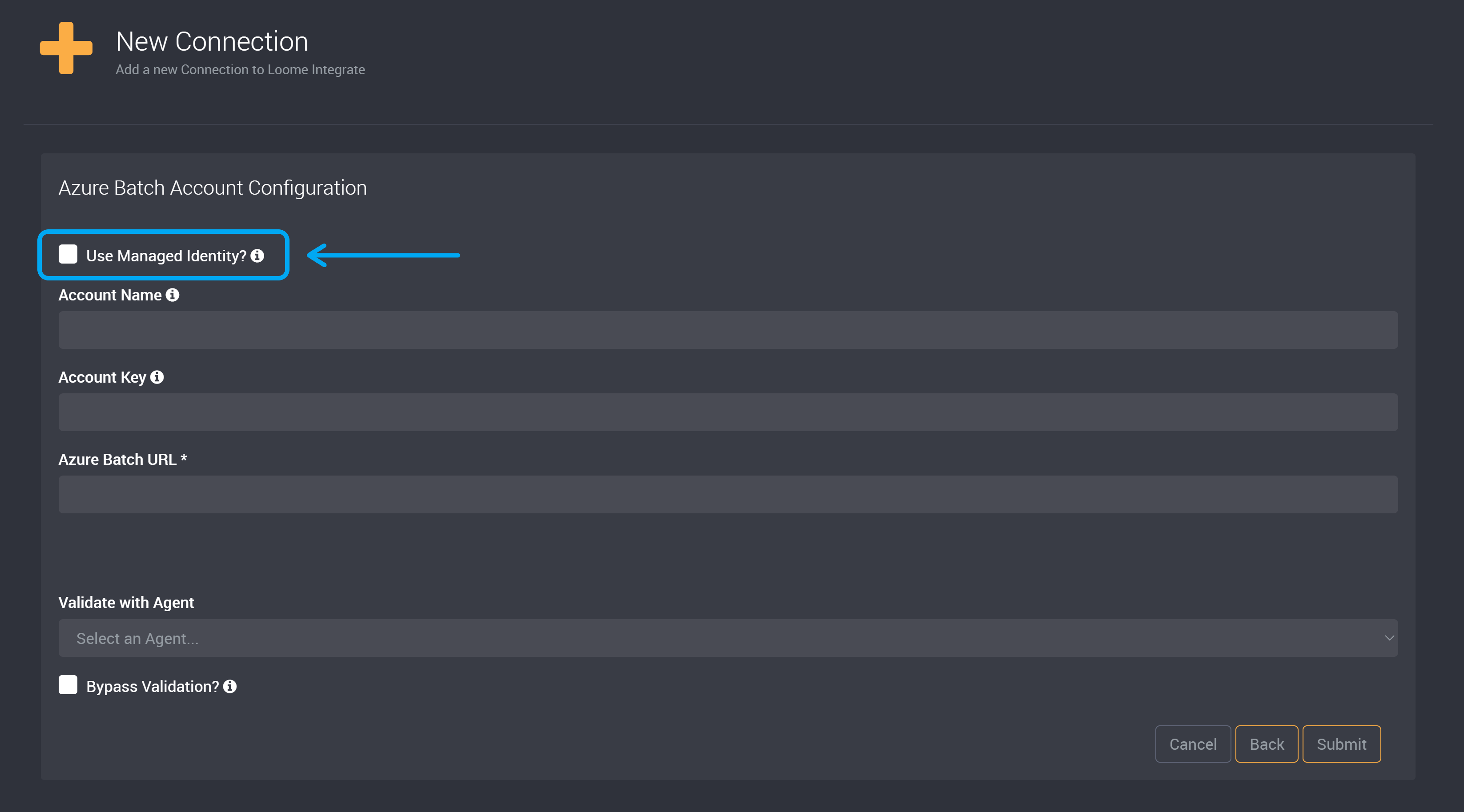
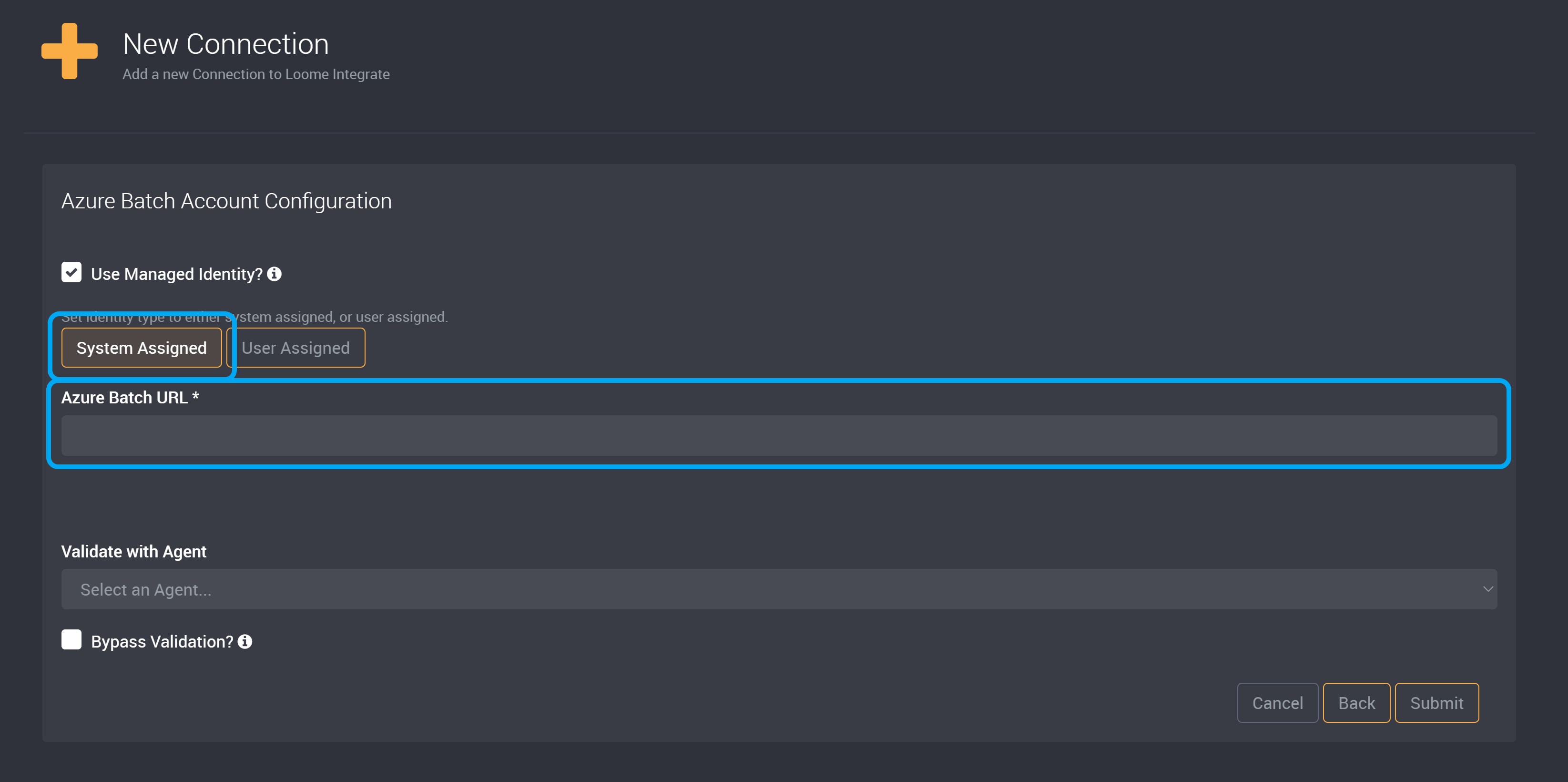
You can choose to connect to Azure Batch using System Assigned or User Assigned.
System Assigned
If your Managed Identity is system assigned, choose System Assigned.
Provide your Azure Batch URL.
User Assigned
If your Managed Identity is user assigned, choose User Assigned.
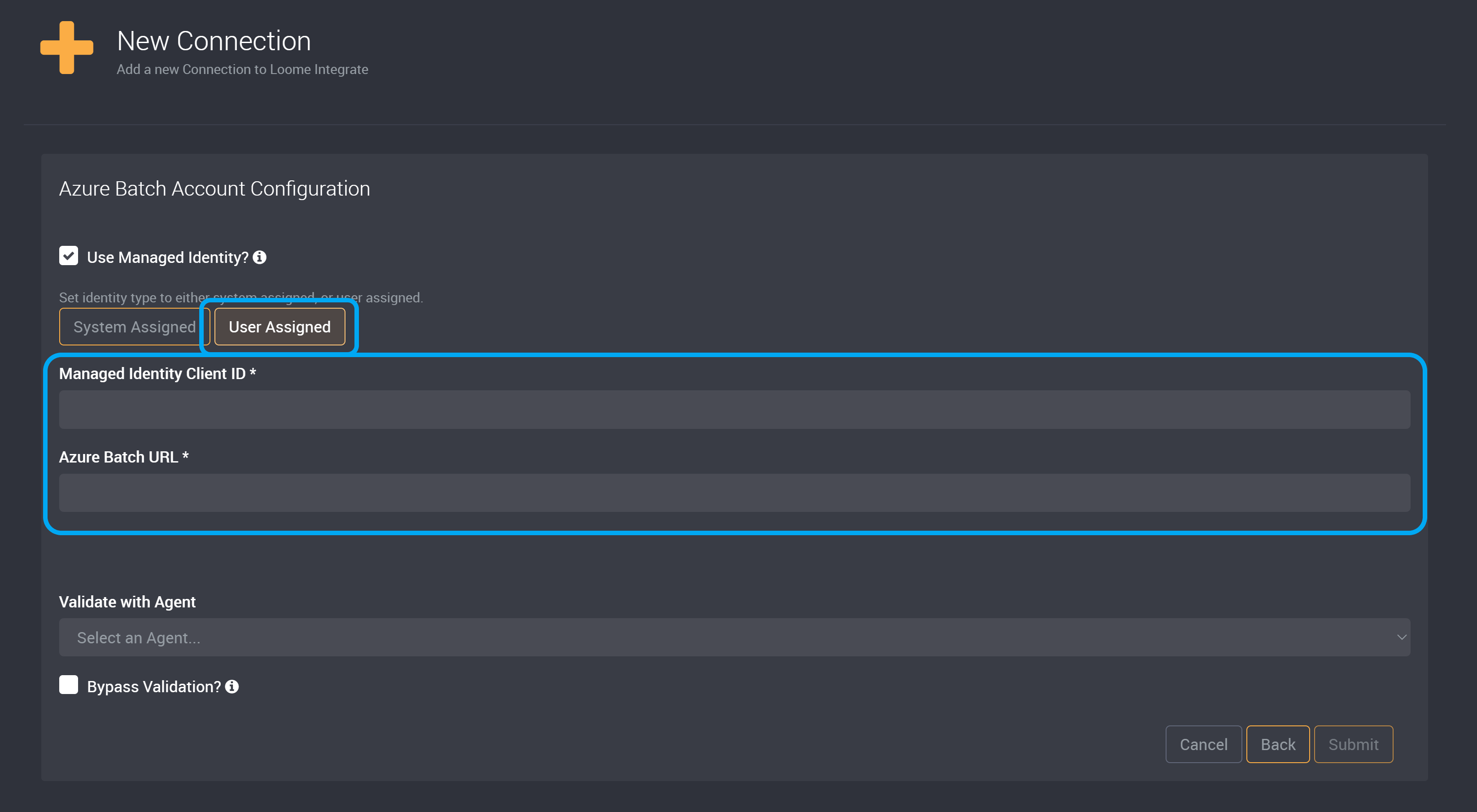
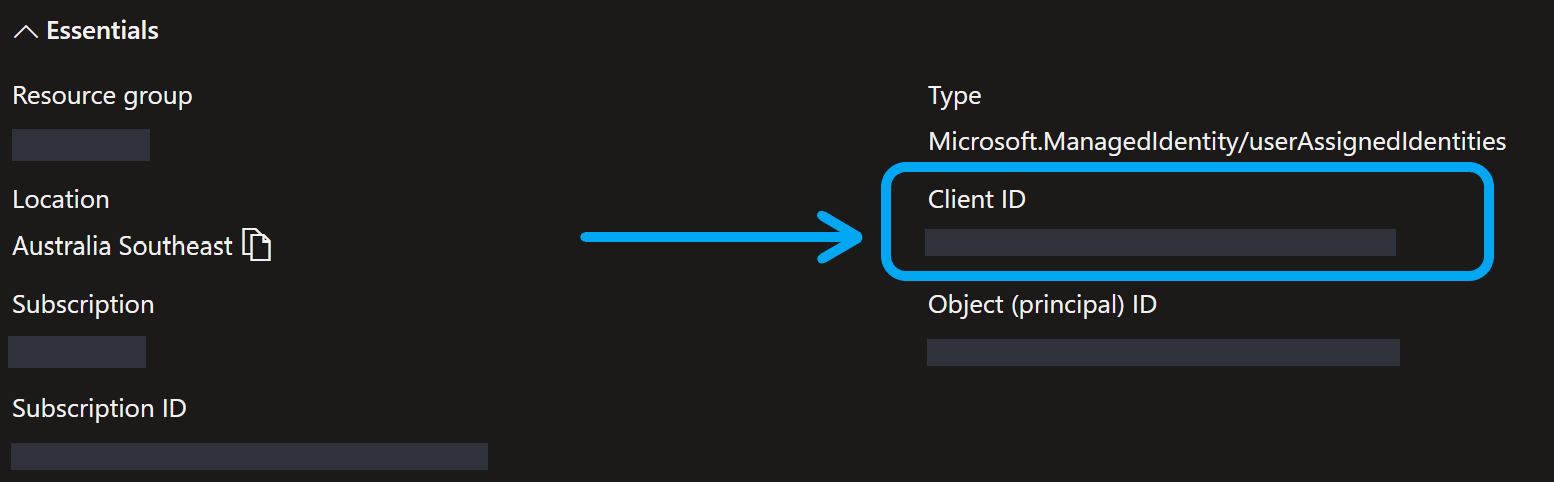
Provide your Managed Identity Client ID.
You can copy this Client ID from your Managed Identity in Azure into the Managed Identity Client ID field in Loome.
Then provide your Azure Batch URL.
Choose an agent from the dropdown to validate this connection that is also an agent that has access to your selected managed identity.
Submit this connection.