Creating Job Schedules
As well as running a job manually, you can also set a schedule to run each job at your set time. If required, you can create multiple different types of schedules for each job.
Creating Schedules
You can create new schedules for any job using the schedule page. On each job page, you can find the schedules button at the top-right.

Click on Add Schedule.
Types of Schedules
You can create a schedule in Loome using either the setup wizard or by entering manual crons.
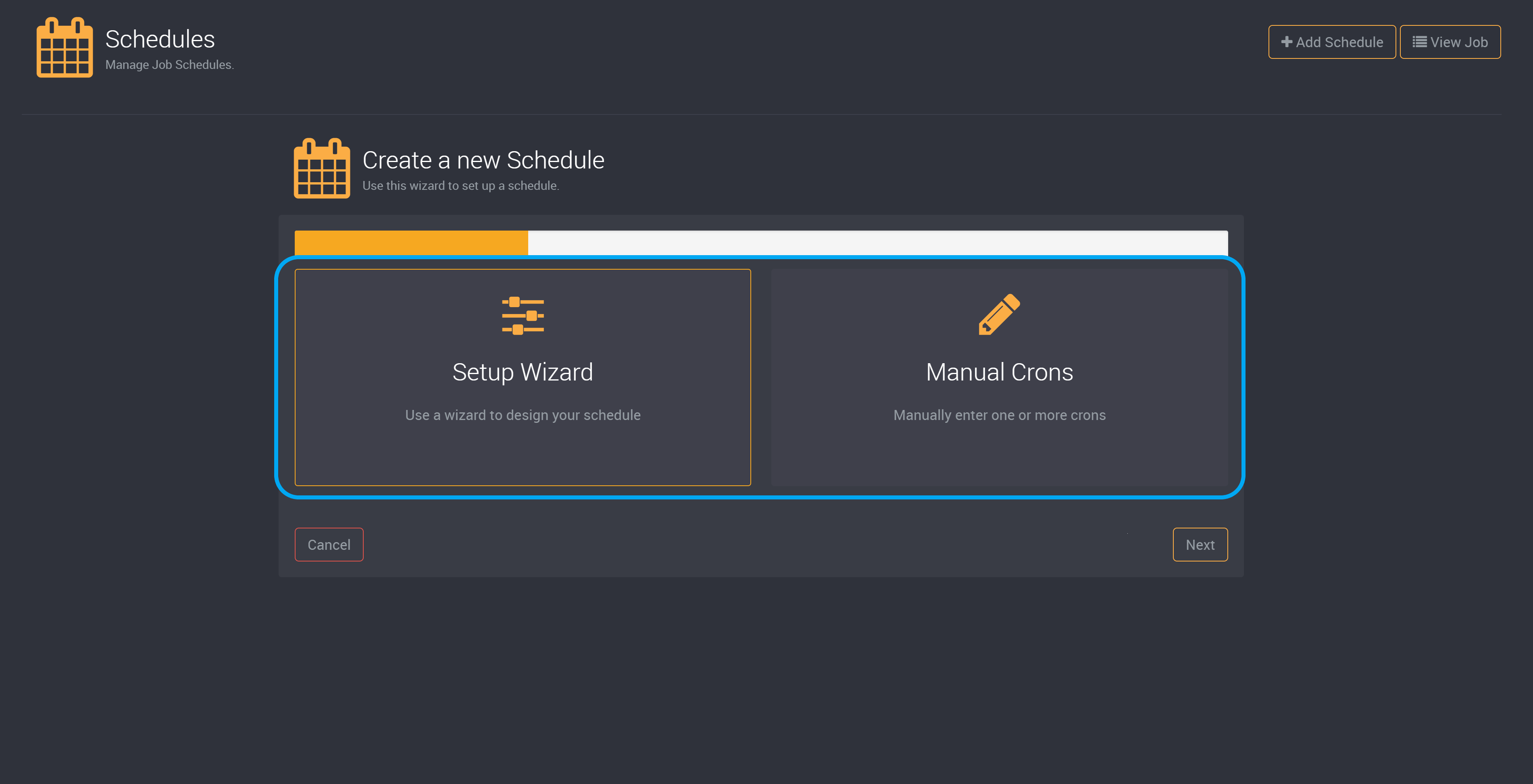
Setup Wizard
If you use the setup wizard, you can then choose between two types of schedules.
- One time
- Recurring
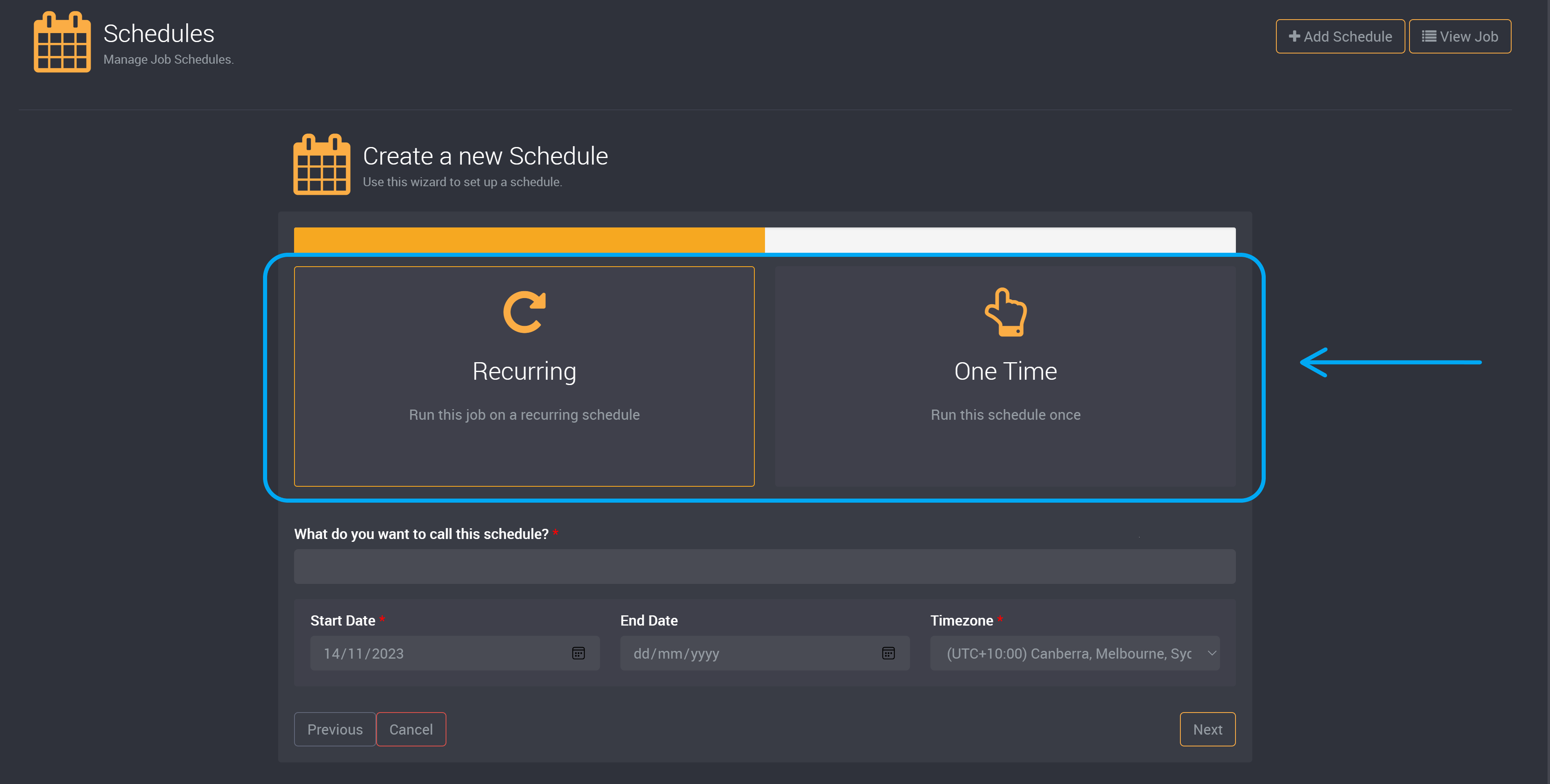
One Time
The One Time schedule type will run a job once at a given date, time and selected time zone.
After a One Time schedule has been ran, it becomes “Inactive” due to it passing its scheduled execution time.
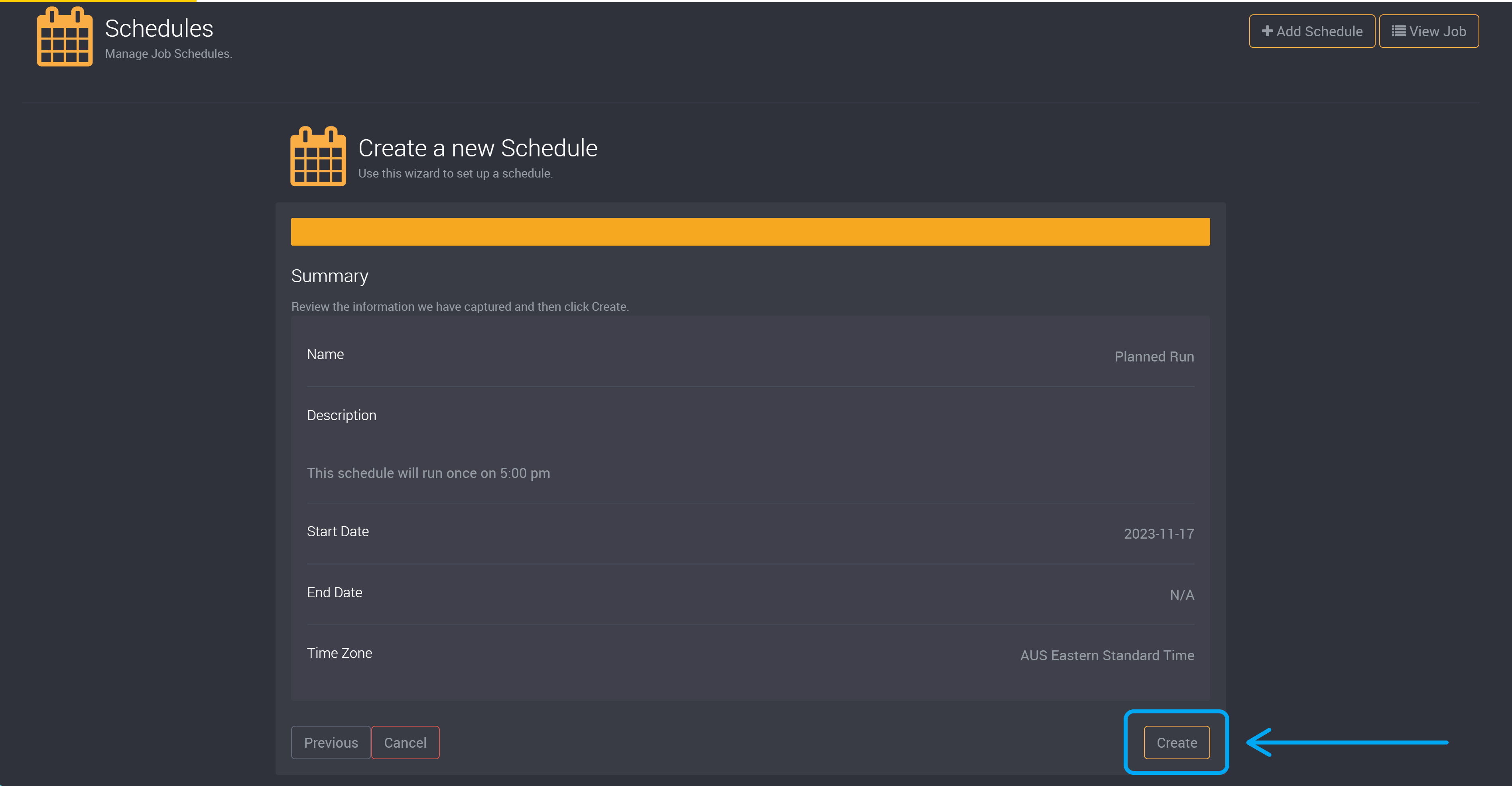
To create a one time schedule, after you have chosen ‘One Time’ and a name for this schedule, choose the date and time that it will run the job.
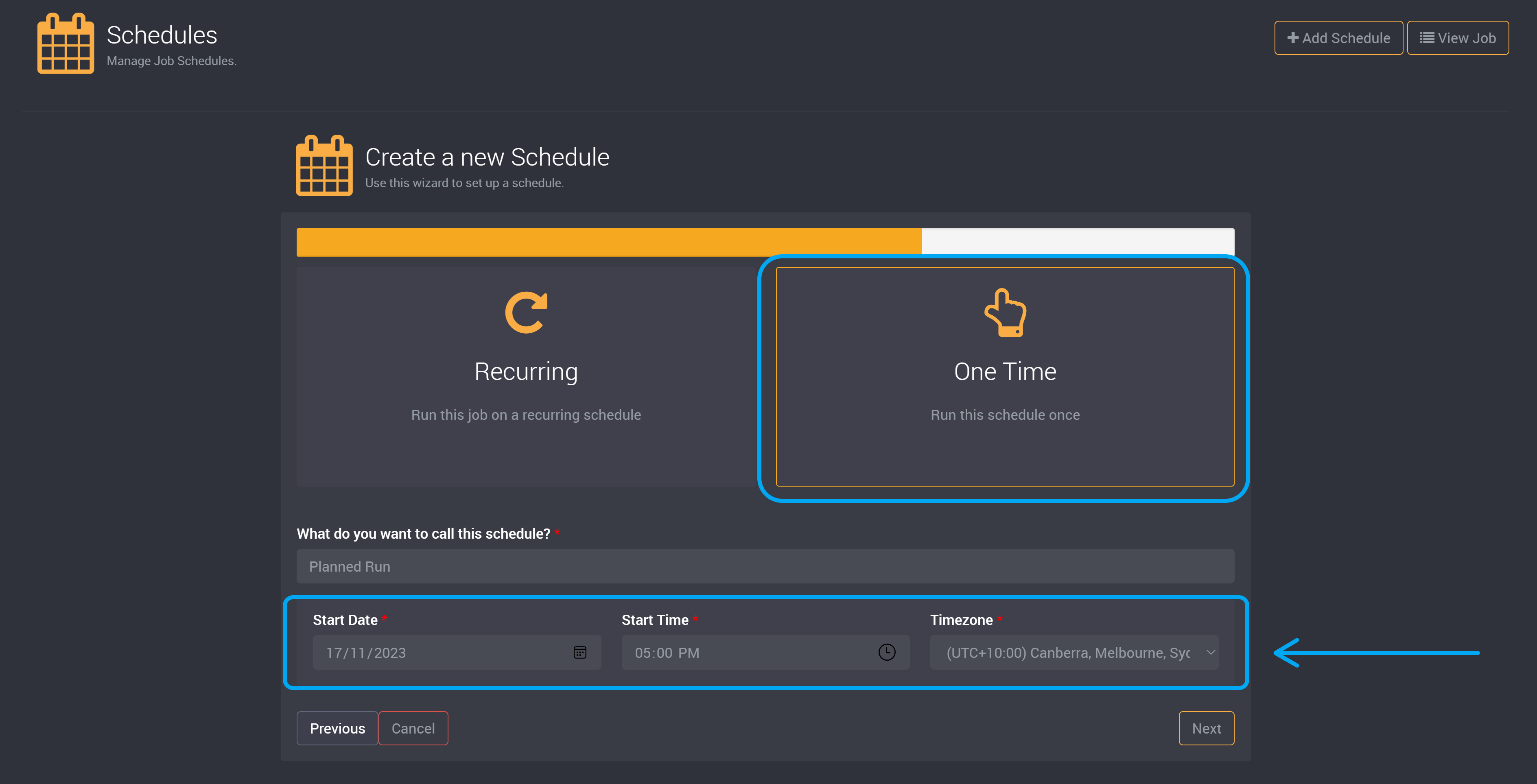
You can then click Create to save and enable this schedule.
Recurring
The Recurring schedule type refers to an ongoing schedule. You can create a wide range of potential schedules – both simple and complex. Recurring allows you to create schedules that runs the Job every nth minute/hour with a start and optional end time, and your selected time zone.
Recurring schedules have two main sections, one where you choose how often the schedule will run the job and how many times it will repeat the job during the day.
Create a Recurring Schedule
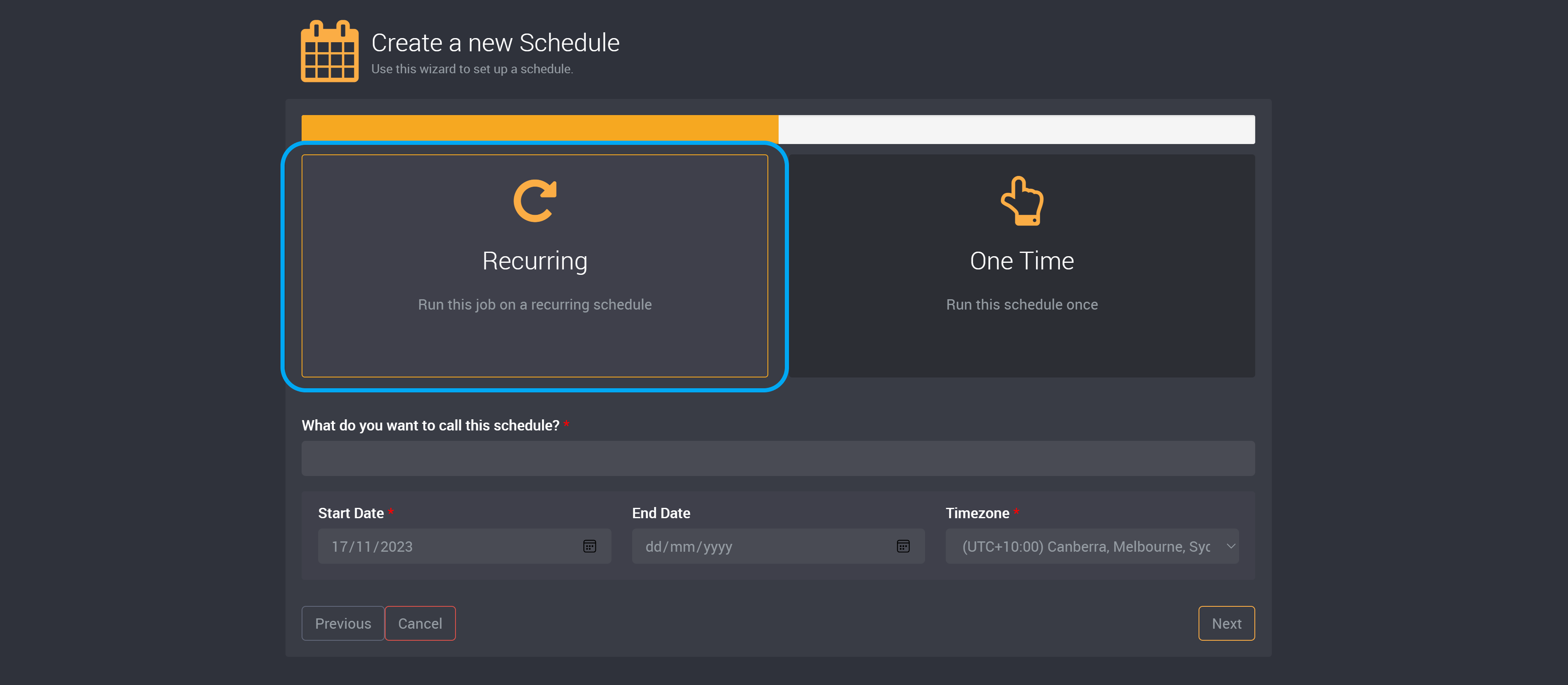
When creating a recurring schedule, the first step will be to provide a name for the schedule.
Next, you can choose the start and end date, as well as the timezone.
This will define the date the schedule will be active.
By choosing a start date, you can add schedules well before they are required to occur for planning and job running automation.
The schedule will only end if it has reached an end date. The end date is optional, and if it is not selected, the schedule will remain ongoing until it is manually disabled or if the schedule is removed.
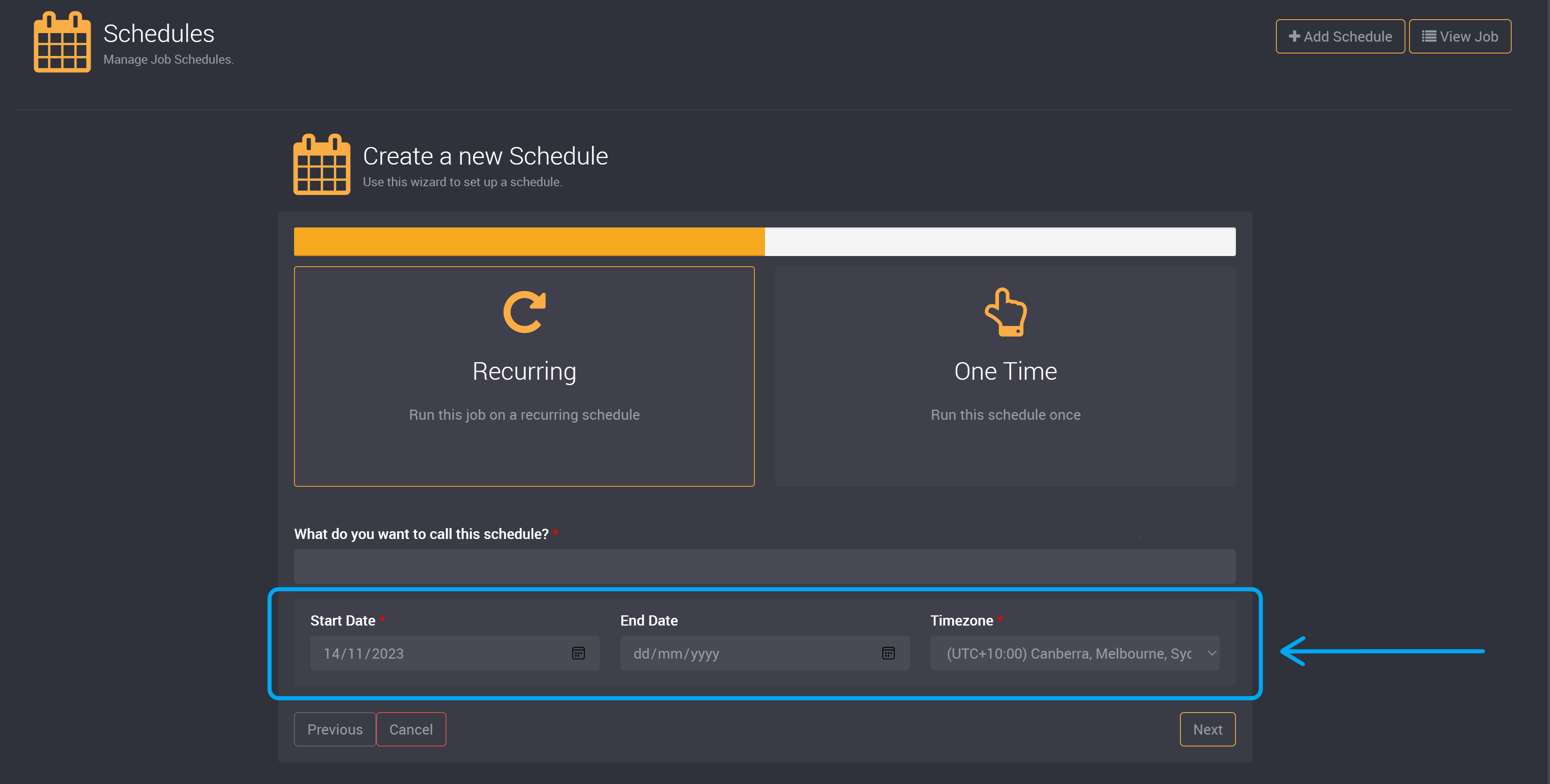
Please note that your recurring schedule will be automatically deleted after it has reached its selected end date. At its next scheduled run, the schedule will be deleted if it is past its end date and will not run the job.
How Often a Job Will Run
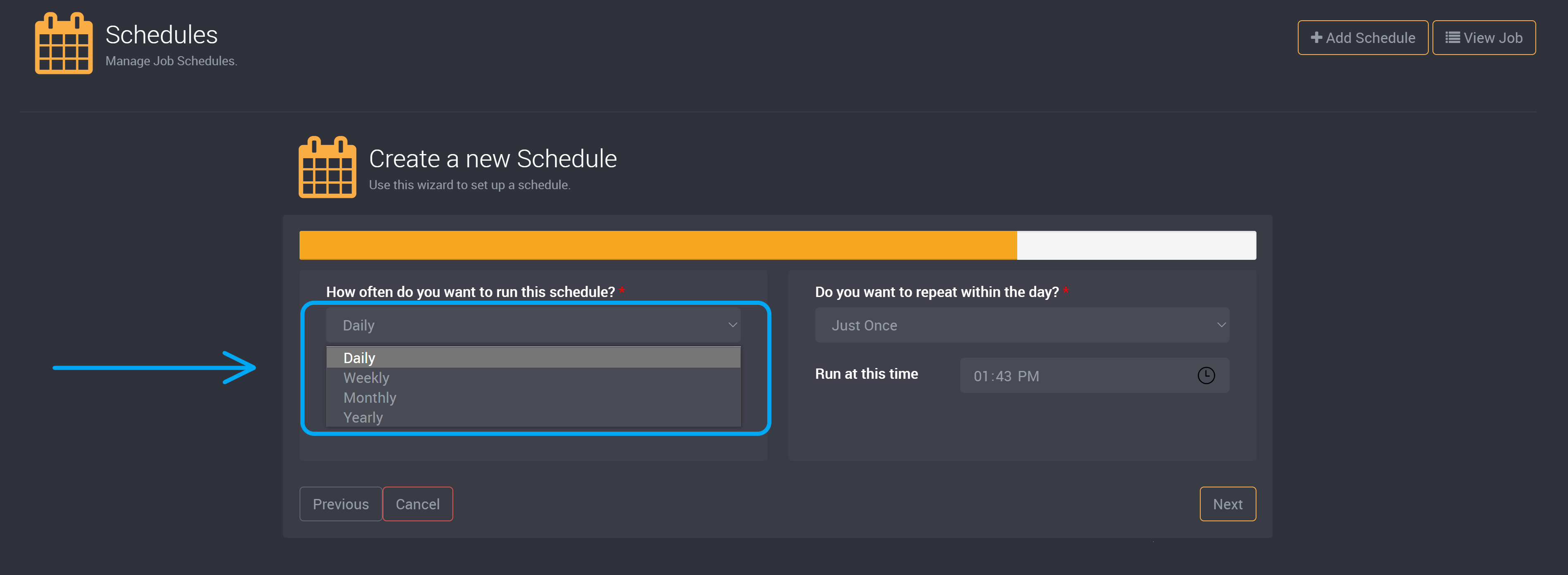
You can choose whether you would like this schedule to run daily, weekly, monthly or yearly.
- Daily
- You can choose whether it will run every few days, e.g.,“Run this Job every nth day” or daily.
- The default value 1 means that it will not skip any days and will run the job every day.
- You can run the job every 1 - 7 days.
- Weekly
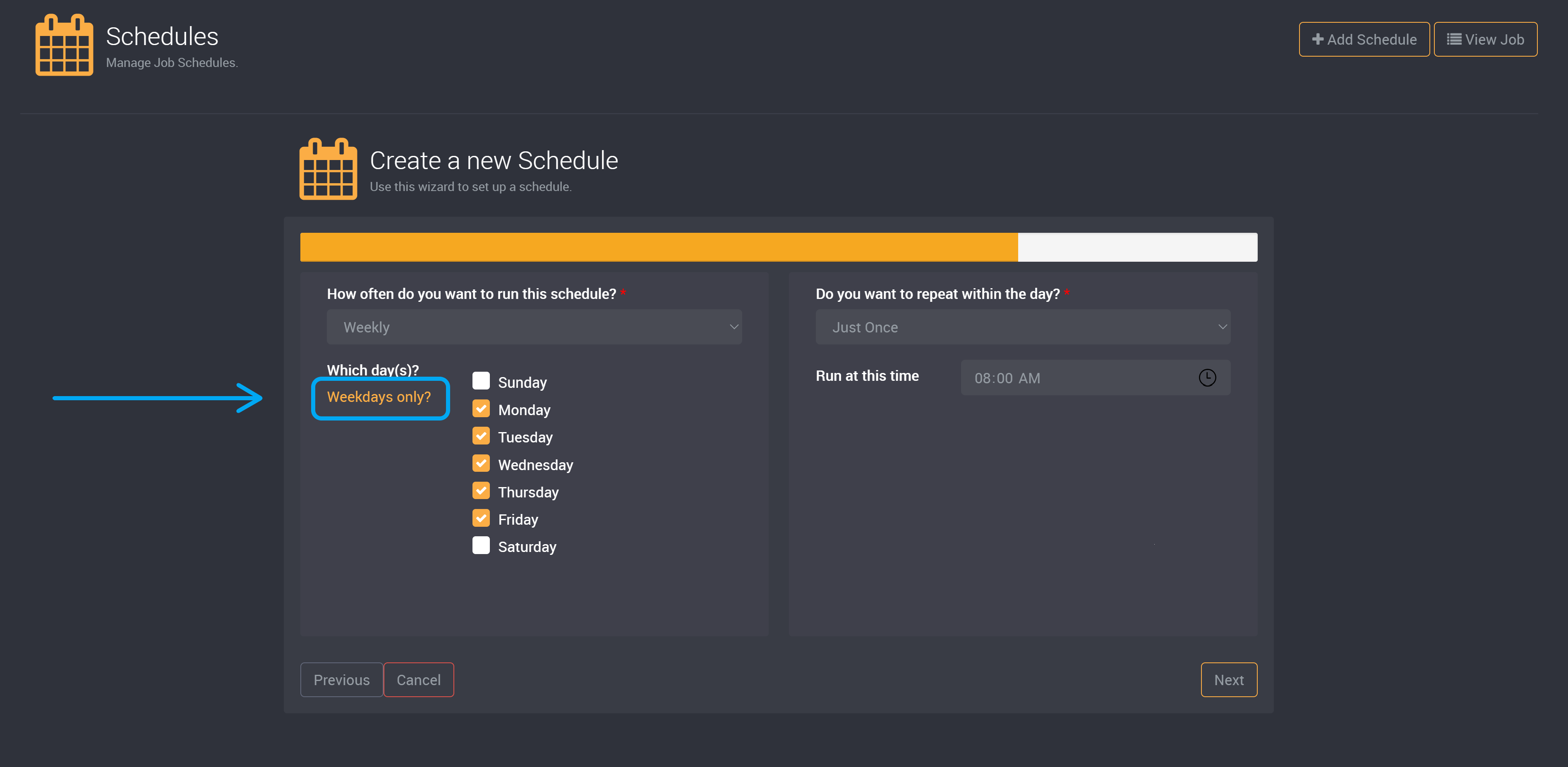
- You can pick which days of the week the job will run, e.g., Monday and Friday.
- You select and deselect which days of the week you want the job to run.
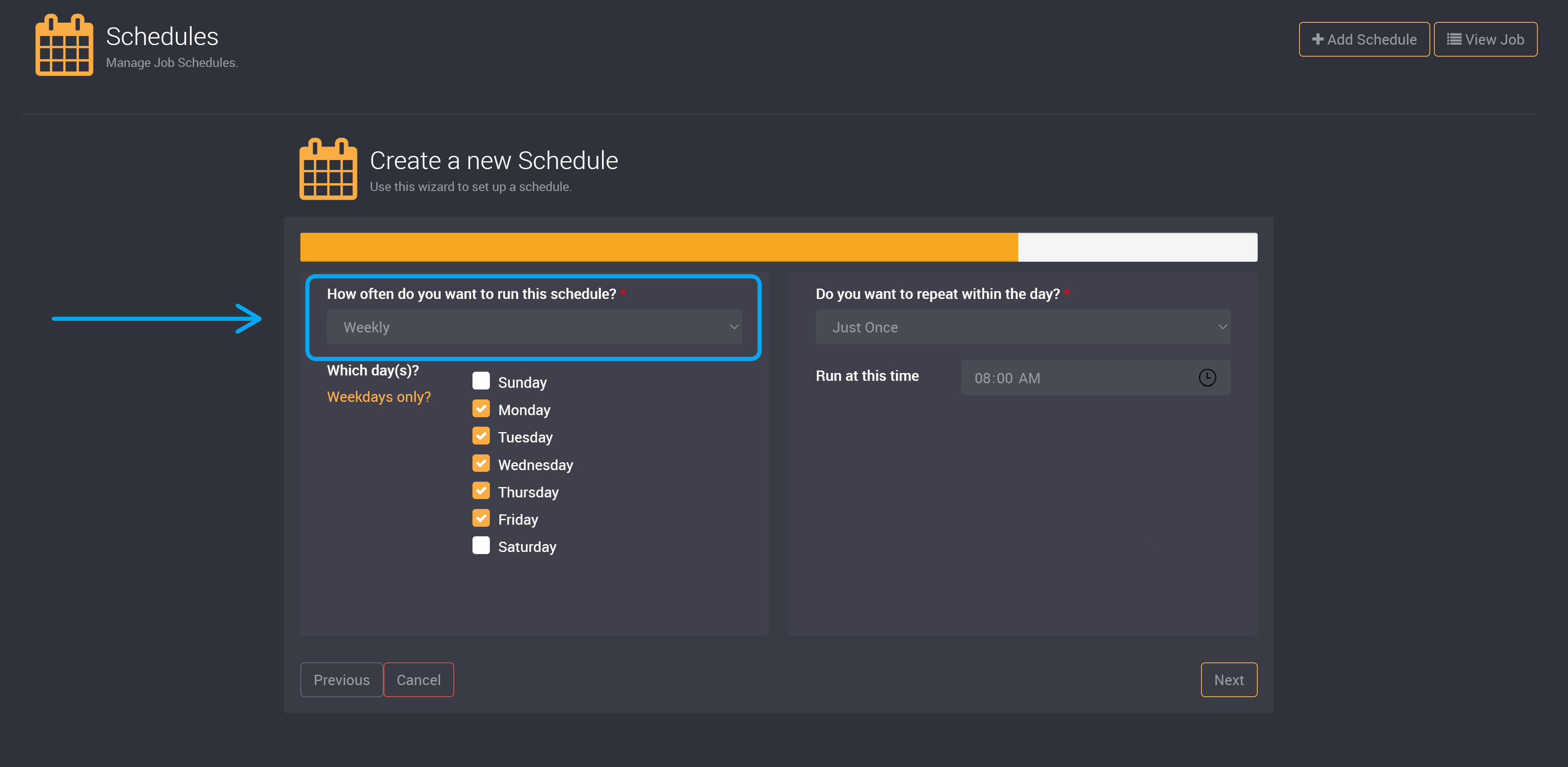
You can click on Weekdays Only? to auto-select all weekdays and not include Saturday and Sunday.
- Monthly
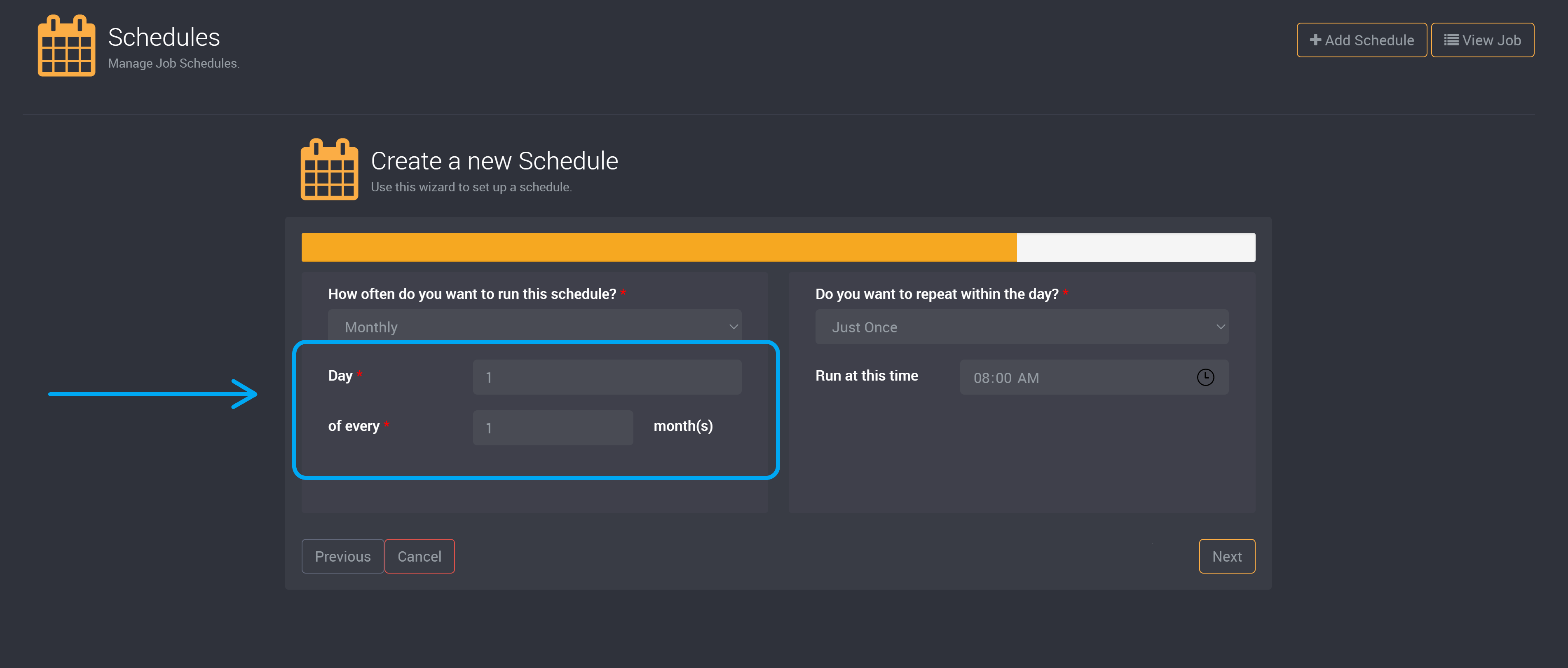
- You can choose whether a job will run every month and which day of the month it will run.
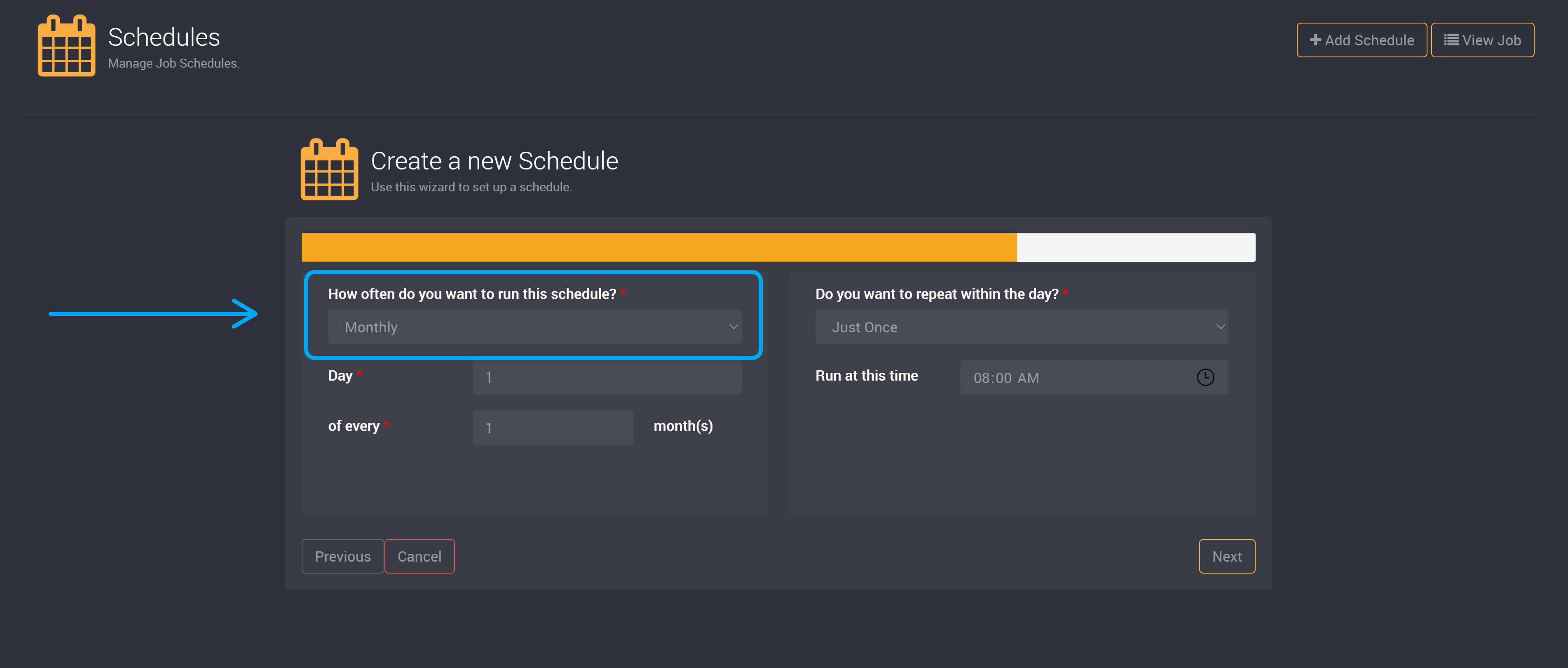
For example, you can choose to run a job on the 1st every month. Or on the 1st every two months.
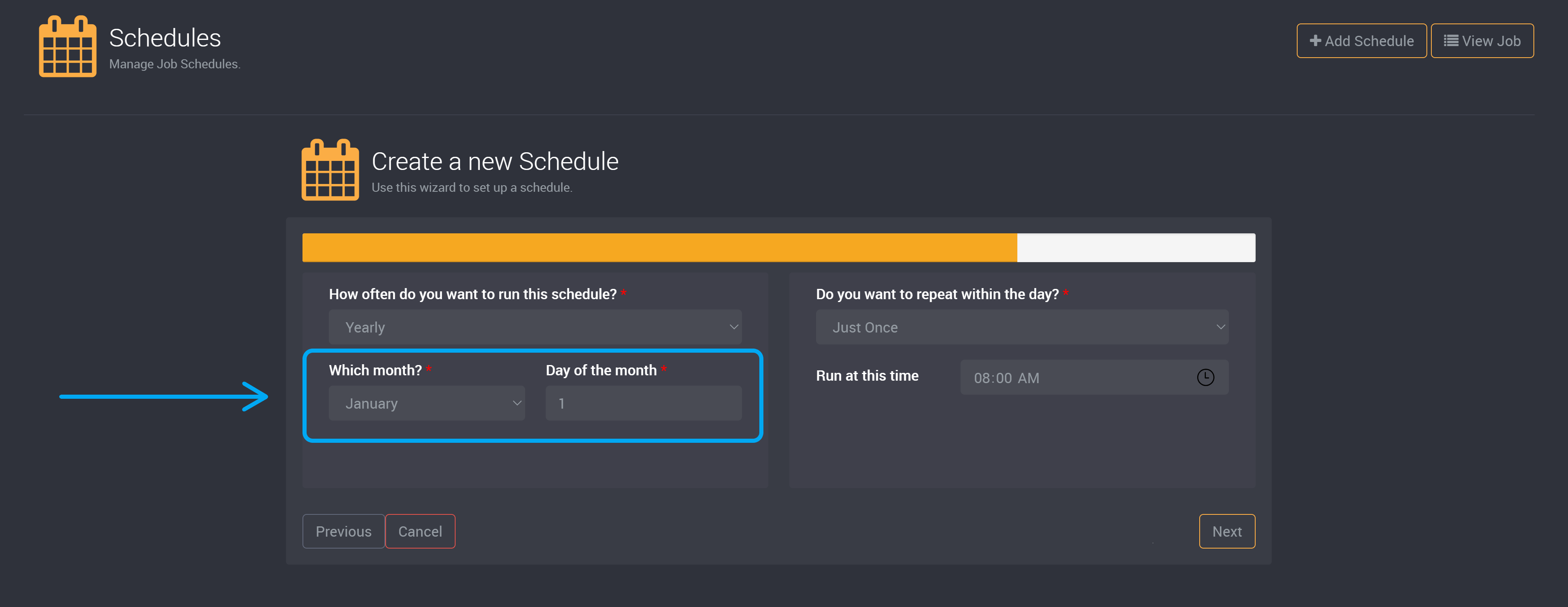
- Yearly
- You can select the month and day that the job will run.
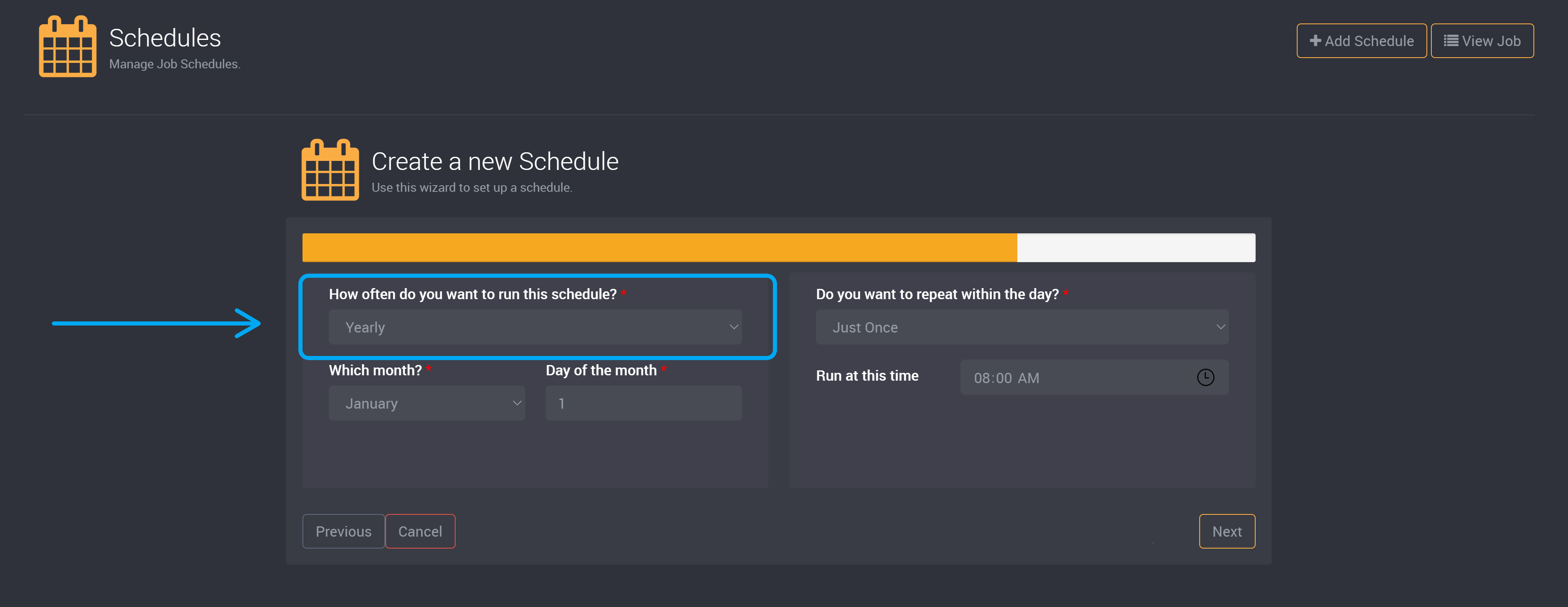
For example, this job will run every year on the first of January.
Frequency
You can choose the frequency that a job will run during the day and whether it will run every nth minute or hour, or if it will only run once that day.
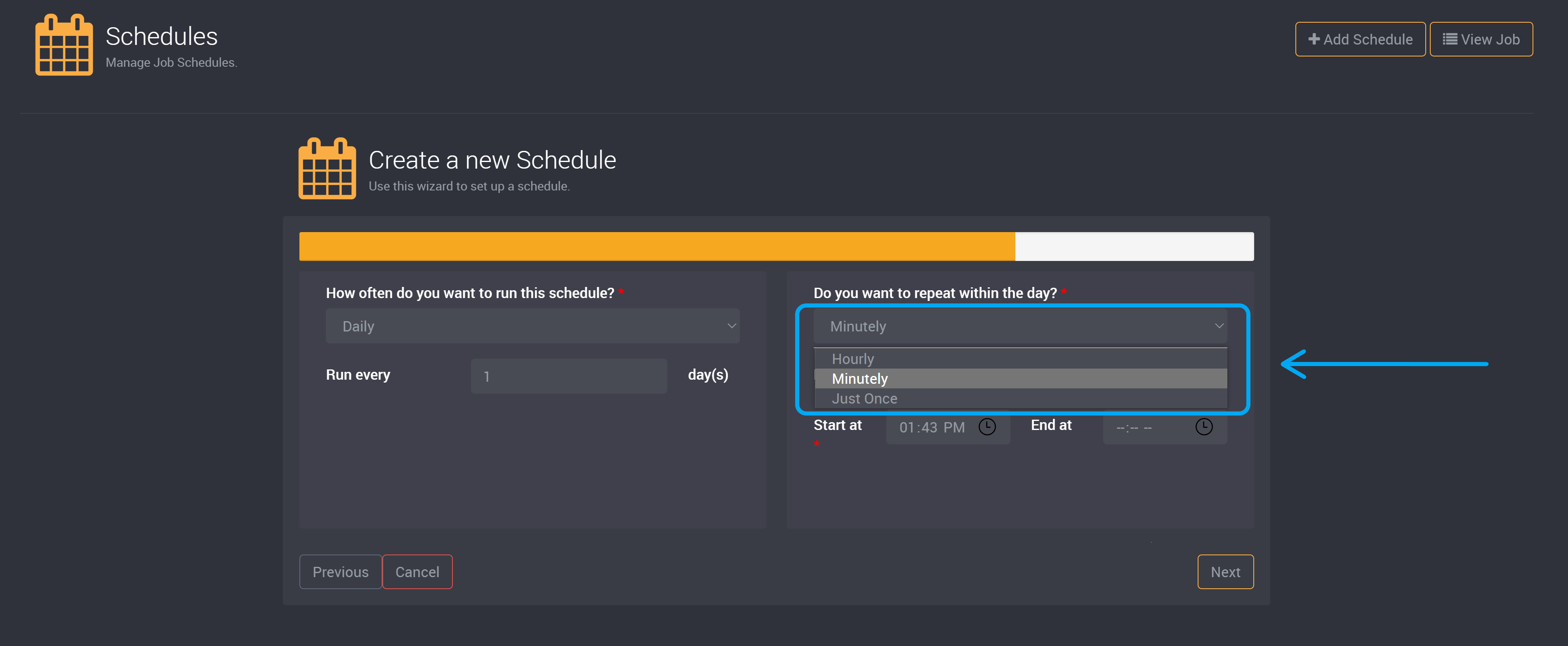
- Just once allows the user to create a schedule that runs the job at a particular time once daily, weekly or monthly, according to the time period that has been selected above.
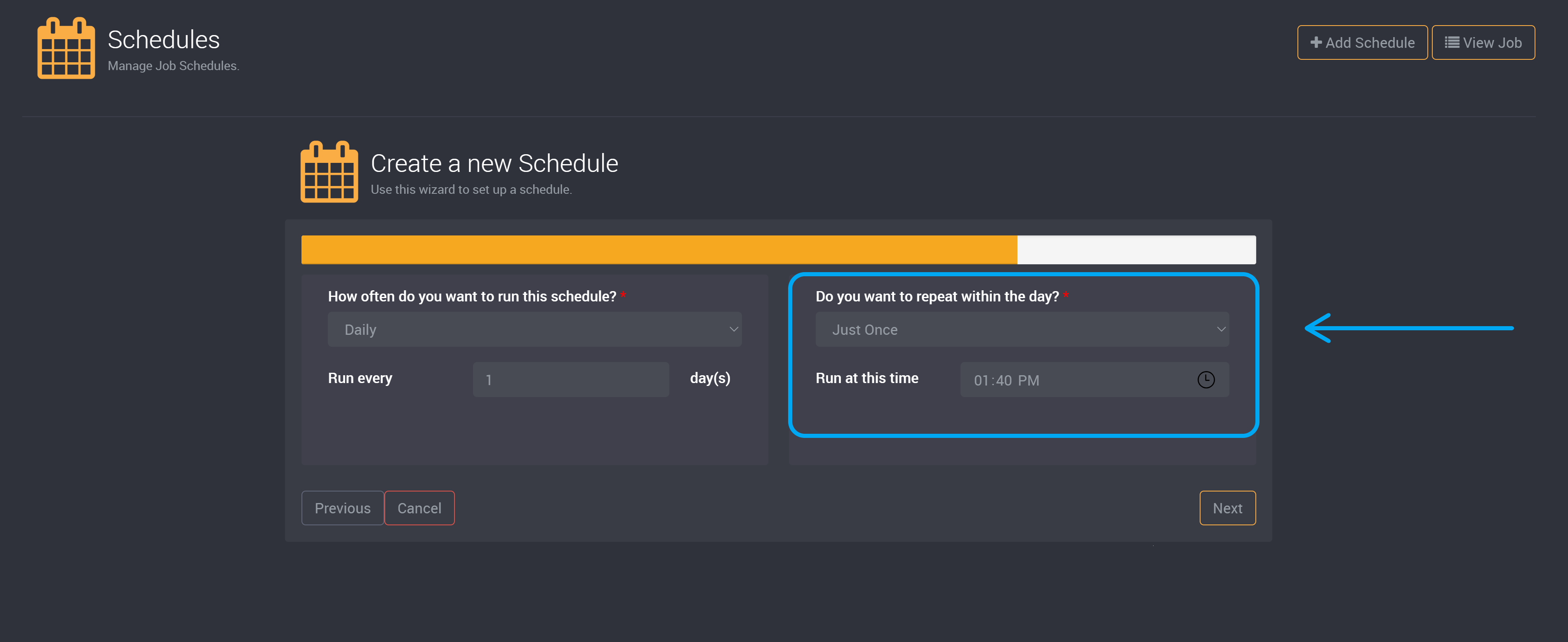
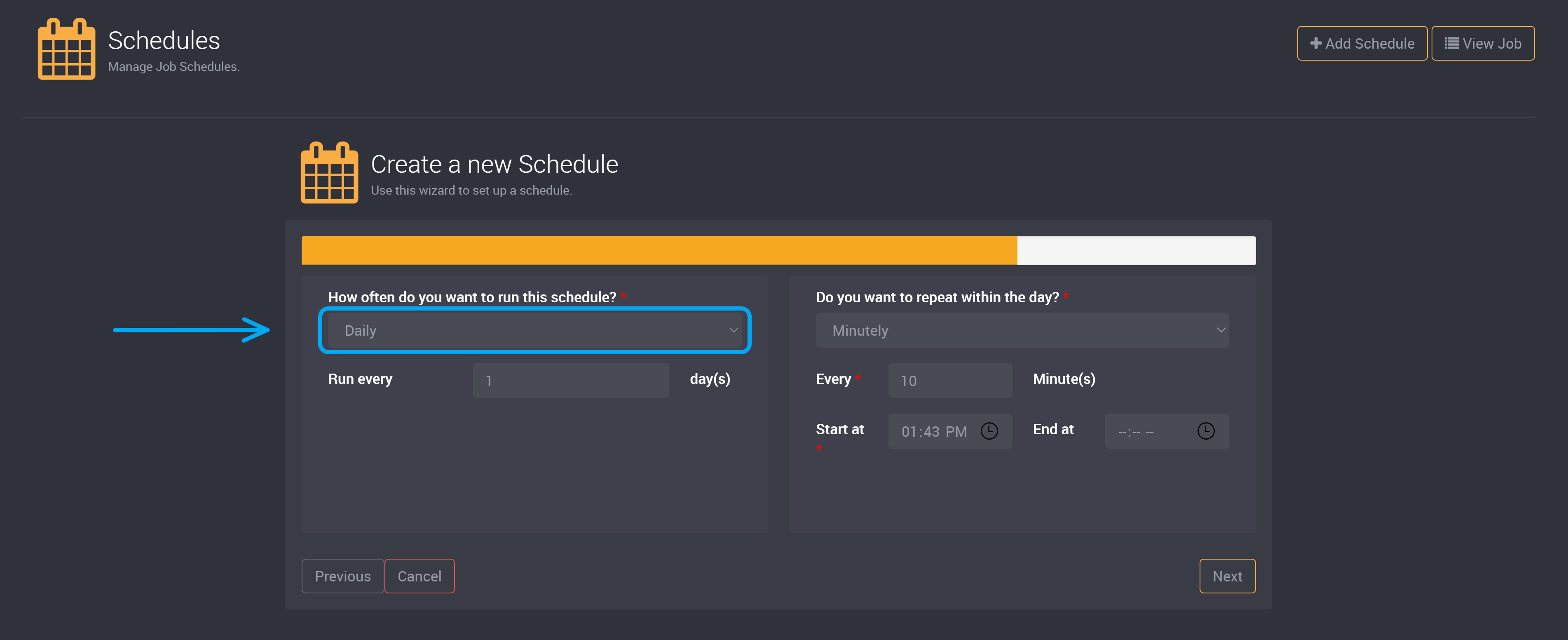
- Minutely means you can run a job every few minutes. You can run a job every 1 - 59 minutes.
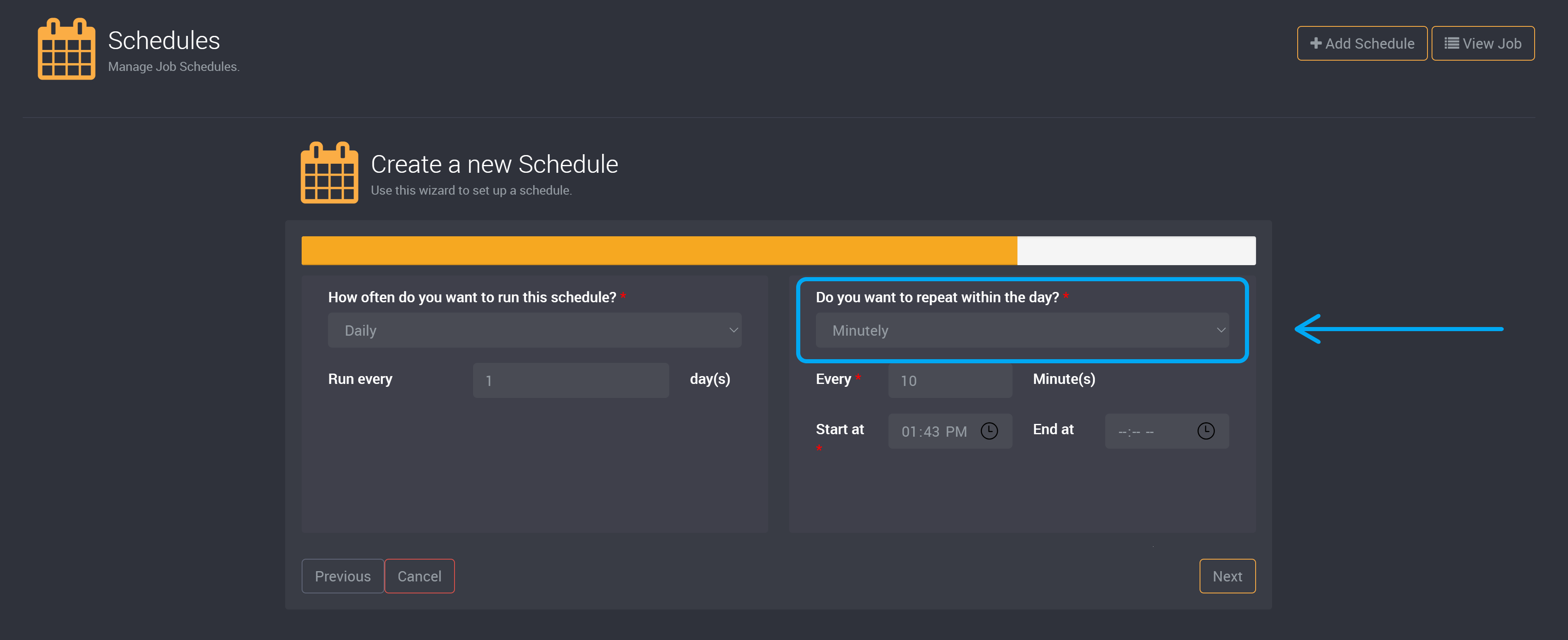
For example, you can run a job every 10 minutes.
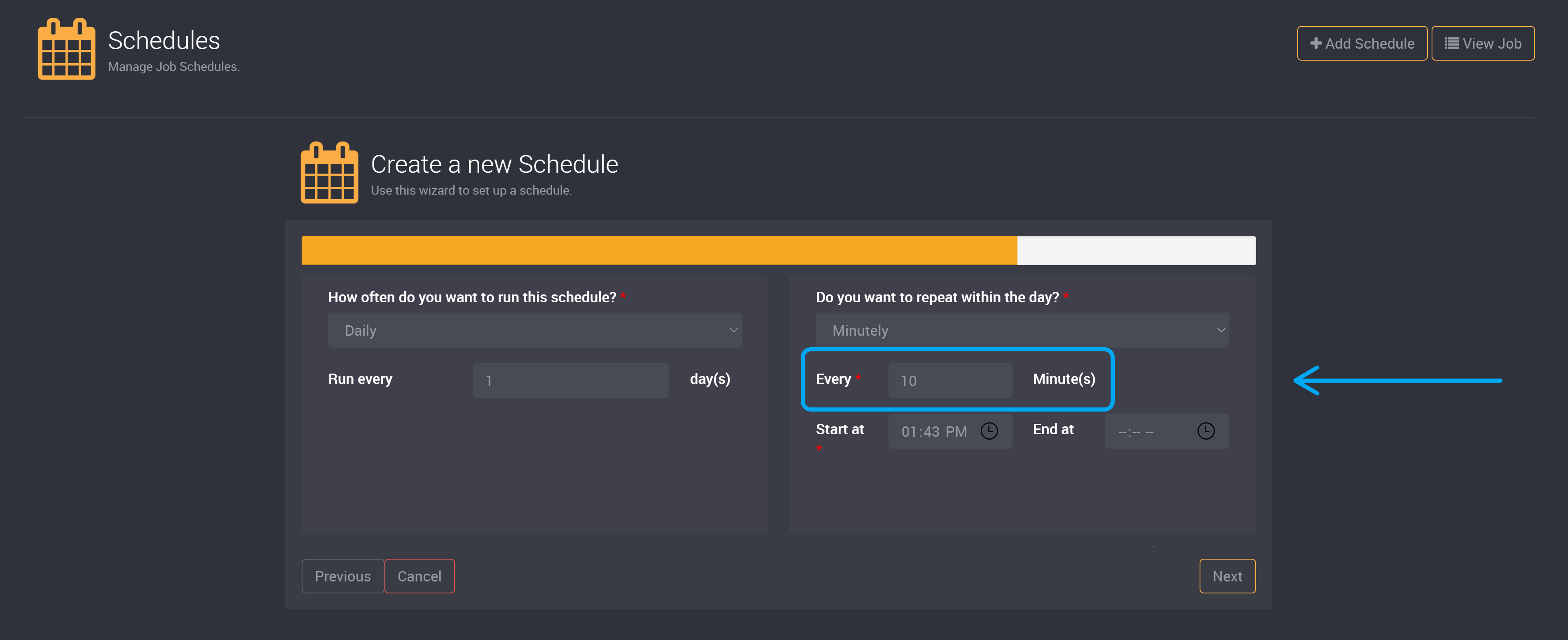
Then choose when the schedule will start and end. This example will start at 1:43 PM and will continue until the end of the day.
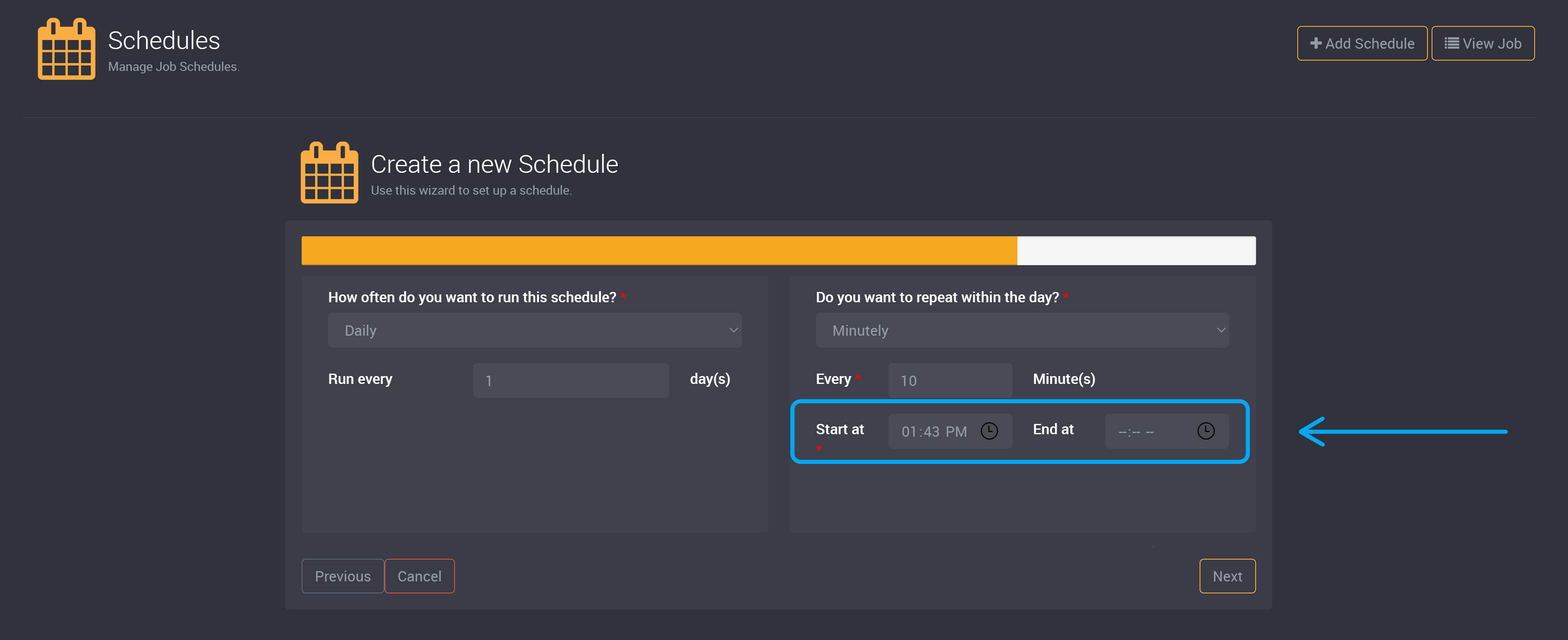
- Hourly means you can run a job every few hours. You can run a job every 1 - 23 hours.
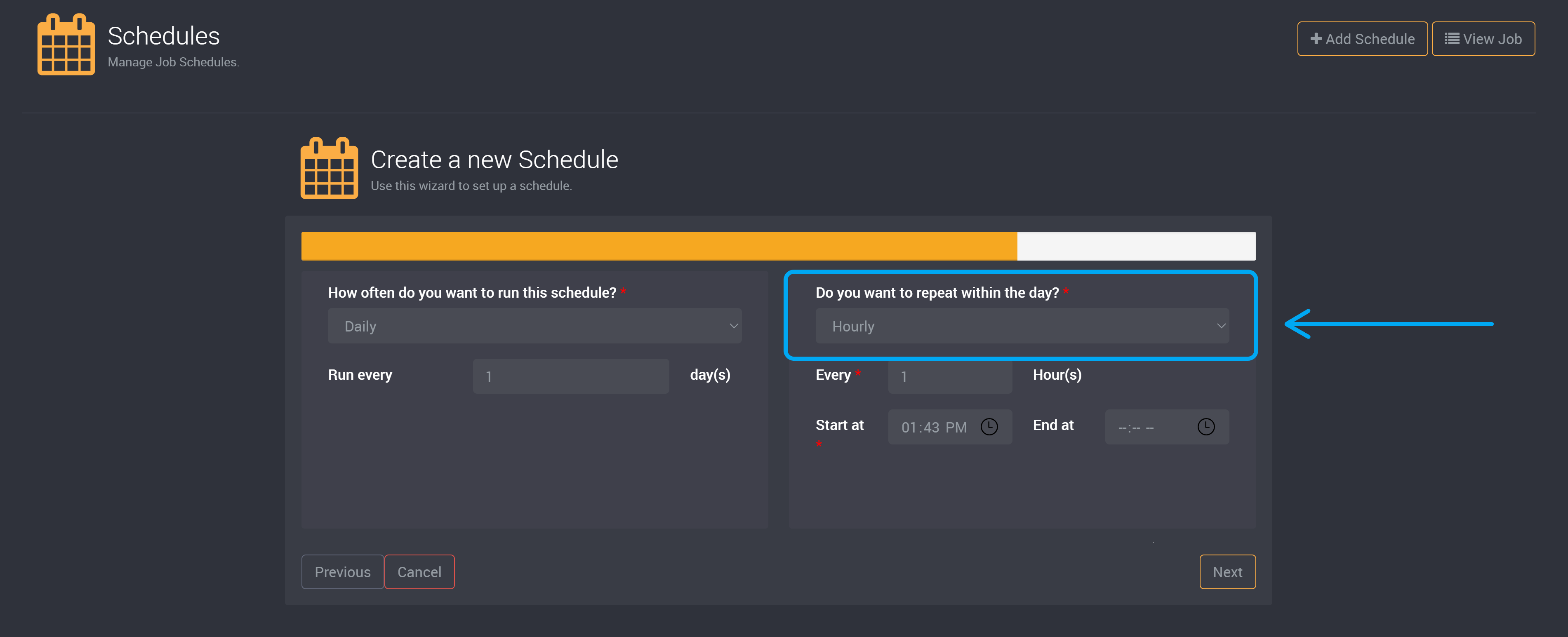
In this example, you can run a job every hour.
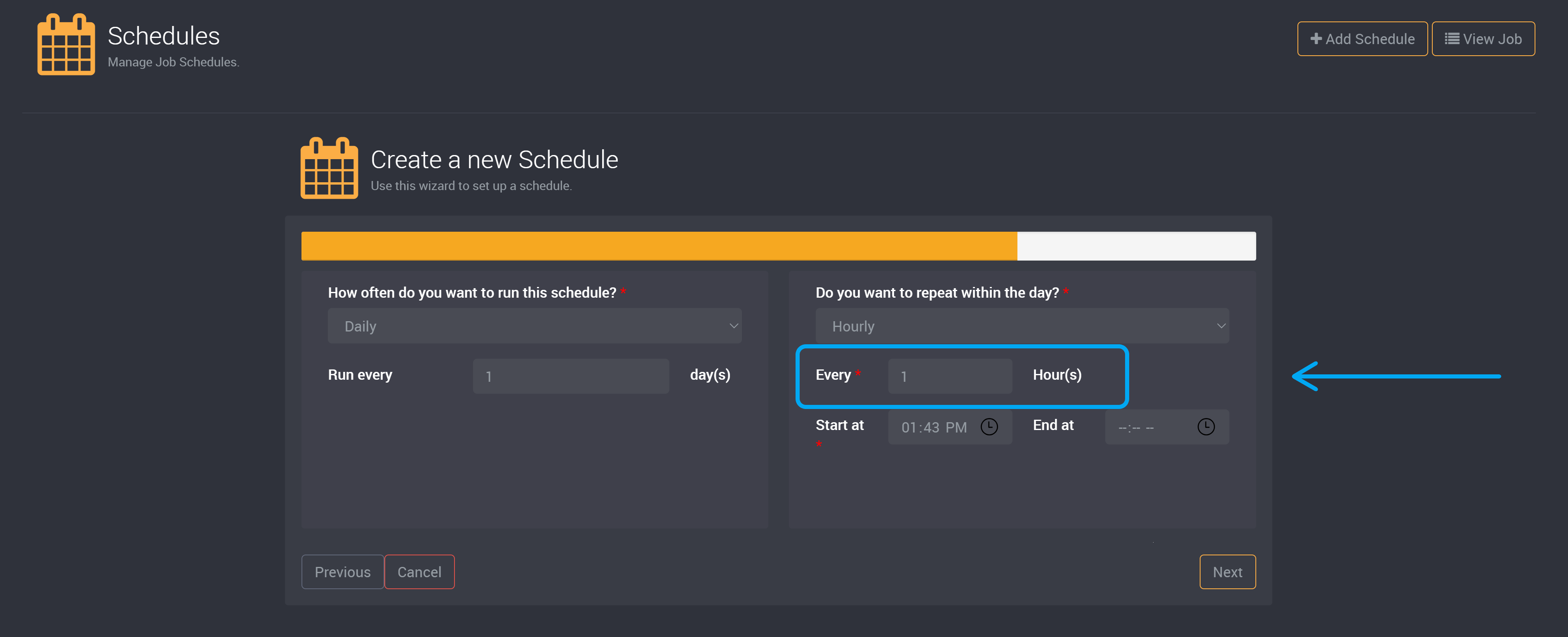
Then choose when the schedule will start and end. This example will start at 1:43 PM and continues till the end of the day. Its last run of the day will be at 11:43PM.
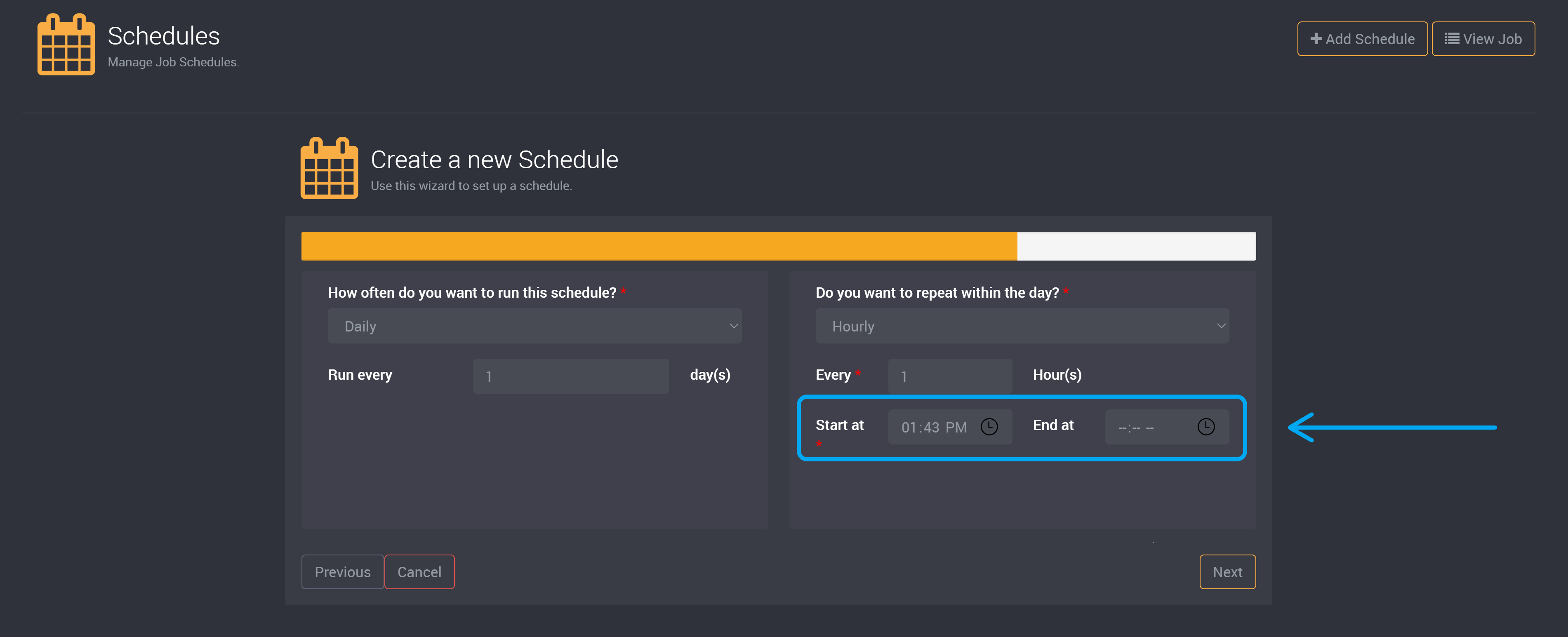
If the start time is later than the end time, the system will treat the end time as the time found on the next day. This is how you can create overnight schedules.
Complete Schedule
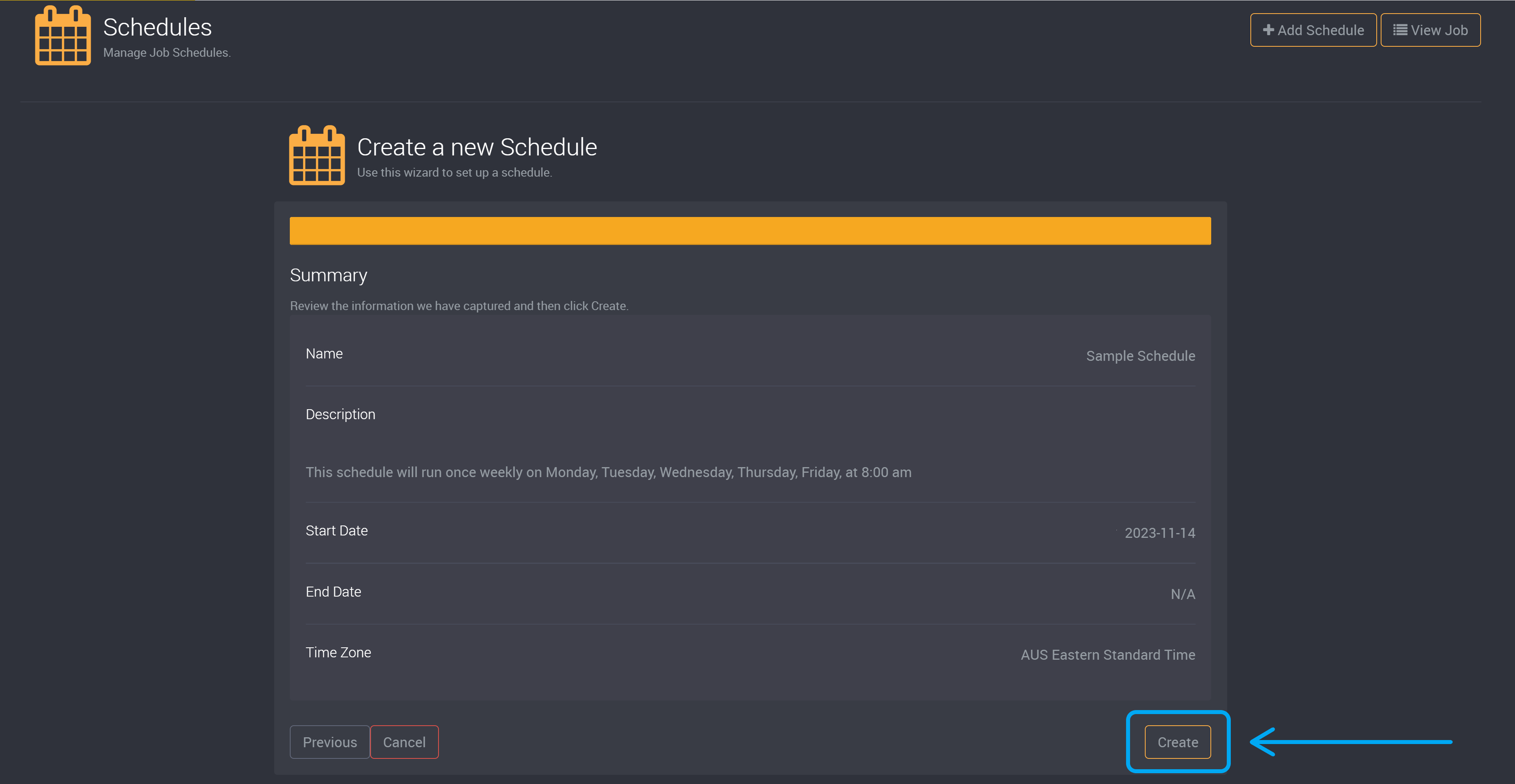
Review your schedule details, and click Create to save and enable this schedule.
Manual Crons
To add a manual crons schedule, add a schedule and choose Manual Crons.
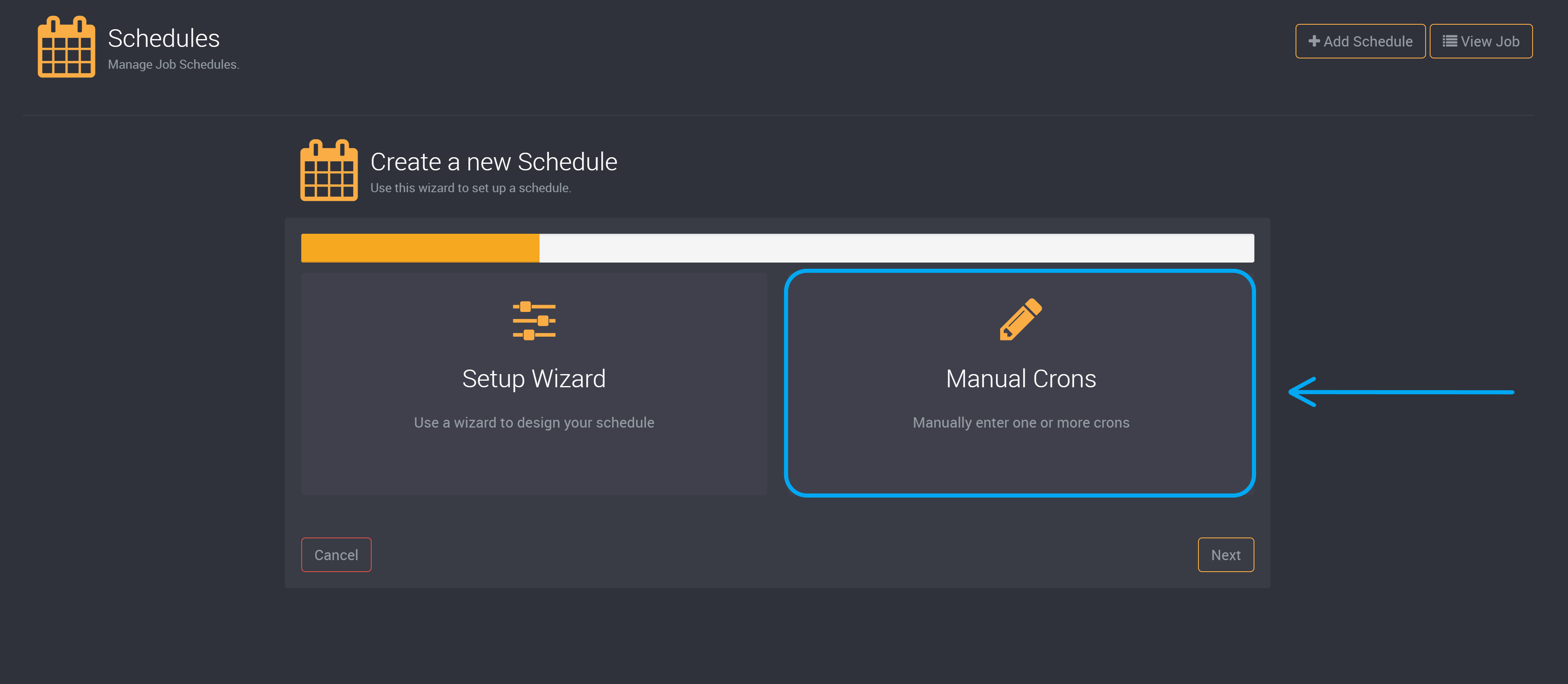
Crons schedules are only available as a recurring schedule. Provide a schedule name, and choose a start and end date.
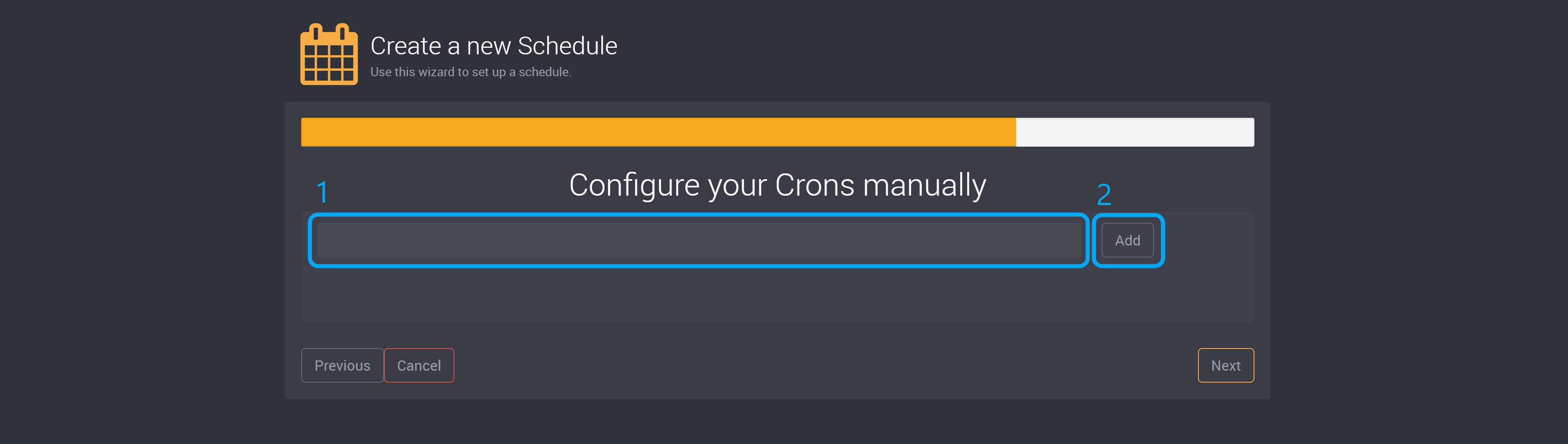
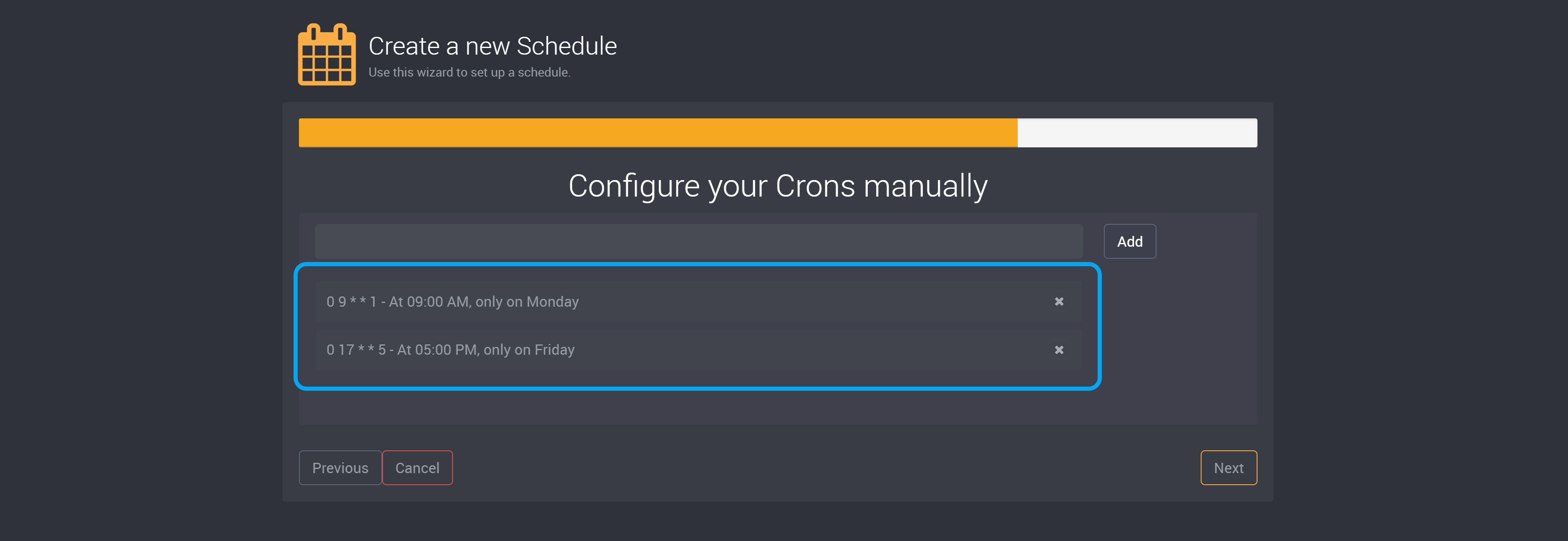
Provide the crons for this schedule, and then click Add.
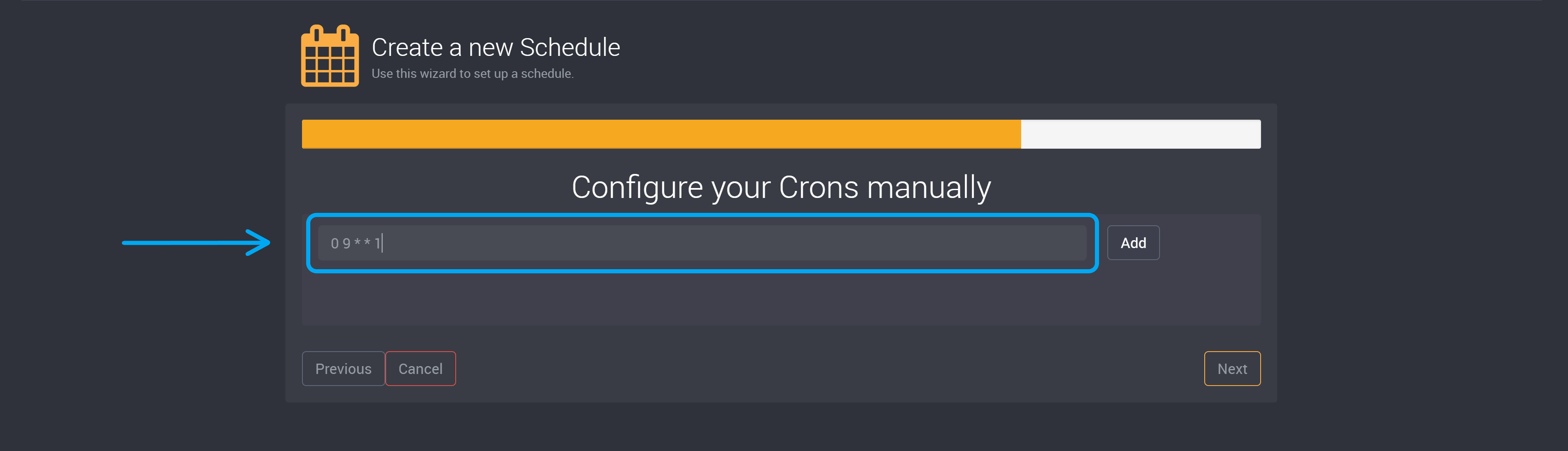
For example, 0 9 * * 1 will run the job at 9:00 AM on Mondays.
The added crons will be listed below.
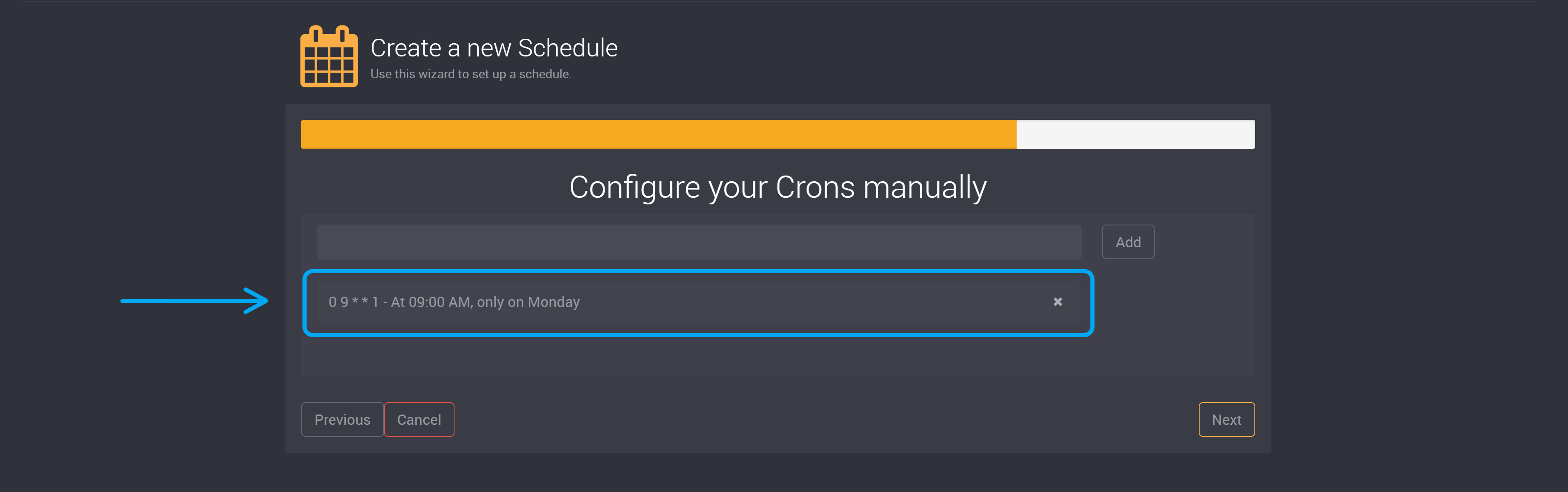
You can add more than one crons expression to this schedule.
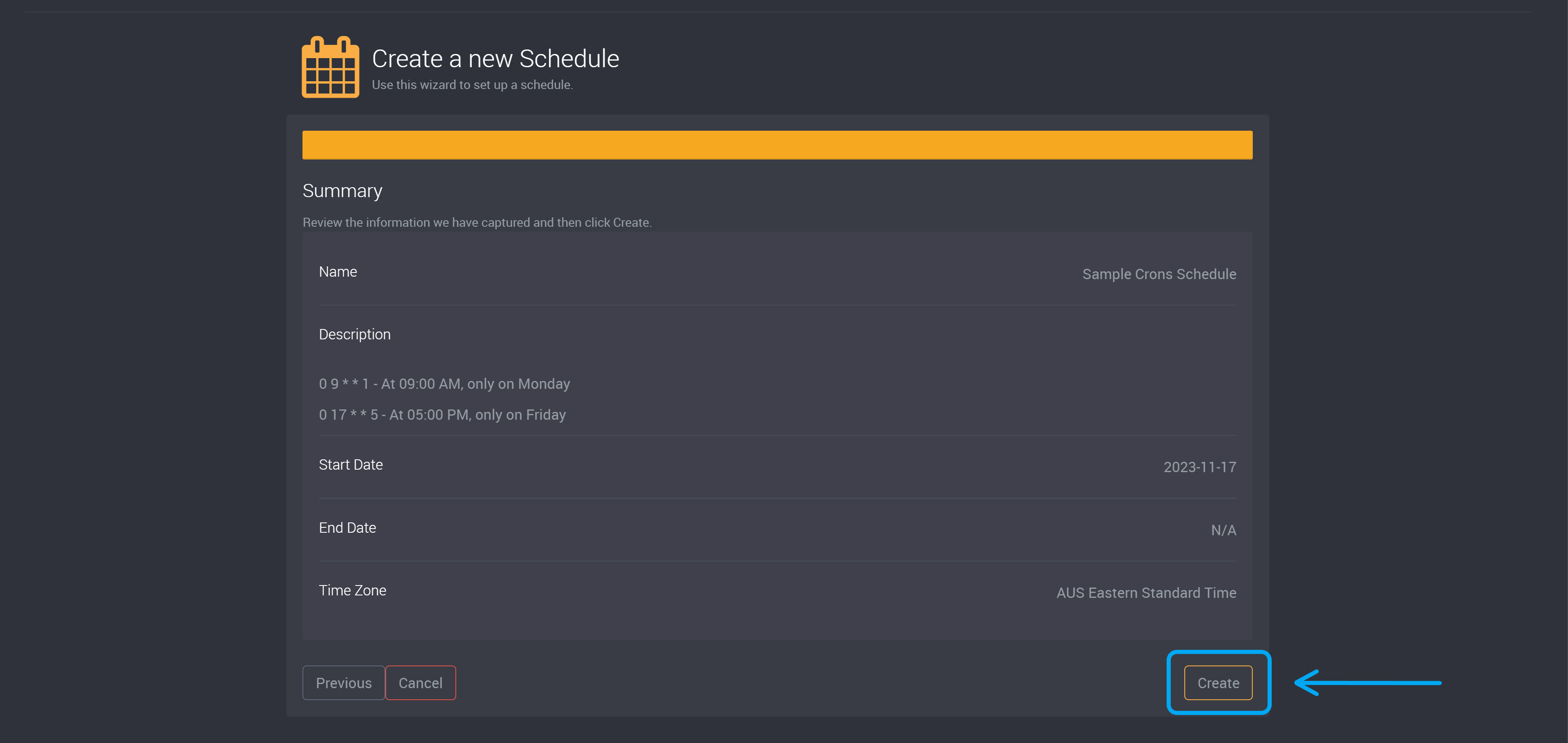
Review your schedule.
If you would like to make changes, click on Previous.
If you would like to proceed and save the schedule, click on Create.
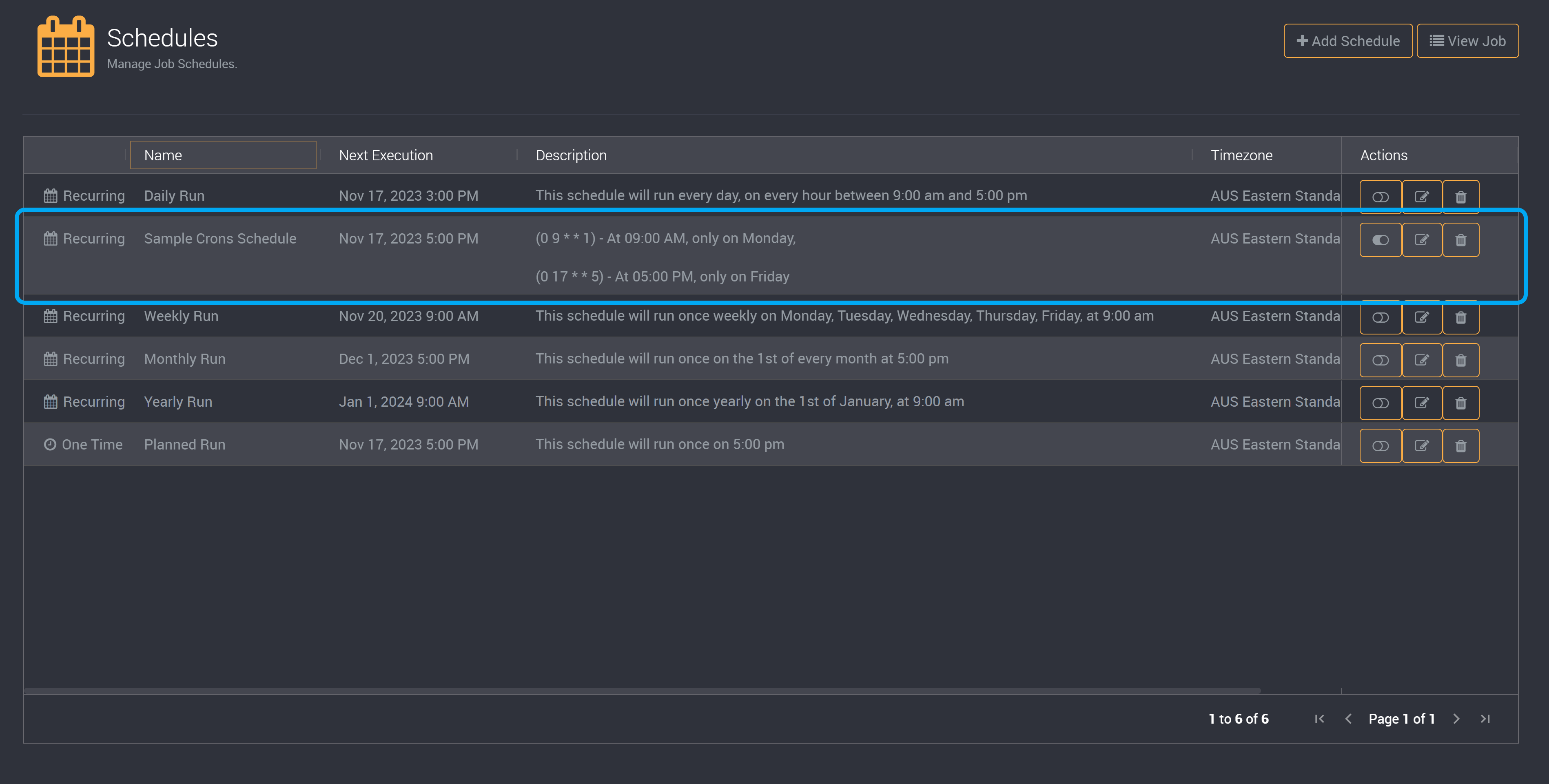
You can view your schedule in the schedule table.
Learn more here about managing your schedules.