Azure Batch
The Azure Batch task type allows for the easy processing of data using Microsoft’s Azure Batch computing service. With Loome Integrate Online you are able to easily interact with Azure Batch without requiring a development background or Azure Batch Shipyard.
The Azure Batch task type is also incredibly flexible, allowing for simple pool provisioning thanks to cluster definitions and integration with your existing Azure Blob connections.
The Azure Batch task type requires an Azure Batch Account connection, learn more in the connections reference.
Prerequisites
In order to create an Azure Batch task you will need to have a few things ready in advance.
- An Azure Batch Connection. The agent will need contributor access in your Azure Batch Account, please ensure to add the agent to the contributor role in your Azure Batch Account. Learn how to configure managed identity here.
- A cluster definition. You can specify a custom VM image and give the Azure Batch account a reader permission on the shared image gallery or the individual image. Please note that it can take up to an hour for permissions changes in Azure DevOps, read more here.
- In your cluster definition, while there is no explicit way to select the Azure Batch node agent SKU ID (e.g., batch.node.ubuntu 20.04), it is required that you select an image in the OS Configuration list that matches the operating system of the custom image (e.g., select “microsoft-dsvm | ubuntu-hpc | 2004” if your custom image is based on Ubuntu 20..04). Loome will match the Azure Batch node agent SKU ID that it requests Batch to use with the operating system of the image selected under OS Configuration.

How to Create an Azure Batch Task
Create a new task in your chosen job.
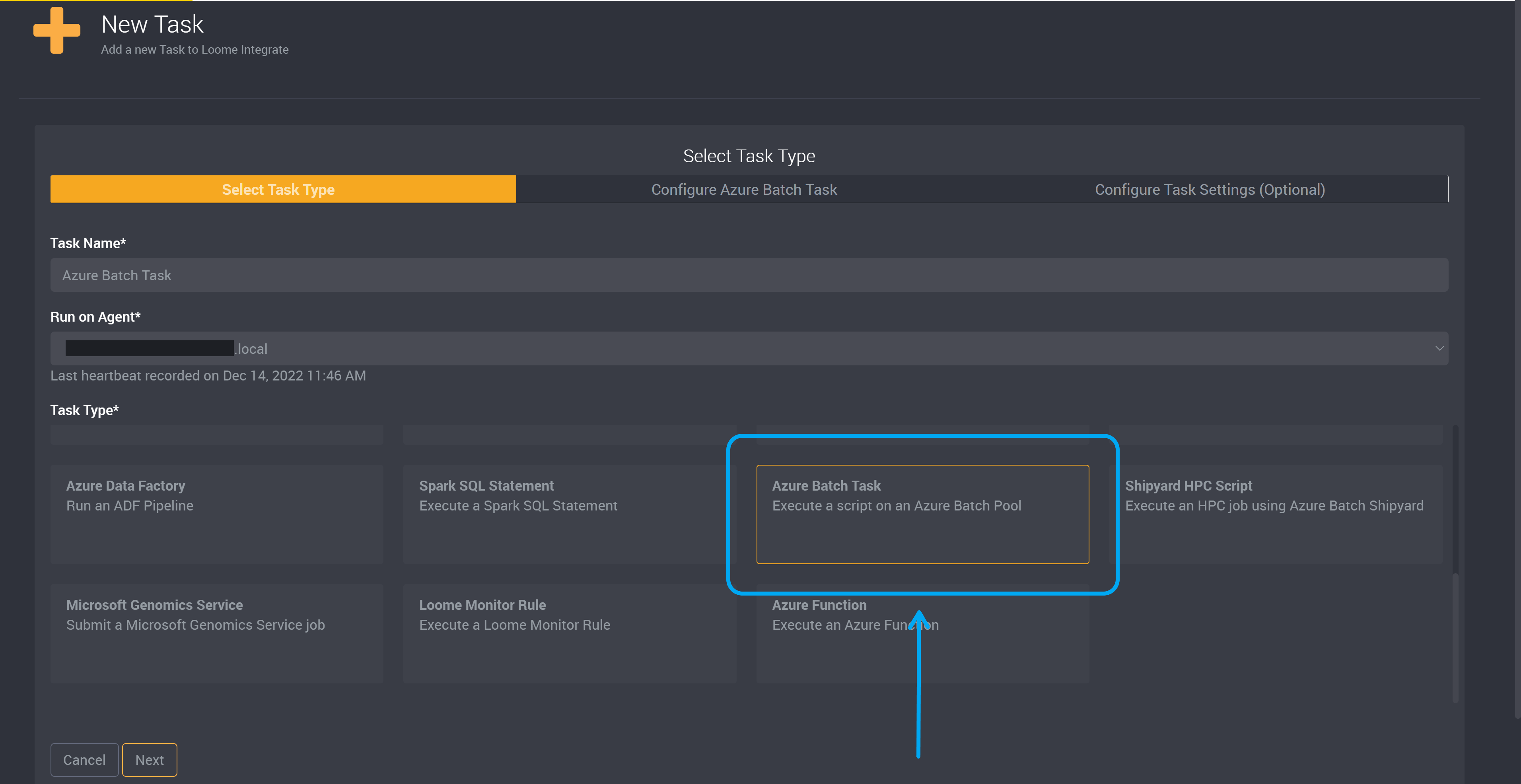
Select Azure Batch Task as your task type.
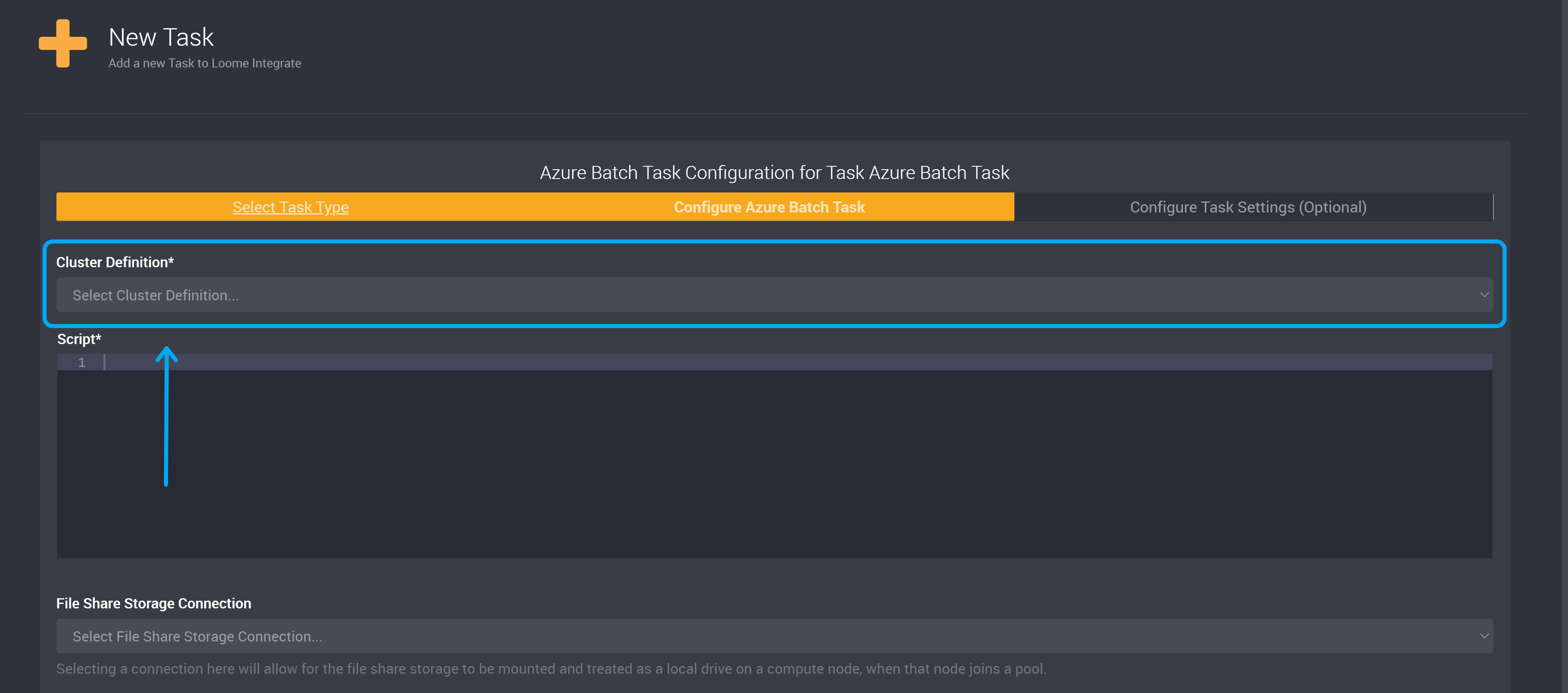
Choose a cluster definition. Your available cluster definitions can be chosen from this dropdown. (Learn more about cluster definitions here. Or learn how to create one for Azure Batch Pool here.)
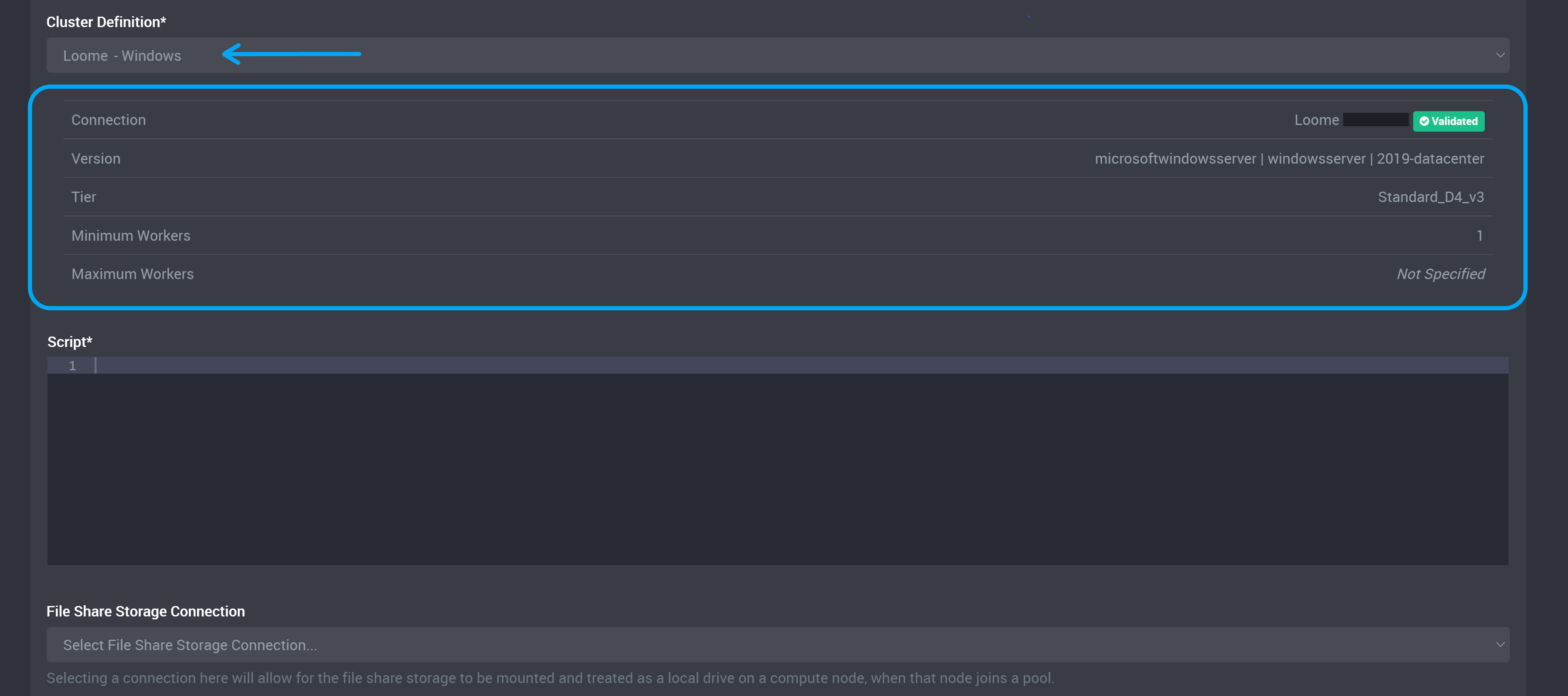
The details of your chosen cluster definition will display below.
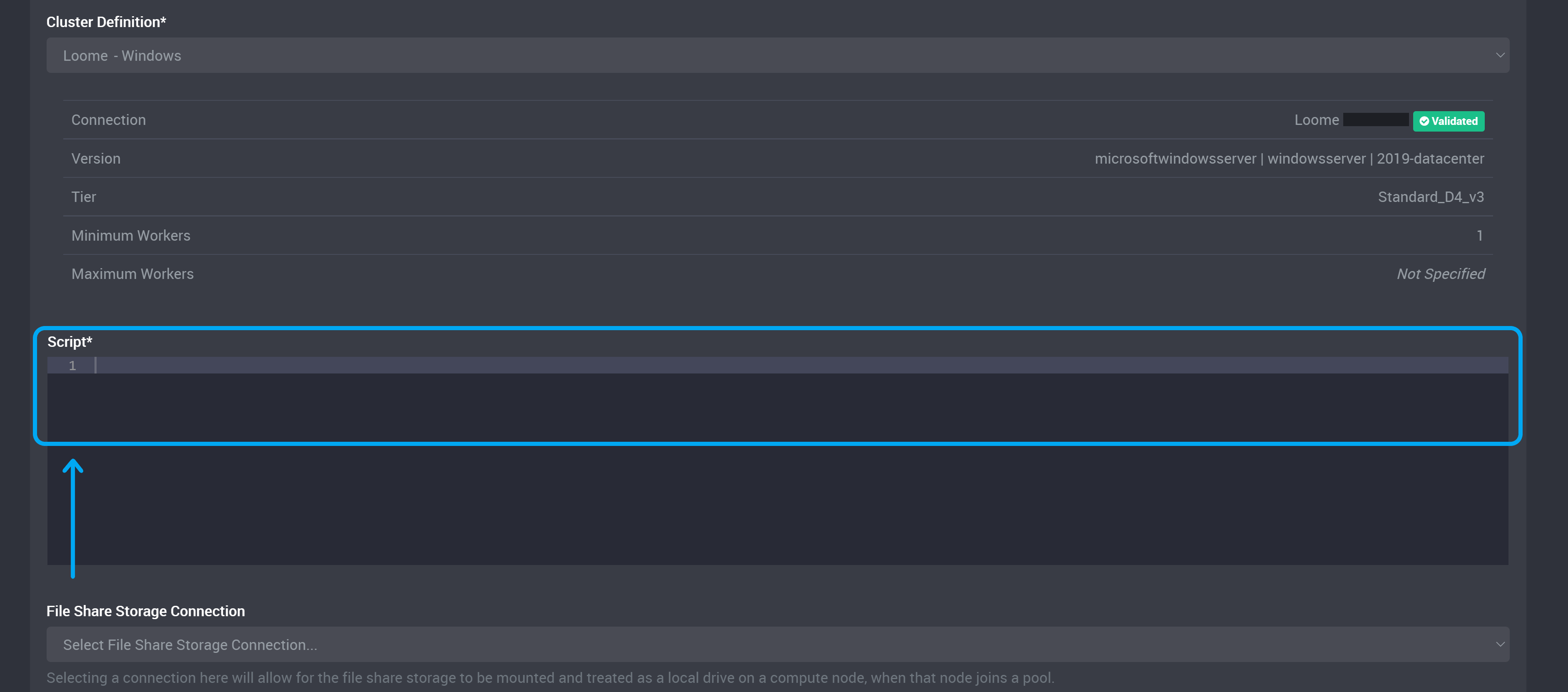
Provide the script for your Azure Batch task.
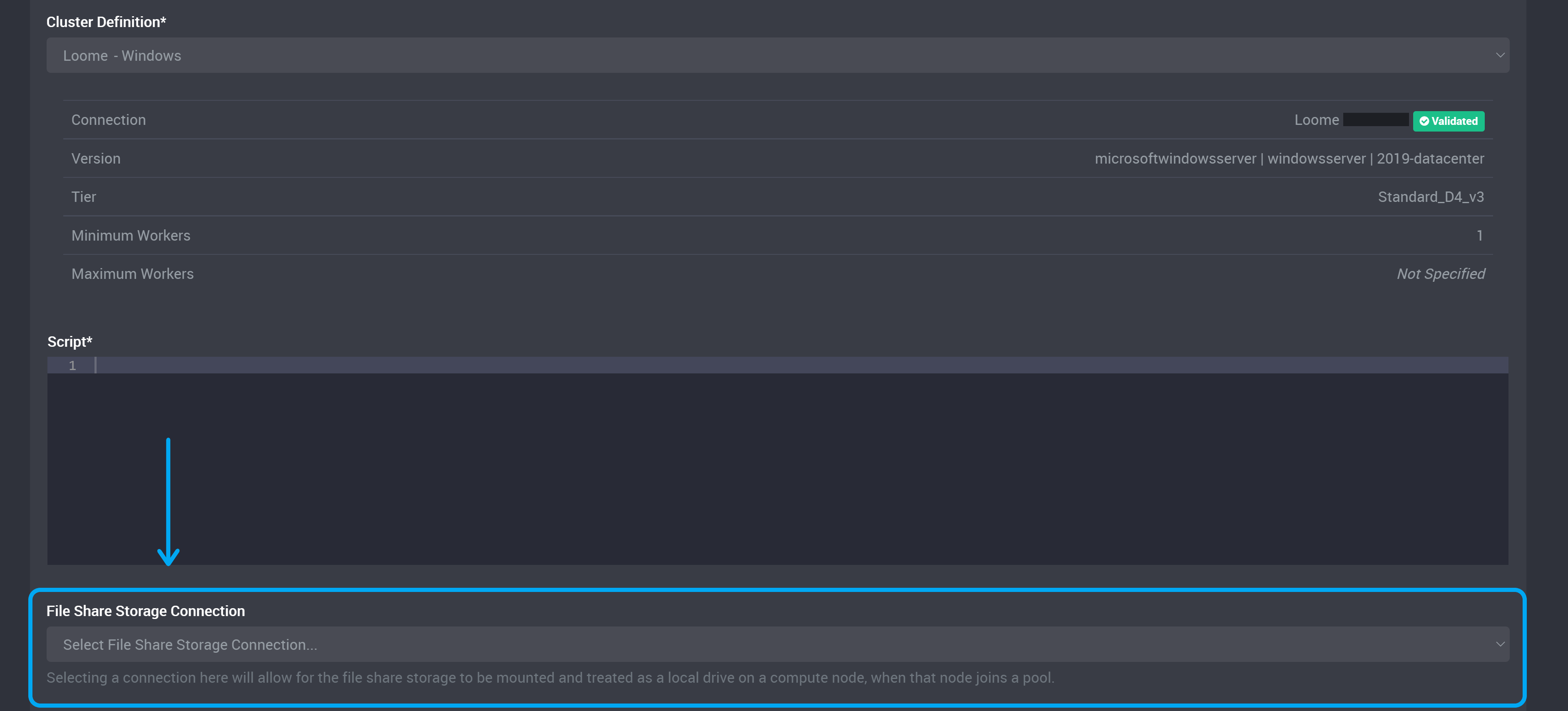
File Share Storage Connection (Optional)
You can also choose a file share connection. (This connection is optional.)
Selecting a connection here will allow for the file share storage to be mounted and treated as a local drive on a compute node, when that node joins a pool.
You can still set up an external file share in your script if you do not want to choose a connection here.
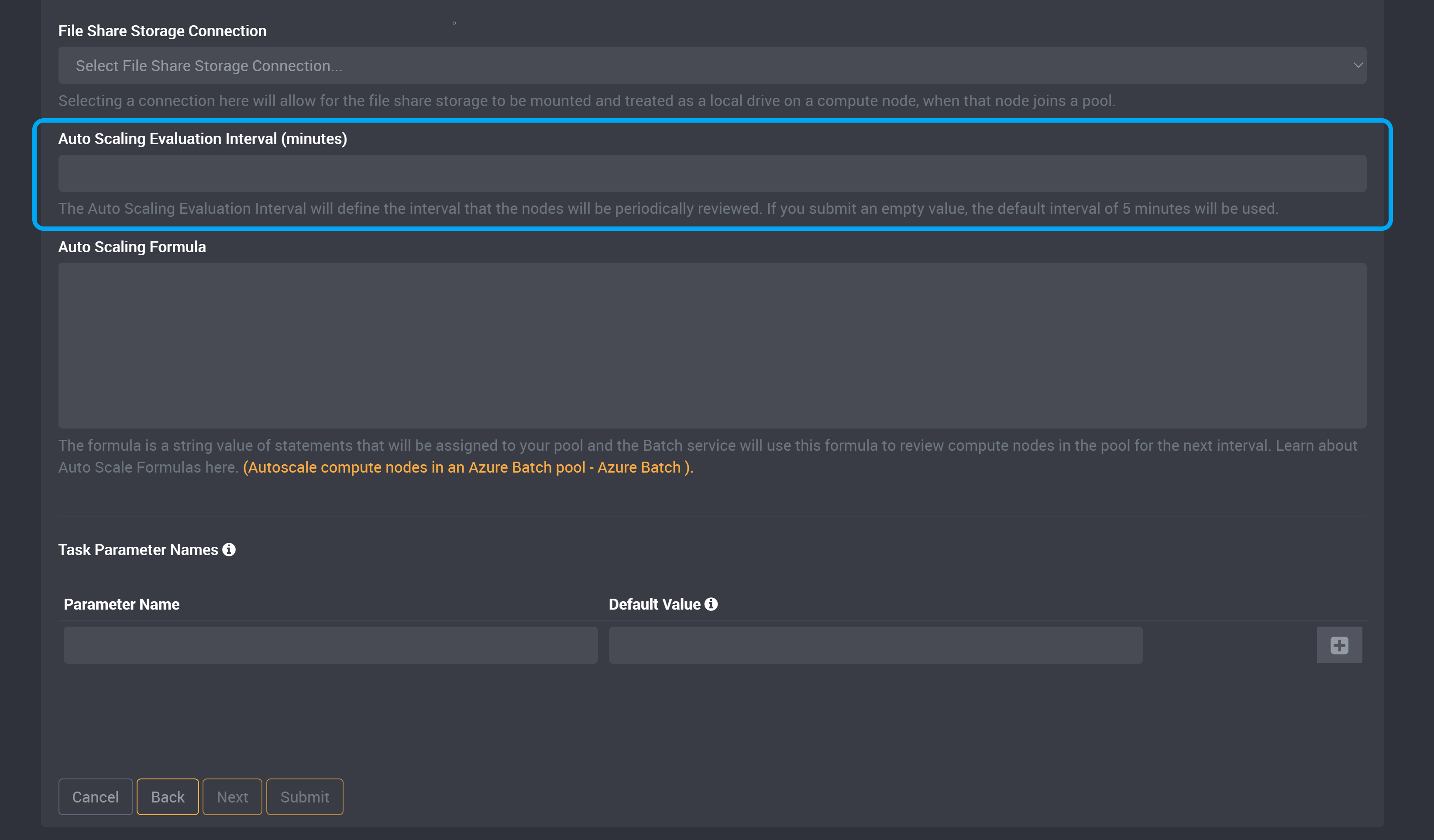
Auto Scaling Evaluation Interval (Optional)
The Auto Scaling Evaluation Interval will define the time interval that the compute nodes will be periodically reviewed when you provide an Auto Scaling Formula.
Provide an interval in minutes in this field.
Provide a whole number that is between 5 minutes and 10080 minutes.
When you provide a value here, for example 20, the compute nodes in the pool will be reviewed every 20 minutes by the Auto Scaling Formula.
If you provide a value here, you will also need to provide an Auto Scaling Formula in the next field.
If you submit an empty value, the default interval of 5 minutes will be used.
If you submit an empty value for both the Auto Scaling Evaluation Interval and the Auto Scaling Formula, Auto Scaling Evaluation will not apply to this Azure Batch task.
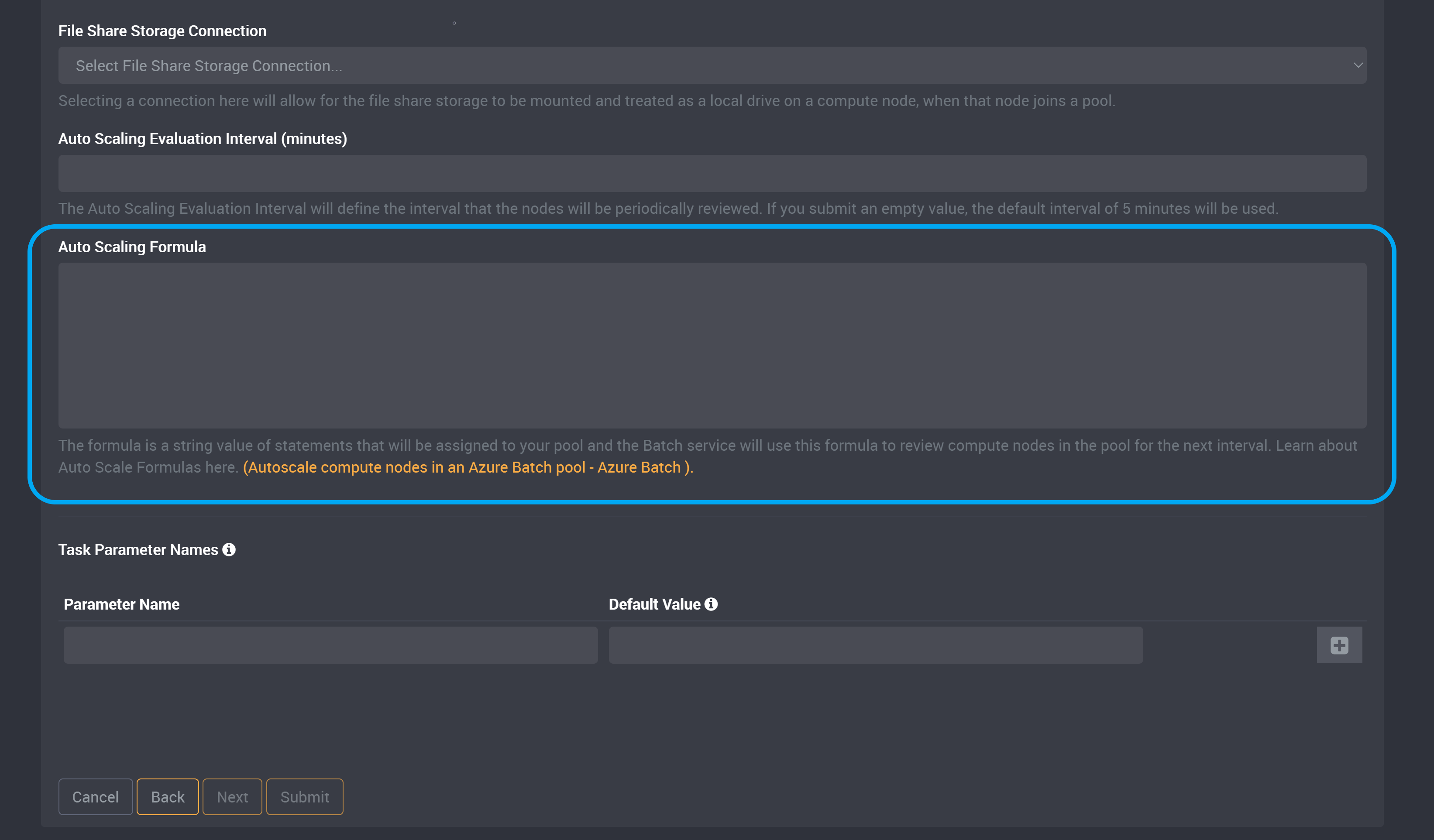
Auto Scaling Formula (Optional)
The formula is a string value of statements that will be assigned to your pool and the Batch service will use this formula to review compute nodes in the pool at each interval.
Learn more about Auto Scale Formulas here.
Provide your formula in this field.
Task Parameters
Any parameters added to the task will be usable inside the Azure Batch script at runtime.
If you provide any Task Parameters, they will take precedence over the Auto Scaling Evaluation Interval and Auto Scaling Formula.
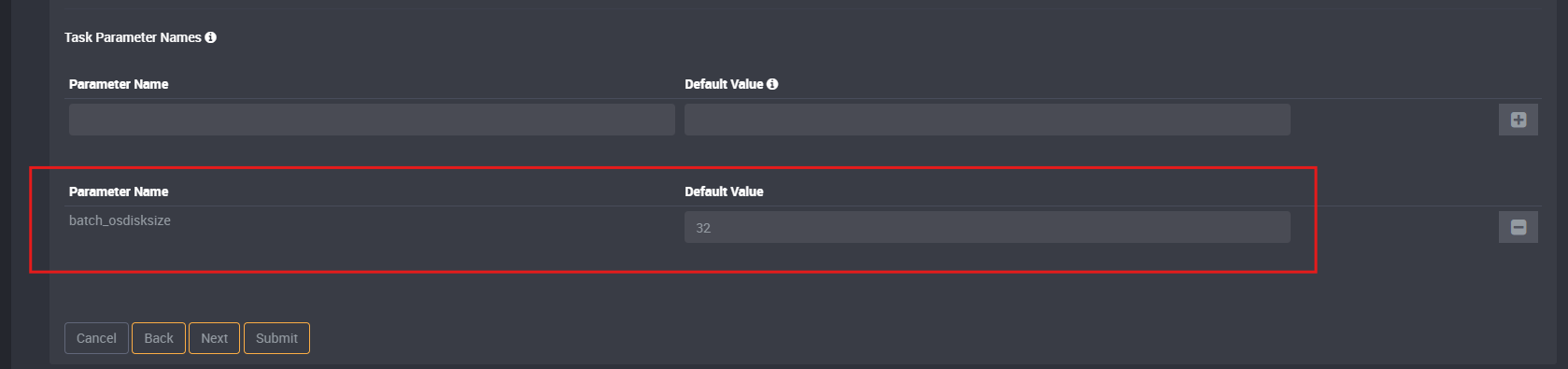
OS Disk Size (Optional)
You have the option to customize the OS Disk Size in the parameters section.
You can control the OS disk size for the provisioned Azure Batch image by adding a specific optional parameter:
- Parameter Name:
batch_osdisksize - Description: Instructs the Azure Batch agent to provision the image with a custom OS disk size.
- Requirement: Optional.
- Accepted Value: Must be a positive integer representing the size in Gigabytes (GB).
This value should be larger than the original image, otherwise you may encounter an error during provisioning.
Submit Task
Submit the task and your task is ready to run.