Microsoft Fabric Dataset Refresh
Introduction
A PowerShell script that will trigger a refresh on a Dataset in Microsoft Fabric. The script will show ‘Completed’ and ‘Failed’ with error.
Pre-requisites:
- Datasets in Power BI Premium, Premium per user, and Power BI Embedded
- ‘GroupId’ and ‘DatasetId’ are required
- The required permission scope is ‘Dataset.ReadWrite.All’
The number of refreshes is limited to the general limitations of API-based refreshes for both Pro and Premium datasets.
Getting Started
Create the Service Principal
- Register an application using your Microsoft Azure account, https://portal.azure.com/#view/Microsoft_AAD_RegisteredApps/ApplicationsListBlade.
- Search for “App Registration” and create an app via “New registration”.

- Provide a name and click on Register.
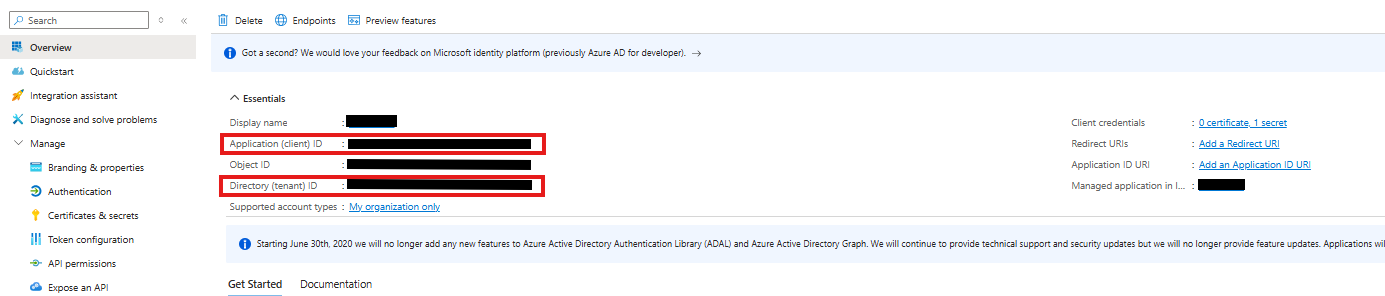
- Take note of the ‘Client ID’ and ‘Tenant ID’.
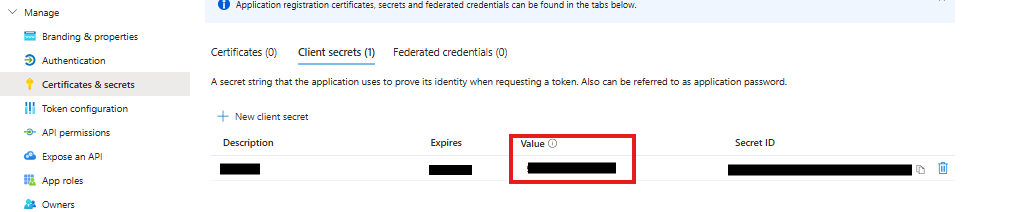
- Navigate to Certificates & secrets in the left-hand menu and create a “New client secret”.
- Provide a description and change the expiry if needed, then click “Add”.
- Take note of the ‘Value’ of the Client secret.
- Navigate to “API permissions” and click “Add a permission”.
- Search and choose “Power BI Service”.
- Click “Delegated permissions”.
- Search and tick the box for “Dataset.Read/Write.all”, and then click “Add permissions”.
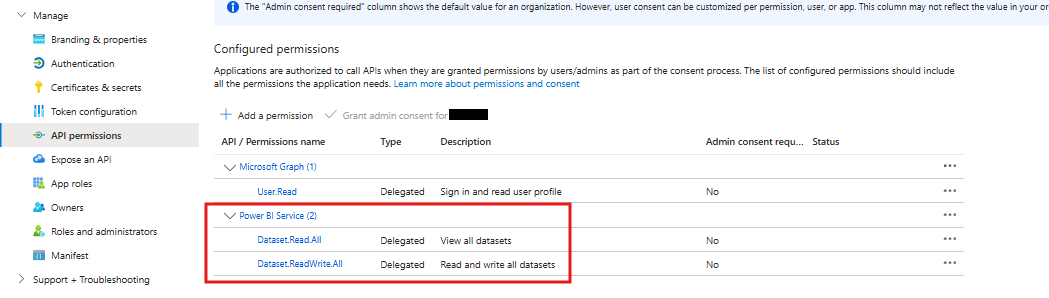
Please note that in case Admin consent is needed, click on “Grant admin consent”.
How to Assign the App to a Workspace in Microsoft Fabric
- Go to Microsoft Fabric and navigate to your Workspace.
- Click on Manage Access and add App (Service Principal) to the Microsoft Fabric Workspace.
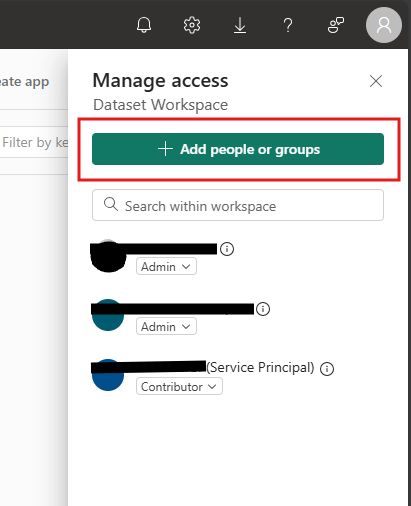
This is the name of the App that you have created in App registration. The access level should be “Contributor”.
Setting Up and Running the Loome Integrate Task
- Create a task in Loome Integrate with PowerShell Core as the task type.
- Add task parameters for the groupID and dataset with their values.
Note
You can get the values for groupID and dataset in the Microsoft Fabric Dataset URL. https://app.powerbi.com/groups/(groupID)/datasets/(dataset)/details?experience=power-bi
It is set to the task parameters so you can easily change/update the value without editing the script.

- Copy and paste the whole script.
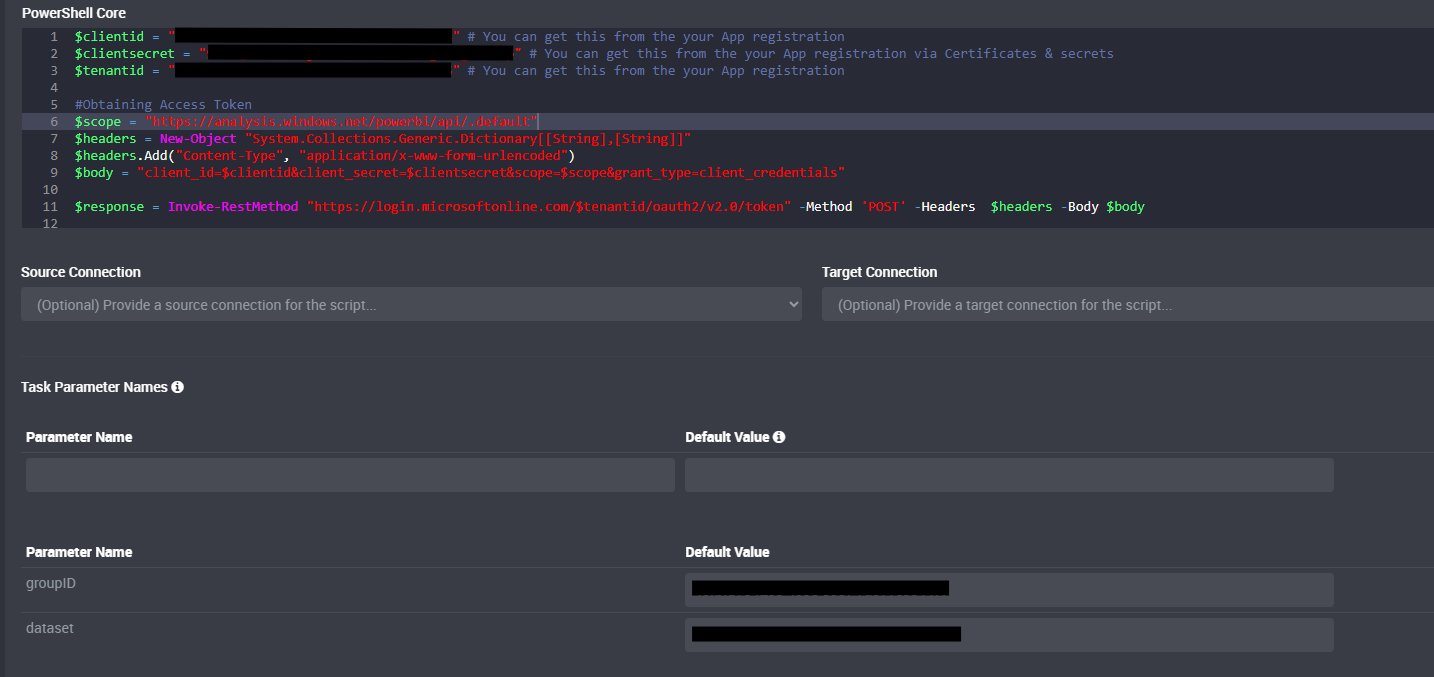
- Change/update the variables in the script. Here are the variables that you need to update:
| Variable Name | Value |
|---|---|
| clientid | You can get this from your App that you created in app registration |
| clientsecret | You can get this from the your App registration via Certificates & secrets |
| tenantid | You can get this from the your App registration |
You will only need to update these variables in the script if you are using a different App from the App registration.
- Click “Submit” and run the task.
Copy the script below to paste into your Integrate PowerShell Core Task.