Connect to Azure Batch via Managed Identity
Create an Azure Batch Pool using Managed Identity
You can create a pool in your Azure Batch Account using Loome in a few steps. You will need to setup a connection and a cluster definition before you can then set up a task that will create a pool. The connection and cluster definition will be configured to use your managed identity.
Prerequisites
You will need to have a few things ready to create an Azure Batch task.
- An Azure Batch Connection.
- The agent will need contributor access in your Azure Batch Account, please ensure to add the agent to the contributor role in your Azure Batch Account. Learn how to configure managed identity here.
- A cluster definition.
- You can specify a custom VM image and give the Azure Batch account a reader permission on the shared image gallery or the individual image. Please note that it can take up to an hour for permissions changes in Azure DevOps, read more here.
- Keep your Azure Batch node agent SKU ID ready when creating a cluster definition as when you select an image in the OS Configuration list it will need to match the operating system of the custom image (e.g., select “microsoft-dsvm | ubuntu-hpc | 2004” if your custom image is based on Ubuntu 20..04).
- When using a custom VM image, you need to use a managed identity on your ‘Azure Batch Account’ connection. The Batch account must also have a reader permission on the shared image gallery or the individual image.
- When using a custom VM image with a User Assigned managed identity for your Azure Batch Account connection, that identity must be given reader access to the VM image.

1. Create an Azure Batch Account Connection
You can view more detail for this process on this page.
When using managed identity on the Azure Batch connection, you will need to have configured a managed identity (of either System Assigned or User Assigned) for the Loome Agent that will be used with this connection. The managed identity will need to be created on the agent container or VM. Learn more about configuring Managed Identity in Azure here.
In your Azure Batch Account, the agent will need to have Contributor access. Please ensure to add the agent to the contributor role in your Azure Batch Account.
In Loome, first go to the connections page from the top-right dropdown menu.
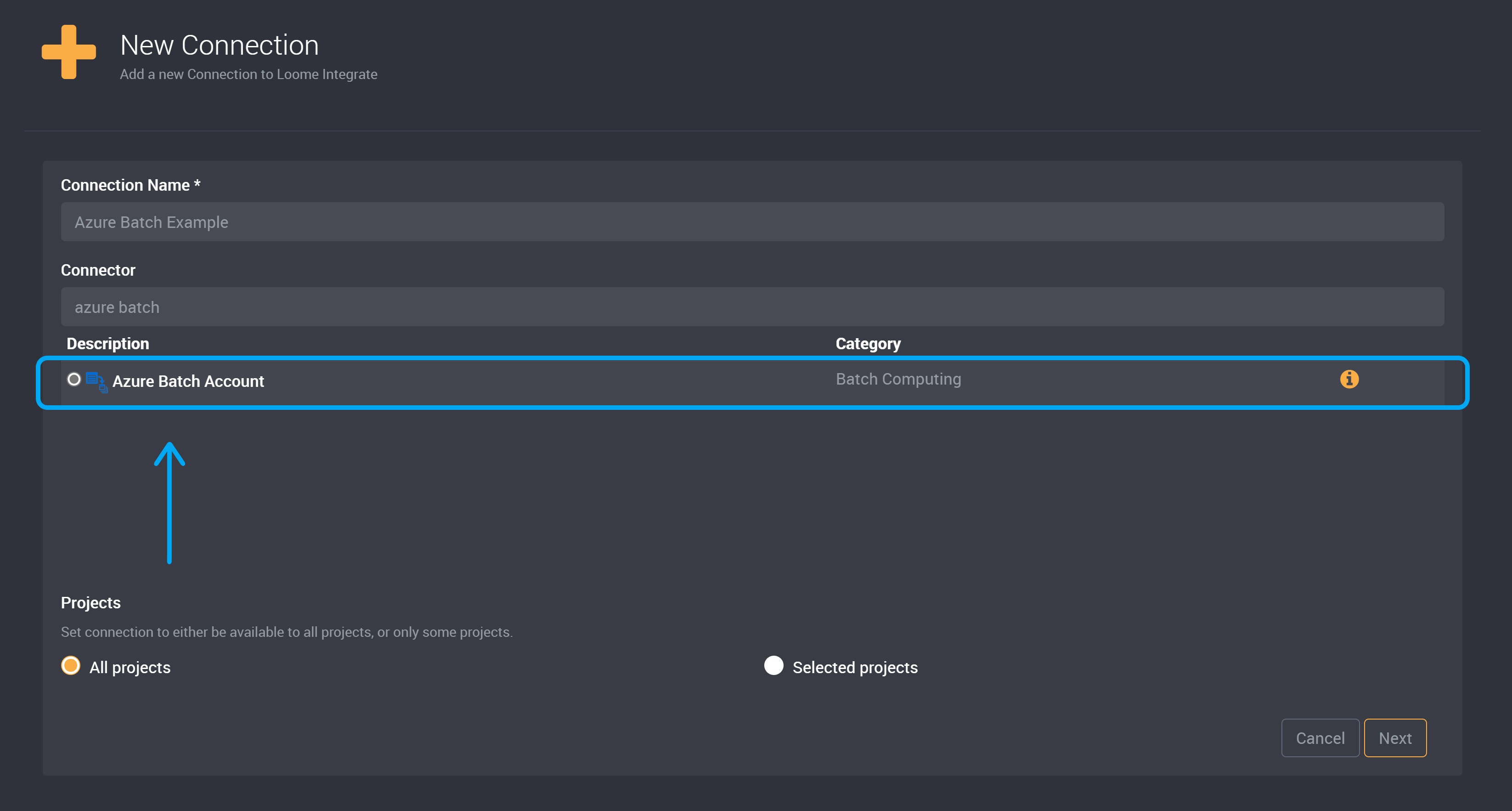
Add a new connection, and provide a friendly name to identify it as your Azure Batch Account connection.
Choose the Azure Batch Account connector.
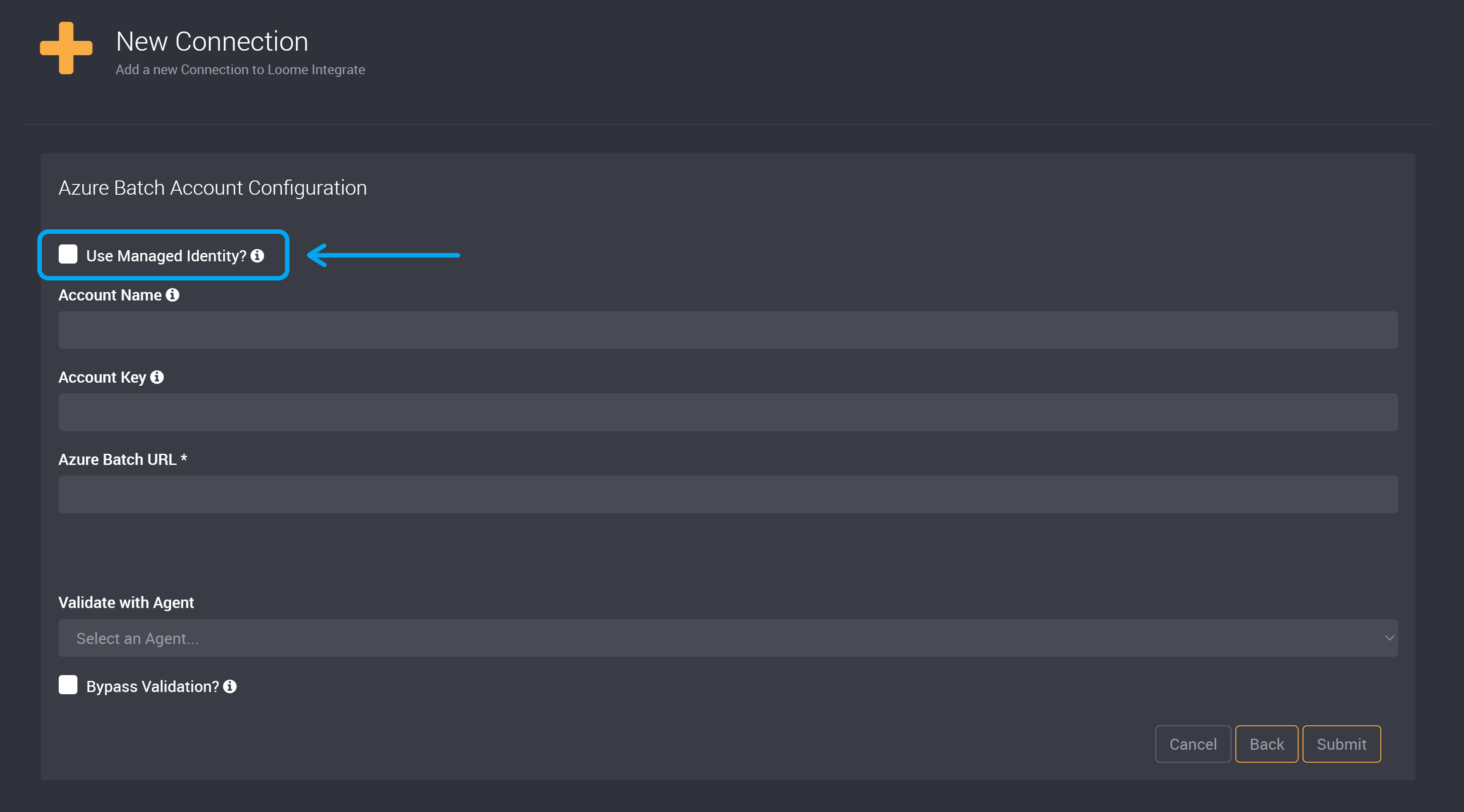
Enable Managed Identity in your Azure Batch Connection
Check the Use Managed Identity? checkbox.
Please note that you will need to have configured a managed identity (of either System Assigned or User Assigned) in Azure for the Loome Agent that will be used with this connection. The managed identity will need to be created on the agent container or VM. In your Azure Batch Account, the agent will need to have Contributor access.
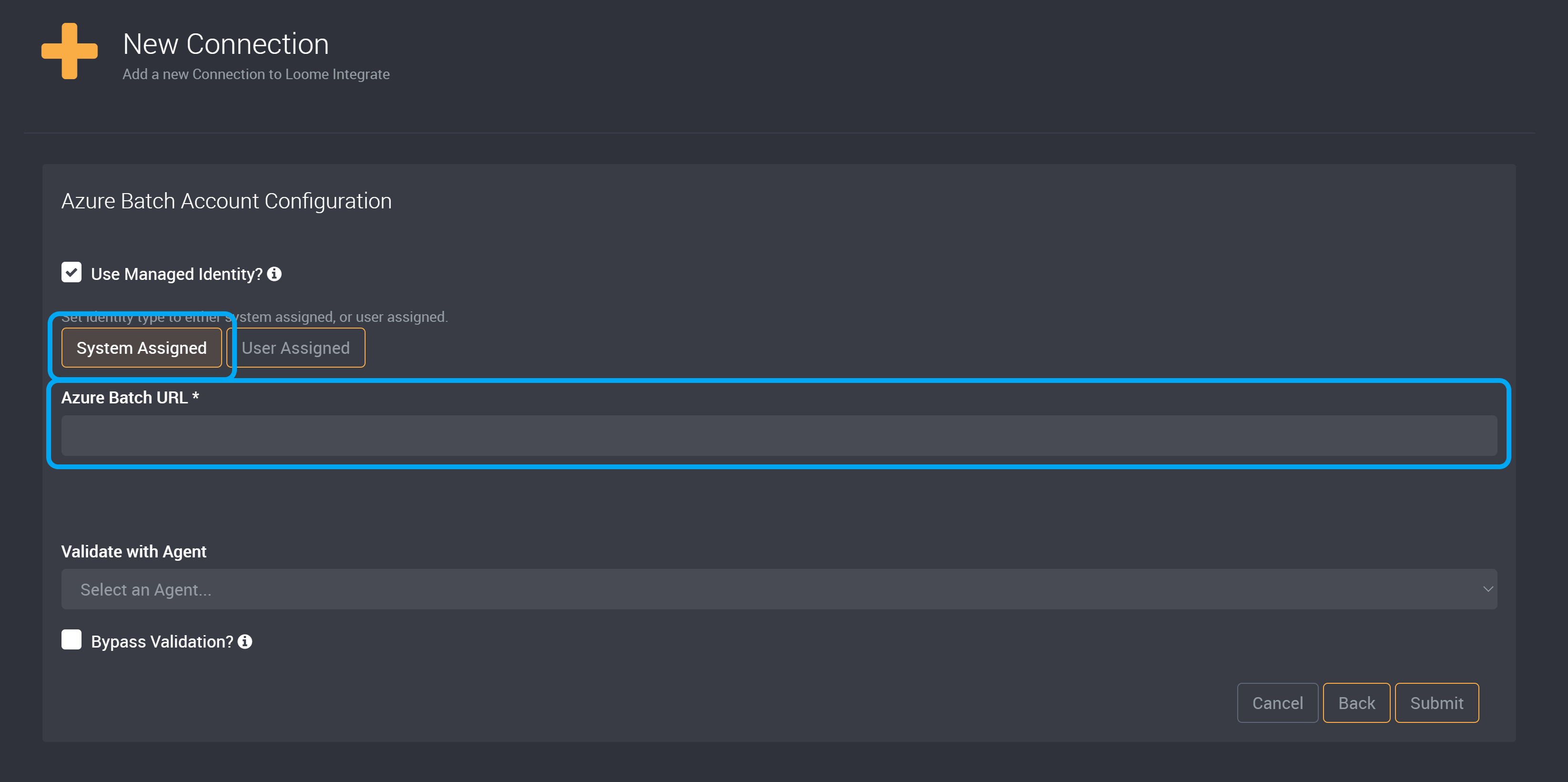
You can choose to connect to Azure Batch using System Assigned or User Assigned.
System Assigned
If your Managed Identity is system assigned, choose System Assigned.
Provide your Azure Batch URL.
User Assigned
If your Managed Identity is user assigned, choose User Assigned.
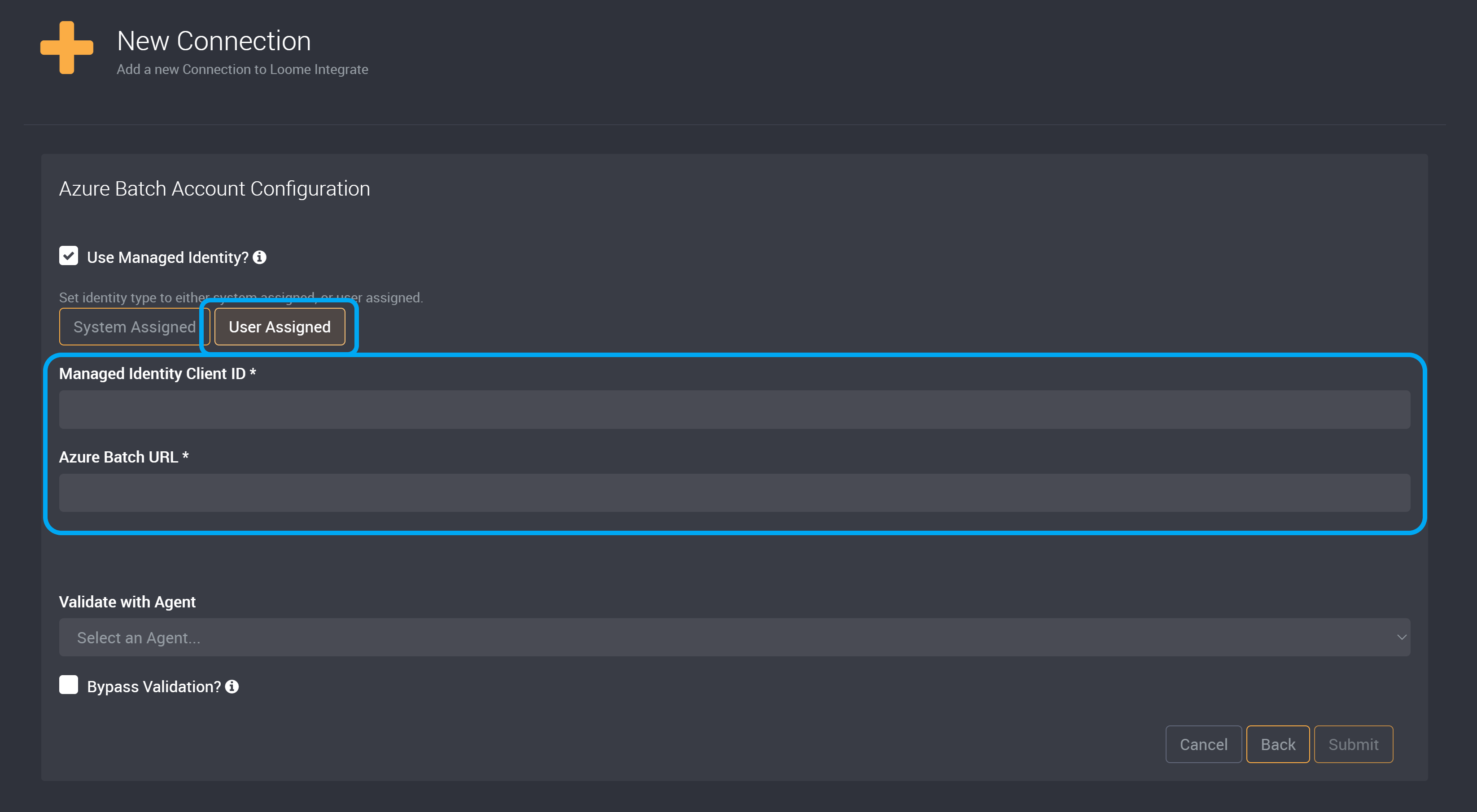
Provide your Managed Identity Client ID.
You can copy this Client ID from your Managed Identity in Azure into the Managed Identity Client ID field in Loome.
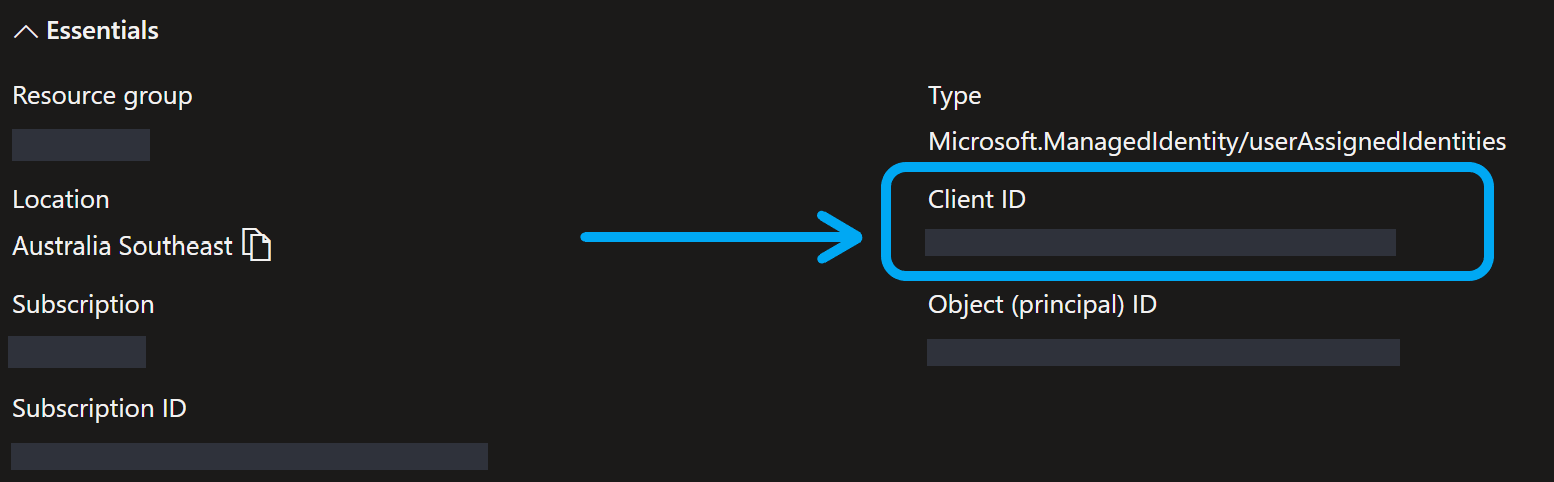
Then provide your Azure Batch URL.
Choose the agent that has access to your selected managed identity from the dropdown to validate this connection.
Submit this connection.
2. Create an Azure Batch Cluster Definition
You can learn more about Azure Batch cluster definitions here.
Go to the cluster definitions page from the top-right dropdown menu.
Create a new cluster definition at the top-right of this page.
You can create an Azure Batch Pool or an Azure Batch Container Pool.
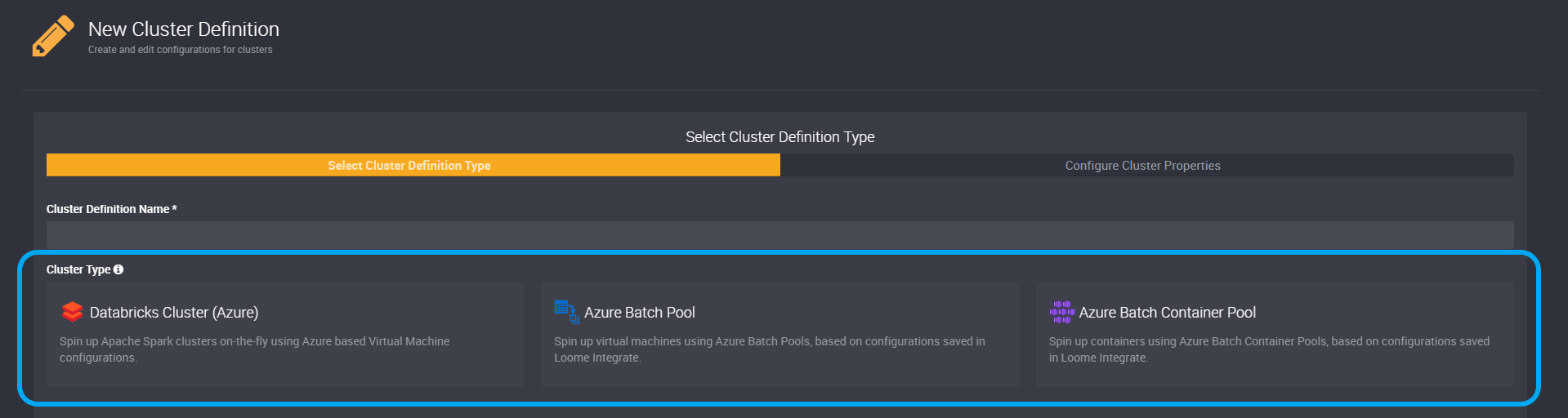
For both cluster types, choose the Region, Connection and an Agent to Query Supported Images.
Choose a Region, Connection and Agent
Choose from the dropdown list of regions. (Your chosen region may affect the available OS Configurations you can choose on the next page.)
Your chosen region must be the same as your Azure Batch account region.
Choose the Azure Batch Account connection you created above in the Connection dropdown. The dropdown will display all available connections to Azure Batch.
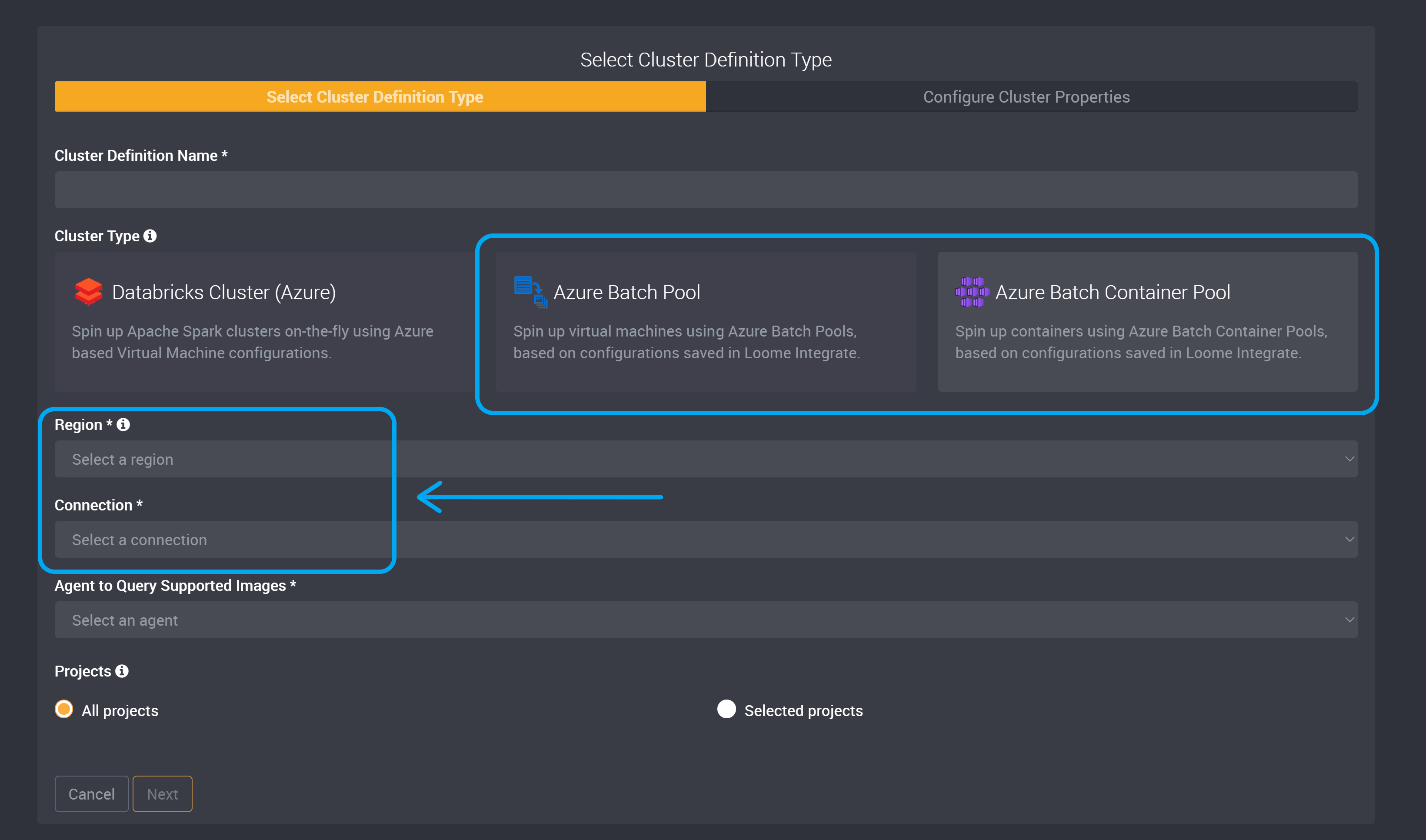
Then choose an Agent to Query Supported Images.
Projects
Then choose if this cluster definition will be available to all projects or only visible in selected projects.
Then click Next.
OS Configuration
Select an OS Configuration that matches the operating system of the custom image in Azure Batch.
Important note: while there is no explicit way to select the Azure Batch node agent SKU ID (e.g., batch.node.ubuntu 20.04), it is required that you select an image in the OS Configuration list that matches the operating system of the custom image (e.g., select “microsoft-dsvm | ubuntu-hpc | 2004” if your custom image is based on Ubuntu 20..04). Loome will match the Azure Batch node agent SKU ID that it requests Batch to use with the operating system of the image selected under OS Configuration.
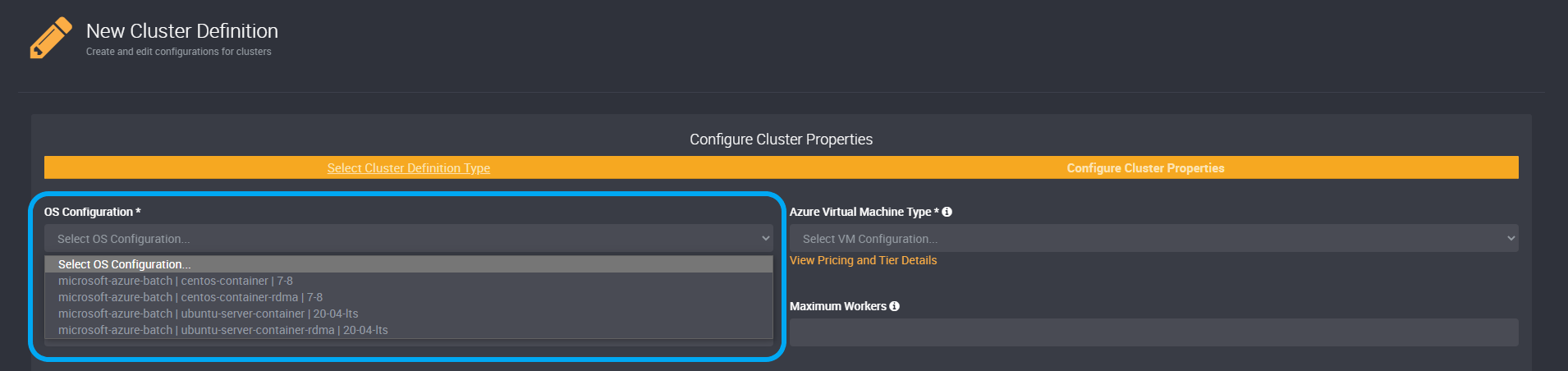
Azure Virtual Machine Type
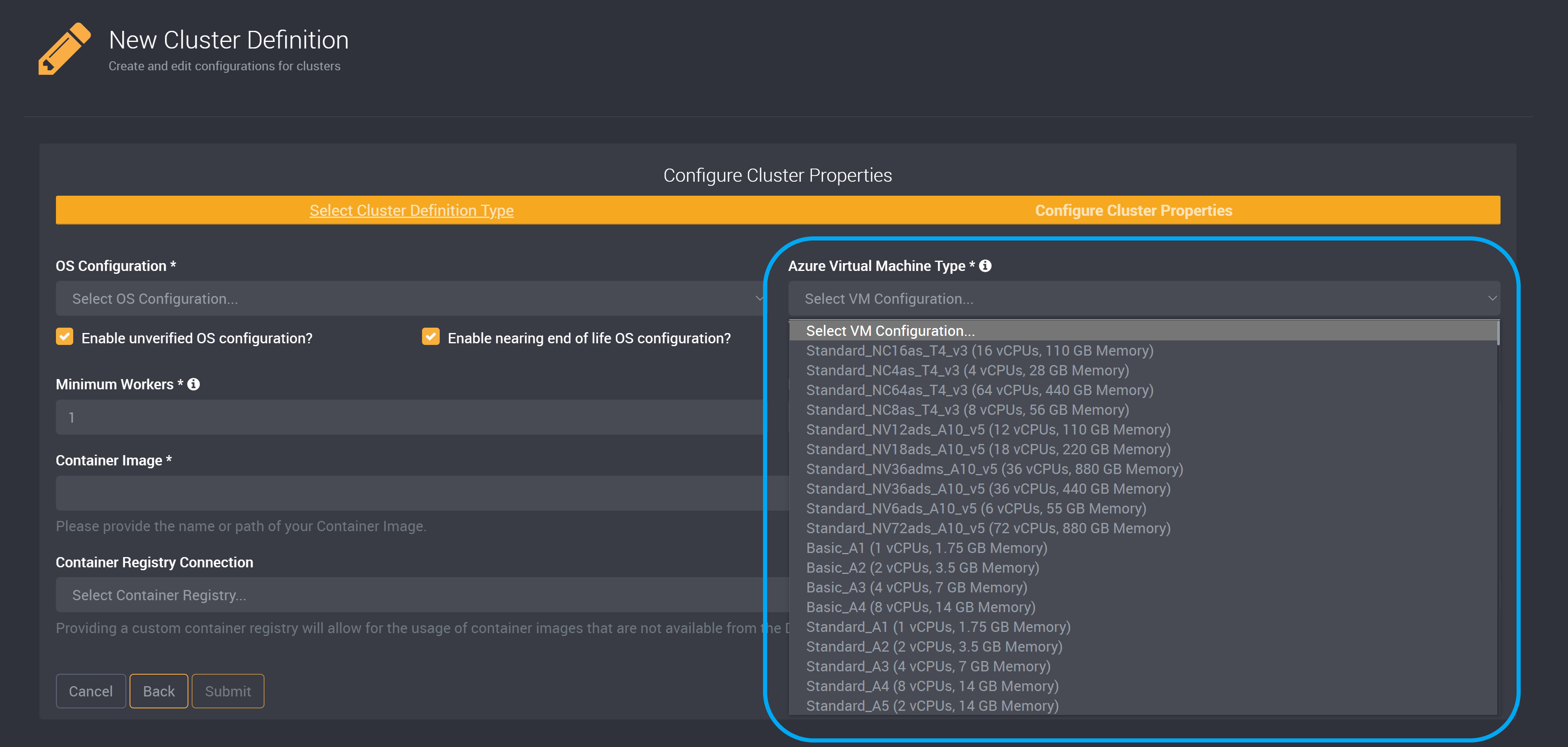
Choose an Azure Virtual Machine Type. (The VMs available will change depending on your chosen hosting Region and capabilities.)
If using a custom VM Image(you can read our guide on using the custom VM image below), please ensure that the OS Configuration (publisher/offer/SKU) and Azure Virtual Machine Type matches the VM Image.
Minimum and Maximum Workers
Then choose the number of Minimum Workers for this cluster definition. This defines the minimum number of processes used to run tasks. This must be at least 1.
You can choose the number of Maximum Workers. You can leave this field blank and not specify a maximum number of workers. If you do provide a number here, the cluster will automatically scale based on the workload.
Providing a number of Maximum Workers can result in higher running costs.
Container Image
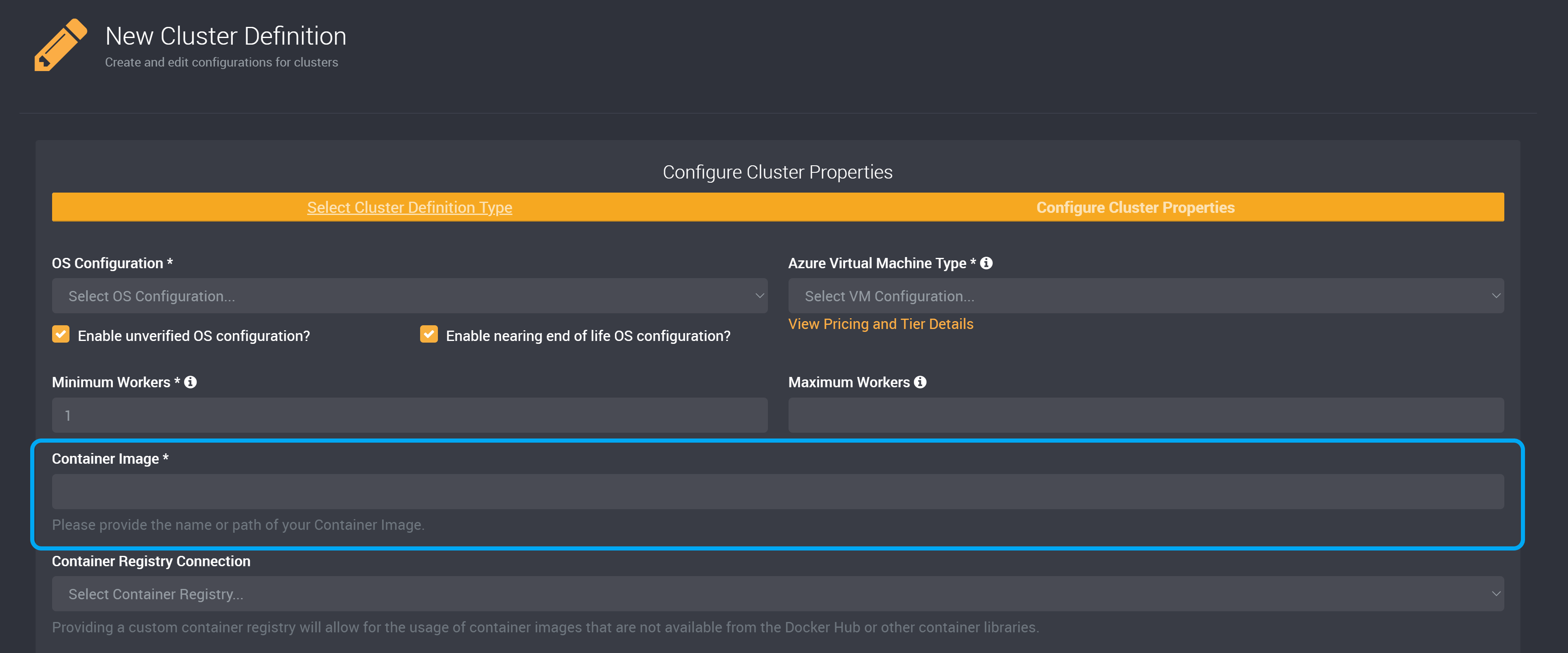
You can specify a container image. Provide the name or path of your chosen container image.
Container Registry Connection
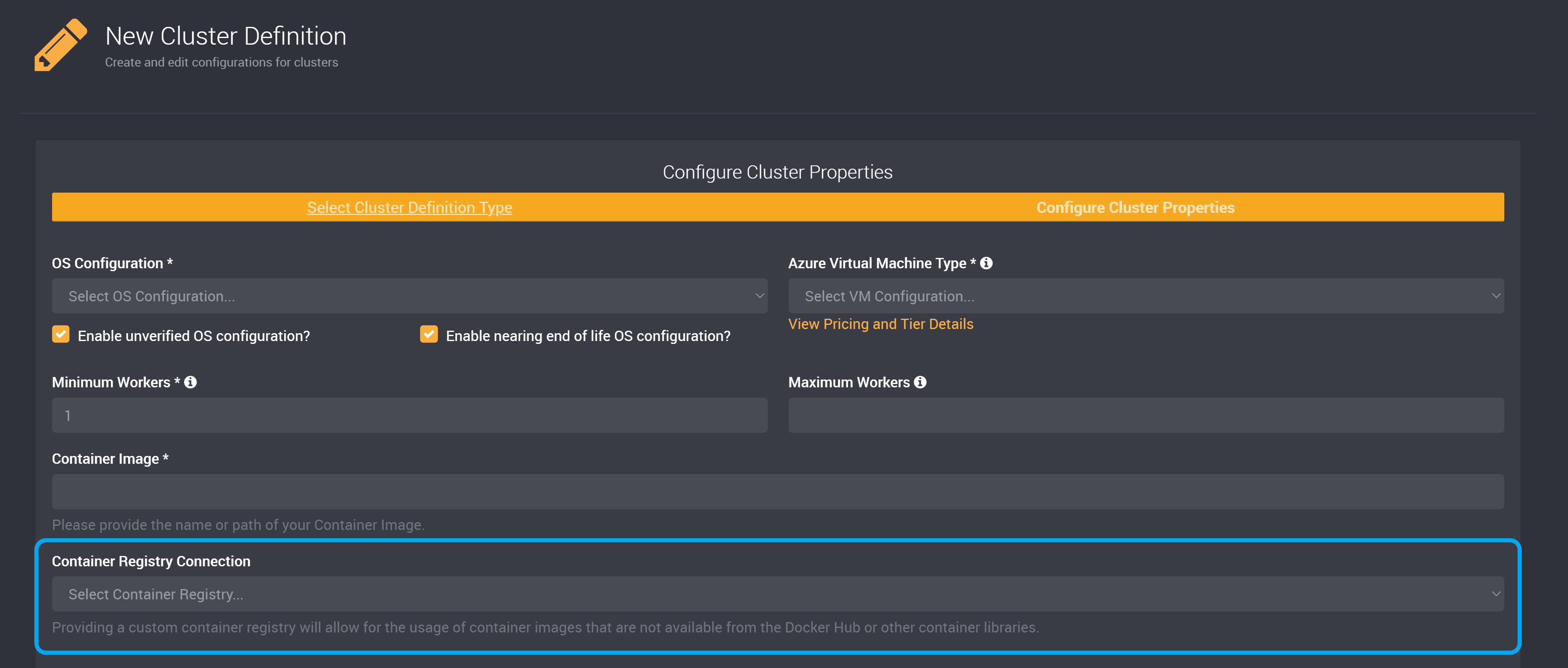
You can choose a connection that connects to a custom container registry, so that you can use container images that are not available from Docker Hub or other container libraries.
Select the connection to the Container Registry from the dropdown.
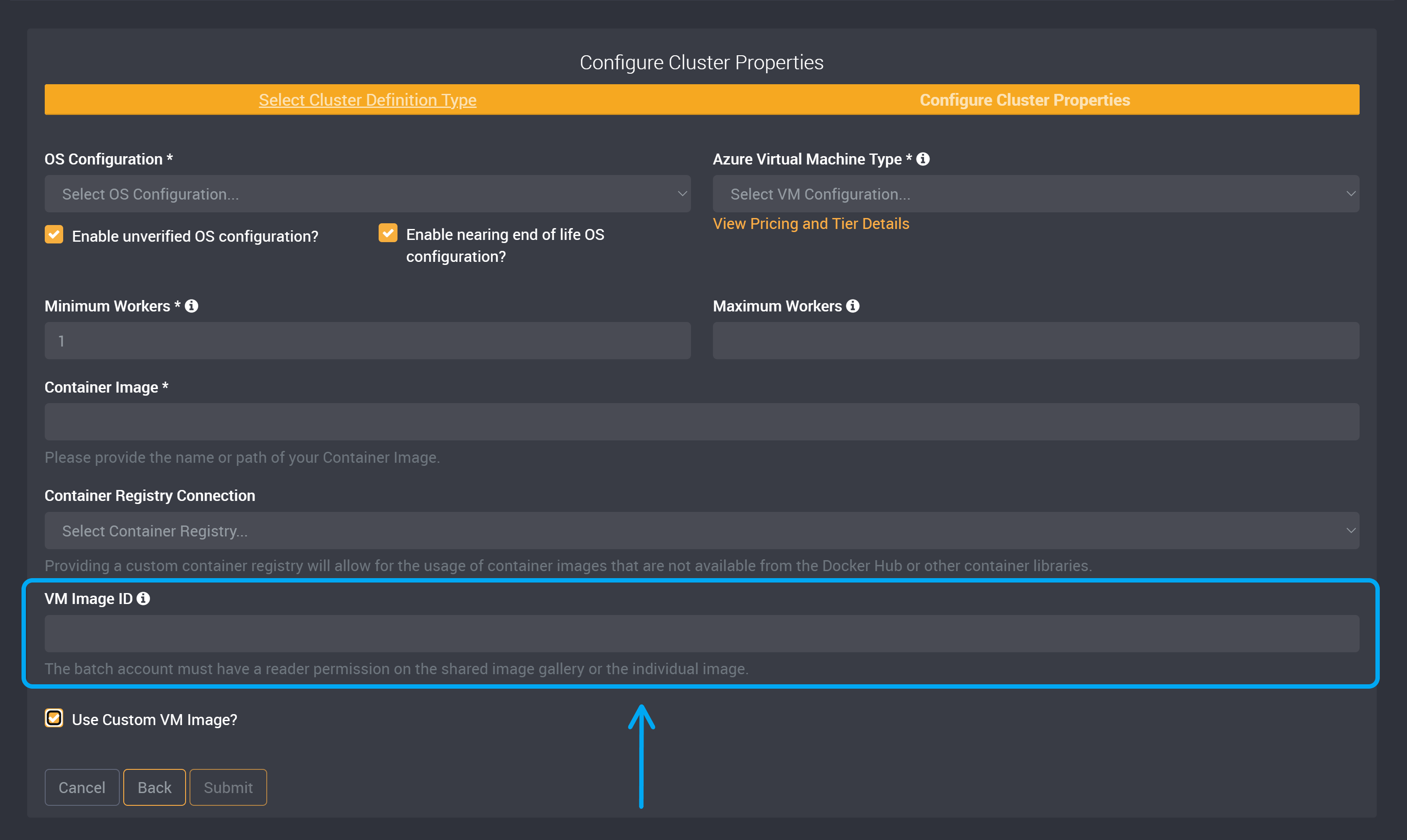
Use a Custom VM Image (Optional)
You can optionally use a custom VM image or you can submit this cluster definition below.
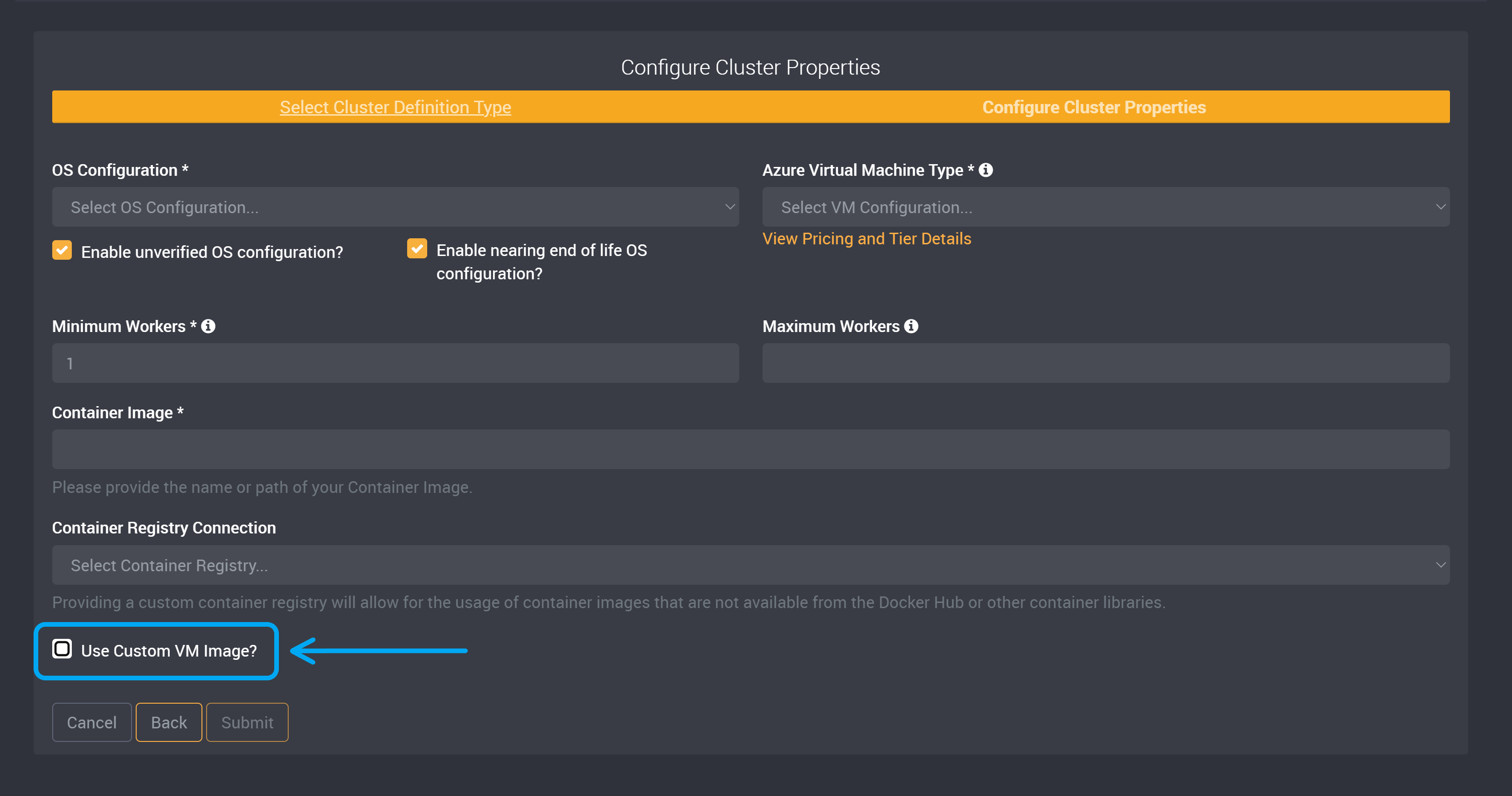
To use the custom VM image, check the Use a Custom VM Image? checkbox and it will expand the VM Image ID field.
Prerequisites:
- When using a custom VM image, you need to use a managed identity on your ‘Azure Batch Account’ connection.
- The Batch account must also have a reader permission on the shared image gallery or the individual image.
- When using a custom VM image with a User Assigned managed identity for your Azure Batch Account connection, that identity must be given reader access to the VM image.
Please note that currently, Azure Batch does not support the ‘TrustedLaunch’ feature. You must use the standard security type to create a custom image instead.
Azure Batch only supports Generalized Shared Images. This means when creating your VM Image, the OS System State needs to be Generalized.
Please note that permissions issues may be caused due to delayed changes. It can take up to 1 hour for Microsoft Entra group memberships or permissions changes to propagate throughout Azure DevOps. If a user’s having issues that don’t resolve immediately, please wait a day to see if they resolve. You can learn more about access management here.
Provide the VM Image ID. This is the Resource ID of the VM image version. In Azure, you can copy it under the ‘Properties’ tab.
This should be in the form of /subscriptions/{subscriptionId}/resourceGroups/{resourceGroupName}/providers/Microsoft.Compute/galleries/{computeGalleryName}/images/{imageName}/versions/{imageVersion}
Complete the Cluster Definition
You can then submit this cluster definition to save, and it will be ready to use in your task.
3. Create an Azure Batch Task
Create a new task in your chosen job.
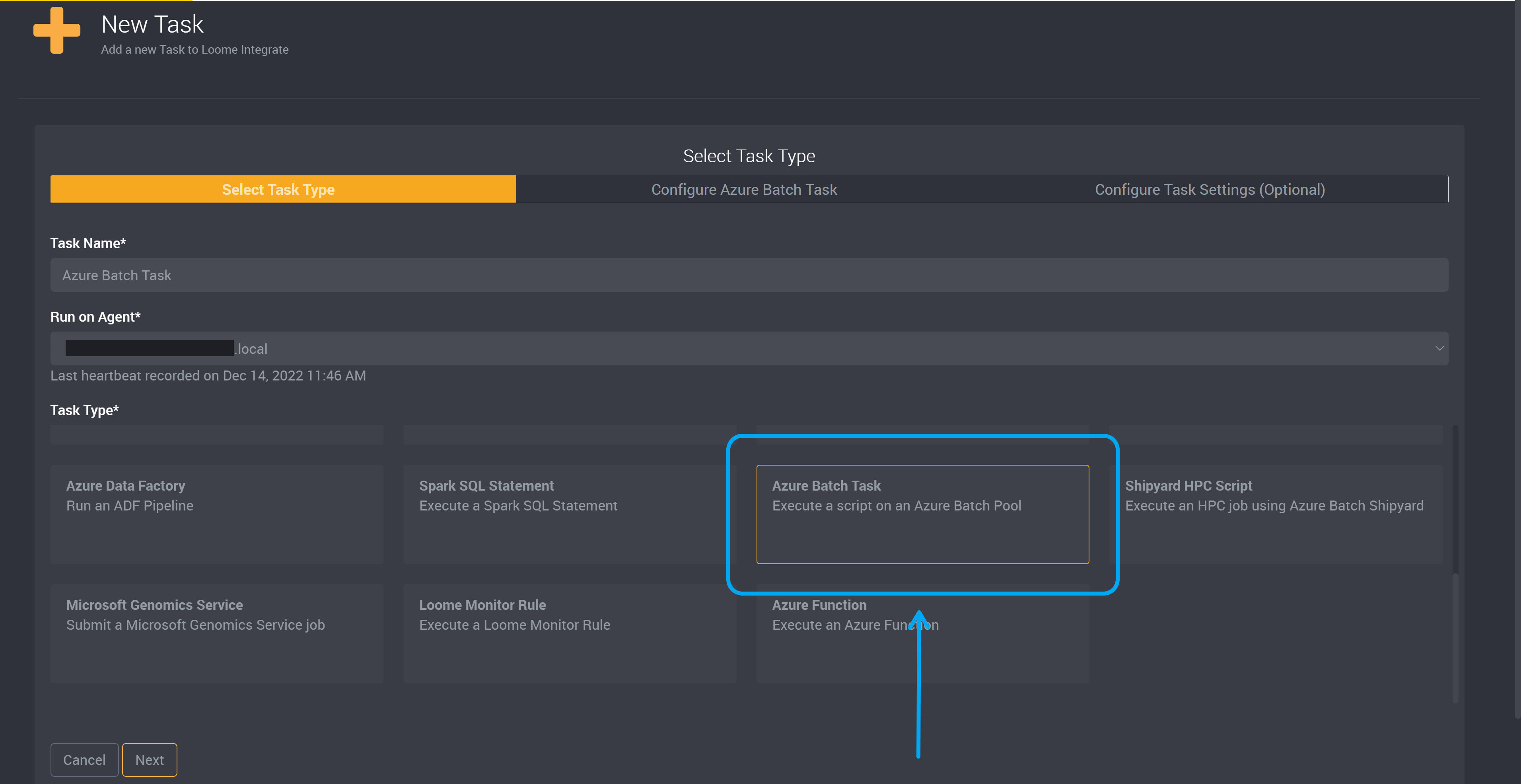
Select Azure Batch Task as your task type.
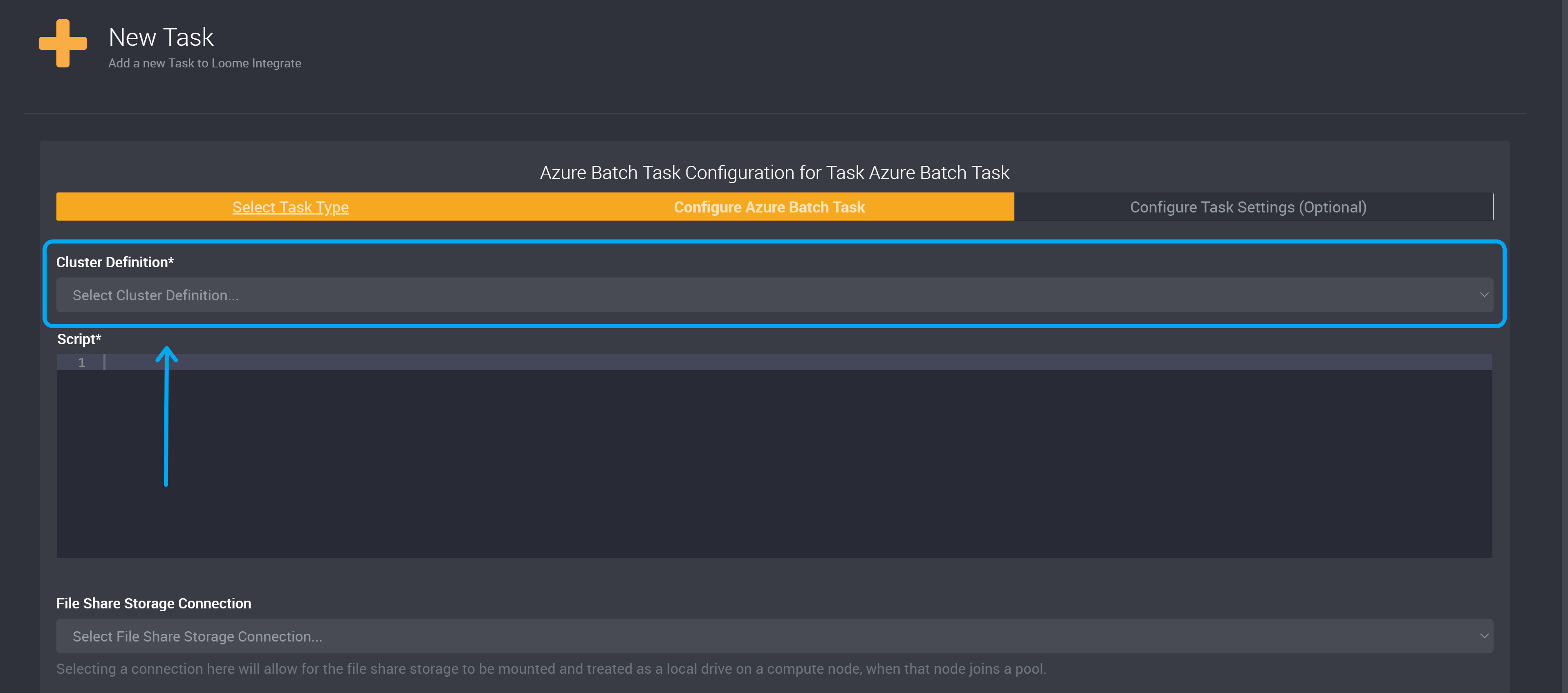
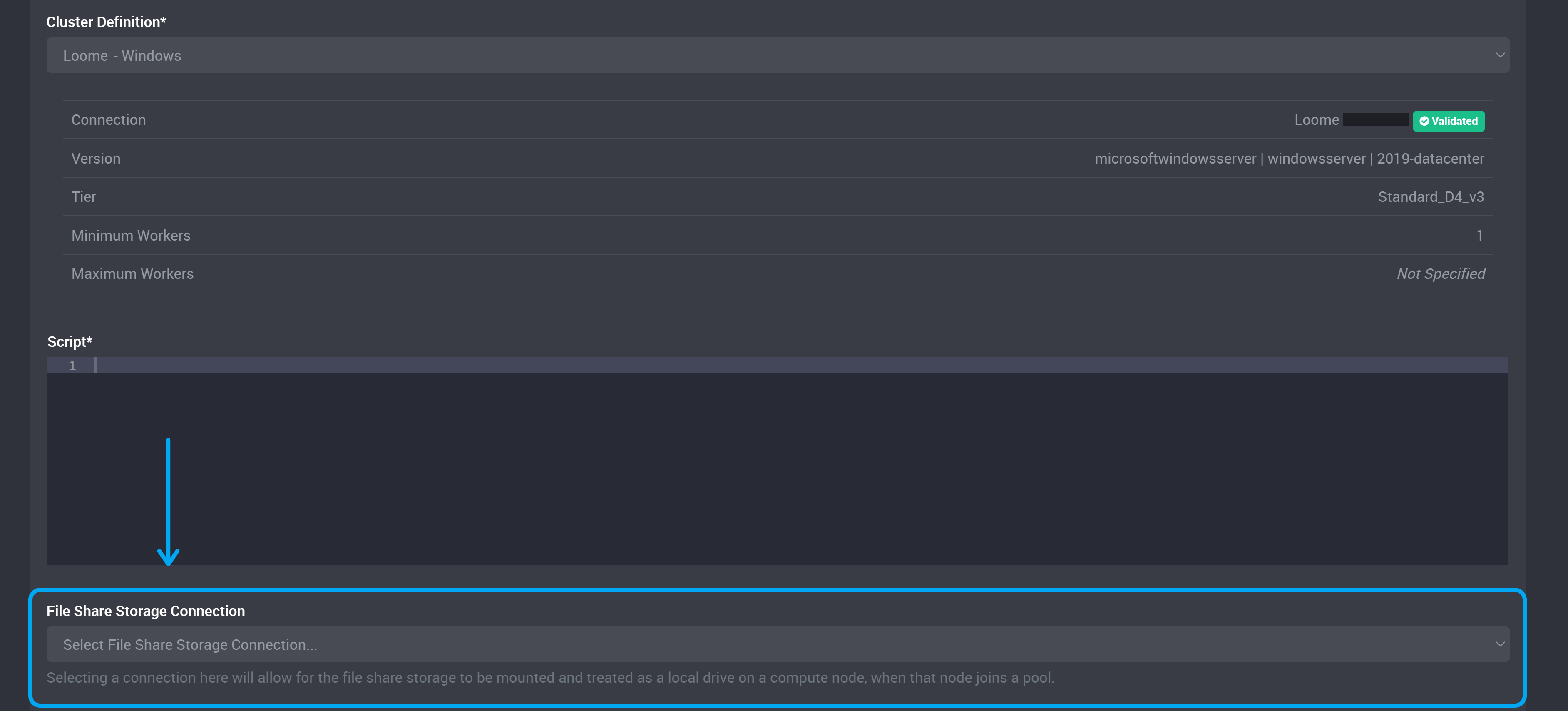
Choose the cluster definition you created above. Your available cluster definitions can be chosen from this dropdown. (Learn more about cluster definitions here.)
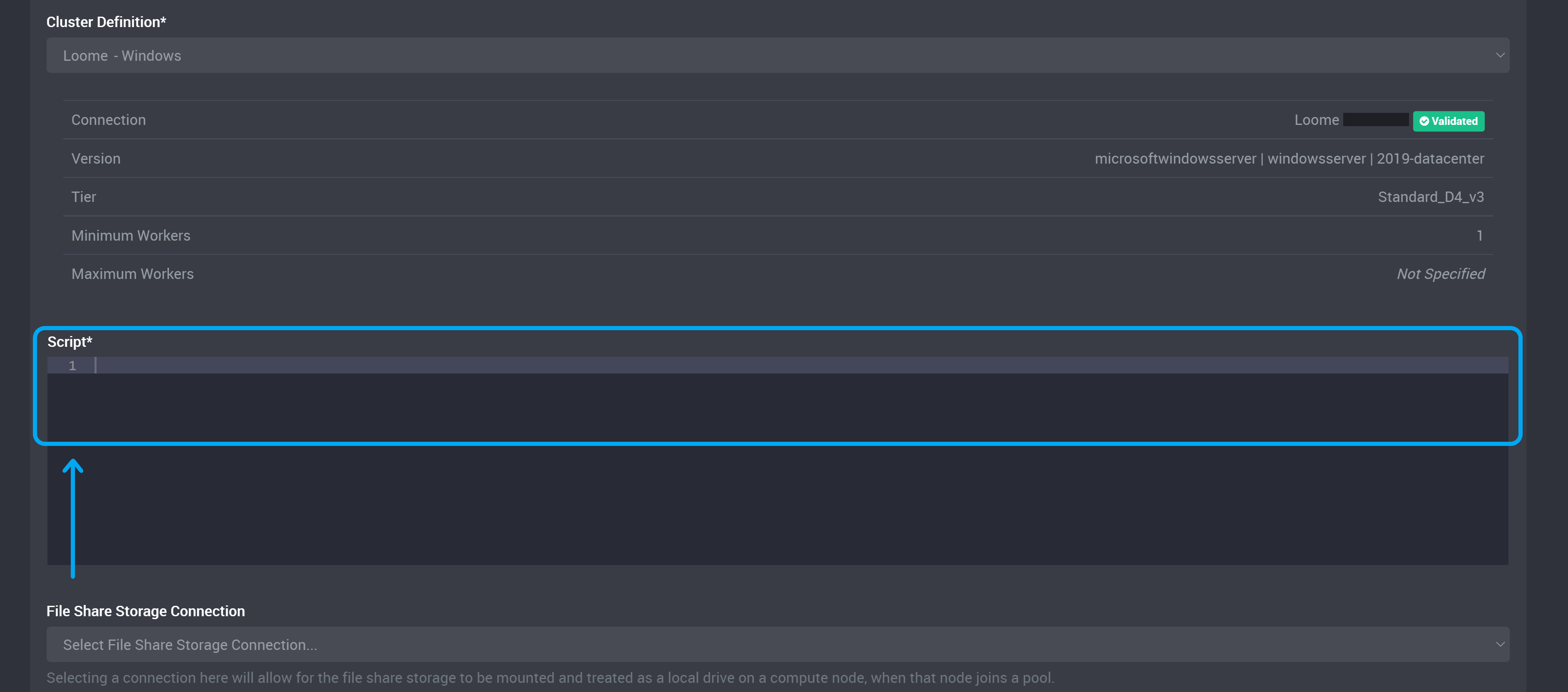
Provide the script for your Azure Batch task.
File Share Storage Connection (Optional)
You can also choose a file share connection. (This connection is optional.)
Selecting a connection here will allow for the file share storage to be mounted and treated as a local drive on a compute node, when that node joins a pool.
You can still set up an external file share in your script if you do not want to choose a connection here.
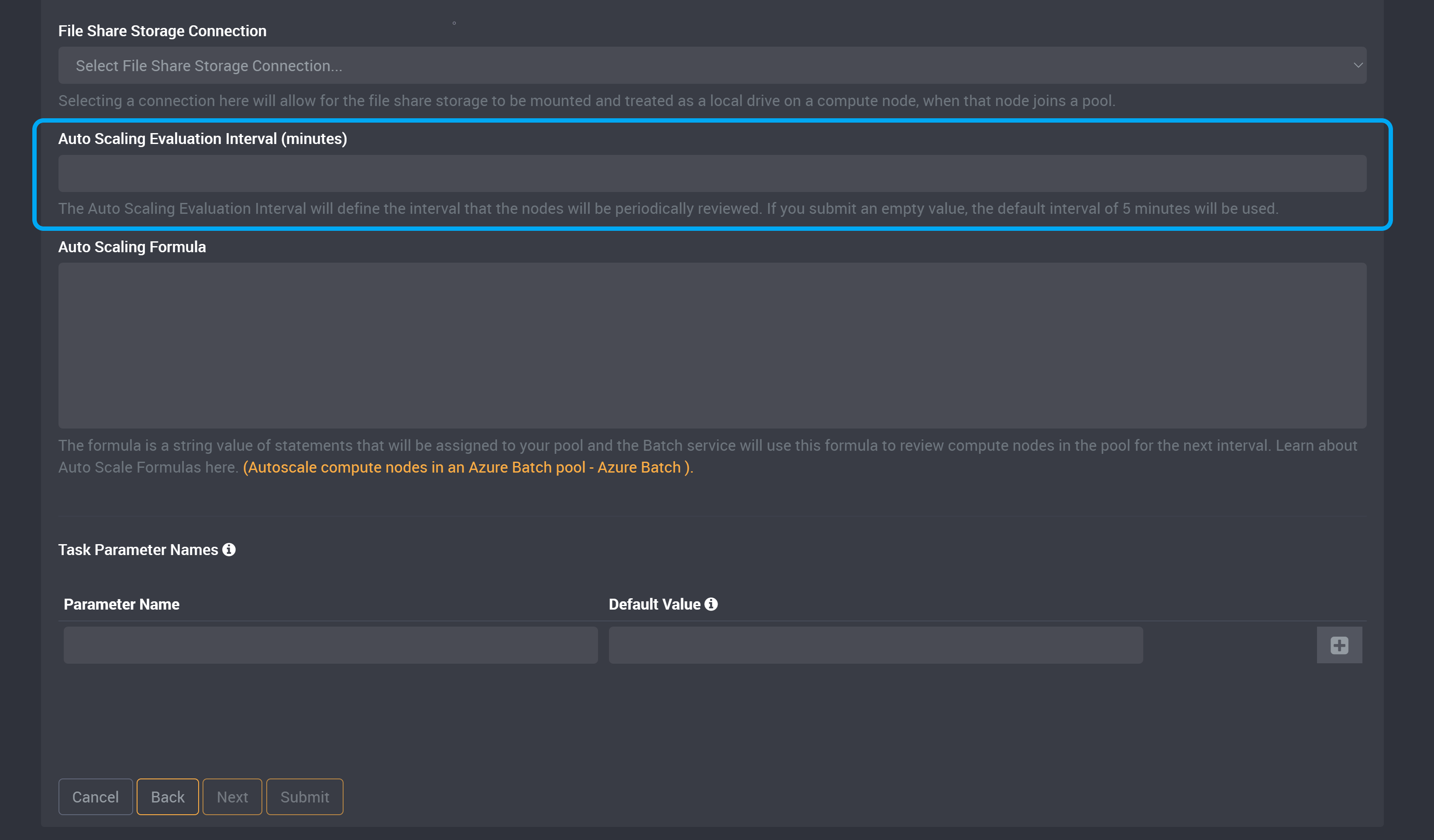
Auto Scaling Evaluation Interval (Optional)
The Auto Scaling Evaluation Interval will define the time interval that the compute nodes will be periodically reviewed when you provide an Auto Scaling Formula.
Provide an interval in minutes in this field.
Provide a whole number that is between 5 minutes and 10080 minutes.
When you provide a value here, for example 20, the compute nodes in the pool will be reviewed every 20 minutes by the Auto Scaling Formula.
If you provide a value here, you will also need to provide an Auto Scaling Formula in the next field.
If you submit an empty value, the default interval of 5 minutes will be used.
If you submit an empty value for both the Auto Scaling Evaluation Interval and the Auto Scaling Formula, Auto Scaling Evaluation will not apply to this Azure Batch task.
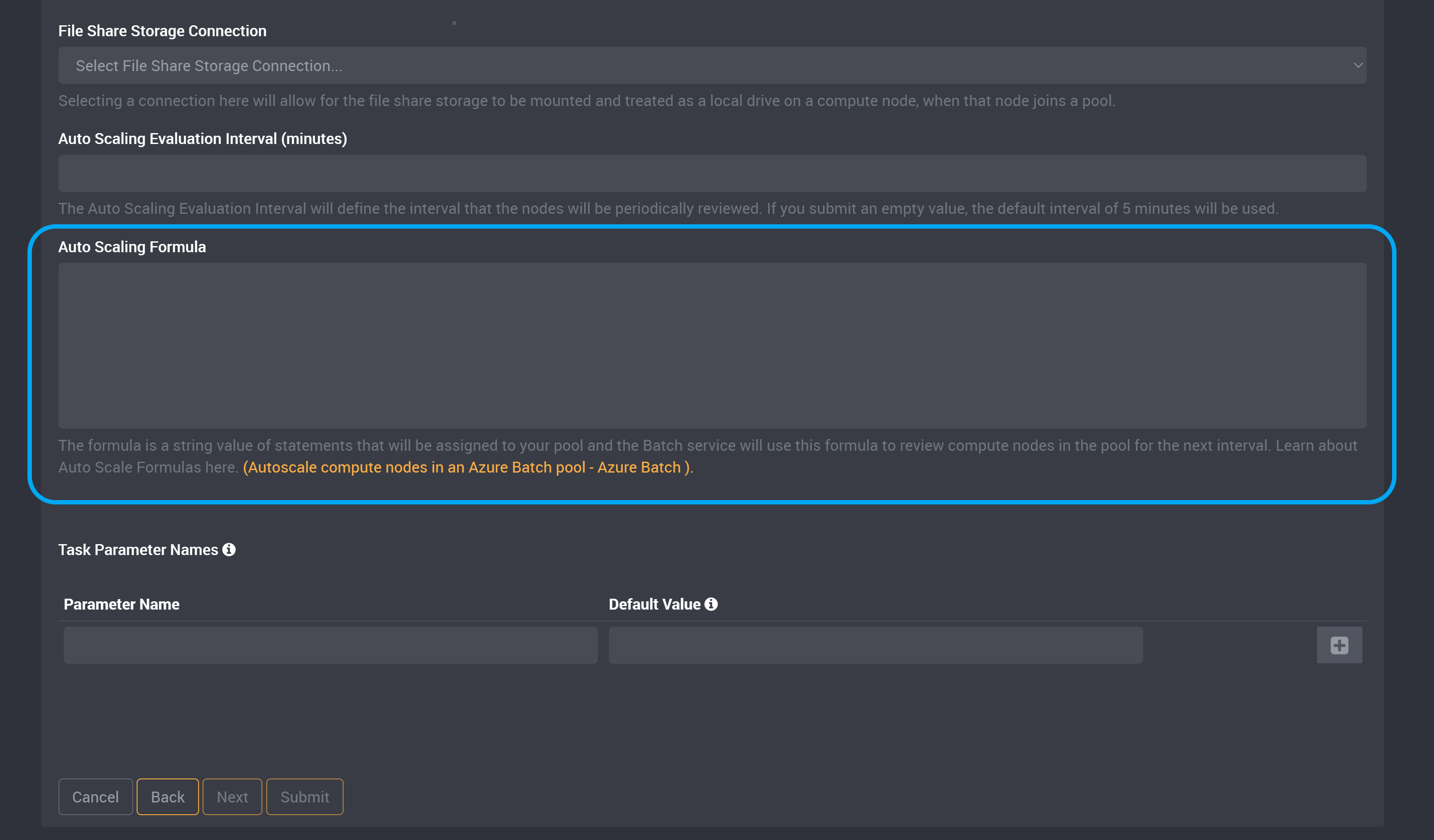
Auto Scaling Formula (Optional)
The formula is a string value of statements that will be assigned to your pool and the Batch service will use this formula to review compute nodes in the pool at each interval.
Learn more about Auto Scale Formulas here.
Provide your formula in this field.
Task Parameters
Any parameters added to the task will be usable inside the Azure Batch script at runtime.
If you provide any Task Parameters, they will take precedence over the Auto Scaling Evaluation Interval and Auto Scaling Formula.
Submit Task
Submit the task and your task is ready to run.