Communication Rules
After you have run a rule, you can choose to add Communication Rules.
Communication rules allows users to send alerts via email or create and assign tasks in the Loome Portal based on your rule’s results. You can choose to send an alert about all results or specific records based on conditions. You can manually choose recipients for these emails or tasks or you can select an email column in your results to email each user about specific records.
- Add Communication Rules
- Save your Communication Rules
- Delete a Communication Step
- Enable or Disable all Communication Steps
How to Add Communication Rules
To add a communication rule, edit a rule from the results page, project page or review page.
The communication rules tab is on the left of the page.
Click on Create first step.
Choose to:
- create a branch that will send communications or create tasks only on specific conditions,
- send an email to a target audience
- create tasks in the Loome Portal based on your results.
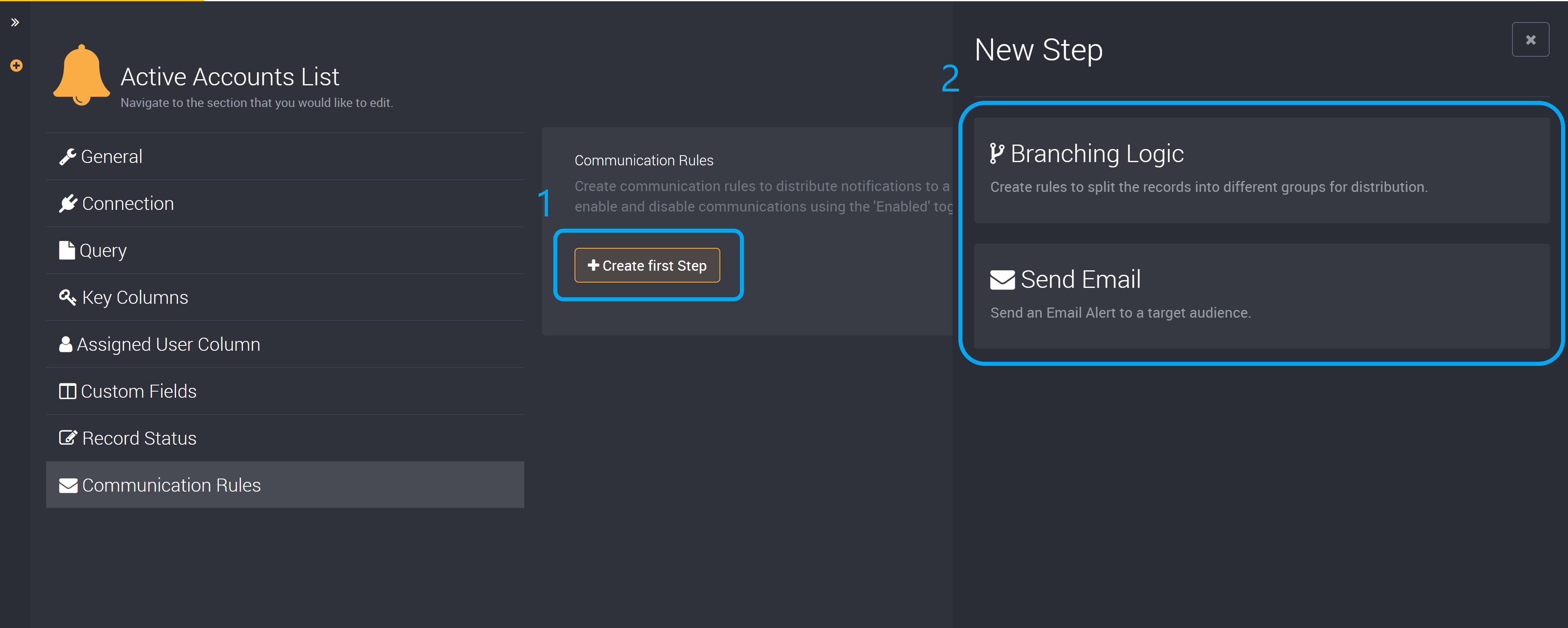
You can create each type of these communication steps and create multiple steps in one rule. Learn more about each type of communication step in the next section.
After you have created your communication steps, you can save the rule.
Save your Communication Rules
If you want to send these communications out immediately, you can click on Save and Execute Rule in the execution slideout, and any applicable emails will be sent to their recipients while tasks will be created in the Loome Portal.
If you want to only save these communication rules, so that they are ready to send out at a later time either manually or using a schedule, you can instead click on Save in the execution slideout.
Delete a Communication Step
If you would like to delete a communication step, click on the top-right delete button and confirm that you would like to delete this step.
Enable or Disable all Communication Steps
Click on the Enabled toggle to disable communications when you would like to run this rule but not send any emails. This is useful when you would like to test a rule or check for results that have been resolved without notifying multiple team members.