Tasks
Overview
Tasks are for work management in the Loome Portal to help your teams move beyond passive monitoring and into proactive action and collaboration, all within the Loome environment.
Tasks allows you to operationalize your workflows, enabling you to:
- Action Anything, Anywhere: Raise a task directly against any asset or activity you see in the catalogue, from a report to a data migration job, to assign responsibility and track resolution.
- Streamline Issue Investigation: Use tasks to immediately investigate issues, such as long-running or failed job executions, ensuring critical problems are quickly documented and addressed.
- Manage General Requests: Create stand-alone tasks for general requests not tied to a specific asset, like “Request a new report for the Sales team” or “Review security permissions.”
- Drive Accountability: Leverage a full set of fields, including tags, priority, and due dates, to properly categorize and scope the work.
- Collaborate Seamlessly: Engage in real-time collaboration using discussions and assign tasks to individual users to clearly define ownership.
- Stay Informed: Receive In-App notifications instantly to notify you when you have tasks requiring action, along with periodic summary emails of everything requiring your attention.
Page Shortcuts
How to Add a Task
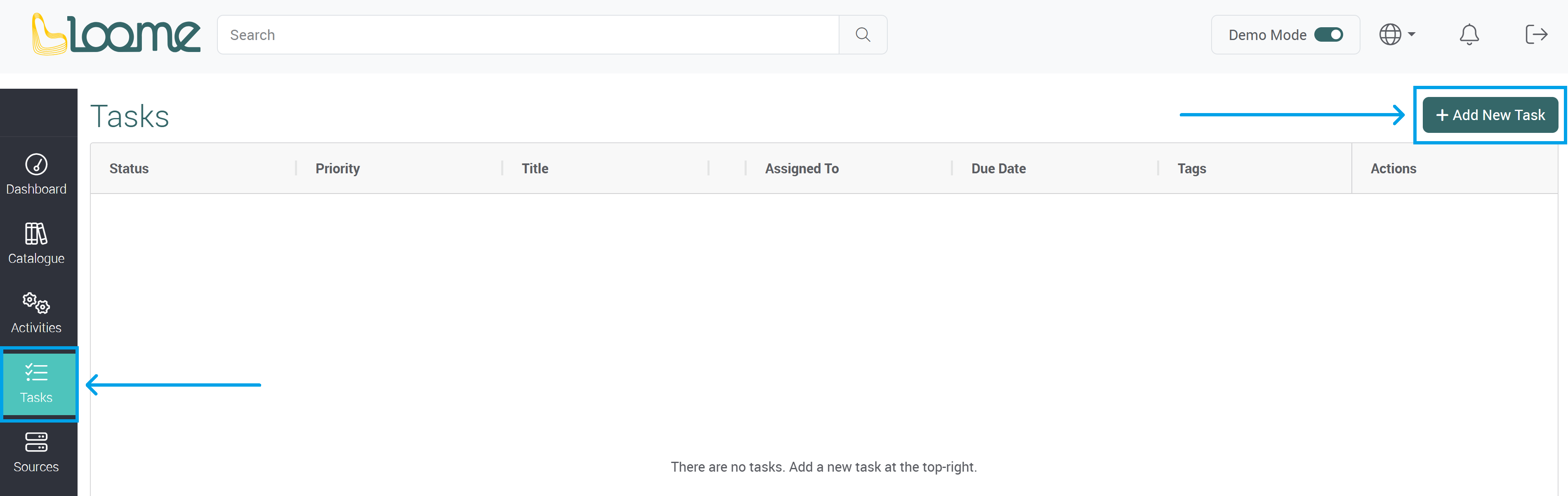
You can find tasks in the left-hand navigation menu.
Click on Add New Task at the top-right.
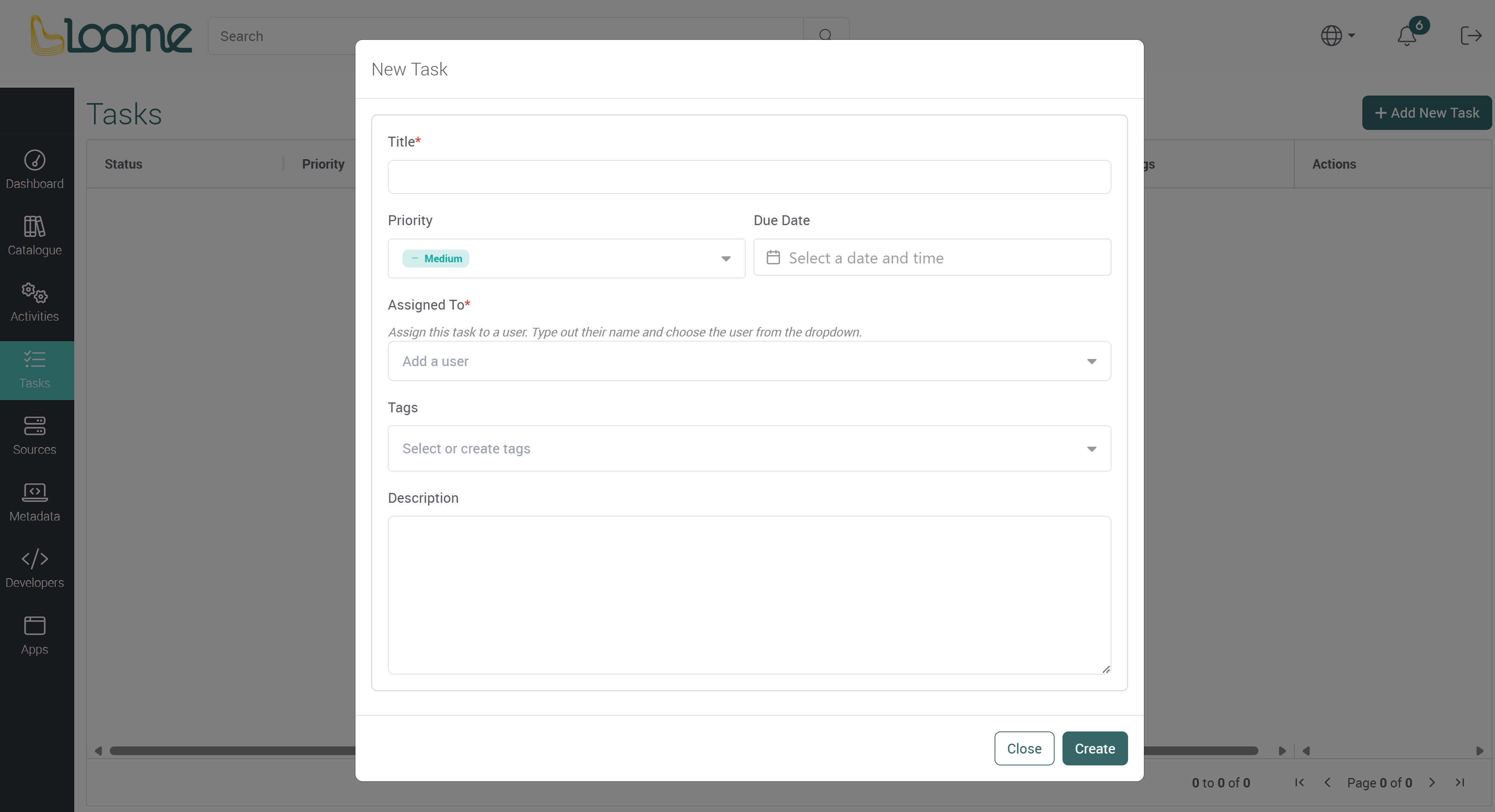
Provide a name for the task in the Title field.
Choose the priority of the task from the dropdown, such as, low, medium or high.
Choose the due date for the task. Pick a date from the calendar. You can choose a month and year at the top of the calendar, and click on the clock icon at the bottom of the calendar to choose a time.
Assign the task to users or groups in the Assign to field. Type in a name or email and then select the user or group from the dropdown. When you select a group, all individual users within that group are added to the field and will receive notifications.
(Groups are expanded to their individual members when the task is created in the assigned users section.)
Please note that you cannot assign a group with more than 10 users. (Groups with 10 or more members are not supported.) We recommend that you choose a group with less than 10 users, or add individual users.
Please note that to assign groups, group lookup will need to be enabled. You can still assign users individually if it is not enabled.
If you have assigned a new user that is currently not a member of the tenant, the user will be invited to the tenant. If the user does not log into the tenant within 30 days from their invitation, their tenant invitation will expire.
If you have added more than one user or a group in the assignee field, choose an assignment mode.
- Shared task — one task is created and assigned to all users you select. Any of these users can mark it complete, and it will be completed for everyone. (This is default.)
- Individual tasks — one task is created per assigned user. Each user must complete their own task independently. (The provided details for this task will be identical for all user’s individual tasks, except for the assigned user field.)
Select or create any tags for this task.
Add a description for the task. You can add information about the task here.
Create the task at the bottom-right.
Add a Task from an Asset or Activity
You can add a new task from an asset in both the catalogue and from activities.
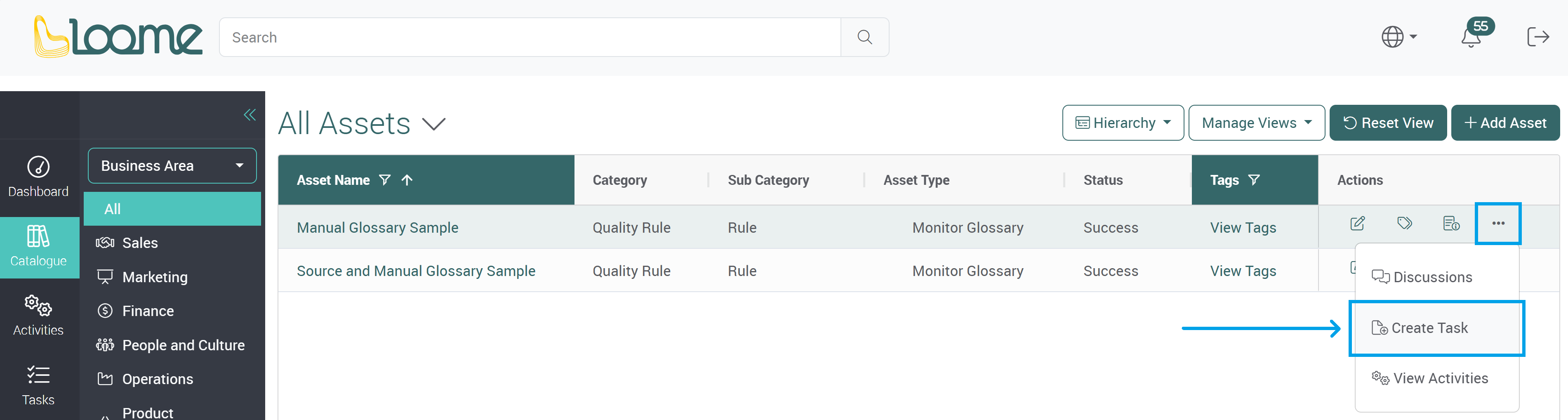
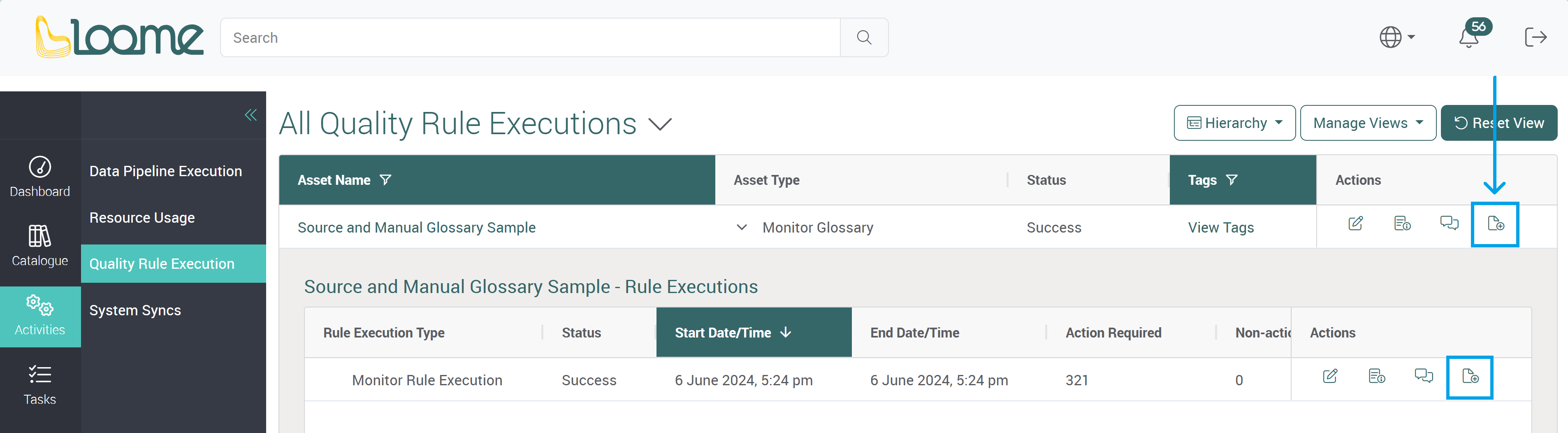
On the right of the asset or activity, in the actions column, click on Create Task.
In the catalogue, this may be under More and in the dropdown.
In the activities, in hierarchy view, the action will be on the right of the overall row and in the dropdown on the right of each activity.
You can create the task by providing required fields as above and Loome will provide a link to the related item (such as the asset) in the task.
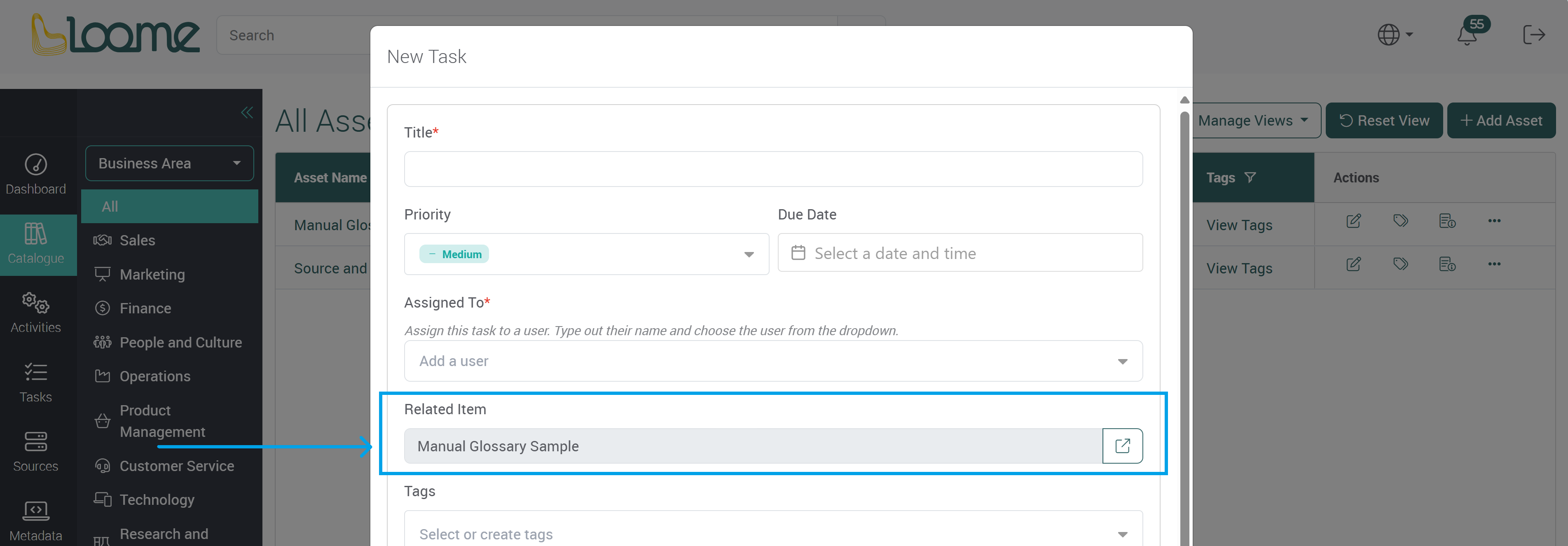
When you view or edit the task, there will be a link to the item so it can be easily found later while working on the task.
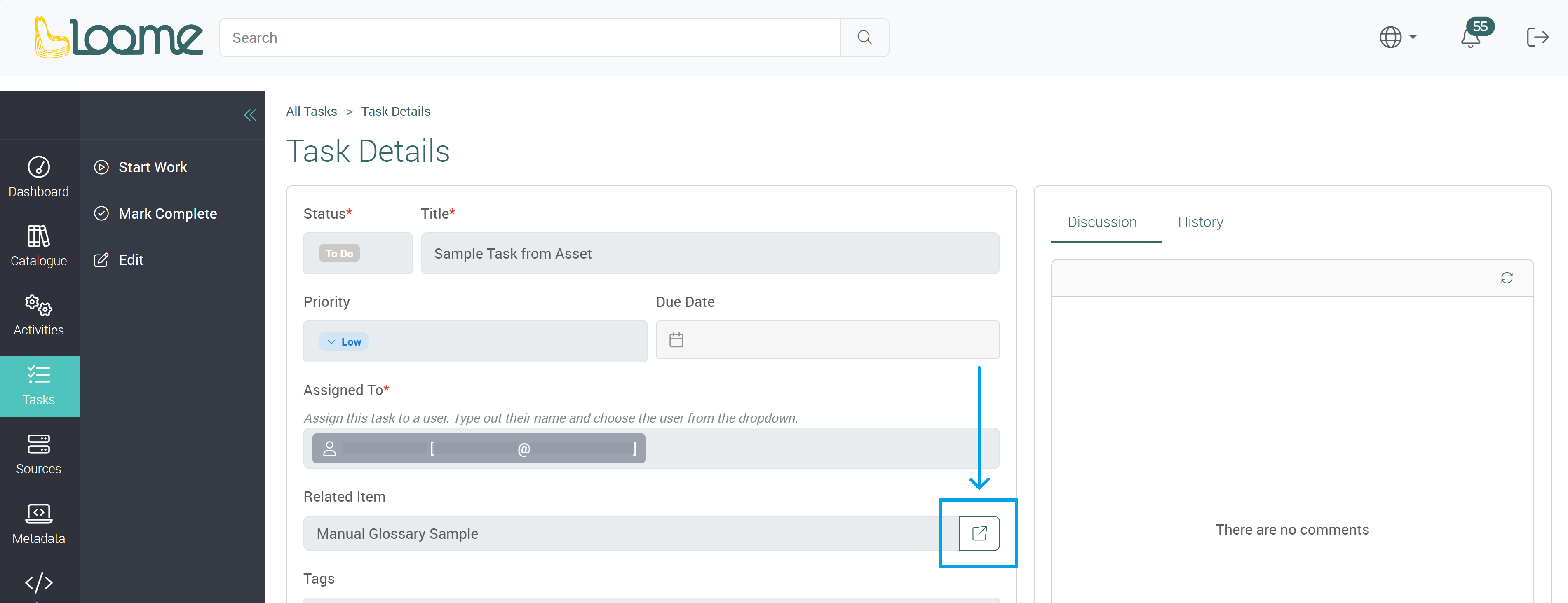
Please note that if an asset or activity was deleted or moved, the task will not be deleted. The task will still be available but the asset will not be able to be accessed.
Manage a Task
For Task Assignees
Start Work on a Task
You can view the details of a task by clicking on the title of the task.
You can learn more about a task using the comments in discussions or the history tab.
If a task was created from an asset, activity or Loome Monitor rule, you can click on the link to be directed to the asset, activity or Loome Monitor rule.
When you are ready to start working on a task, click on Start Work in the actions column on the right of the task.
After you have worked on the task and are ready for the task creator to review it, click on Submit for Review.
Tasks created from Loome Monitor cannot be submitted for review and will progress with the option to ‘Mark as Complete’.
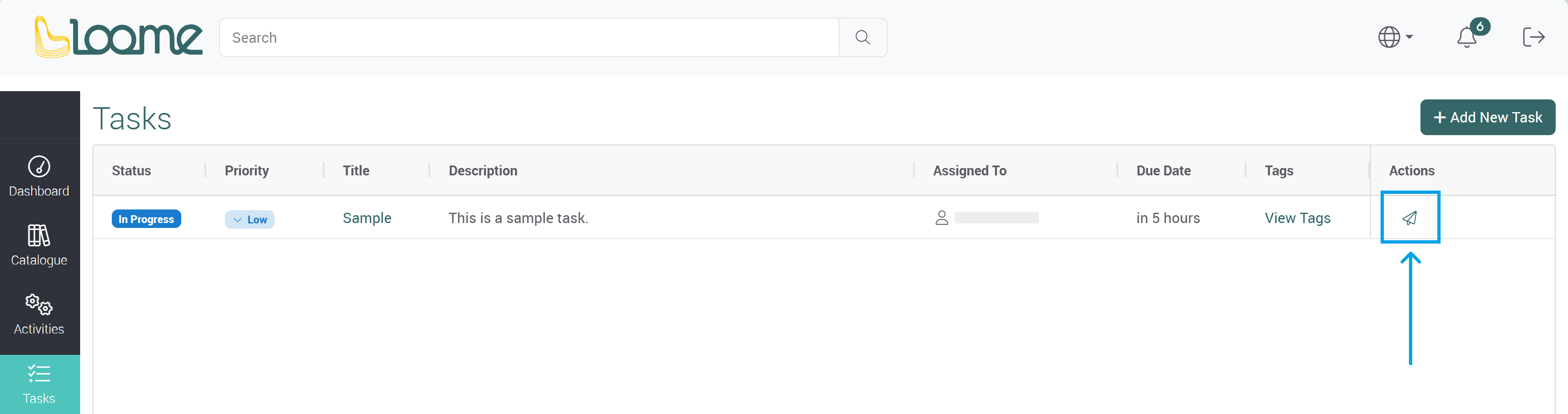
After the task has been reviewed, it will either be approved and marked as complete or rejected and you will be notified so you can work on the task again.
For Task Creators
View, Edit and Mark a Task as Complete
There are a few ways to manage your created tasks:
- To view a task, you can click on the title of the task.
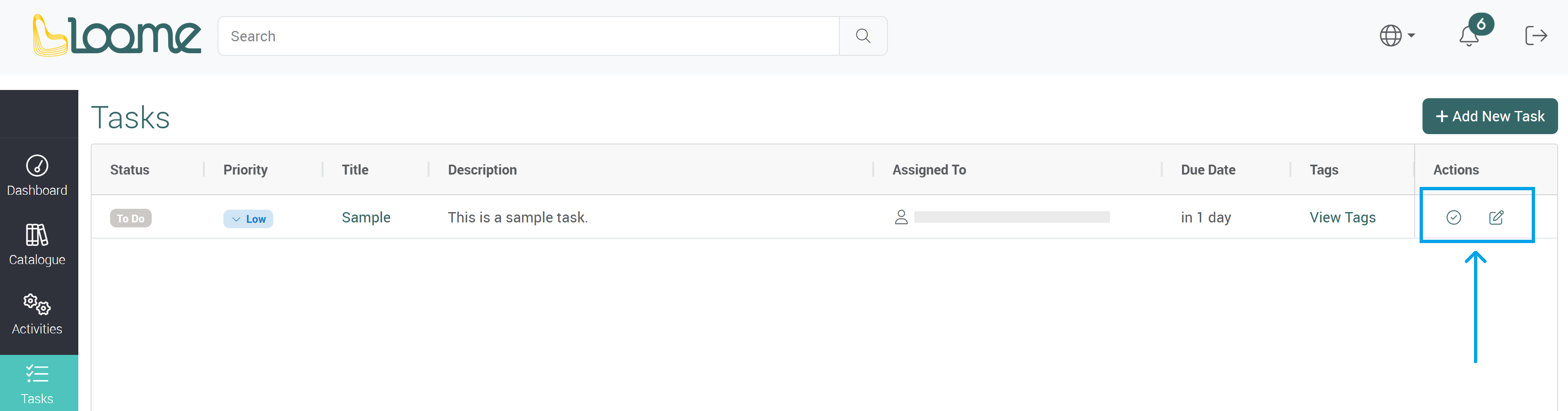
- When a task has been completed, you can mark a task as complete. In the action column, click on the checkmark ‘Mark as Complete’ button.
- To edit a task, click on Edit in the action column on the right of the task.
Review a Task
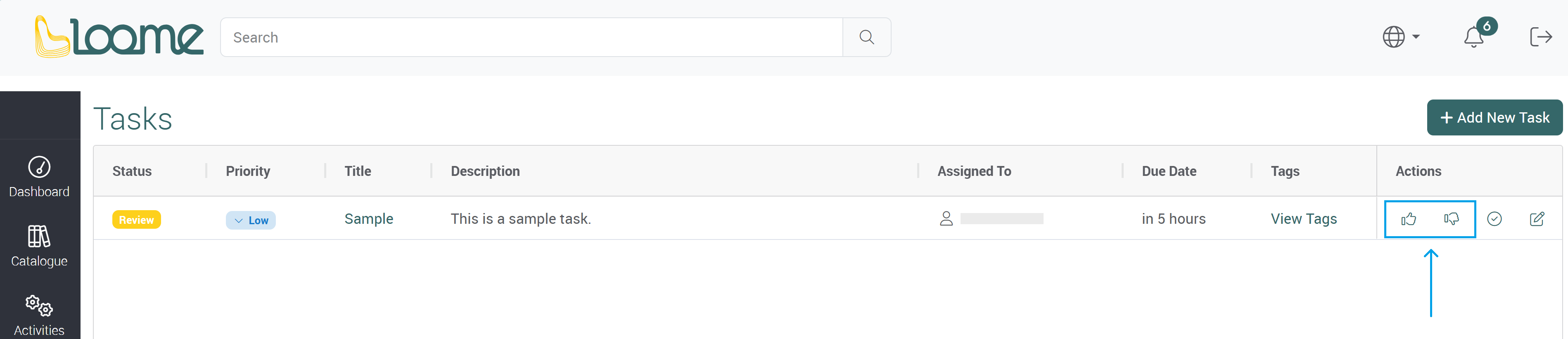
After a user has submitted a task for review, you can approve or reject the task.
- If you approve the task, Loome will mark the task as complete.
- If you reject the task, the task status will be changed back to in progress and the user will be notified.
Reopen a Task
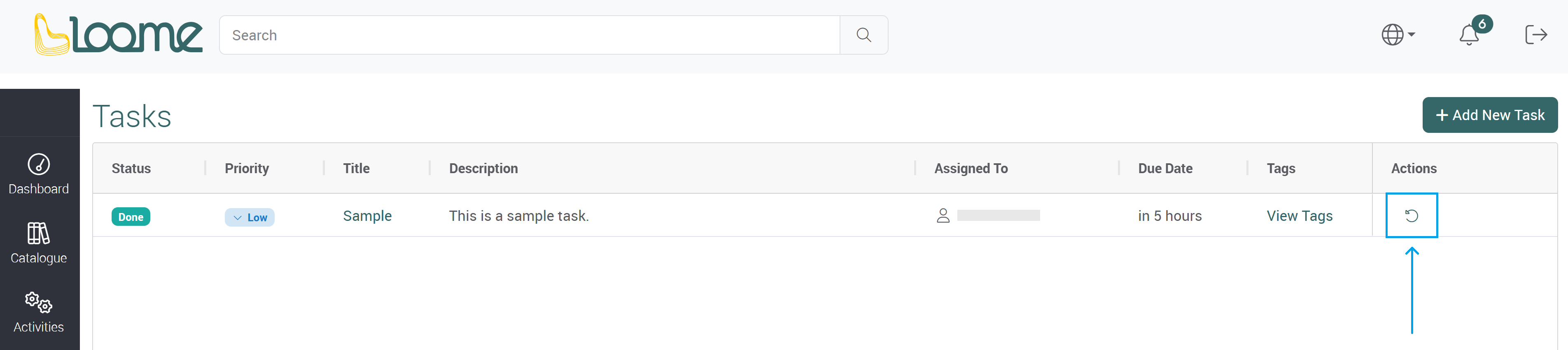
If you find that a task requires more work or needs to be modified after you have marked it as complete, you can reopen the task.
Click on the Reopen button in the actions column on the right of a task.
Task Discussions
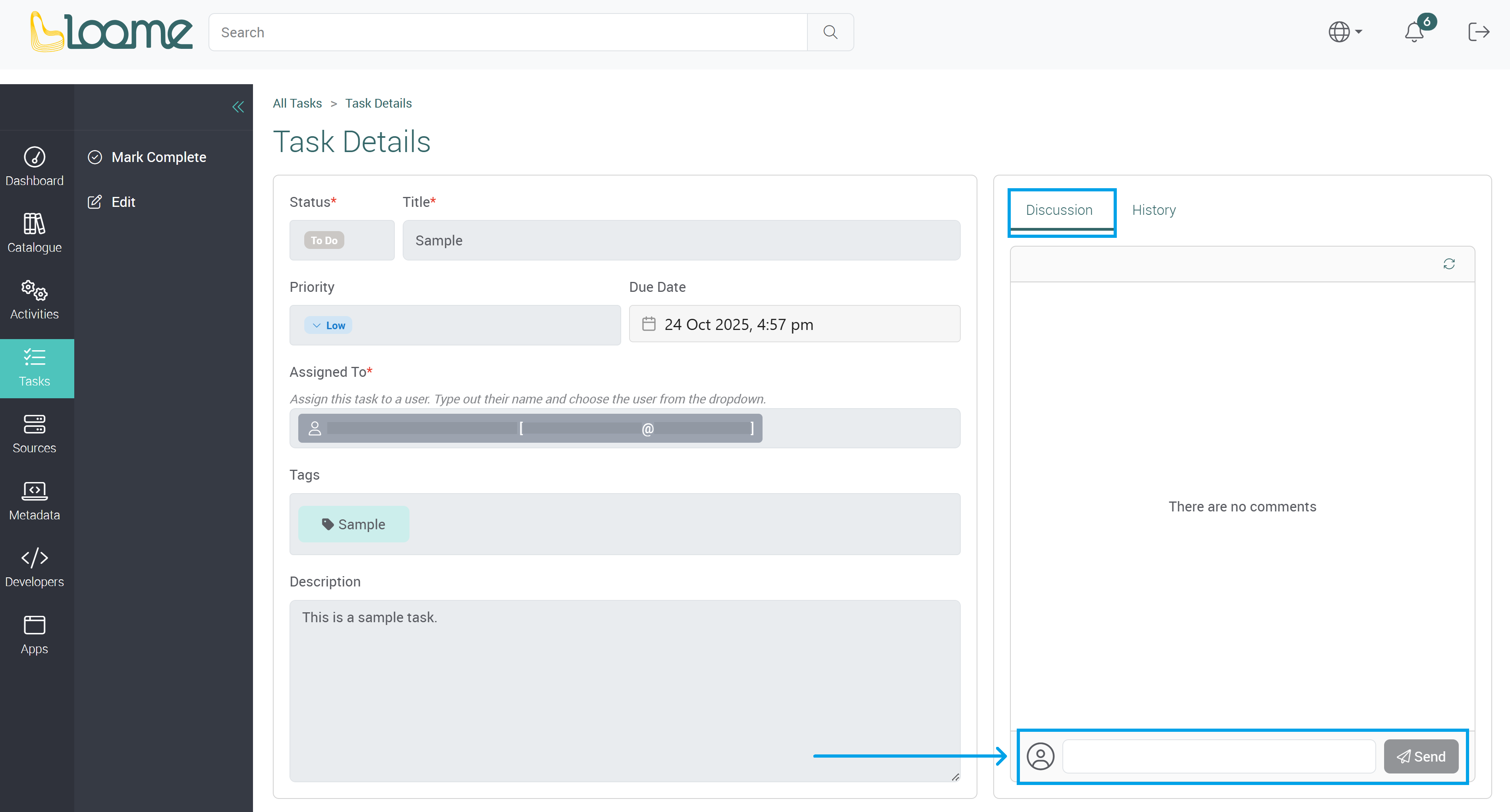
After you have clicked on a task to view or edit it, you can then create discussions in that task.
On the right, you can provide comments in the discussions section. Type in your comment and then click Send.
You can refresh the comments using the Refresh button at the top-right.
You can delete a comment using the button at the top-right of each comment. Then confirm that you would like to delete the comment.
The author of a comment can edit it at the top-right. After you have edited the comment, confirm or cancel your changes.
If a comment was edited, the comment timestamp will instead show when the comment was last edited. The comment will also mark that it has been edited.
Task History
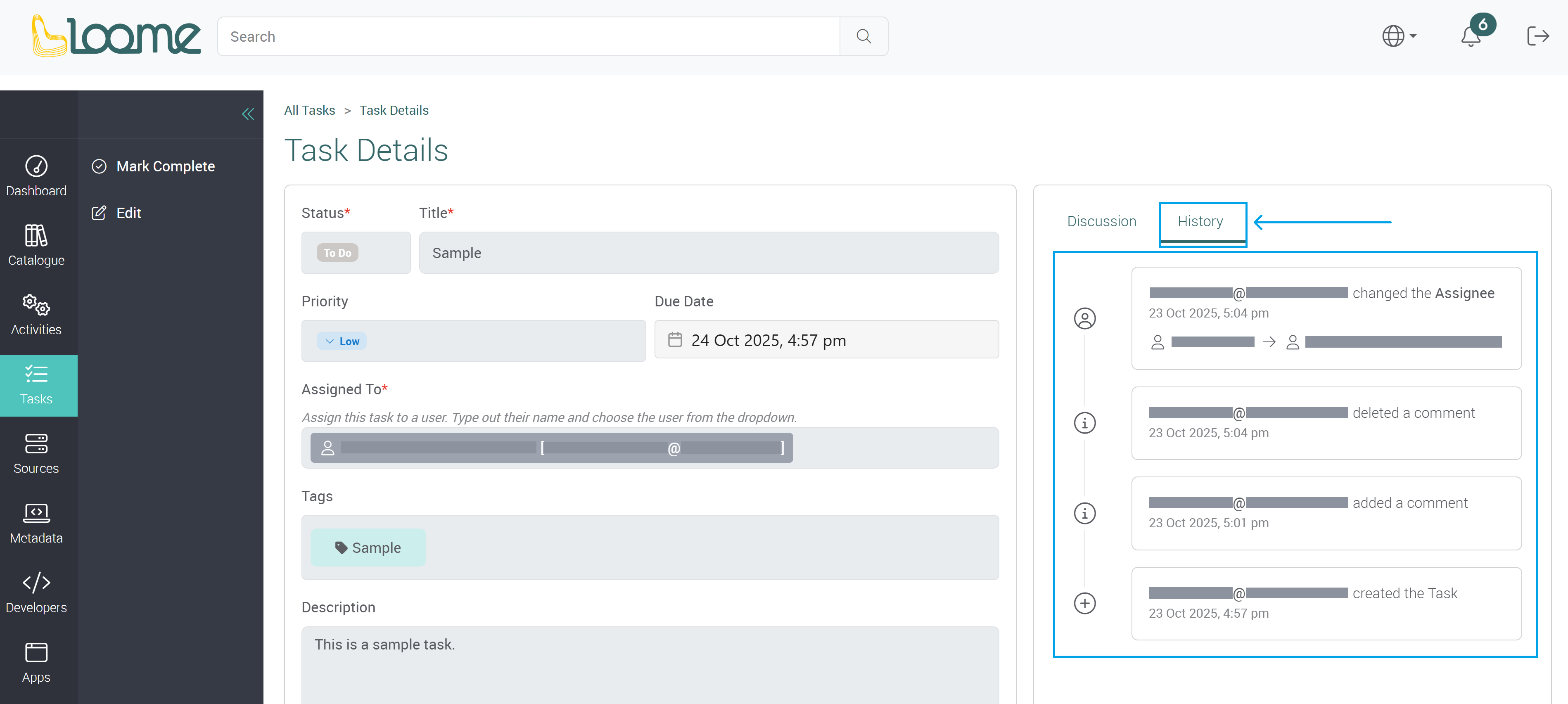
You can view the history of changes made to this task using the History tab at the top-right beside the discussions tab.
You can view changes such as when the task was created and the user that created the task, whether any comments were added or deleted, or when the assignee or priority was changed, and which user made those changes.
Metadata
If the task was created from a Loome Monitor Rule, while viewing the task metadata information will be displayed on the right of the page.
You can view when the task was last updated, the name of the rule the task was created in and the number of updates for the task.
Task Views
Tasks with statuses that are in progress, to do, pending and in review will be displayed by default. While tasks that have been marked as done will be hidden and can be displayed using the filters.
You can apply filters to change which tasks are shown, sort your columns and change column visibility, and then save your view in the dropdown ‘Manage Views’ at the top-right. In ‘Manage Views’, you can add, edit, and delete your views. Learn more about views here.
Saved personal views for tasks cannot be shared with other users.
Switch between your saved views at the top-left by clicking on the dropdown beside the title of the view.
Reset the view to the default configuration using the Reset View button.
Task Notifications
You can be notified about task related events or updates with in-app notifications and with task summaries as email notifications.
These can be configured on the settings page and in the notification settings.
Task Summary Email
Task summary email schedules will send out emails at your preferred times with a summary of tasks assigned to users or tasks that you have created.
- Assignee Summary Emails: Configure schedules to email task summaries to assigned users. Assigned users will receive an email with a summary of tasks assigned to them.
- Creator Summary Emails: Configure schedules to email task summaries to task creators. Task creators will receive emails summarizing the tasks they have created.
The task summary emails will contain the number of active tasks, the tenant name and a link to view your tasks.
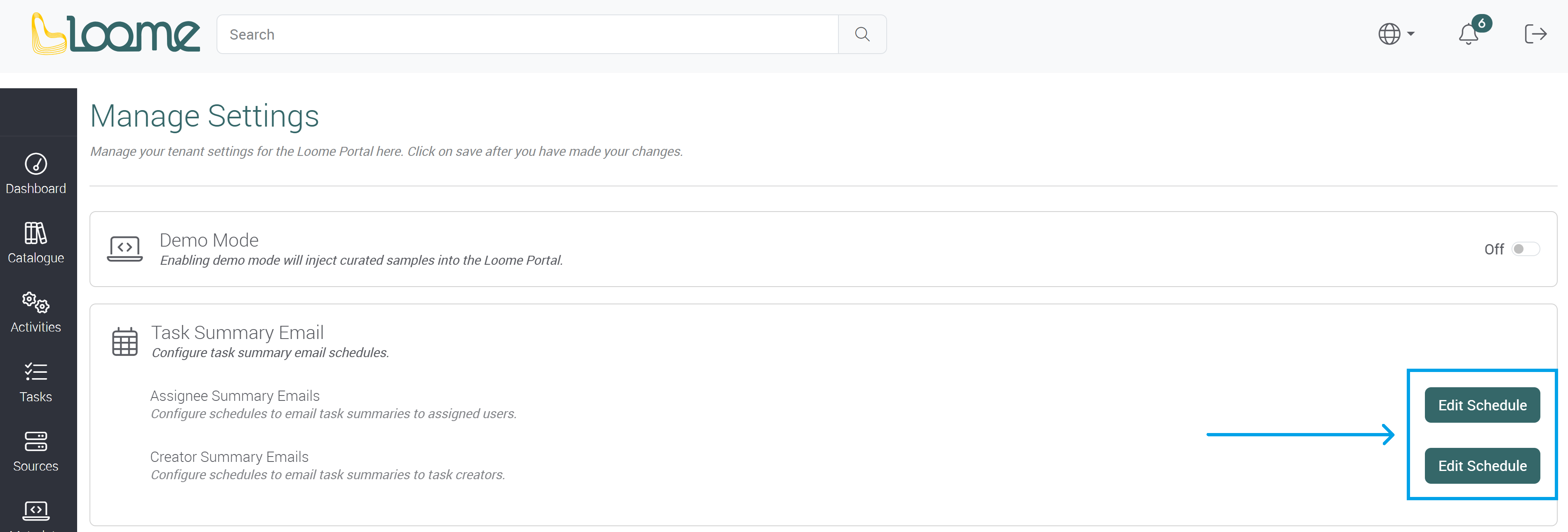
You can learn more about how to create schedules here.
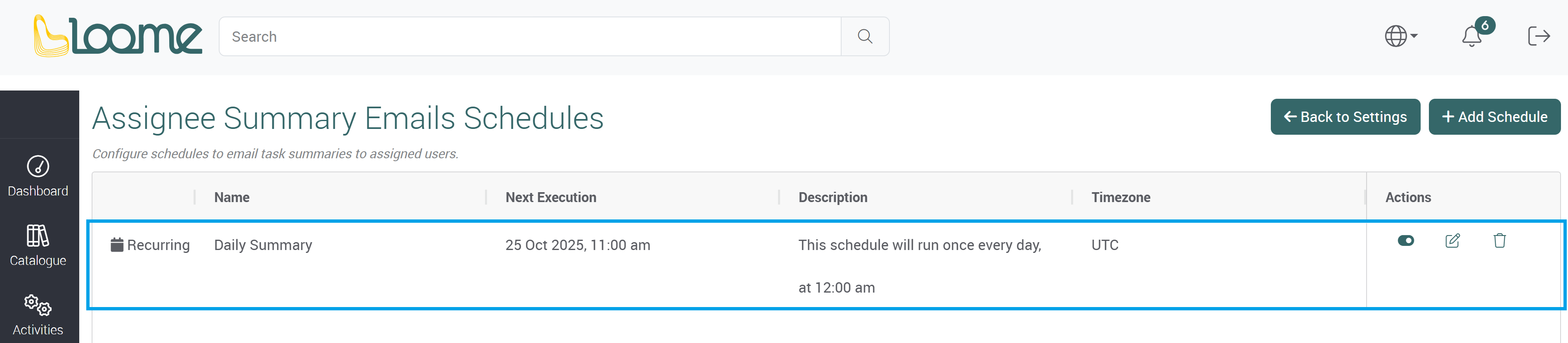
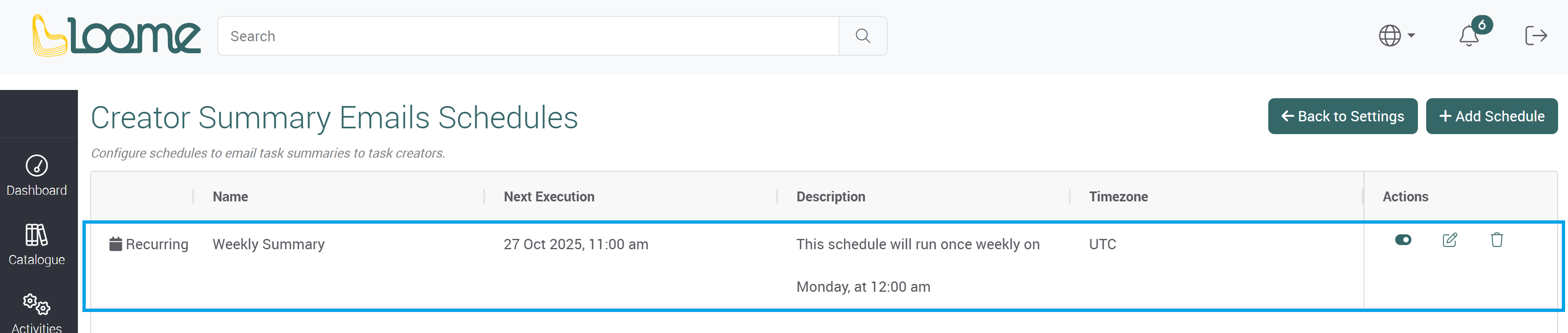
Loome provides a default schedule for each type of task summary:
- A daily email for task assignees:
- A weekly email for task creators:
In-app Notifications
You can manage in-app notifications for tasks. In the notification settings, accessed at the top-right of the notification menu, you have the notification options:
- Task-related events or updates
- Task Summary
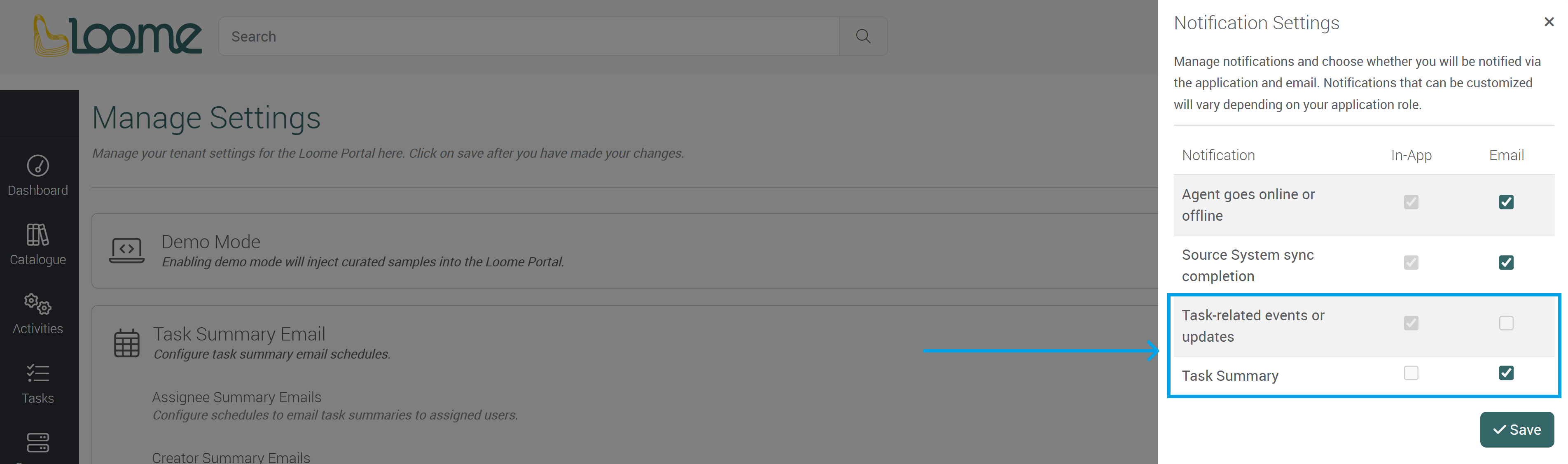
You can choose to enable in-app and email notifications for task summaries.
You can choose to enable email notifications for task-related events or updates.
Please note that if you disable email notifications here, you will not receive email notifications even if you have created and enabled task summary schedules in settings.
If you turn on the in-app notifications, when you click on a task notification, you will be directed to the task page.