Adding a New Job
How to Add a New Job
To add a new Job, click on your chosen project, and then click New Job in the top-right corner.

You can then provide a Job Name and click Submit to create a simple job with default customization.
If you would like to modify the job to your requirements, you can change the following fields. For example, you can choose to be notified by email when a job fails, you can choose to make the job try again automatically if it fails and you can also set your logs to debug for more information.
Job Fields and Details
When creating a job, there are several fields and details that can be provided to customize the behavior of your job.
These include:
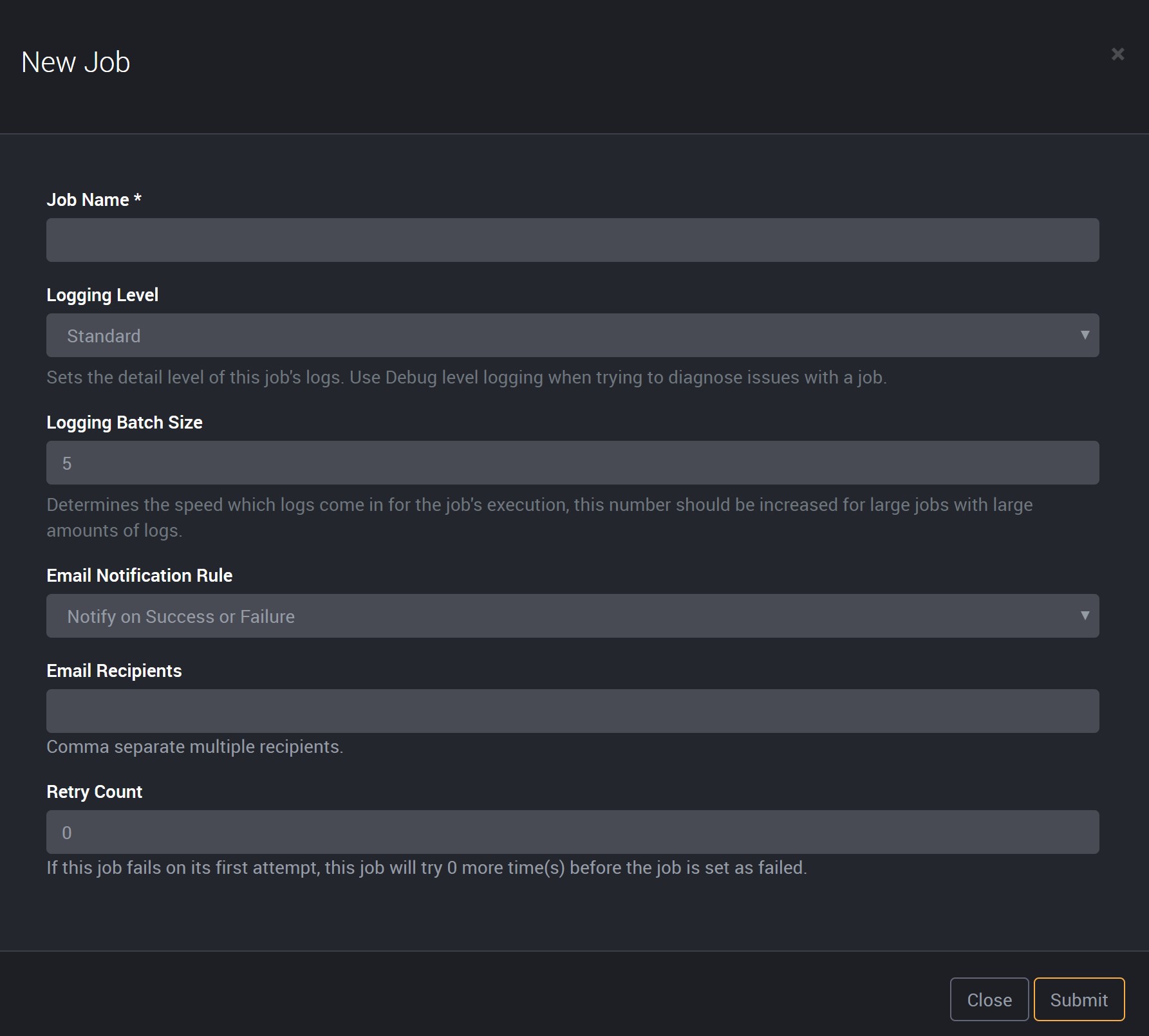
Job Name
This is a unique label to identify your job. It can be changed at anytime without affecting the underlying tasks and scheduling.
Logging Level
The Logging Level refers to how detailed the execution logs will be after running a Job.
| Level | Details | Types of Logs |
|---|---|---|
| Standard | This setting will produce a smaller set of logs with only meaningful, notable messages being shown. This is what will be set as default. | Success/failure notifications, task status and progression messages. |
| Debug | This setting will show all logs that standard displays and will also display additional messages with lower level details. If you set logging to debug, it will only apply to the next run of the job. After it has been executed and the job is complete, it will reset back to the standard level of logs. | Generated queries/statements, performance metrics, additional connection information. |
Logging Batch Size
The Logging Batch Size determines the rate at which logs are submitted to the Loome Integrate Online API from the Agent. By default, the agent will submit logs in batches of 5. If there is a job which creates a large amount of logs (>100 pages worth) it’s advised that this value is increased so that less load is put on your tenant.
Increasing the batch size will slow down the rate at which realtime logging occurs in the job execution screen, however this does not slowdown the performance of the job execution itself.
Action
In the action field, you can choose to automatically send an email, create a Loome Portal task or complete both after the tasks in this job have been completed.
Choose the action type from the dropdown.
If you choose an action, in the next two fields, also choose the action condition of success and/or failure, and the assigned users.
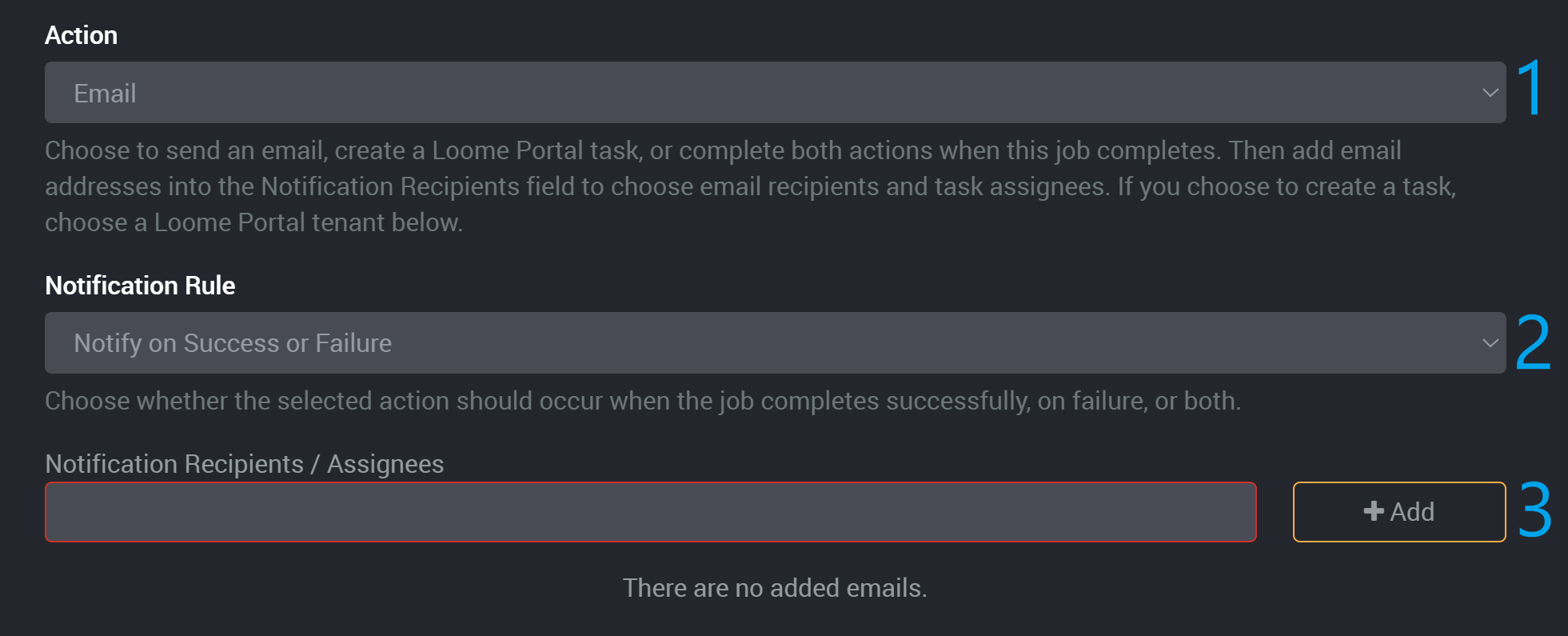
Action Conditions: On Success and/or Failure
Then choose whether a job will run your chosen action when it completes successfully, on failure, or for both statuses of successful or failure.
Currently Loome Integrate supports three different levels of configuration:
- On success or failure
- On failure
- No action
For example,
- The email notification rule can be used to configure job driven email notifications. This is where you can choose to be emailed or send an email to your provided recipients after a job is run.
- E.g., you can notify a user when a job has failed.
- The Loome Portal Task action will create a Loome Portal task after a job is run.
- E.g., you can create a task if a job has failed to follow up on its error.
- You can also create a Loome Portal Task and send an email notification.
- E.g., After a job has run, you can receive an email notifying you that a job has failed and automatically create a Loome Portal task with the follow up action for the failed job assigned to your chosen user.
| Rule | On Success | On Failure |
|---|---|---|
| No Action | No emails sent and/or no Loome Portal tasks created. | No emails sent and/or Loome Portal tasks created. |
| On Success or Failure | Emails sent and/or Loome Portal task created. | Emails sent and/or Loome Portal task created. |
| On Failure | No emails sent and/or Loome Portal tasks created. | Emails sent and/or Loome Portal task created. |
Please note that if you deselect emails for ‘Job Execution Completion’ in your notification settings, you will not receive an email even if you have chosen to receive emails on successful completion or failure of a job.
Recipients and Assignees
After you have selected your action and action condition, you can then enter a comma separated list of recipients who will receive the email notifications and/or be assigned to the Loome Portal Task.
Add emails individually and then click on the Add button.
Added email addresses will be displayed below.
Note that there is currently no guarantee that Loome Integrate’s emailing system will bypass spam filters so you will need to configure exceptions in some instances. Please check your spam folder and configure exceptions as required.
Retry Count
The retry count determines the number of times each task will be repeated if it fails on its first execution.
Provide a number in this field, which will be the number of times you want Loome to retry this job if it fails.
When one of your tasks fail, the job will automatically restart the task in the same execution and will use the retry count to keep sending it to the agent. It will repeat the task the amount of times you have chosen until it completes successfully or reaches the job’s retry count in failures.
Outcomes:
If the next attempt fails, it will repeat the amount of times you selected as the retry count number.
For example, if I chose three as the retry count and it failed on the first attempt, it will repeat three more times if the task continues to fail in each attempt.
If successful, it will not need to repeat again and will complete the job. Its status will be noted as ‘Warning’ as shown in the image below. This job status of ‘Warning’ still means that the job was successful, but the status differs to notify you that a job ran successfully on a repeated attempt and will indicate that there was an issue on previous attempts.
For example, if I chose three retry attempts for a job, and the job failed its first attempt but it completed successfully on the second attempt, it will stop there and will have run a total of two times with the status ‘Warning’.

Submit the Job
After you have modified your chosen fields, you can click Submit at the bottom-right.
This job will appear in the project and you can now add tasks.