Policies
Policies are used to automatically apply metadata to catalog assets and Loome Portal entities based on configurable conditions, so that assets are classified, categorized, and enriched as they enter the Loome catalogue — or at any point thereafter — without manual tagging.
Policies can be configured by an administrator and contain one or more segments (filtered data sets), trigger settings (after-sync, scheduled, or manual), and one or more actions (Apply Metadata, Create Task, or both — executed sequentially).
Learn how to:
How to Add a Policy
Click on Policies from the left-hand menu.
This page will display existing policies.
Click on Add New Policy at the top-right of the page.
(If it is your first time creating a policy, you can follow our in-app guide. Select the info icon at the top-right whenever you want to replay the ‘Add Policy’ tour.)
Information
On the first page, you can provide basic information for this policy. This information will help others understand the purpose and scope of the policy.
Provide a Name to easily identify the policy.
Choose whether the new policy should be enabled in the State field. This controls whether this policy is active in the Loome Portal tenant system.
Provide the objection of the policy in the Description field.
Segments
Next you can choose target segments.
Select the segments that define which entities this policy applies to. Multiple segments are combined using ‘OR’ logic.
Click on Add First Segment.
(If it is your first time creating a policy, the in-app guide for creating a policy segment will appear. If you would later like to start the in-app tour again, you can click on the info icon at the top-right.)
Give your segment a clear and descriptive name. This helps you identify it later when managing your policies.
From the Type dropdown, choose the type of entities this segment will include. This determines the entities you can filter on and select for this segment.
Choose from:
- Assets
- Content Adoption
- Data Pipeline Executions
- Resource Usage
- Quality Rule Executions
- System Syncs
- Policies
- Policy Executions
At the top-right of the entity table, select a layout of ‘Table’ or ‘Hierarchy’ that best suits the type of entities you are working with. Different layouts can help you visualize and manage your entities in the table more effectively.
Filter through the list of entities using the headers of the table, and select the ones you want to include in this segment. You can use the search and filter options to find specific entities quickly.
After you’re happy with your segment configuration, click Save Segment to save your changes, or Cancel to discard them.
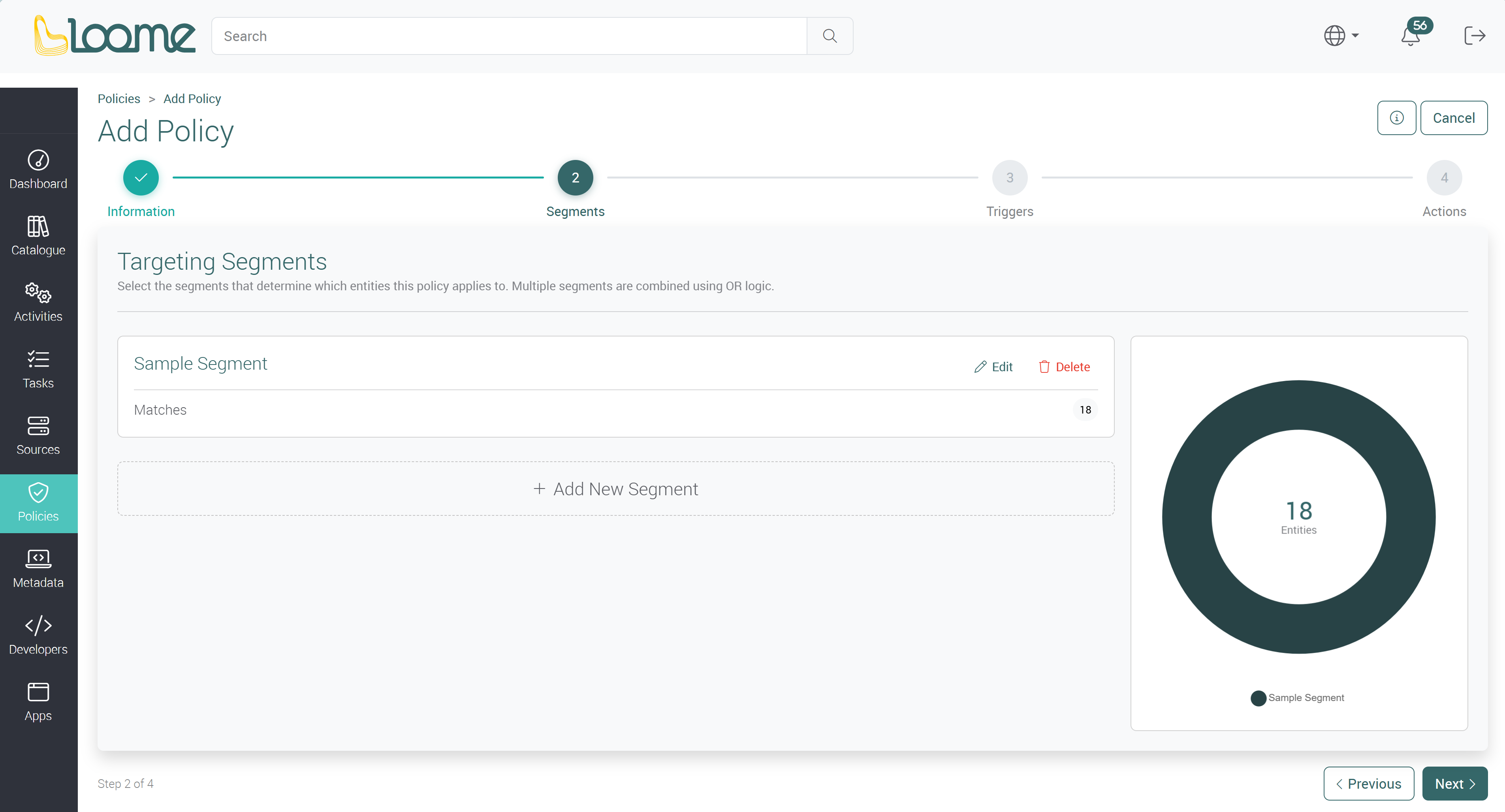
After it has been added, you can view the number of entity matches for the segment. You can also edit and delete the segment on the right of each segment row.
You can add another segment using Add New Segment.
A preview summary of all created segments will appear on the right.
Triggers
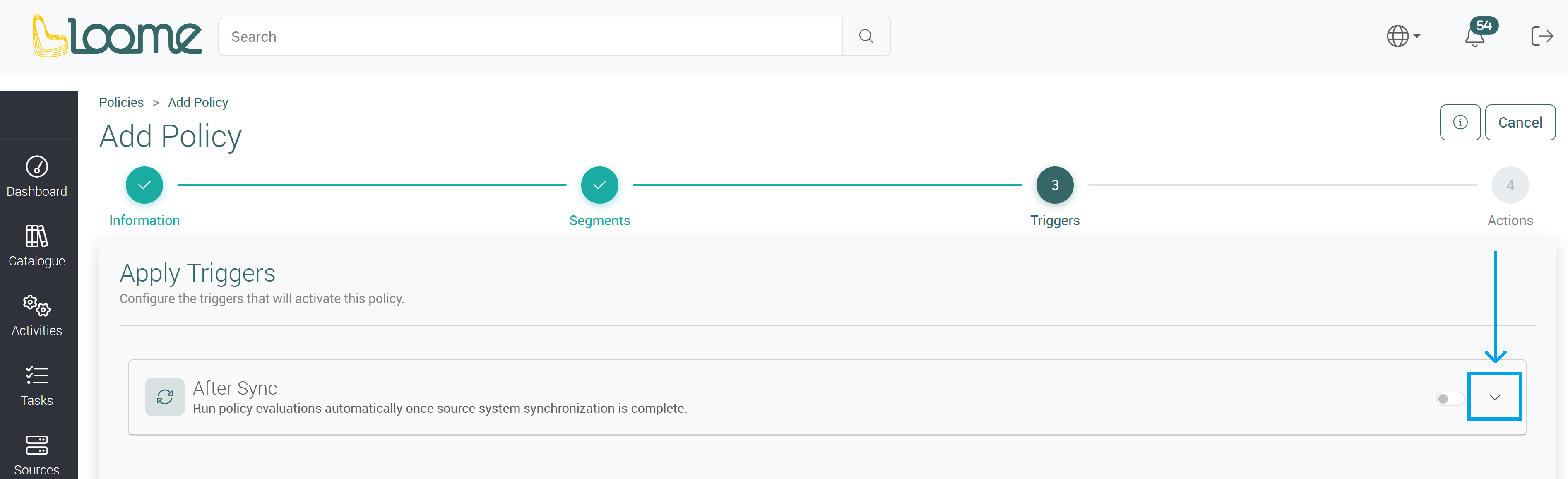
Next, choose the triggers that will activate this policy.
Click on the toggle beside After Sync to choose this as the trigger. Loome will run policy evaluations automatically once source system synchronization is complete.
Then choose the source systems that will cause this policy to run.
Click on the checkboxes beside your selected source systems.
You can also run a policy manually and you can create a schedule for the policy on the policies page.
Actions
Next, define the sequential actions that will be executed by this policy when triggered.
- Apply Metadata
- Apply metadata to the entities that triggered the policy.
- Create Task
- Create a task to follow up on the entities that triggered the policy.
Apply Metadata
Click on Apply Metadata in the actions dropdown.
Apply Attributes
In the ‘Attributes’ tab, you can configure an attribute list. The attributes you set here will be applied to every matched entity.
Automatic Entity Linking: If a selected attribute isn’t currently linked to the entity type, the system will automatically connect it after the policy runs.
Browse the attribute catalog to select the attributes you want to set in bulk. First, click on Browse Attribute Catalog or click on the attribute catalog in the left panel.
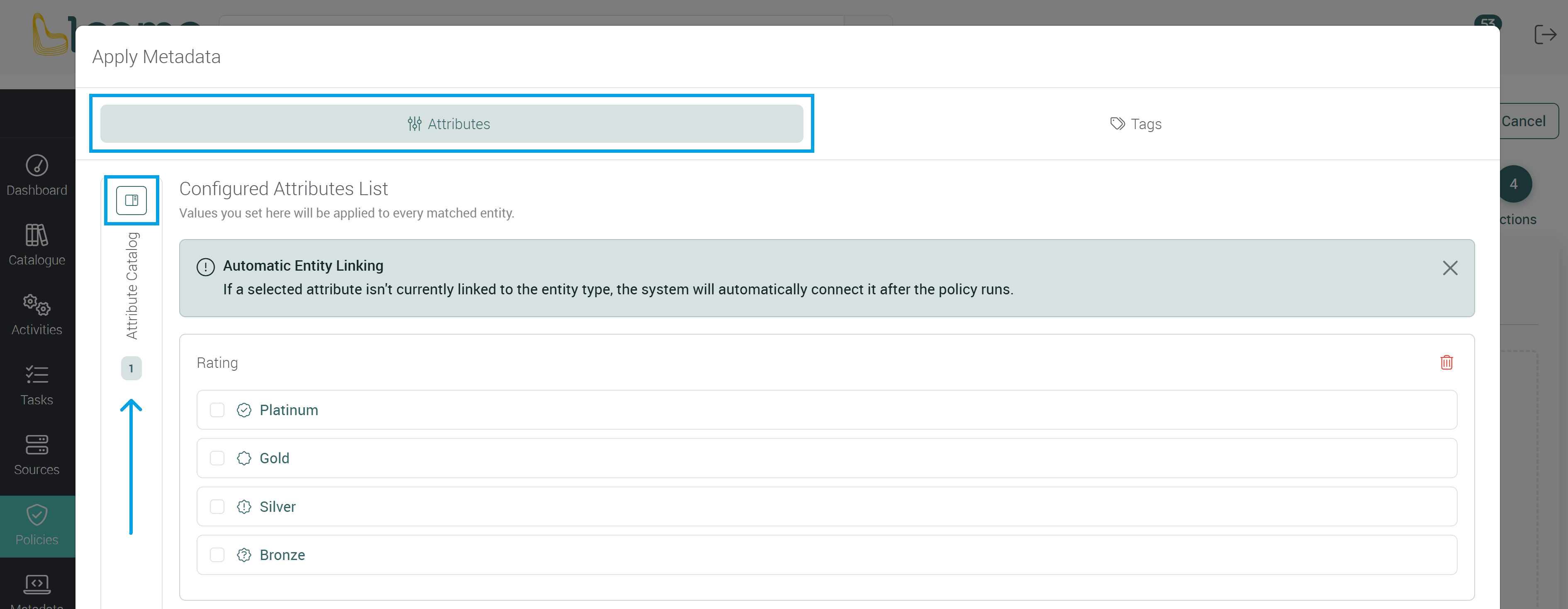
In this Attribute Catalog, you can browse and select attributes.
You can search or use the attribute type filters at the top of the attribute list.
Select the checkbox beside the attributes you would like to apply.
Selected attributes can then be configured on the right.
You can set the attribute here and after the policy runs, it will be applied to all entities.
Choose to Overwrite or Keep Existing values for all applied entities. ‘Overwrite’ will replace all attribute values, and ‘Keep Existing’ will keep existing attribute values and add the values to empty attributes.
You can also delete an attribute from the list on the right of the attribute.
Apply Tags
Click on the Tags tab at the top to apply tags.
These tags will be applied to every matched entity.
Existing tags on the entity will be preserved. Any new tags added will be appended to the current tags.
Select or create a tag by typing it into the tag field. Existing tags related to your entered term will be shown in the dropdown. You can choose an existing tag or choose the new tag you have entered.
When you are ready, click on Save on the bottom right.
Create Task
You can also create a task to follow up on the entities that triggered the policy.
Provide the task information and click Save. (You can create a task following the steps here.)
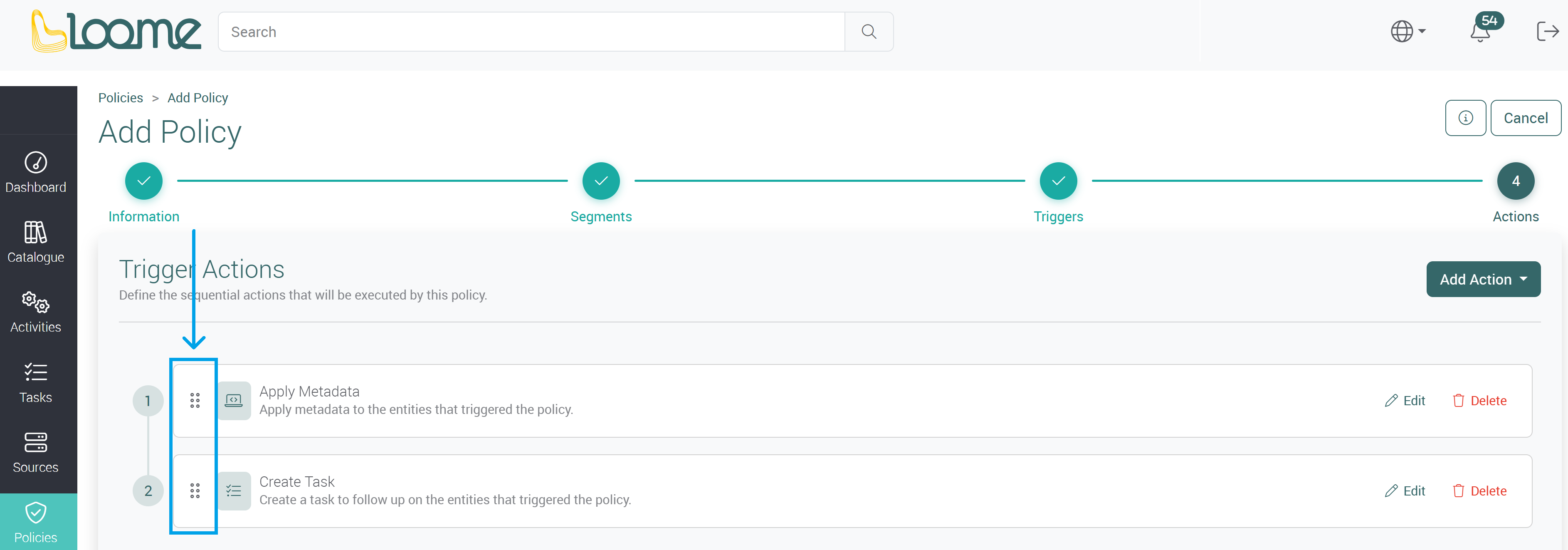
These actions are sequential, and you can drag each action on the left to change the order the actions are completed.
Save Your New Policy
When you have completed these fields, click on Save at the bottom-right of the page.
When the source systems you selected above are synced, this policy will run and apply your chosen actions.
Manage Policies
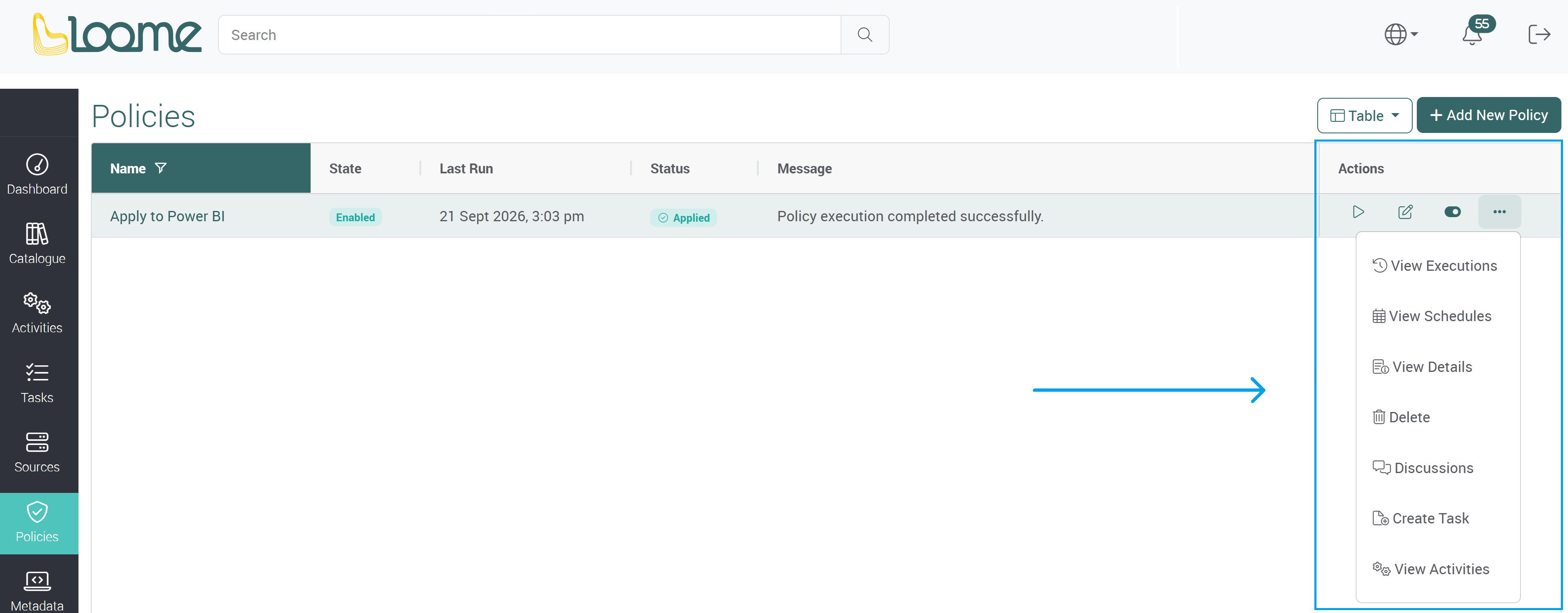
On the policies page, you can manage existing policies and view when it was last run, whether a policy is enabled, skipped or applied.
On the right of each policy, in the actions panel you can choose to:
- Run a policy
- Edit
- Disable a policy
- View executions
- View schedules
- View details
- Delete
- Discussions
- Create task
- View activities