Add a New Source System
Follow these steps to add a new source system to Loome Portal. Find a detailed guide on integrating to Azure Data Factory and Microsoft Fabric here.
Add a New Source
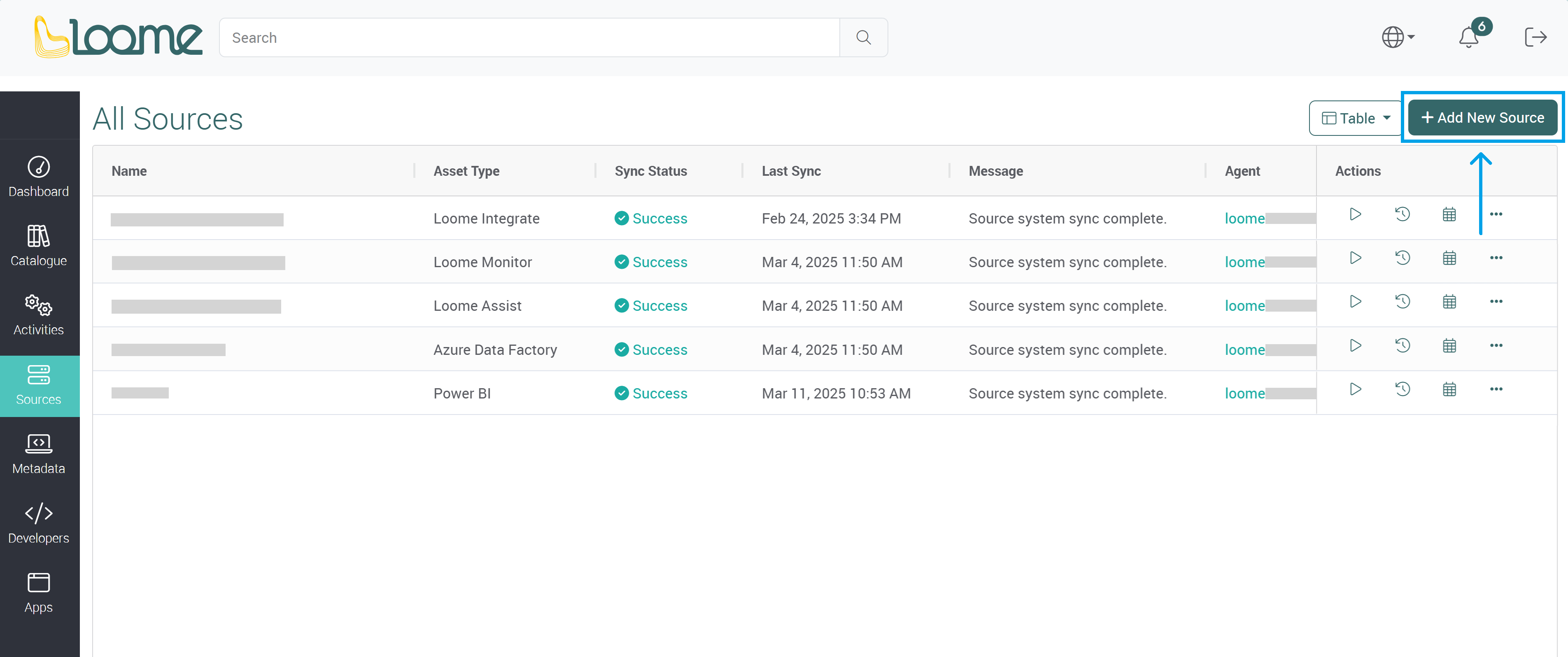
Click on Add New Source at the top-right of the page.
Choose a source system type from:
- Loome Integrate
- Loome Monitor
- Loome Assist
- Azure Data Factory
- Microsoft Fabric
- Tableau
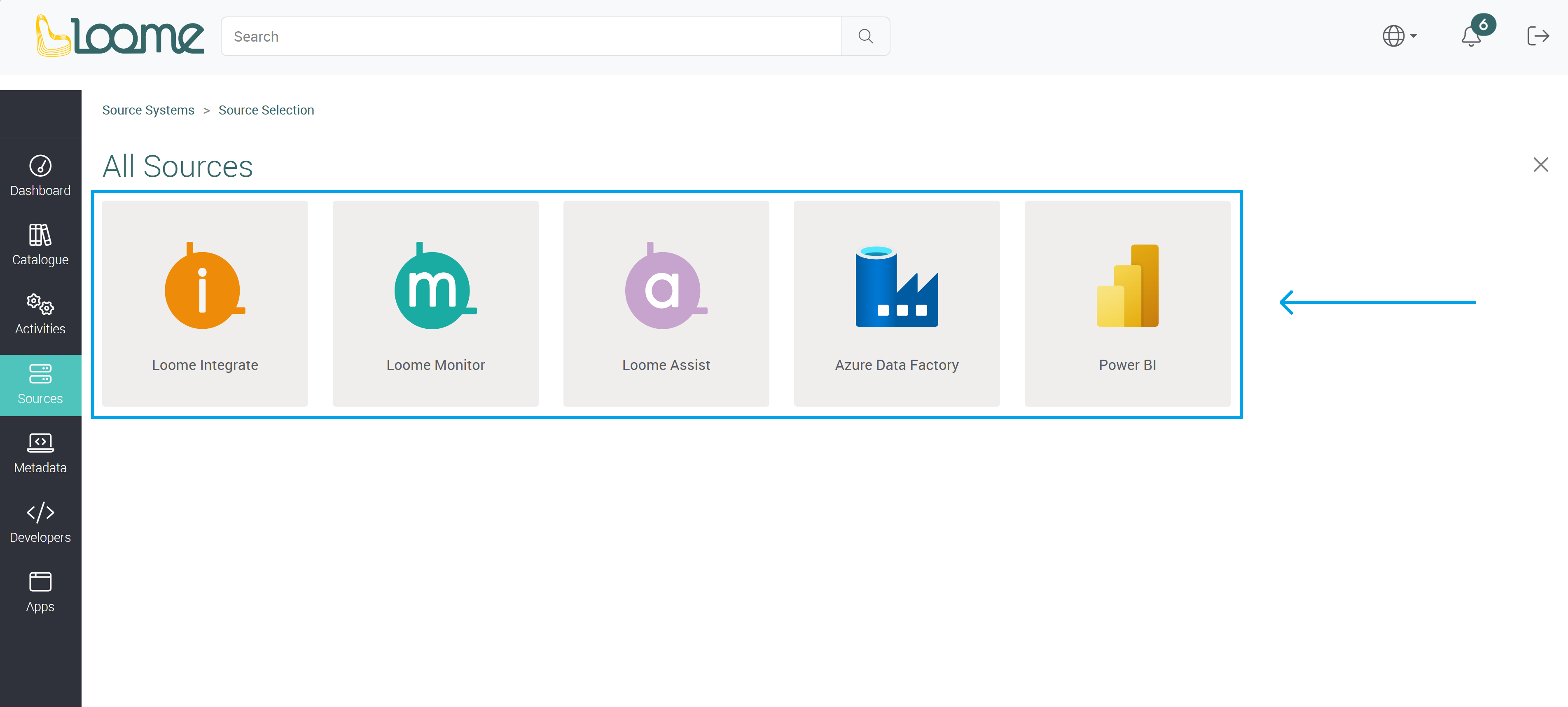
Each source system type will have its own required fields.
Loome Integrate, Loome Monitor and Loome Assist
Loome Integrate, Monitor and Assist will need the following two sections to connect, ‘Configuration’ and ‘Tenant and API Key selection’.
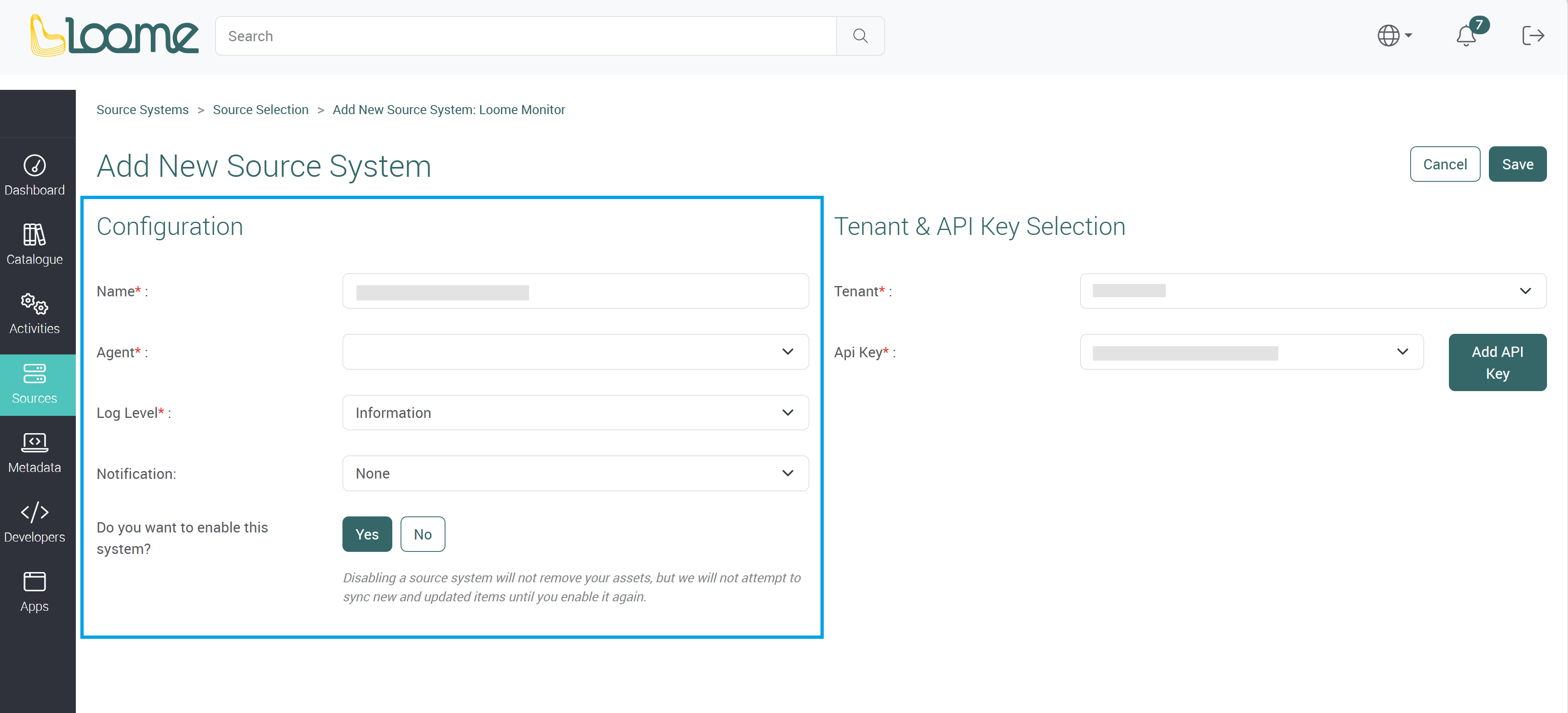
Configuration
Provide the name of the source system.
Choose an agent from the dropdown that will be able to access this source system.
Choose the log level of ‘Information’ or ‘Debug’. Information will provide a general level of logs for a sync, while debug will provide further logs.
Choose whether to enable notifications for this source system.
Choose to enable or disable this source system.
If you disable a source system, Loome will not remove your assets, but it will not attempt to sync new and updated items until you enable it again.
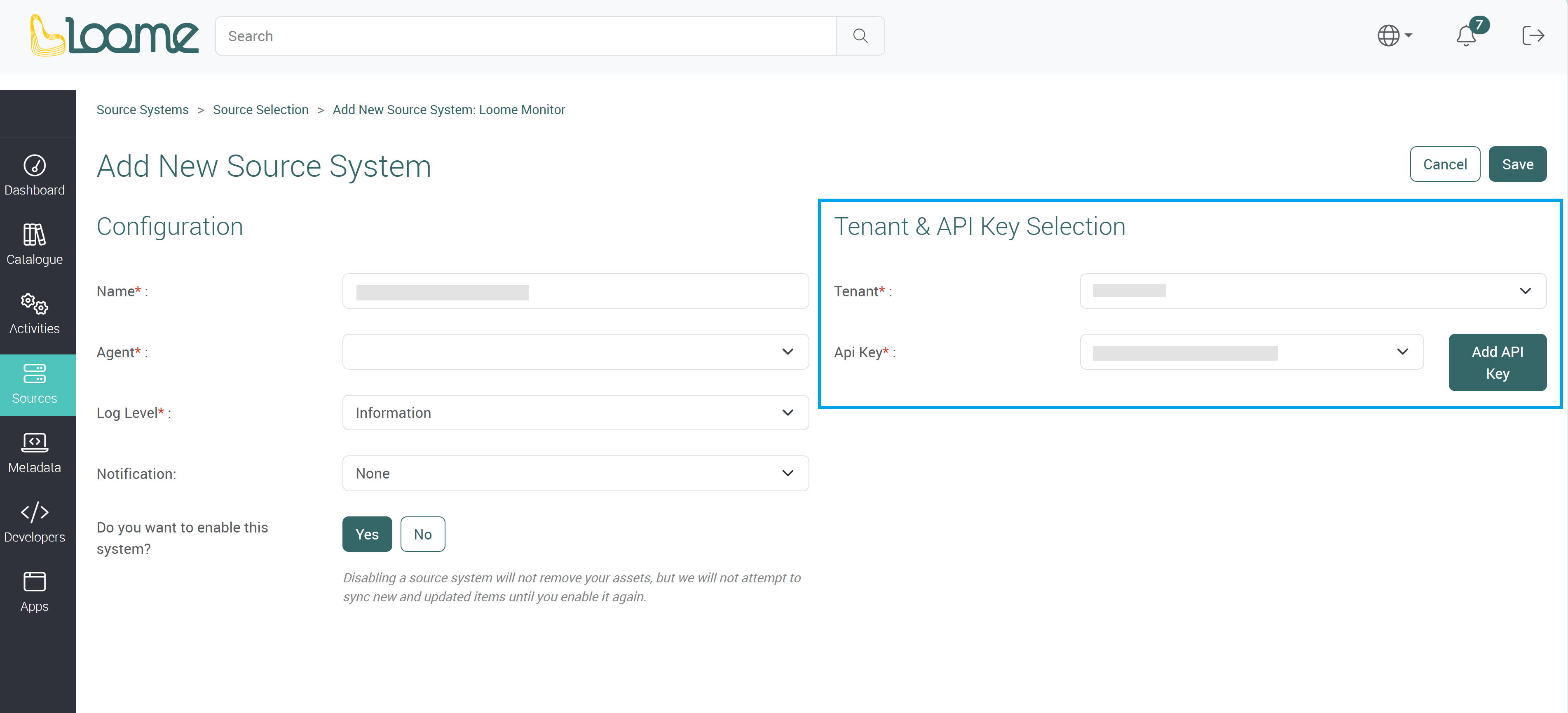
Tenant & API Key Selection
Choose the tenant of your source system that you want to source your assets from.
Choose the API Key from the dropdown or create a new API Key.
Azure Data Factory and Microsoft Fabric
Azure Data Factory and Microsoft Fabric will need additional fields to connect to these sources.
You will also need to complete the Configuration section, but you will also need to provide authentication and other fields.
Azure Data Factory
Authenticating to ADF
Choose whether you want to authenticate via ‘Service Principal’, or ‘User Assigned’ by selecting it from the tabs at the top of the authentication section.
Service Principal
To connect to your Azure Data Factory via Service Principals, please provide your Tenant Id, Client Id and Client Secret.
This will provide the accessible subscriptions and factories in the next dropdown. Learn more about service principals here.
Choose your Subscription from the dropdown.
Choose your Factories from the dropdown.
User Assigned
You will need to have configured a managed identity of User Assigned in Azure for the Loome Agent that will be used with this source system. Learn more about configuring Managed Identity in Azure here.
The Loome agent selected for this source system will provide available options in the dropdowns below.
Provide the Managed Identity Client Id.
Choose your Subscription from the dropdown.
Choose your Factories from the dropdown.
Variable Configuration
Choose whether you want to Exclude Set Variable Activities?
This will exclude any set variable activities associated to a copy activity from being synced in when set to ‘Yes’.
Choose an Asset Variable Name. If you provide a name in this field, it will replace the copy activity name and the job instance name.
You can add Additional Variables by providing the variable and then clicking on Add beside it. These are the other pipeline variables in any set variable activity, and they will be shown as properties on the detail page.
Microsoft Fabric
Authenticating to Microsoft Fabric using Service Principal Configuration
Authenticate to Microsoft Fabric using a Service Principal. (Learn more about configuring Managed Identity in Azure here.)
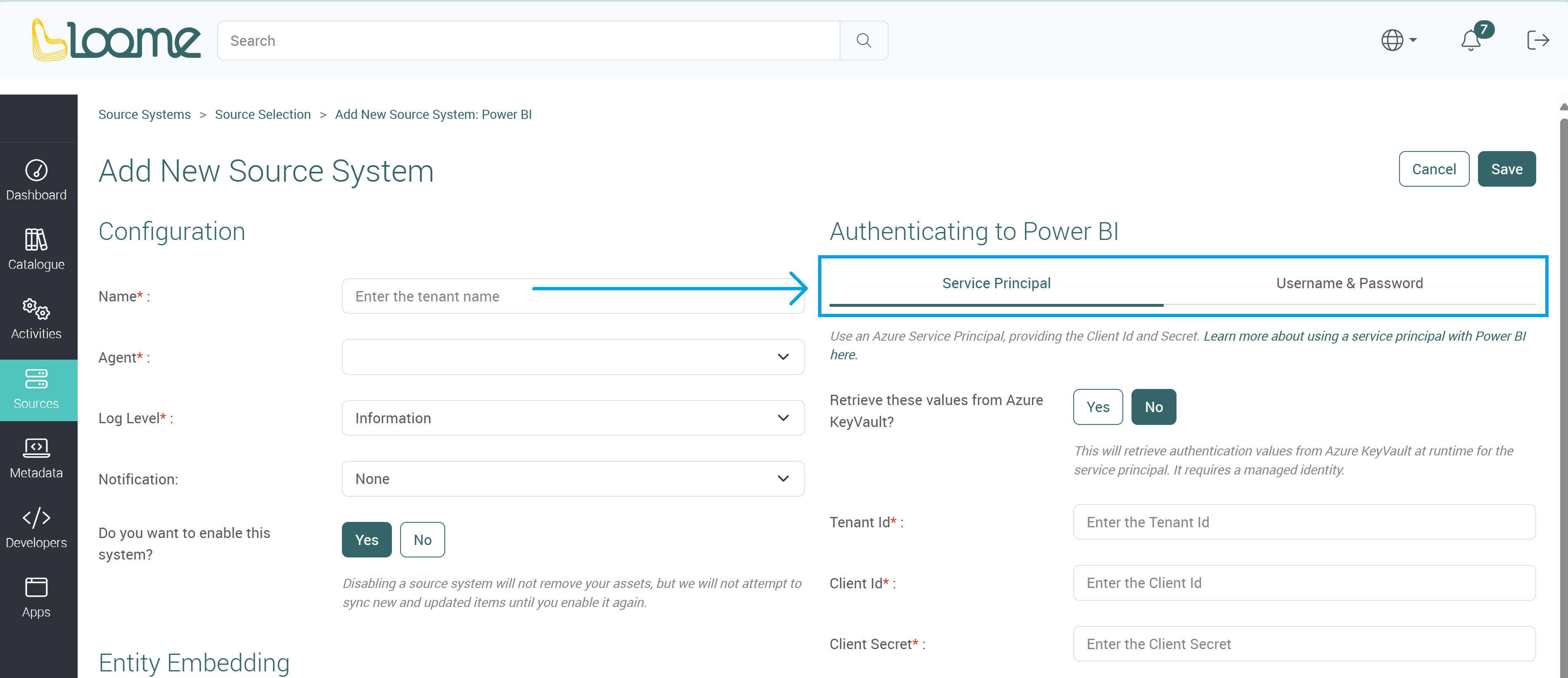
You can use an Azure Service Principal, providing the Client Id and Secret.
Provide your Tenant Id.
Provide your Client Id.
Provide your Client Secret.
Entity Embedding
Choose whether you want to enable embedding via Do you want to enable embedding?. If enabled, assets will be available to view in the Portal. Otherwise, you will be directed to the source system to view the asset.
Please note that Apps are currently not available for embedding due to limitations in the Microsoft Fabric embedding framework.
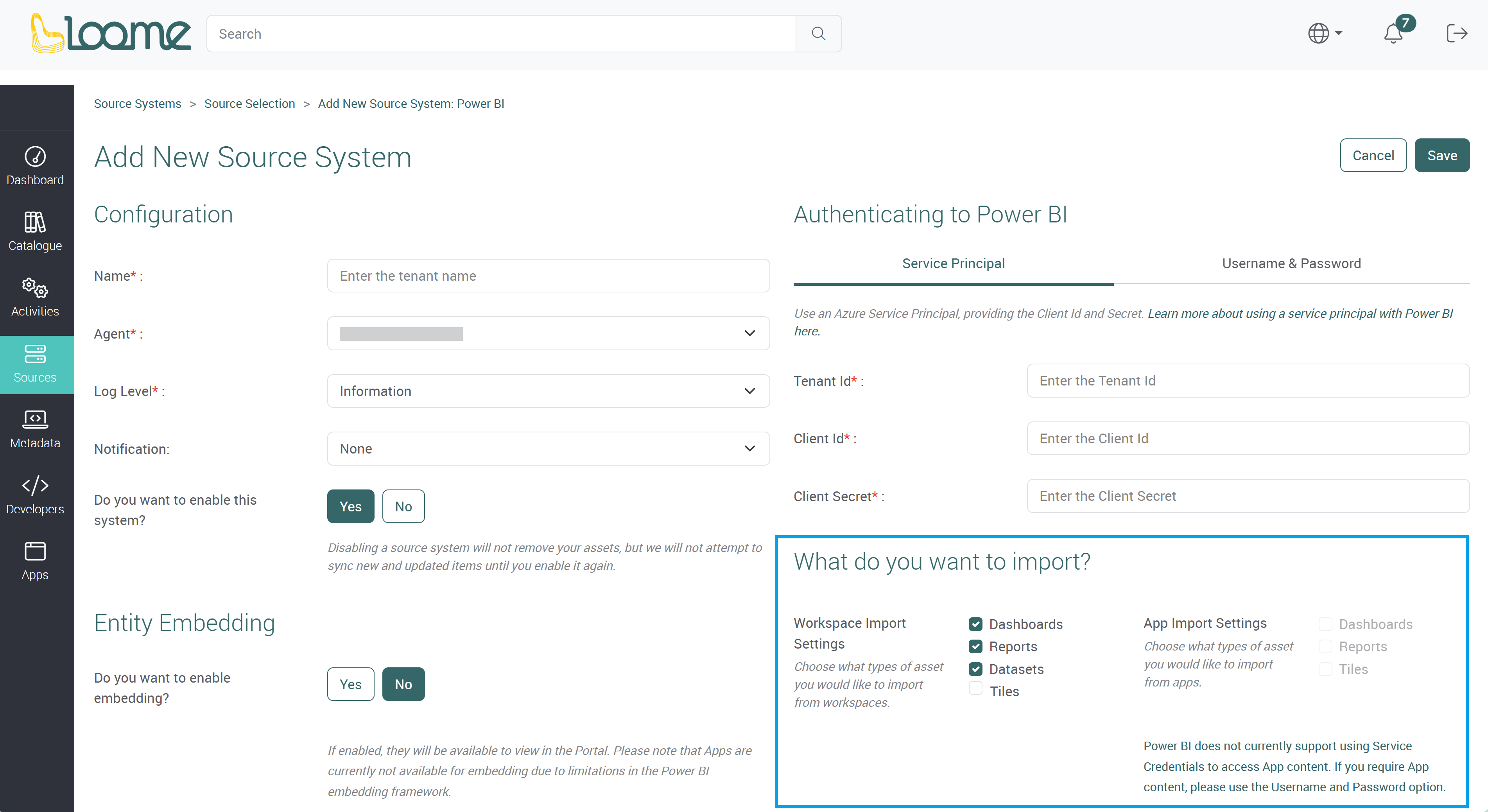
What do you want to import?
You can then choose what you want to import from the workspace or app.
Choose your Workspace Import Settings and what types of asset you would like to import from workspaces.
- Dashboards
- Reports
- Datasets
- Data Pipelines (The service principal requires at least a Contributor role in the workspace. The workspace’s Fabric capacity must also be running.)
- Data Pipeline Activities (The service principal requires at least a Contributor role in the workspace. The workspace’s Fabric capacity must also be running.)
- Data Pipelines must be selected to select Data Pipeline Activities.
You can choose the types of assets you would like to import from apps using the App Import Settings.
- Dashboards
- Reports
Tableau
To add Tableau as a source system, you will need to have the following prerequisites ready.
Prerequisites
- Configuring Connected Apps with Direct Trust. (Learn more here: Configure Connected Apps with Direct Trust - Tableau)
- Configuring Personal Access Tokens. (Learn more here: Personal Access Tokens - Tableau)
- Have a copy of the PAT Name and PAT Secret (Note that the secret is only shown once during creation).
- Have the details for your chosen authentication method ready for the next section.
Setting Up a Tableau Source System in Loome
To add a new Tableau source system, click on Add New Source System at the top-right of the page.
You can then follow these steps:
- Provide a Source System name.
- In the ‘Service details’ section,
- Fill in the Server URL for your Tableau instance.
- Fill in Site Id (This is optional if the Authentication mode is set to ‘PAT’. It will be set to your default Tableau Server instance.).
- Set Sync Tags setting.
- Set Ignore Tab Visibility setting.
- In the ‘Authenticating to Tableau’ section,
- If you choose Direct Trust, fill in the following fields with the prerequisites from earlier:
- ClientId
- SecretId
- Secret
- User
- If you choose PAT, fill in the following fields with the prerequisites from earlier:
- PAT Name
- PAT Secret
- If you choose Direct Trust, fill in the following fields with the prerequisites from earlier:
- Choose the assets you want to import by selecting the checkboxes.
Embedding Configuration
When you turn on embedding, you can choose the authentication mode for viewing assets in the Loome Portal.
- When the source system sync’s authentication mode is set to Direct Trust (Connected App), embedding will re-use the details of the Connected App.
- When the source system sync’s authentication mode is set to PAT, you can choose the ‘Connected App’ details from earlier as the authentication for embedding or you can allow the user to log on by choosing Delegated Sign On.
Access Level restriction and Domain whitelisting on the Connected App will only affect embedding workflows. You can learn more details here: Configure Connected Apps with Direct Trust - Tableau.