Install an Agent
Install an Agent
To add an agent you will have to download and run the Loome agent installer for your platform of Windows, Linux, Docker Run or Azure Container instances.
Learn how to:
- Install the Agent in Windows or Linux
- Install the Agent as a Container, such as Docker Run or Azure Container Instances
- Update your agent
Initial Steps for All Platforms
For all platforms, in Loome Management, click on Agents in the left-hand menu.
Existing agents will be listed here.
You can add a new agent at the top-right of the page. Click on Add Agent.

Choose a platform for the agent from the tabs at the top of this section. This is the environment where the agent will be deployed.
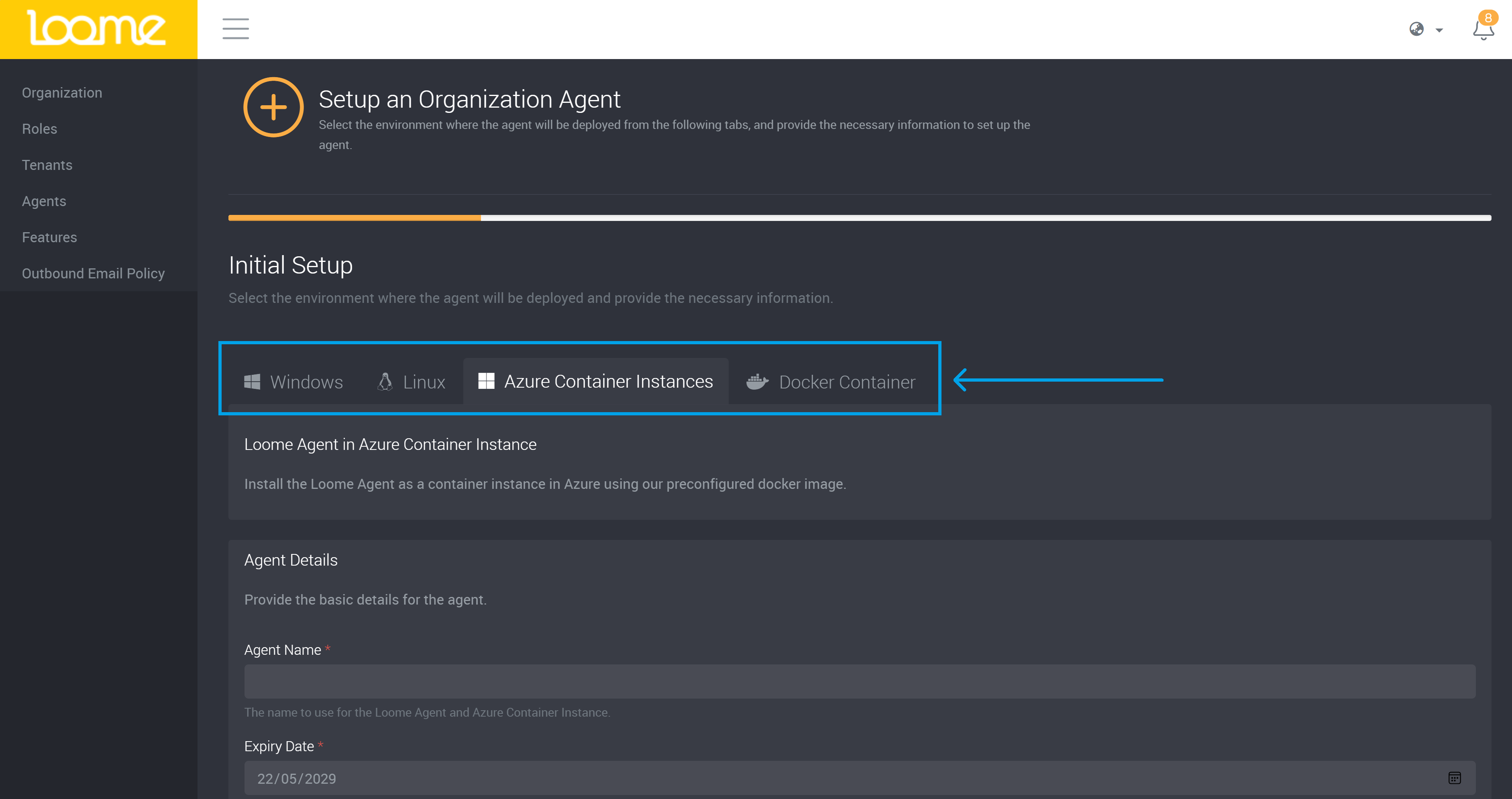
Provide a name for the agent. This should be unique and easily identifies this agent. It may only contain letters, numbers, dashes, and dots.
Choose an Expiry Date. You can also click on the calendar on the right of the field to choose from a date selector.
Provide a description for the agent.
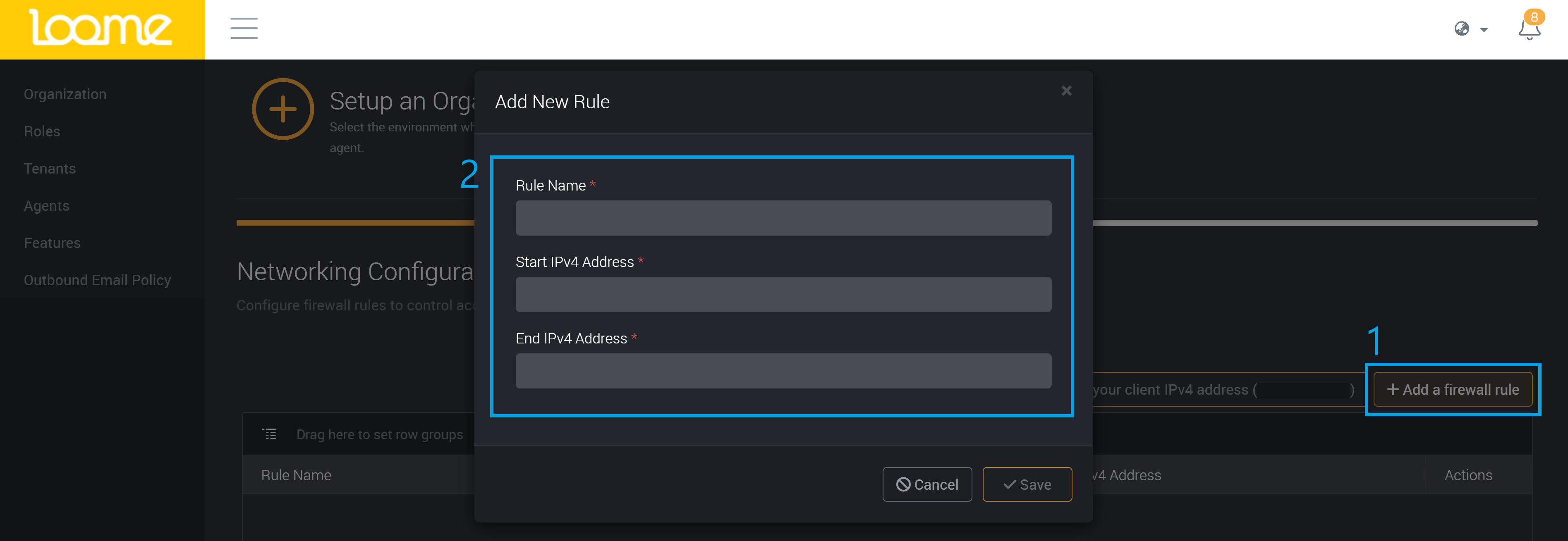
On the next page, choose to add networking configuration: - You can choose to add your own client IPv4 address at the top-right of the table. - You can also add firewall rules. You can add a range of IPv4 addresses. - Provide a name for the firewall rule, and then choose a start and end IPv4 address.
If applied, the agent can be accessed from these IPv4 addresses.
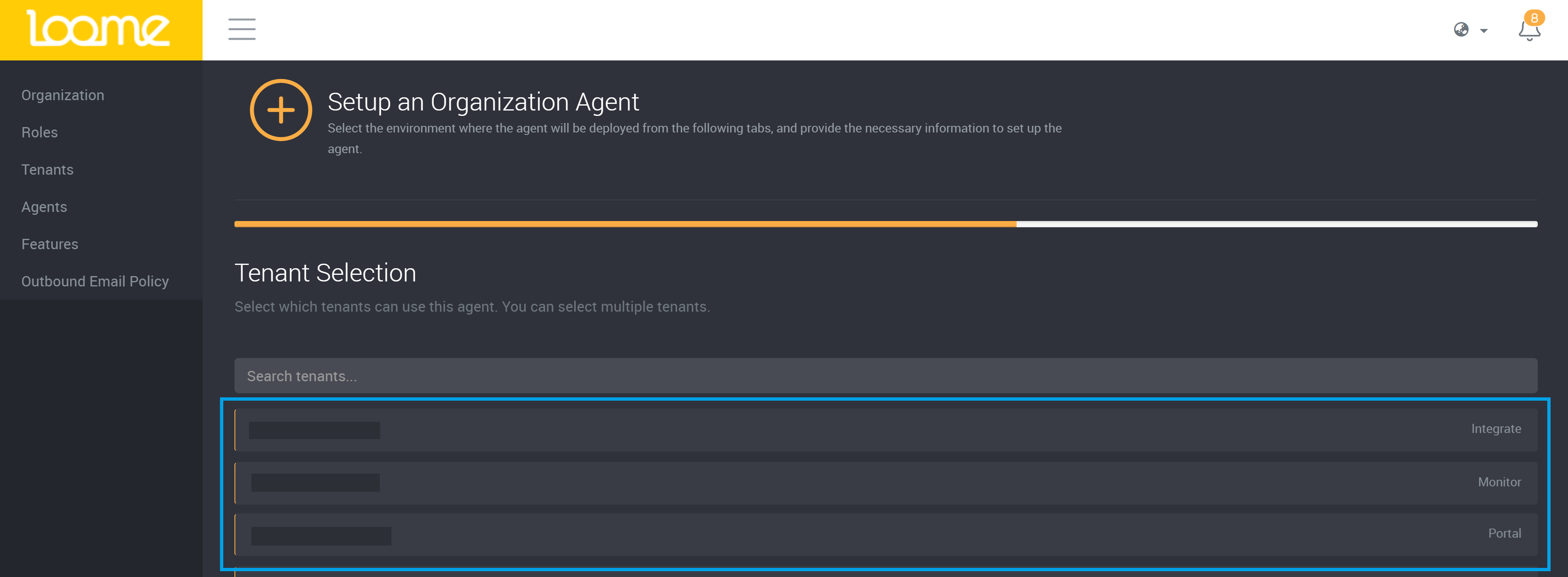
Next, select which tenants in your organization can use this agent.
Click on the tenants from the list. You can also type in a name in the search field to search for a tenant.
The tenant module type of Loome Integrate, Loome Portal, Loome Monitor, or Loome Assist will be indicated on the right of the row.
Review your agent details and then click on Create Agent to create the agent.
Installation Instructions
Follow the instructions on the next screen to install and configure your agent on your selected environment.
You can then follow the prompts in the installation wizard for your chosen platform.
Installing the Agent in Windows or Linux
The agent can be installed in a Virtual Machine on-premises or in the cloud and run as a Windows service or Linux service.
The best place to install the agent is where it can access both source and target data.
Download the Agent Installer
We will provide you with a PowerShell installer script that is preconfigured to connect back to the selected tenant/s.
In the first step, click on Download Agent Installer.
Agent Installation Script
In Windows, you will need to open PowerShell as Administrator, we need to install a Windows Service and this requires Administrator privileges. While in Linux, the agent can be installed in a Virtual Machine on-premises or in the cloud and will run as a Linux service. The best place to install the agent is where it can access both source and target data.
You might require additional configuration, such as outbound firewall rules, you can find more info here. You will need to do this before running PowerShell Core to ensure the agent installer runs with the right permissions.
- In Windows, open PowerShell as an Administrator in the folder that contains the new Loome agent installer.
- In Linux, open an elevated shell in the directory of the new installer, and then run PowerShell Core.
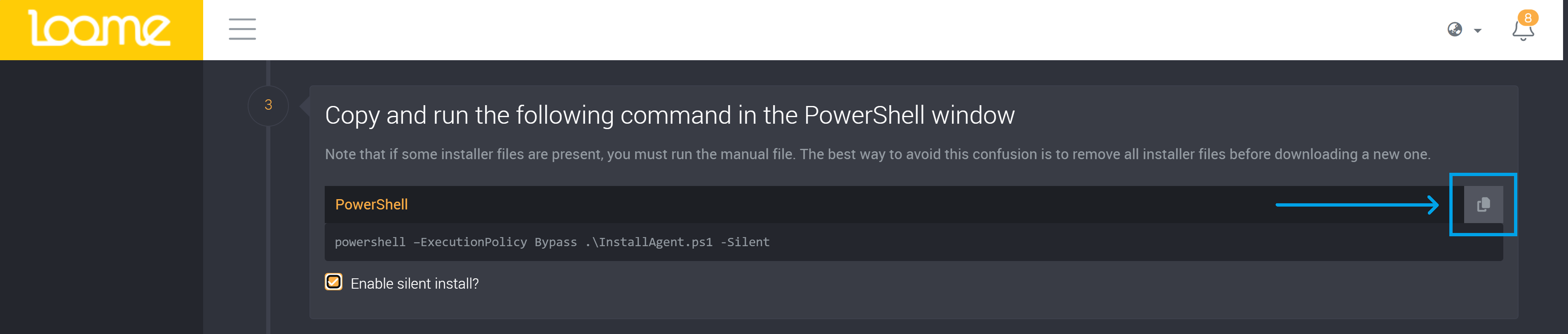
Copy and run the command, which you can copy from Loome after you have chosen a platform, into your Administrator PowerShell Window in Windows or PowerShell Core in Linux.
If other Loome agent installer files are present in this folder, you must run the newest file. The best way to avoid any confusion is to remove all installer files before downloading a new agent.
Silent Install
You can also use the script with the silent install option. It will proceed with the agent installation by selecting the default options for the prompts. It will choose “Y” for confirming the installation of the agent, “N” for installing SnowSQL (for use with Snowflake Cloud Data Warehouse), and “N” for using Microsoft Genomics.
To use silent install, select the checkbox beneath the install script in Loome.
Run the Script
After you have run the script, it will download the newest version of the agent whilst removing older versions for the tenant. (If you are upgrading an agent, the script will remove the previous version.)
You may be prompted to install additional components during the installation. These are optional components.
If you decide you want to install an optional component later, you can run the installation script again.
It will start the service and complete installation.
You are then ready to use this agent.
If the agent is unhealthy in Loome, first refresh the page and if it is still unhealthy please restart the service.
Linux - Optional: Setup Kerberos Authentication
If you want to use Kerberos authentication with any Loome connections and don’t want to manually create Kerberos tickets, you can create KeyTabs for the Loome agent.
Run ktutil as a super user and run the command from Loome on the Linux agent installation page. Make sure you replace USERNAME and DOMAIN.
Completing Additional Configuration in the Azure Portal
For Loome Assist, before we can use the agent, we need to complete additional configuration on the Azure Linux VM or Azure Windows VM containing the Agent.
We will configure the Agent with a Managed System Identity, and then provide it permissions to provision and manage resources within the Subscription.
Installing the Agent as a Container, such as Docker Run or Azure Container Instances
Docker - Loome Agent in Docker Container
Install the Loome Agent as a container on any Docker engine using our preconfigured docker image.
After you have provided the name and description as above, provide some basic details about the container:
- Container Name - The name to use for the container and the Loome Agent. This will be the same as the name of the agent provided above.
- Docker Image location - From the dropdown, choose where the Loome Agent image should be pulled from.
The Loome Agent can be installed on a Docker engine using our preconfigured docker image. The best place to install the agent is where it can access both source and target data. The official Loome Agent image is available from the Docker Hub at loomesoftware/agent. Docker Agents are configured entirely through environment variables/secrets so there is no need to mount additional volumes for configuration files. Using the Docker installation screen, you can generate shell commands that will pre-configure the Docker based agent to automatically run and connect to your tenancy.
You might require additional configuration, such as outbound firewall rules, you can find more information here.
Run the Docker command to install the agent. Copy the script on the right.
Whilst Loome only generates commands for certain installation options, the agent is compatible with any Docker based platform.
To update agents being hosted in Docker, just run the same installation script again. Learn more about updating agents here.
Using Docker Run
The Docker Run tab provides a generated command for installing the agent using docker run. This command by default will run the
agent as a detached background service which will automatically restart with the host PC’s restart.
Whilst the Docker Run command provides all environment variables inline with the -e switch, these environment variables can be
used to host the agent using other means such as an envlist or orchestration engines like Docker Swarm and Kubernetes.
Using Azure Container Instances
The Azure Container Instances (ACI) tab provides a generated command for creating an ACI resource for the agent.
The command provided needs to be ran in an instance of the Azure Cloud Shell or a connected Azure CLI, a valid resource group name is also required for billing purposes.
SQL Server may require a firewall exception for the container. To get a containers public IP address, execute the following command in the Azure Container instance: curl ifconfig.co
Provide the details needed for where you want to deploy the agent:
- Provide a Container Name.
- Choose an Azure Region from the dropdown.
- Provide the name of an existing resource group where this container will be provisioned in the Resource Group field.
- Choose where the Loome agent image should be pulled from in the Docker Image Location dropdown.
Next, optionally choose the size of the container instance. You can change the provided values if you want to modify the resources available to the agent. If you do not change these values, the size of the container instance will be the default size.
- Provide a number of CPU Cores to allocate to your container. (You can choose between 1 - 8 CPU Cores.)
- Provide the amount of memory to allocate to your container. (You can choose between 1 - 32 GB.)
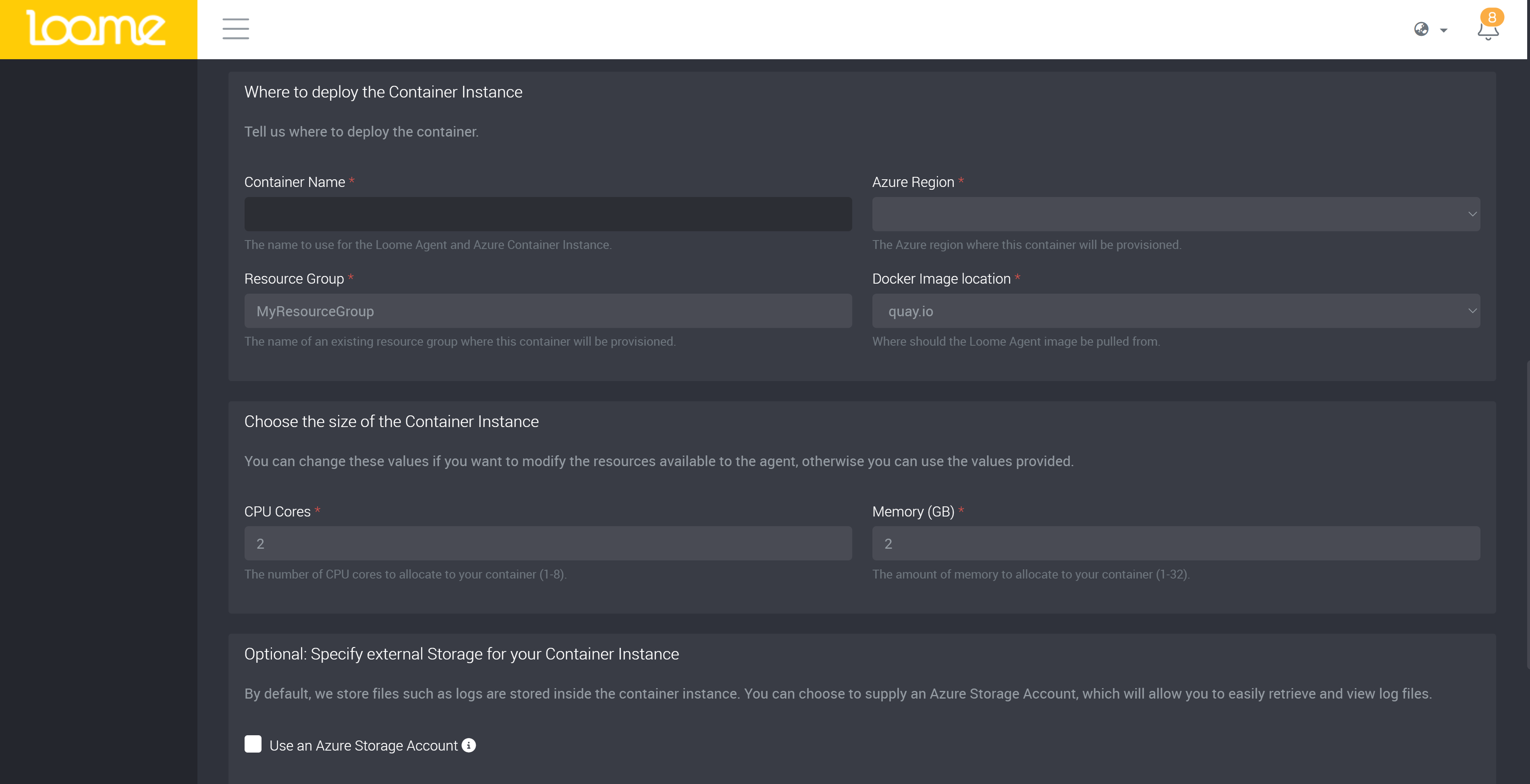
Next, you can specify optional configuration for the agent.
Choose whether you want to:
- Specify external storage for your container instance.
- By default, we store files, such as logs, inside the container instance. You can choose to supply an Azure Storage Account, which will allow you to easily retrieve and view log files.
- Click on the checkbox for Use an Azure Storage Account to specify this.
- Then provide:
- ‘Storage Account Name’ - The name of the Azure Storage Account where you want to store agent files.
- ‘Storage Account Key’ - One of the access keys for your storage account.
- ‘Fileshare Name’ - The name of the Azure Fileshare where you want to store agent files.
- Then provide:
- Specify Azure Virtual Networking for your Container Instance.
- If you do not use Azure Virtual Networks you can skip this step.
- Click on the checkbox for Use Azure Virtual Networking to specify this.
- You can then:
- You can supply the names or IDs of an existing Azure Virtual Network and Subnet in Azure Virtual Network ID or Name or Azure Subnet ID or Name
- If the Azure Virtual Network and Subnet reside in the same Resource Group, you can provide the names of Azure Virtual Network and Subnet.
- If the Azure Virtual Network and Subnet reside in a different Resource Group, you will need to use the fully qualified Azure Resource IDs of the Azure Virtual Network and Subnet.
- You can supply the names or IDs of an existing Azure Virtual Network and Subnet in Azure Virtual Network ID or Name or Azure Subnet ID or Name
- You can then:
- Assign a User Assigned Identity to your Container Instance.
- By default, we will enable a System Assigned Identity and you can use this Identity to provide the Loome Agent access to resources in Azure.
- If you prefer to use a User Assigned Identity, you can provide the fully qualified Azure Resource ID in the Azure Resource ID of the User Identity field.
After you have configured the Agent with a Managed Identity, you will need to provide it with permissions to provision and manage resources within the Subscription. Learn about the roles and permissions you will need to provision here, as well as the reasons these permissions are required.